Unzip files on Windows 10
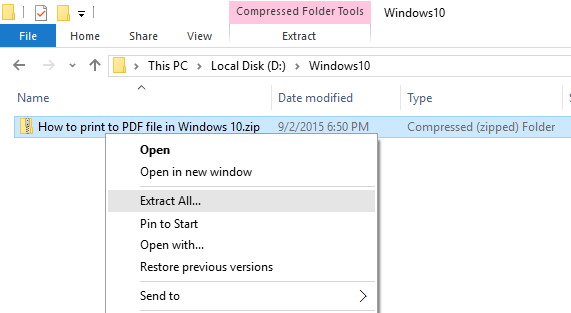
- Right-click on the .zip file that you want to unzip (decompress), and click on “Extract All” in the context menu.

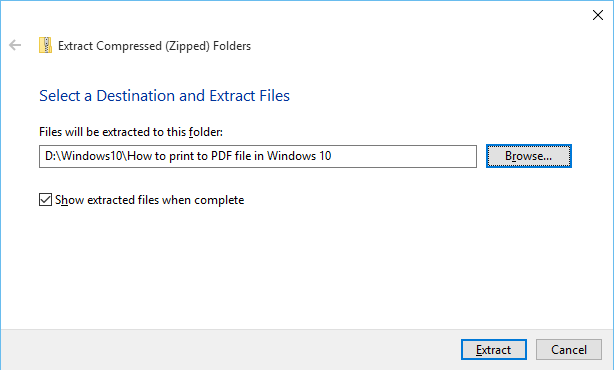
- In the “Extract Compressed (Zipped) Folders” dialog box, enter or browse the folder path where you want files to be extracted. Check the “Show extracted files when complete” checkbox to open the extracted folder after zip extraction is complete.
Click on the “Extract” button to start the extraction.
Unzip files on Windows 7
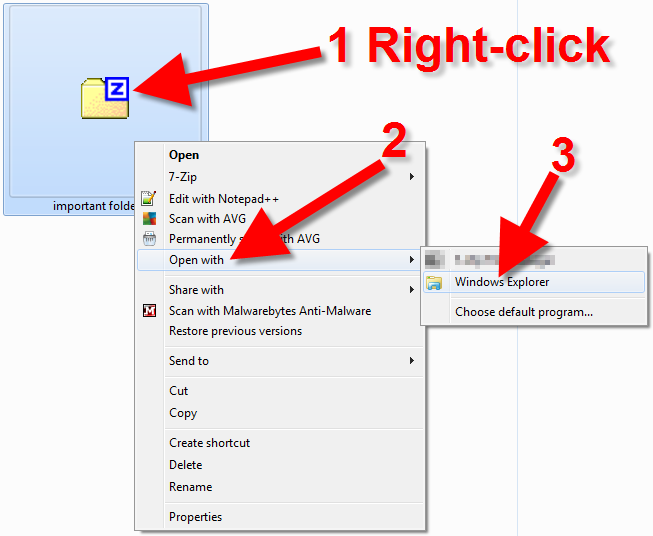
- In Windows 7, please navigate to the zipped (compressed) file you want to Unzip and right-click it.
- On the menu that pops up, roll your mouse over Open with , then click Windows Explorer .

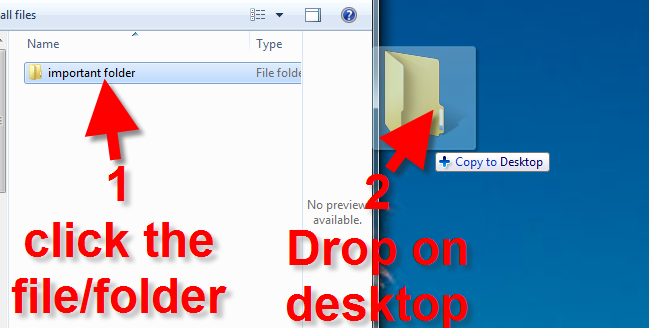
- You will then see the contents of the zip file. Click the file and drop it on your desktop or another file location. The contents of the file will be unzipped, and you can then use it as needed.

Unzip files on Mac
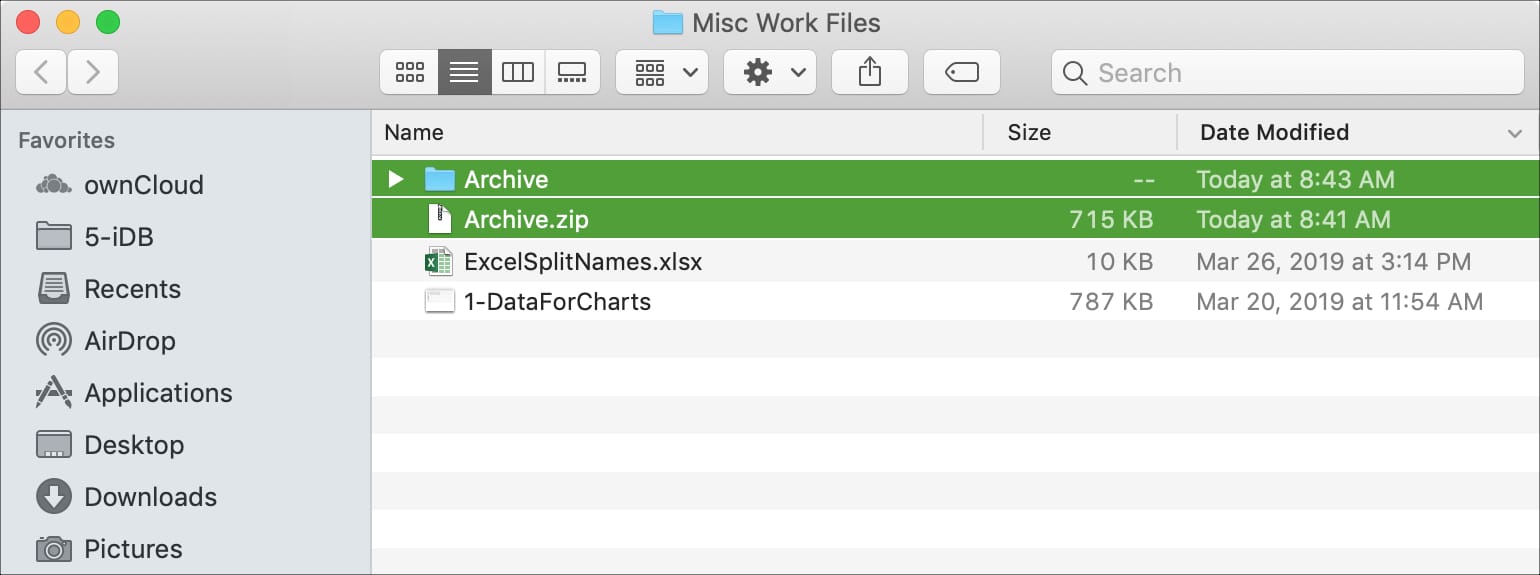
- Double click the zipped file.
- The file will automatically be decompressed by Archive Utility into the same folder the compressed file is in.
- Access the extracted files by clicking the appropriate icons.

Unzip files on Linux
Install Unzip
Unzip is not installed by default in most Linux distributions, but you can easily install it using your distribution package manager.
Install Unzip on Ubuntu and Debian
- sudo apt-get install unzip
Install Unzip on CentOS and Fedora
- sudo yum install unzip
Unzipping a ZIP file
In it’s simplest form, when used without any option, the unzip command will extract all files from the specified ZIP archive to the current directory.
- unzip filename.zip
To extract a ZIP archive in a specific directory, the user needs to have write permissions on that directory.
ZIP files do not support Linux-style ownership information, and all extracted files will be owned by the user that runs the command.

