Overview
Yodeck offers several playlist types so you can pick the right tool for the job. The right choice keeps your library easy to manage, your screens consistent, and your team productive as your deployment grows.
This guide covers what each playlist type does, when to use it, and the best practices that apply to all of them.
What is a playlist?
A playlist is a sequence of assets (images, videos, layouts, or apps) that play in a loop on your screens.
As your content library grows and more teams contribute, the playlist type you choose affects how easy it is to maintain, share, and update the library. For setup steps, see the Playlists introduction in the Yodeck User Manual.
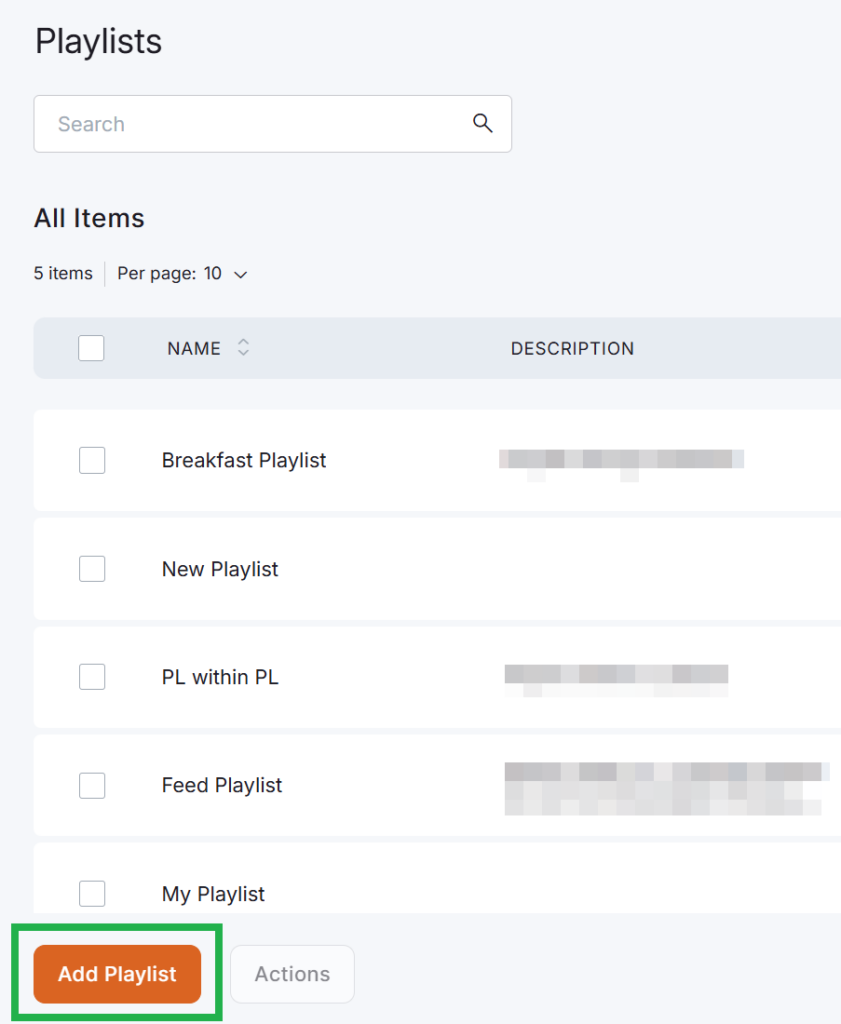
The six playlist types
1. Classic playlist
The simplest playlist: a fixed sequence of assets, each with its own duration.
Use when:
- Sequence and timing matter, and you want full manual control over playback order.
- The audience is a single screen or a small deployment (meeting rooms, reception, lobby).
- Content changes infrequently.
2. Tag-based playlist
A dynamic playlist that includes or excludes content automatically based on tags assigned to each asset. Update the tag, and the playlist updates itself.
Use when:
- You have many contributors and a large media library, and don’t need strict access controls.
- You want the same asset to appear in multiple playlists through different tags.
- You want updates to propagate automatically, without manually editing every playlist.
How it works:
- Include rules: pull in content with specific tags or tag combinations.
- Exclude rules: keep content with certain tags out. A common pattern is a “private” tag to separate internal content from public content.
ℹ️Setup details: Tag-based playlists.
3. Cloud Storage playlist
A playlist that mirrors a folder in your company’s Dropbox, OneDrive, or Google Drive. Upload or delete files in the folder, and the playlist follows.
Use when:
- Your team already organizes content in cloud folders.
- You want contributors to update content without giving them a Yodeck Portal login.
4. Import CSV playlist
Build a playlist from a structured CSV file.
Use when:
- You’re migrating from another digital signage system.
- You want to replicate an existing playlist structure quickly instead of rebuilding it by hand.
ℹ️Setup details: Import CSV playlist.
5. Interactive playlist
A playlist that responds to user input (touch, keyboard, or mouse) instead of looping on a fixed schedule.
Use when:
- The screen is customer-facing: kiosks, menus, product catalogs, digital brochures.
- Viewers should navigate at their own pace.
6. Sub-playlists (Premium)
Sub-playlists are playlists nested inside other playlists. Think of them as chapters in a book: each chapter is independent, but they combine into one final sequence on screen.
Use when:
- Multiple departments, branches, or locations manage their own content but share the same screens.
- You want to reuse the same content block across several main playlists.
- Ownership should stay distributed while playback control stays central.
⚠️Note: Sub-playlists are a Premium feature and require the Premium plan.
For multi-location and enterprise setups, see our dedicated guide: Enterprise Sub-Playlists and Workspaces: Best Practices for Multi-Location Teams. General reference: Sub-playlists.
Quick decision table
| If you want to… | Use this type |
|---|---|
| Control the exact order of a short loop | Classic |
| Auto-update content based on tags | Tag-based |
| Manage content through a cloud folder | Cloud Storage |
| Migrate playlists from another system | Import CSV |
| Let viewers navigate at their own pace | Interactive |
| Combine content from multiple teams or locations | Sub-playlists (Premium) |
Best practices for any playlist
- Match the type to the workflow. Don’t default to Classic for everything. Tag-based and Cloud Storage often save hours when content turns over often.
- Keep playlists focused. One playlist per audience or purpose. Long, mixed-content playlists are harder to maintain and debug when something looks off on screen.
- Use a clear tag taxonomy. Names like
branch-athens,priority-highorinternal-onlykeep tag-based playlists predictable across teams. - Review monthly. Remove outdated assets, archive seasonal content, and confirm tags still mean what you think they mean.
- Avoid deep sub-playlist nesting. Nesting beyond one level adds processing load on lower-end players and makes troubleshooting harder.
- Plan audio early. When sub-playlists are involved, the main playlist’s audio takes precedence over any audio in the sub-playlist. Decide which level owns the soundtrack before you build.
Performance notes for sub-playlists
A few constraints apply whenever sub-playlists are part of your structure:
- Sync Playback may not be precise across sub-playlists, since their internal timing can vary.
- Hardware load is higher than with single-level playlists. Lower-spec players struggle with multi-level nesting.
- Background audio from the main playlist overrides any audio in the sub-playlist.
ℹ️For the full sub-playlist mechanics (Max Time, Max Items, Repeat) and enterprise multi-location patterns, see Enterprise Sub-Playlists and Workspaces: Best Practices for Multi-Location Teams.
