Install Yodeck in Android with the Windows and Linux Setup Helpers
Last updated on September 21st, 2026
How to Set Up the Yodeck Android App (V2) via Windows and Linux Easily
Setting up the Yodeck app on your Android device (like an Android TV or tablet) via Windows and Linux is now easier than ever. Just follow this step-by-step guide. You don’t need to be a tech expert since we’ve broken it down into simple terms!
What You’ll Need
A computer running Windows10 or above,or Linux.
💡 You must have administrator rights on this computer.
Your Android “target” device/player (like an Android TV, or Android tablet, or any other Android device/player)
💡 v7 or above
In case you select to connect the devices via USB, you need a USB cable that is USB 2.0 and above and can pass through data, not just power (charging cable).
In case you select to connect the devices wirelessly, both devices must be connected to the same Wi-Fi network.
3. Connect Both Devices (computer and target Android device/player) either via a physical USB cable or via the Same Wi-Finetwork
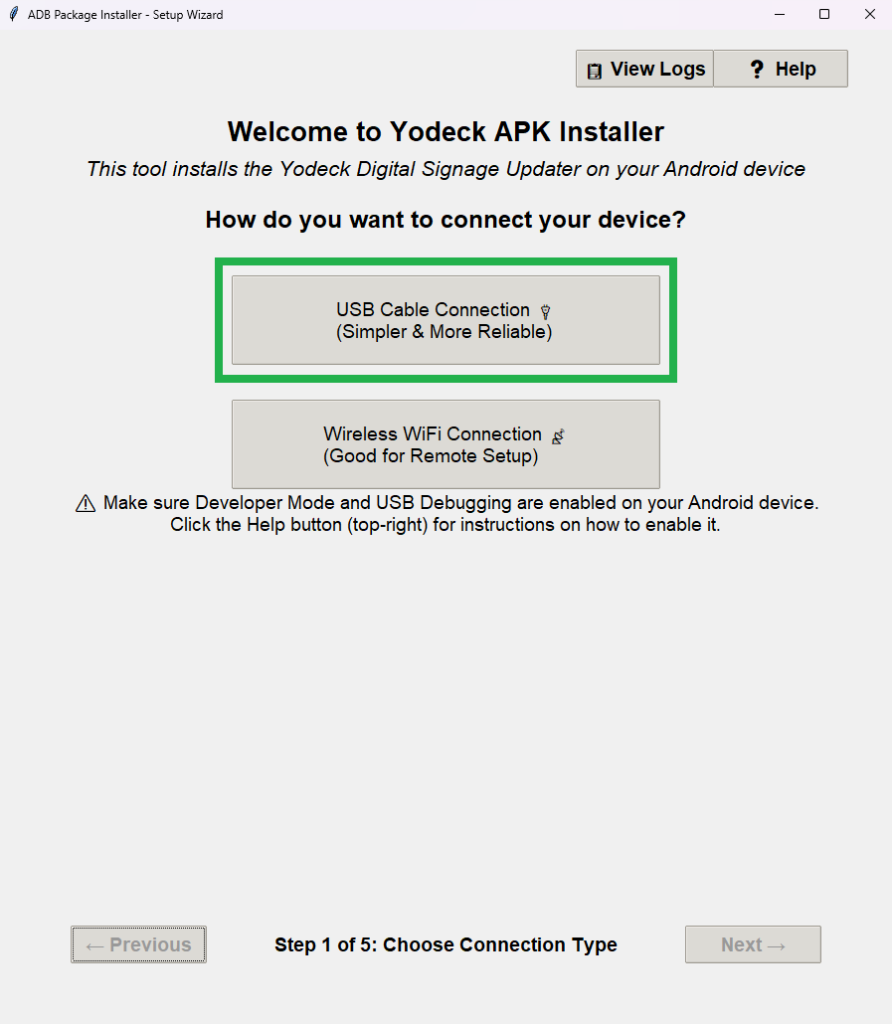
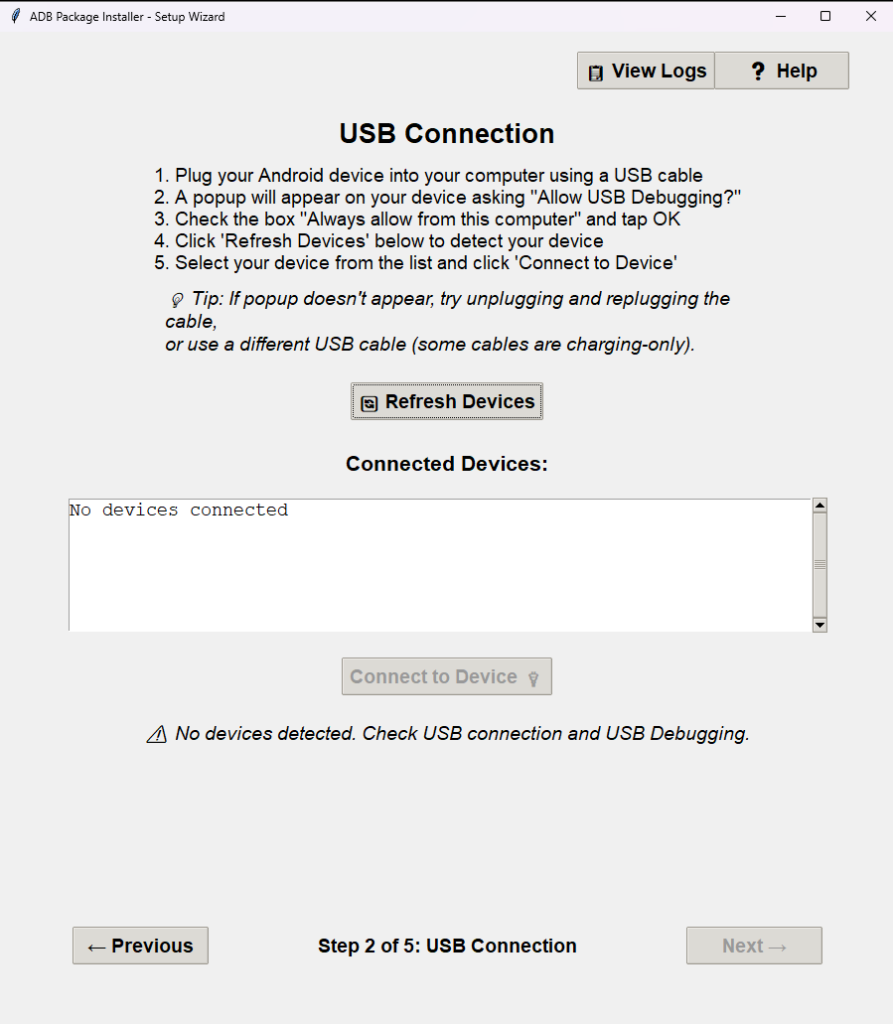
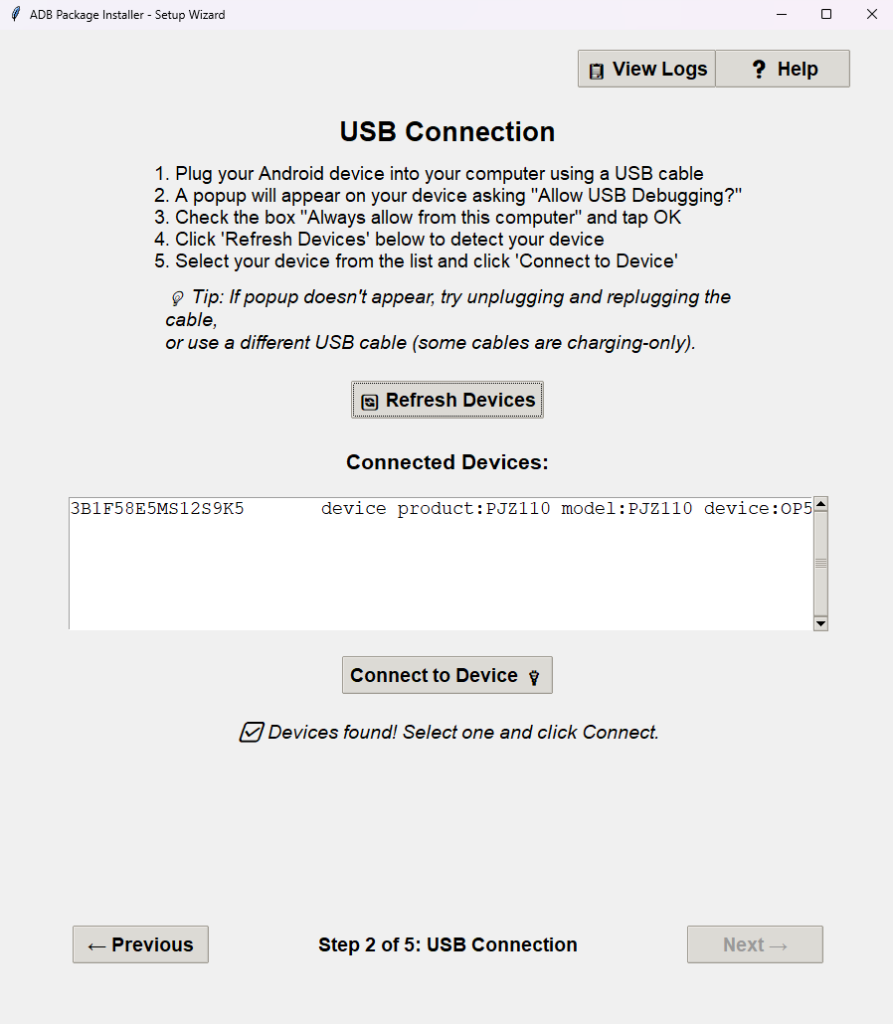
USB Cable Connection: Ensure your computer and the target device (Android TV/tablet) are connected via a USB cable.
✅ Follow the instructions under the USB Cable Connection option to connect the devices successfully. You also have access to the Help button and the View Logs button, both located at the top right corner of the Setup Helper window.
Step #1 Wired
Step #2.1 Wired
Step #2.2 Wired
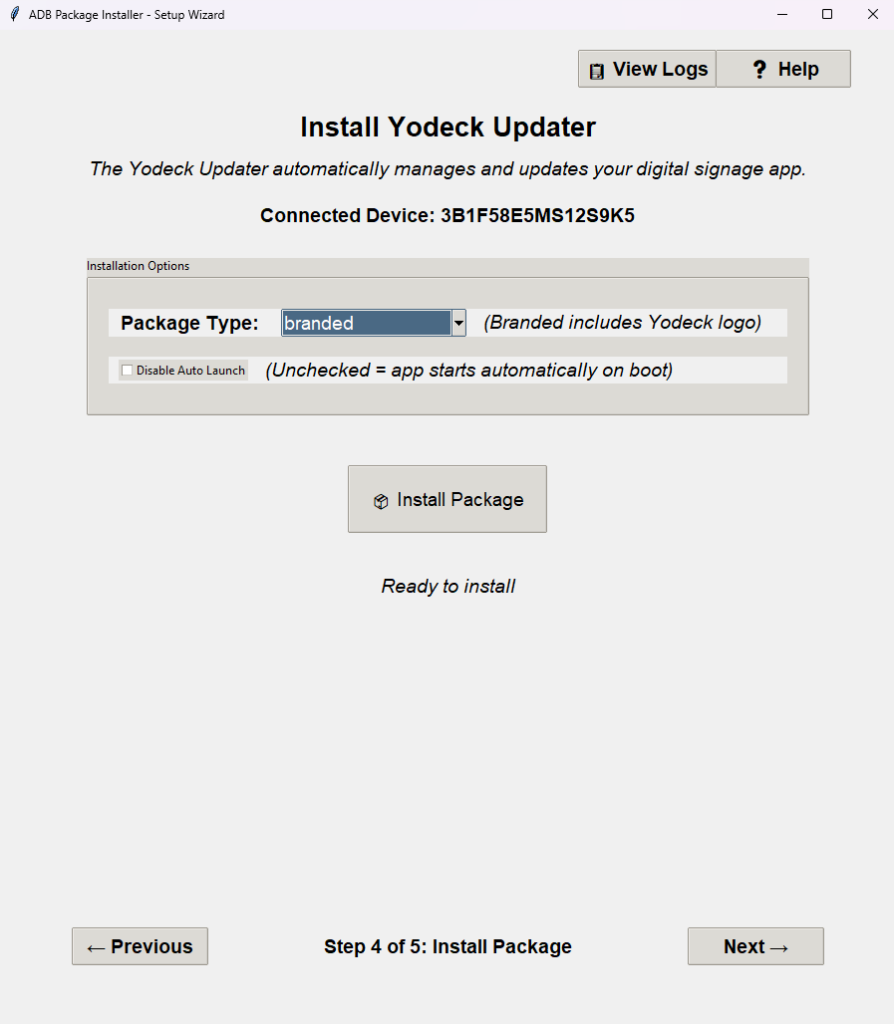
Step #4 Wired
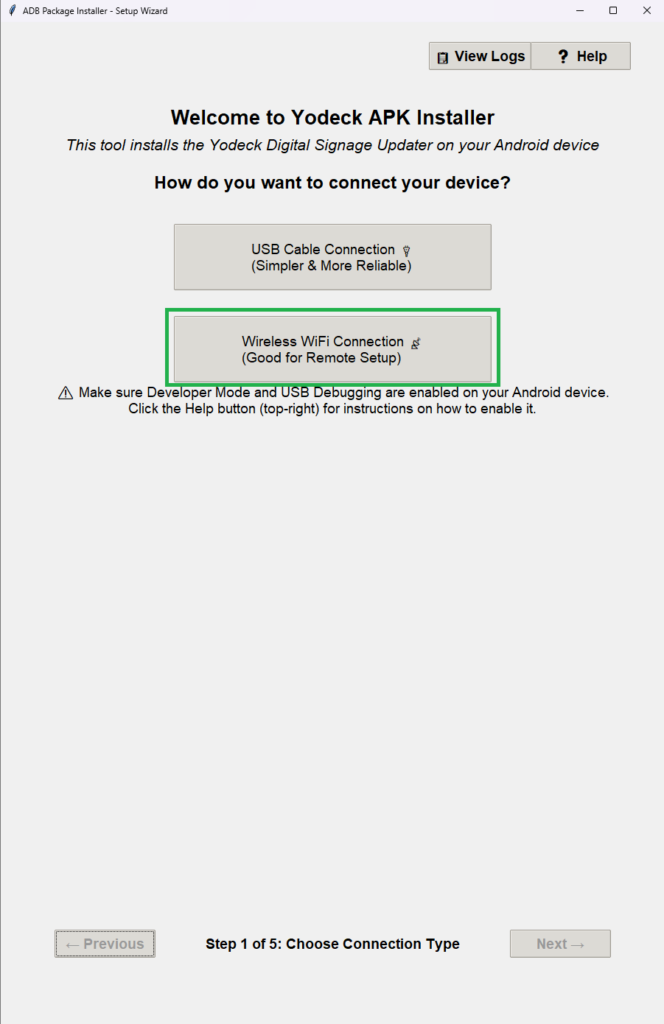
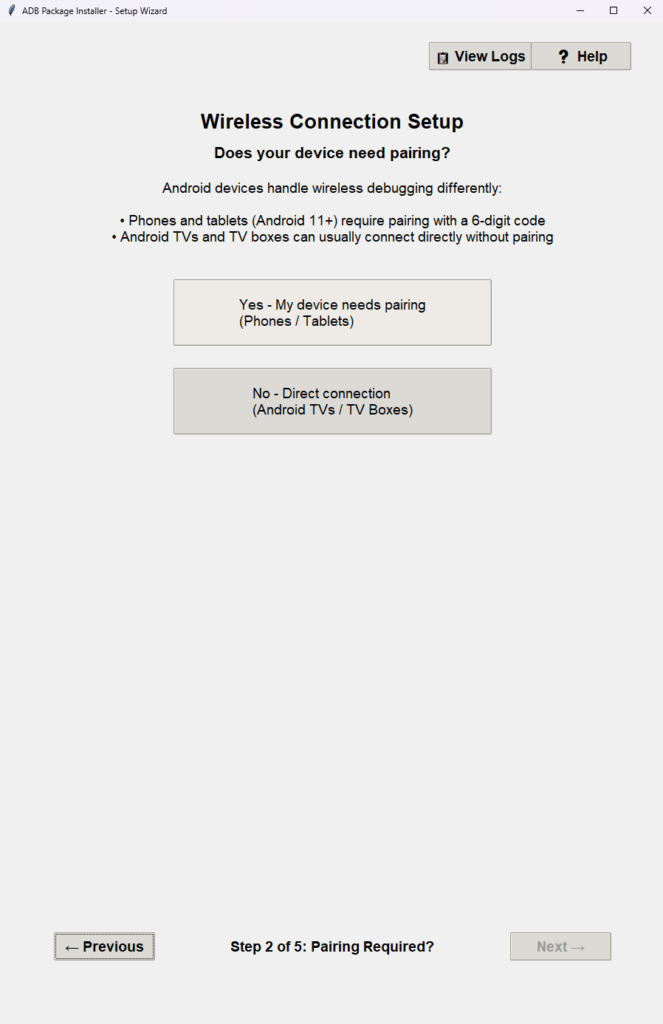
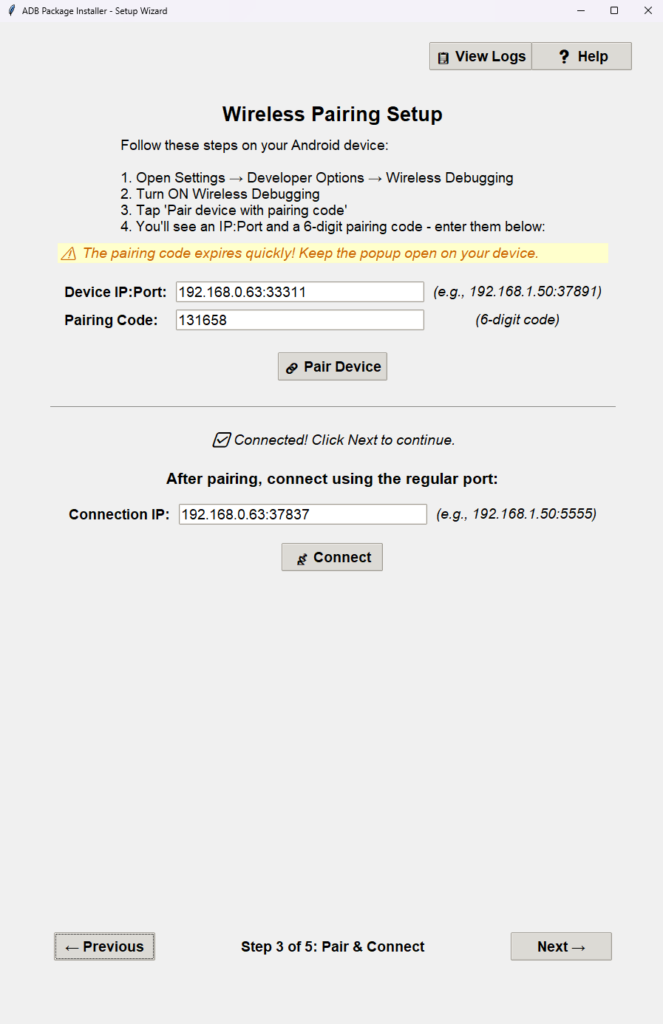
Wireless Wi-Fi Connection: Ensure your computer and the target device (Android TV/tablet) are connected to the same Wi-Fi network. Follow the instructions under each option to connect the devices successfully.
✅ Follow the instructions under the Wireless Wi-Fi Connection option to connect the devices successfully. Remember to enlarge the whole window, especially on Step 3. You also have access to the Help button and the View Logs button, both located at the top right corner of the Setup Helper window.
Step #1 Wireless
Step #2 Wireless
Step #3 Wireless
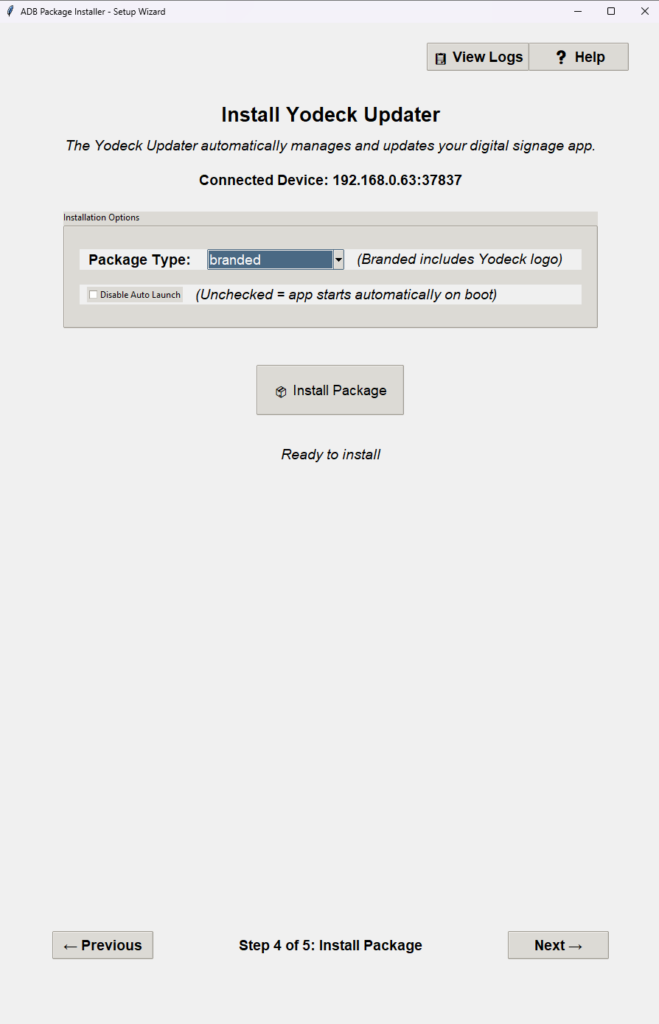
Step #4 Wireless
4. Use the Setup Helper to Install Yodeck
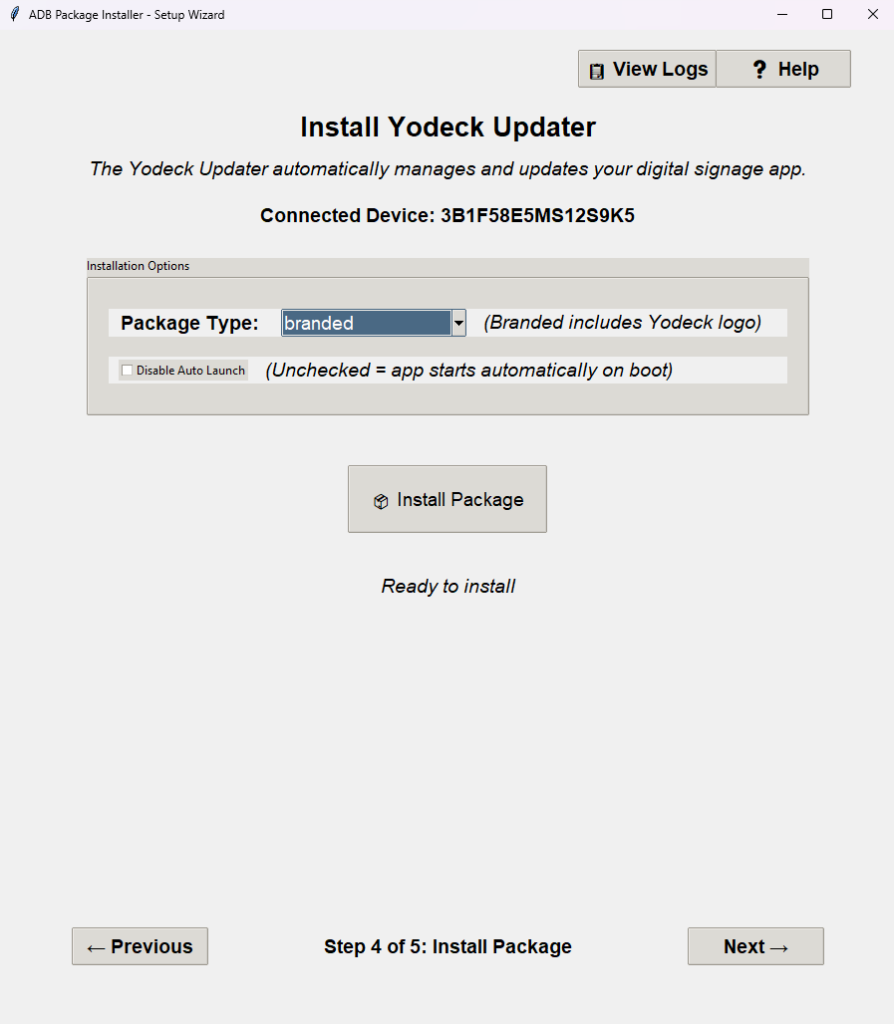
Once your devices are connected, either via wire or wirelessly, on the Setup Helper app on your computer. In step #4, click the “Install Package” button. This will install the Yodeck app onto your target device.
💡 If you’re a Yodeck white-label (WL) partner, select the “unbranded” option before you click Setup.
💡You also have the option to disable the auto launch feature of the Yodeck app by clickin on the “Disable Auto Launch” checkbox option before the installation of the package. Otherwise, by default the Auto Launch feature will be implemented during the package installation.
5. Wait for the Installation to Finish
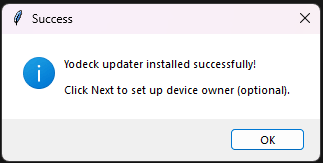
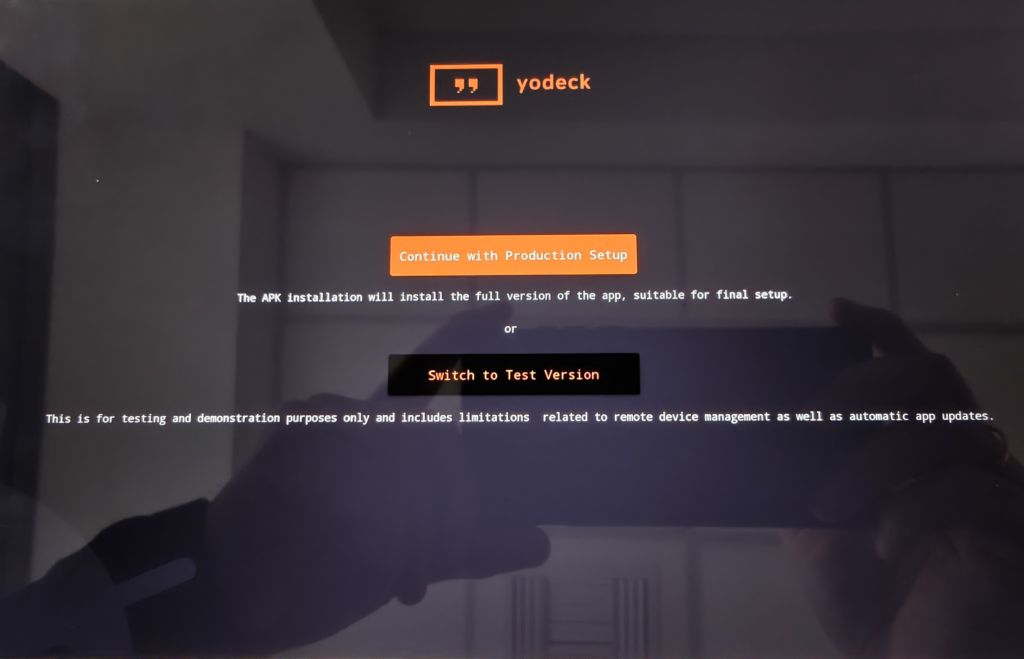
Once installed, your target device will automatically launch the Yodeck app, and at some point, you’ll see the welcome/setup screen. On your computer, you will see the following Success pop-up window, which instructs you to click on the Next button to go to the last 5th Step of the process.
✅The setup of the Yodeck App on the Android device has been completed.
⚙️You can click on OK to close this “Success” pop-up window and then click inside the Setup Helper, the Next button, to proceed to the last Step of the whole process. Proceed with reading the following section to continue. ⬇️
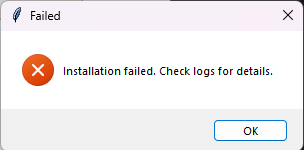
⚠️ If you encounter a “Failed” pop-up window with the message “Installation failed. Check Logs for details,”, it indicates that although your device was previously connected successfully, a significant amount of time has passed, causing the IP port (for example, 192.168.1.1:88888) of the device to change automatically. To resolve this connectivity issue, please return to Step 3 of the Setup Helper and reconnect your Android device. After a successful reconnection, click the Next button on both Steps 3 and 4 to land directly to Step 5.
Two Ways to Finish the Setup
At this point, you can choose how to finish the setup:
Option A: Finish Setup from Your Computer (Recommended for Production Setups)
Option B: Finish Setup on the TV/Android Device (Manual for Testing Setups)
We recommend “Option A” for production-grade installations!
Option A: Finish Setup from Your Computer (Recommended for Production Setups)
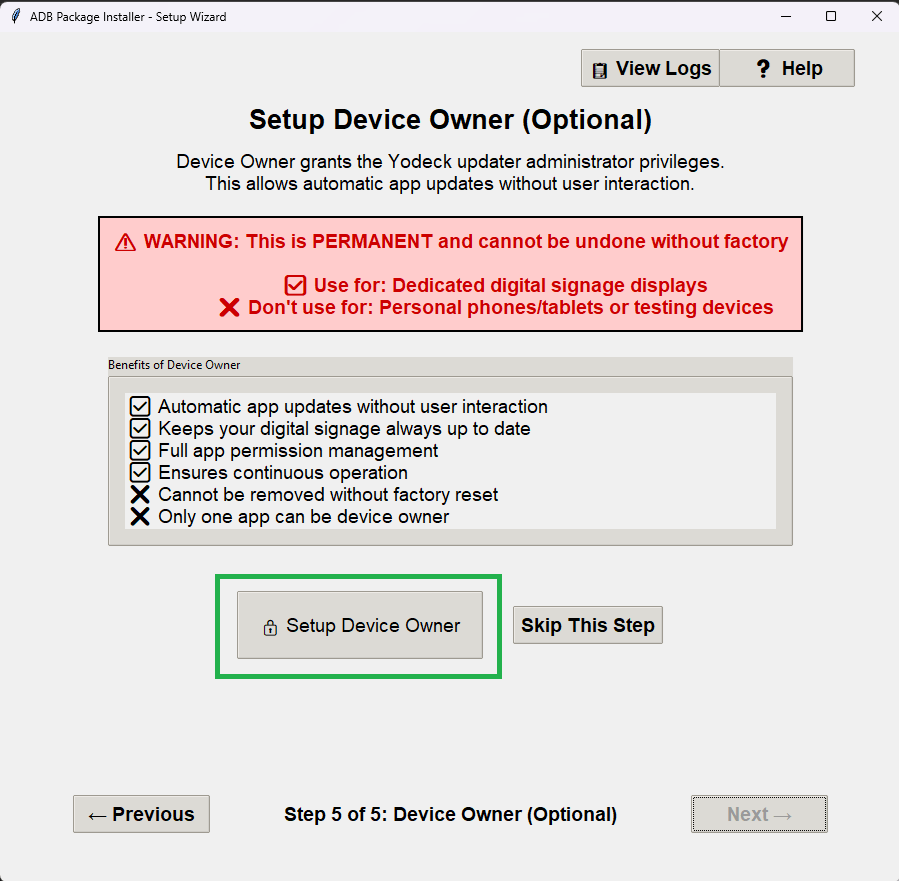
⚠️ This option gives the Yodeck app full control of the device/player. You won’t be able to uninstall it without doing a full factory reset later.
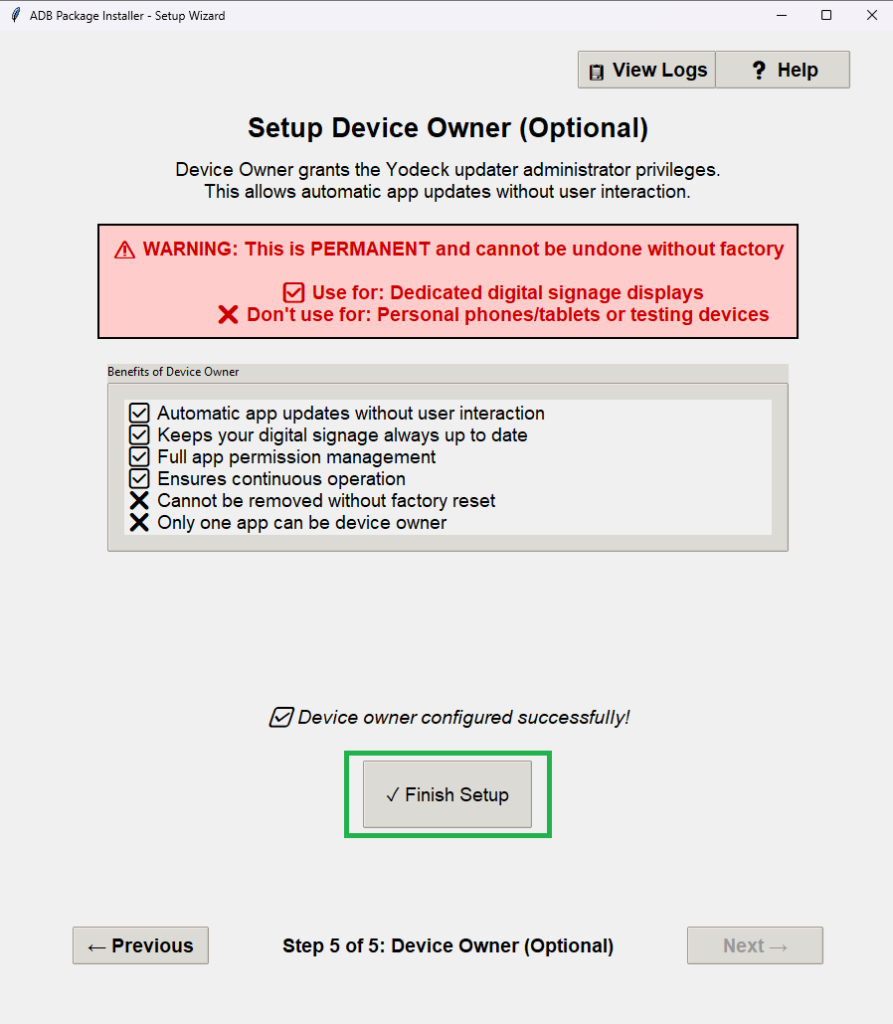
A1. After you have completed the installation of the Yodeck app on your Android device, tap the Next button on the 4th Step of the Setup Helper app. Once you land on the 5th and final Step, click the “Setup Permissions” button.
Your Android device must be free of any connected Accounts, including Google Accounts before proceeding. Otherwise, the “Setup Device Owner” sub-step will fail.
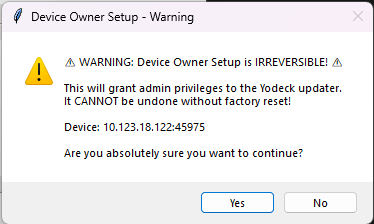
A2. Ensure you accept the “Warning” pop-up by clicking Yes. This message notifies you about the upcoming action regarding the Device Owner privileges on your Android device.
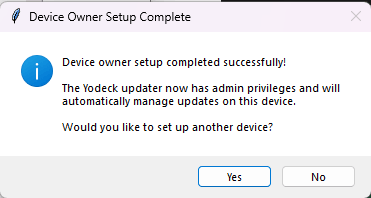
A3. After the Device Owner setup process is successfully completed, a Success pop-up window will appear, indicating that your Android device is ready to be registered to your account and used with the Yodeck platform.
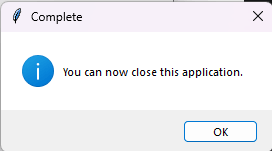
ℹ️Essentially, you have completed the whole installation and setup of the Yodeck app on your Android device. However, the Setup Helper gives you the option to either close all the windows on your computer (manually) by clicking on the No button accompanied by the Finish Setup button or begin setting up another Android device by clicking on the Yes button. This is up to you.
✅Congratulations on completing the whole installation and automatic setup process!
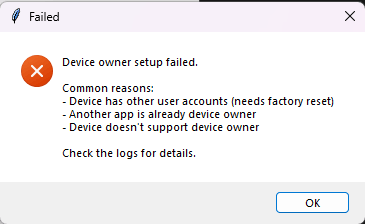
⚠️ If you encounter a “Failed” pop-up window with the message “Device owner setup failed,” it indicates that your device has either another app or a Google Account set as the Device Owner, meaning that the Setup Helper app cannot successfully complete the setup for this reason. You must sign out before attempting the setup again. If you experience issues, you may need to factory reset your device, ensuring that no accounts are present or connected throughout the process.
Option A: Finish Setup on the TV/Android Device (Manual)
⚠️ This option is for testing only. The app will have limited features and won’t receive updates automatically.
To proceed with finishing the setup manually via your Android device, you can either click on the “Skip this Step” button at the 5th Step inside the Setup Helper app or click on the “Skip for now” option on your TV or tablet.
Follow the on-screen instructions.
✅Congratulations on completing the whole installation and manual setup process!
Troubleshooting Tips
If you run into issues with device connectivity or Setup Permissions, please check these collected tips:
Before proceeding, verify that your device does not have another app or account (such as a Google Account) set as the “device owner.” Your Android device must be free of any connected accounts, including Google Accounts. If there is an account signed in, sign out before attempting the setup again. If you encounter issues, you may need to factory reset your device, ensuring that no accounts are present or connected during the process.
If you receive the “Failed” pop-up window with the message “Installation failed. Check Logs for details,” you must reconnect your Android device via the 3rd Step again before proceeding.
In case you receive the “Failed” pop-up window with the message “Device owner setup failed.“ you must sign out of all your Android device’s accounts or even perform a Factory Reset before finishing the installation of Setup Permissions.
Need Help?
The Yodeck Support Team can help you out! Log in to your Yodeck account and send us a message from the bottom right corner!