Tutorial – How to remove the cookie pop-up from your web page media
Last updated on September 21st, 2026
Cookie and consent pop-ups can cover the content you want on screen. This guide shows you how to dismiss them automatically so your web page displays cleanly.
Try the automatic option first. The Hide Cookie Banner automation (BETA) removes most cookie banners for you, with no script to write. Use the manual method below when the automation does not catch a particular banner.
Remove a cookie pop-up with a script
The idea is simple: tell the page to click the “Accept” button on your behalf, before your content shows.
Open your Web Page media in the app and click it to edit.
Enable the Run Custom Script toggle.
In the text field, paste this two-line template: pause(4) click("""SELECTOR""")
In a new incognito Chrome window, open the URL of your web page. Incognito makes sure the cookie pop-up appears as a first-time visitor would see it.
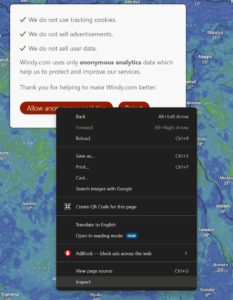
When the cookie pop-up appears, right-click the Accept button and choose Inspect.
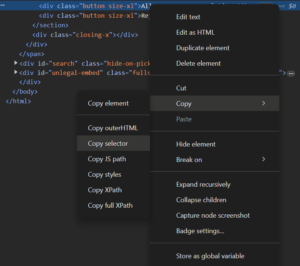
In the DevTools panel, right-click the highlighted line for the Accept button and choose Copy → Copy selector.
Back in Yodeck, replace the word SELECTOR with the selector you just copied. Keep the triple double quotes around it.
Save the Web Page form and Push to Screens.
Note
Depending on the page, you may need to adjust the script. If the banner appears slowly, increase the pause value. If clicking once does not dismiss it, the page may use a different button than the one you inspected.
Step 6: Right-click on the “Accept all cookies” button
Step 7: Copy the selector of the button
Examples
These are real selectors for a few common sites. Sites change their HTML over time, so if one stops working, recopy the selector using the steps above.