Overview
Effortlessly connect your Yodeck player to WiFi! Just scan the QR code with your mobile device using our user-friendly WiFi wizard. It’s that simple!
Step-by-step Procedure
- Connect the Yodeck player to both the screen and the power source.
- Open your mobile device’s camera (or a QR code scanning app).
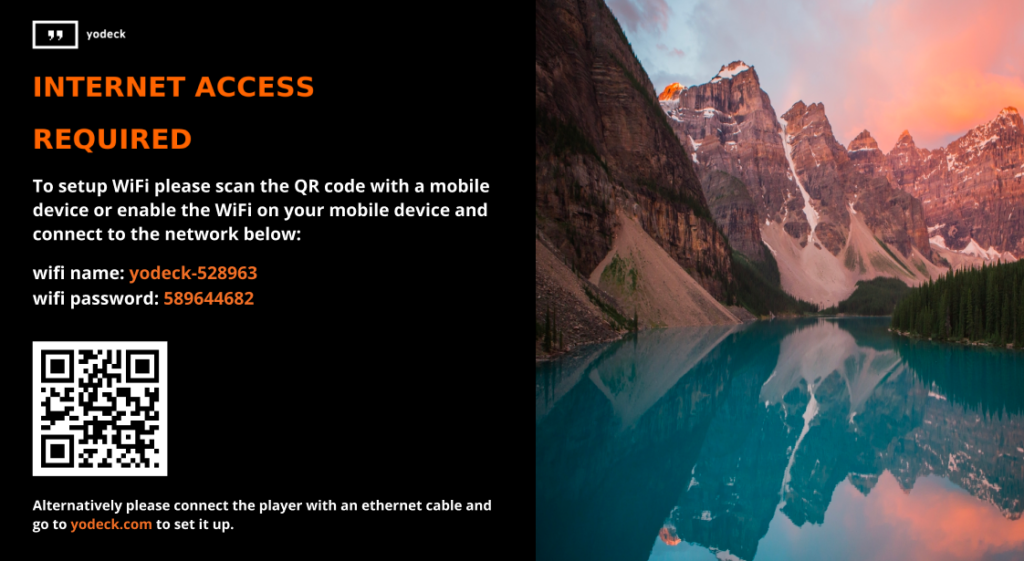
- Once the player boots, you can scan the QR code displayed on your Yodeck Player’s screen to open the web page.
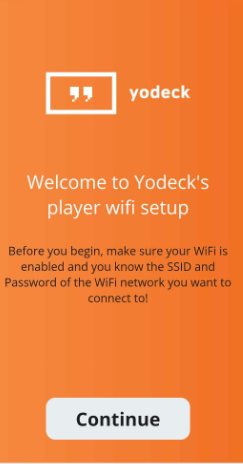
- On the initial screen, click Continue.
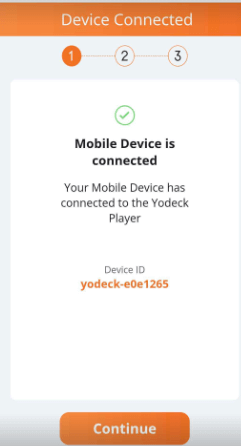
- On the secondary screen, click Continue.
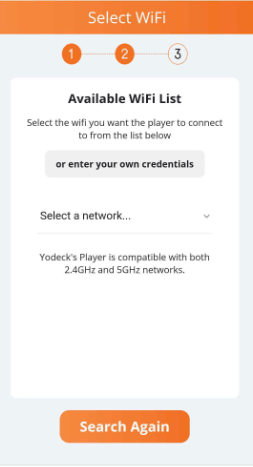
- On the third screen, click ‘Select a network…’, then locate and select your WiFi network from the drop-down menu. Subsequently, you must provide the WiFi password of the chosen network to connect successfully. Remember that the WiFi password might be case-sensitive.
- Once you enter the correct WiFi password, the player automatically attempts to connect to the chosen wireless network to access the internet.
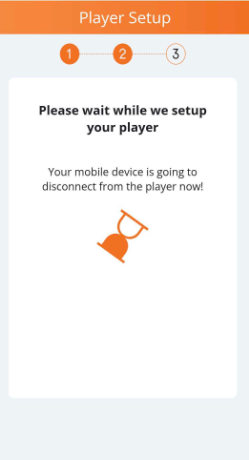
When the Yodeck player obtains internet access, it will self-configure.
Need Help?
The Yodeck Support Team can help you out! Log in to your Yodeck account and send us a message from the bottom right corner!
F.A.Q.s
Got questions? We’ve got answers! This section addresses common questions about connecting your Yodeck player to WiFi via a mobile device by scanning a QR code.
• The player is not able to reach the specific wireless network. Move the player or the router/access point closer to each other.
• The specific WiFi network is hidden from users.
In the second step of the process (titled “Available WiFi List”), you must select the option “or enter your own credentials“. Then, on the next page, you must fill in all the required fields about the hidden WiFi network, such as its SSID (name), its security mode, and password.
