Overview
When you set up a new player in Yodeck, you will see a registration code on your screen. This code links your device to your Yodeck account, so you can register it and start managing it from the portal. In this article, we explain what the registration code is, where to find it, and how to use it to complete setup successfully.
What is the Yodeck registration code?
The Yodeck registration code is a unique code displayed on your TV, monitor, or browser after your player starts successfully. You enter this code in the Yodeck portal to pair your device with your Yodeck account. Once registration is complete, the screen appears in your account, and you can start managing it remotely.
ℹ️In simple terms, the registration code is the link between your player and your Yodeck platform account.
What does the registration code look like?
There are two common registration code formats in Yodeck:
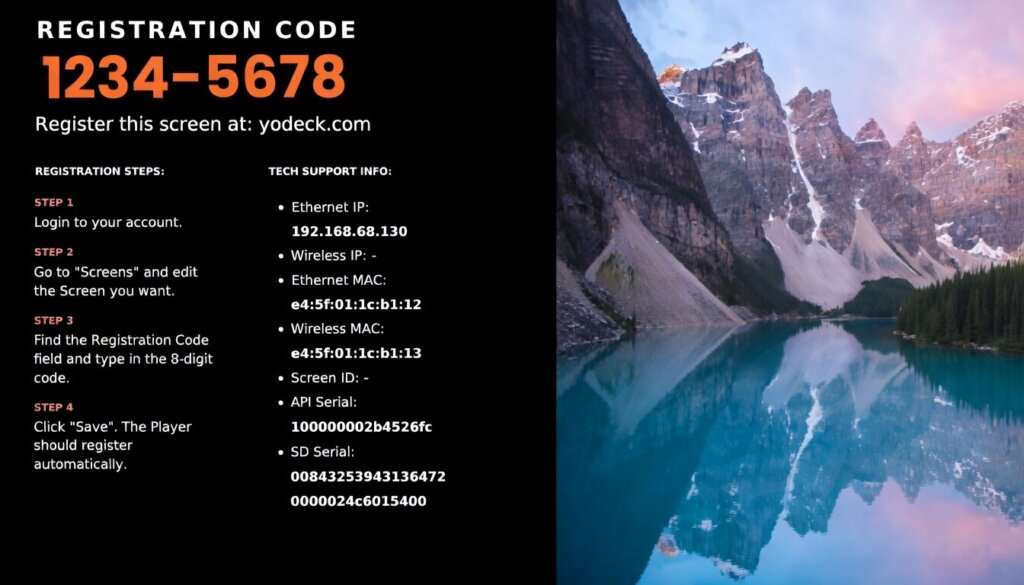
- 8-digit code: Is used by Yodeck Player (Raspberry Pi) ➡️ Example:
1234-5678
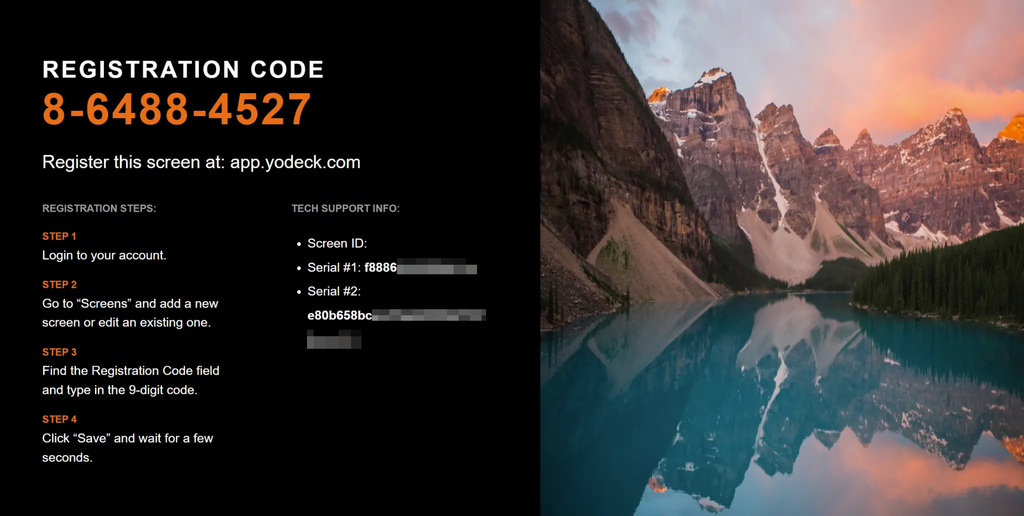
- 9-digit code: Is used by other supported player types such as Web Player, BrightSign, Android, Tizen, webOS, Windows (Intel Only – Kiosk User), and Fire OS ➡️ Example:
1-2345-6789
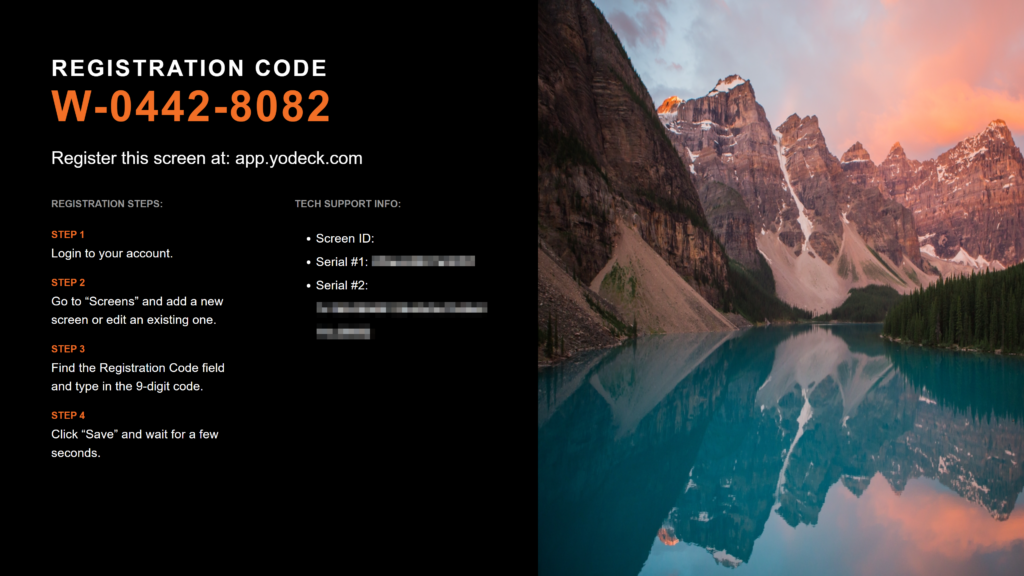
- 1-letter followed by an 8-digit code: Is used by the Windows standard player. ➡️ Example: W
-1234-5678
Where can I find the registration code?
In most cases, you will see the registration code during first-time setup, after the player finishes booting. However, you may also see it again after deleting a screen from your Yodeck account or after reprovisioning certain devices, such as after replacing an SD card, modifying the SETTINGS.txt file of your Yodeck player (Raspberry Pi), or reflashing the device.
How to register your screen using the registration code
You can follow this guide below to register your screen(s) using the registration code:
Registration Guide✅If everything is correct, your screen should appear in your Yodeck account shortly after you save the code.
Registration codes matching the player type
For reference, the initial part (prefix) of the registration code indicates the player type, usually identified by the first single digit (“1”-“9”). However, in two instances (“Embeddable Feeds” and “Windows standard” player), the identifier may consist of the first two digits (“10”) or one letter (“W”), respectively. Refer to the table below to accurately match the code displayed on-screen with the corresponding player type.
| Registration Code Prefix | Identified Player Type |
|---|---|
0 | Yodeck Player |
1 | Web Player |
2 | BrightSign |
3 | Android |
4 | Tizen |
5 | webOS |
6* or W** | Windows (*6: is for Intel Only | **W: is for standard) |
7 | Fire OS |
8 | Android (Play Store) |
9 | Chrome OS |
10 | Embeddable Feeds |
💡Regardless of the player type you choose, the registration system will select the appropriate device based on the given registration code you provide during the Screen registration process.
Troubleshooting “registration code” issues
You can click the expandable arrows below to reveal troubleshooting methods for common registration code issues.
What if the registration code does not appear?
⚠️If you do not see a registration code, the player may not be ready to register yet.
Check the internet connection: Your player needs internet access to complete setup correctly. If it is offline, the registration code may not appear. Try the following:
- Make sure the device is connected to the internet
- Test the network connection
- If possible, use Ethernet to rule out Wi-Fi issues
For Web Player: If you are using Web Player, make sure your browser or smart TV is online and the registration screen has loaded fully. If the device has internet access but the code still does not appear, contact Yodeck Support.
For Yodeck Player (Raspberry Pi): If the screen stays black or you do not see any registration message, the SD card may be corrupted, or the image may not have been flashed correctly. In that case, reflash the SD card and try again.
Other messages and special cases.
Player Already Registered: If you see a Player Already Registered message, the device is either already linked to another Yodeck account or it has no internet access. Please contact Yodeck Support so the team can investigate and help you continue.
Pre-provisioned players: Some advanced or enterprise deployments use pre-provisioned players. In these cases, the device may register automatically without showing a registration code. Instead, the screen may show a message such as: “Registering Screen…“. If automatic registration fails, the registration code may appear, so you can complete the process manually.
What happens after registration?
Once registration succeeds, the screen is added to your Yodeck account. You can then name it, organize it, and assign content. If the status does not update immediately, wait a moment and refresh the page.
F.A.Q.s
Yes. Each registration code is unique to the device that generated it.
No. A registration code belongs to the specific device that displays it.
An 8-digit code is typically used for Yodeck Player (Raspberry Pi). Most other supported player types typically use a 9-digit code, or a 1-letter followed by an 8-digit code.
The most common reasons are:
– The code was entered incorrectly
– The player is already registered
– The device is not fully online yet
Need Help?
The Yodeck Support Team can help you out! Log in to your Yodeck account and send us a message from the bottom right corner!

