Introduction
The new Notion App lets you display your Notion pages, docs, and projects directly on your Yodeck Screens. Simply share your page, and we will handle the rest. Any updates in Notion will automatically sync, keeping your content up to date. Plus, with interactive support, you can navigate and edit your Notion pages directly from a touchscreen display.
Creating a Notion App
- Click on the Notion app within your app gallery to add it, and fill in the app details as follows:
- A name and an optional description are required for the app..
- In the Enter URL field, paste the URL of the desired graph from your Notion account.
- Adjust the Zoom Factor(%) to ensure your board fits nicely on your screen
Advanced Settings
- You can enable the Auto Scrolling option
- Upload a Fallback Image to display if the link is inaccessible.
- Add the Tags you want. Learn more about tags and media filtering.
- Set the Default duration for how long the app should remain visible on the screen when added to a playlist.
- Enable the Availability by configuring start and end times to schedule when the app should be active or enable non-expiring availability.
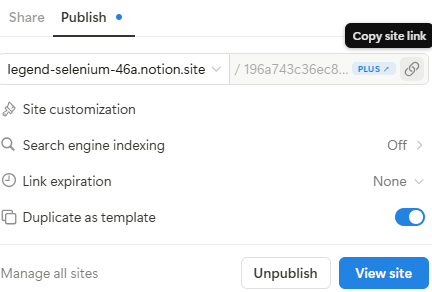
How to publish your Notion page to the Screen
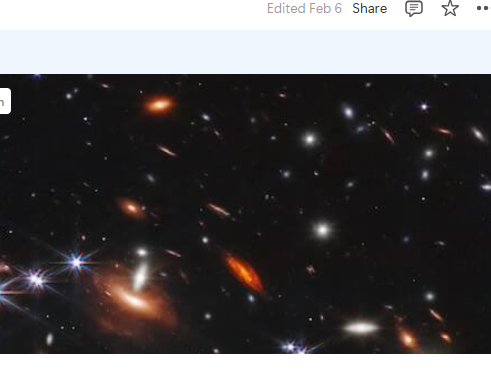
Step 1: In the page report you want to display, press the Share button
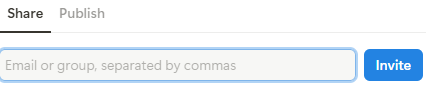
Step 2: Navigate to Publish Section
Step 3: Select the option: Publish your page
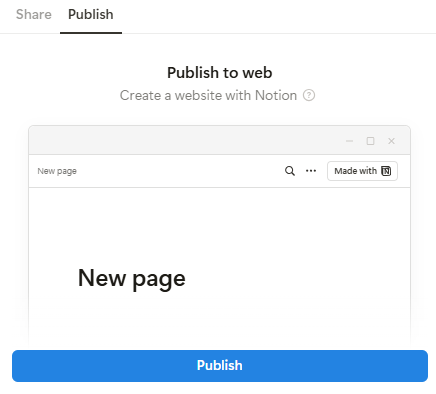
Step 4: The URL is generated. You can now copy and paste it into the app editor.
Need Help?
The Yodeck Support Team can help you out! Log in to your Yodeck account and Send us a message from the bottom right corner!

