Overview
Creating a layout used to mean starting from an empty canvas: adding every element one by one, then resizing, positioning and styling until it looked right. Magic Layout removes that step. Describe the layout you want in plain language, and Yodeck designs it for you.
Type something like “menu with today’s specials and weather”, and Magic Layout returns two ready-to-edit layout options. Pick the one you like, then customize it in the Layout Editor exactly like any other layout.
ℹ️ Magic Layout is free for all Yodeck users at launch and helps you:
✔ Start from a finished-looking design instead of a blank canvas
✔ Build new layouts fast for campaigns, promos and events
✔ Get a professional result without design experience
✔ Keep full control, because every result opens in the Layout Editor
What is Magic Layout?
Magic Layout is Yodeck’s AI layout generator, powered by OpenAI models. You give it a short description of what you need, plus a few optional inputs such as your own media, your logo, the orientation and a brand color. Yodeck then generates two complete layout options, with all widgets already placed.
It is most useful if you are:
- A small or medium-sized business that wants professional layouts without hiring a designer.
- A marketing team or content manager that needs new layouts quickly for campaigns and events.
- New to Yodeck or not a designer, building a layout from zero feels intimidating.
Where can I find Magic Layout?
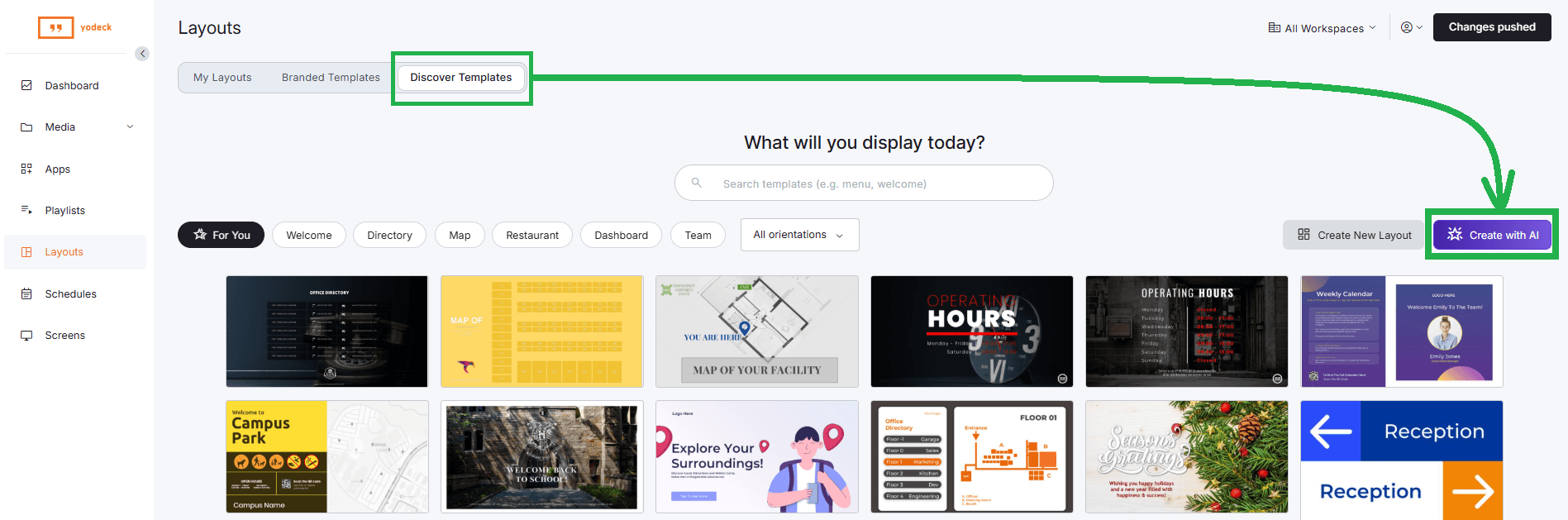
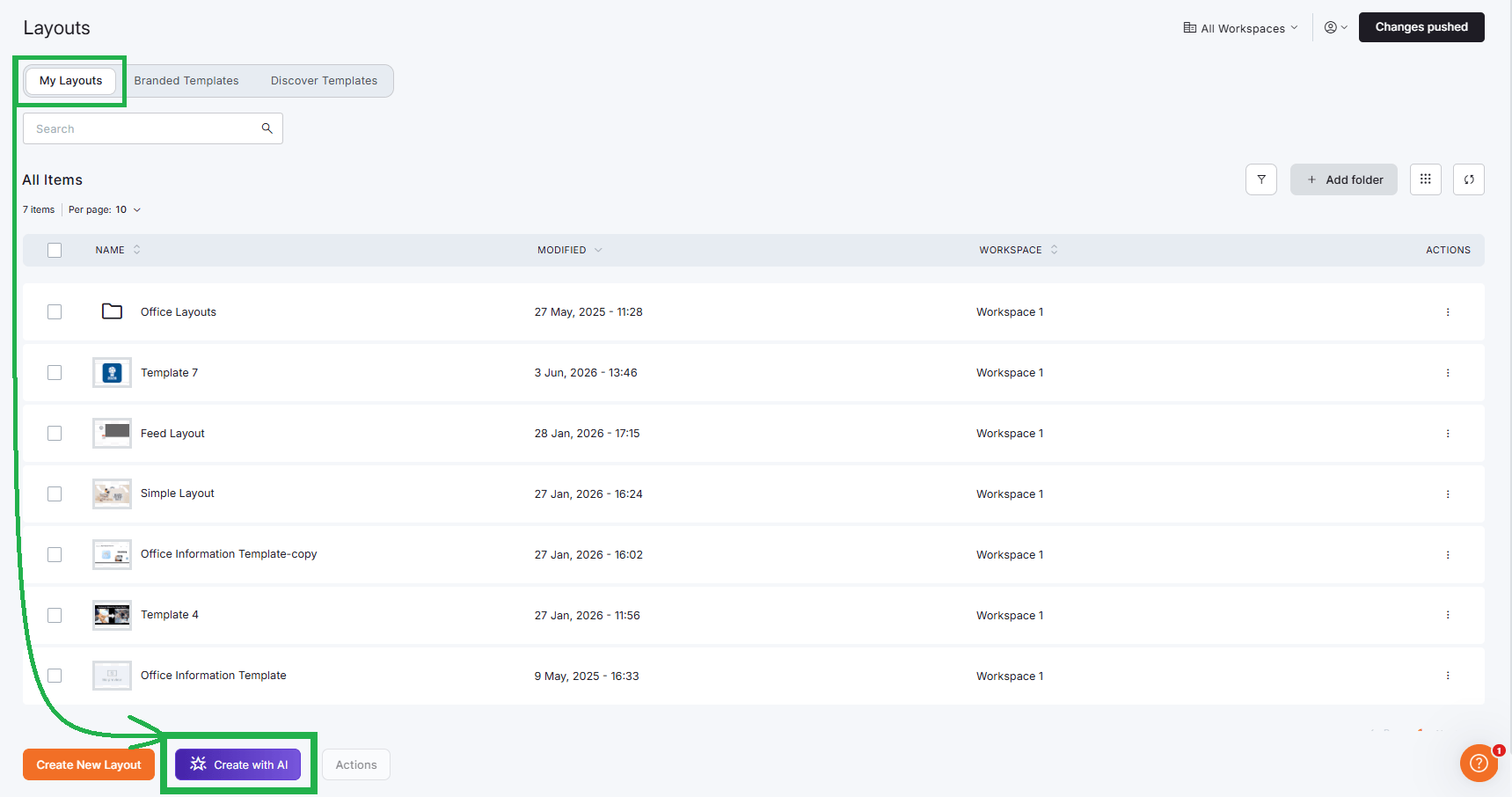
Look for the Create with AI button in the Layouts section of the Yodeck Portal. It appears in two places:
- In the Discover Templates gallery.
- In the My Layouts list.
Who can use Magic Layout?
Three things need to be true before the Create with AI button becomes available on your account:
| Requirement | What it means |
|---|---|
| AI features are enabled for your account | Enabled by Yodeck. If they are not, Magic Layout does not appear at all. |
| The account owner has switched on AI Content Creation | Found in Account Settings > AI Content Creation. Only the account owner can see and change this setting. |
| You have permission to create layouts and to add media | You need both. If either permission is missing, the button does not appear. |
- ℹ️ If the Create with AI button is visible but greyed out, AI features are switched off in Account Settings. Account admins see a tooltip that links straight to the setting. All other users see a tooltip asking them to contact their account admin.
- ⚠️ Whitelabel and reseller accounts: Magic Layout is not available at launch. On those accounts, the AI Content Creation settings show Magic Write only.
- 💡 Mobile: Magic Layout works on mobile. On small screens, the controls collapse into a bottom panel.
How Magic Layout Works
Step 1: Start
From the Layouts section, click Create with AI.
Step 2: Describe what you want
Type a short description of the layout, for example, “menu with today’s specials and weather”. If you would rather not start from scratch, click one of the suggestion pills. These are prompt ideas matched to the industry set on your account, and clicking one fills the text box for you.
- 💡 Tip: Be specific about what should appear on the screen. “Lunch menu with three dishes, prices and a photo” yields better results than “restaurant layout”.
Step 3: Add optional inputs
Everything except the prompt is optional. You can add your own media, a logo, an orientation and a brand color. See What You Can Control below for the full list.
Step 4: Generate
Click the Generate button. Yodeck creates two layout options for you to choose from.
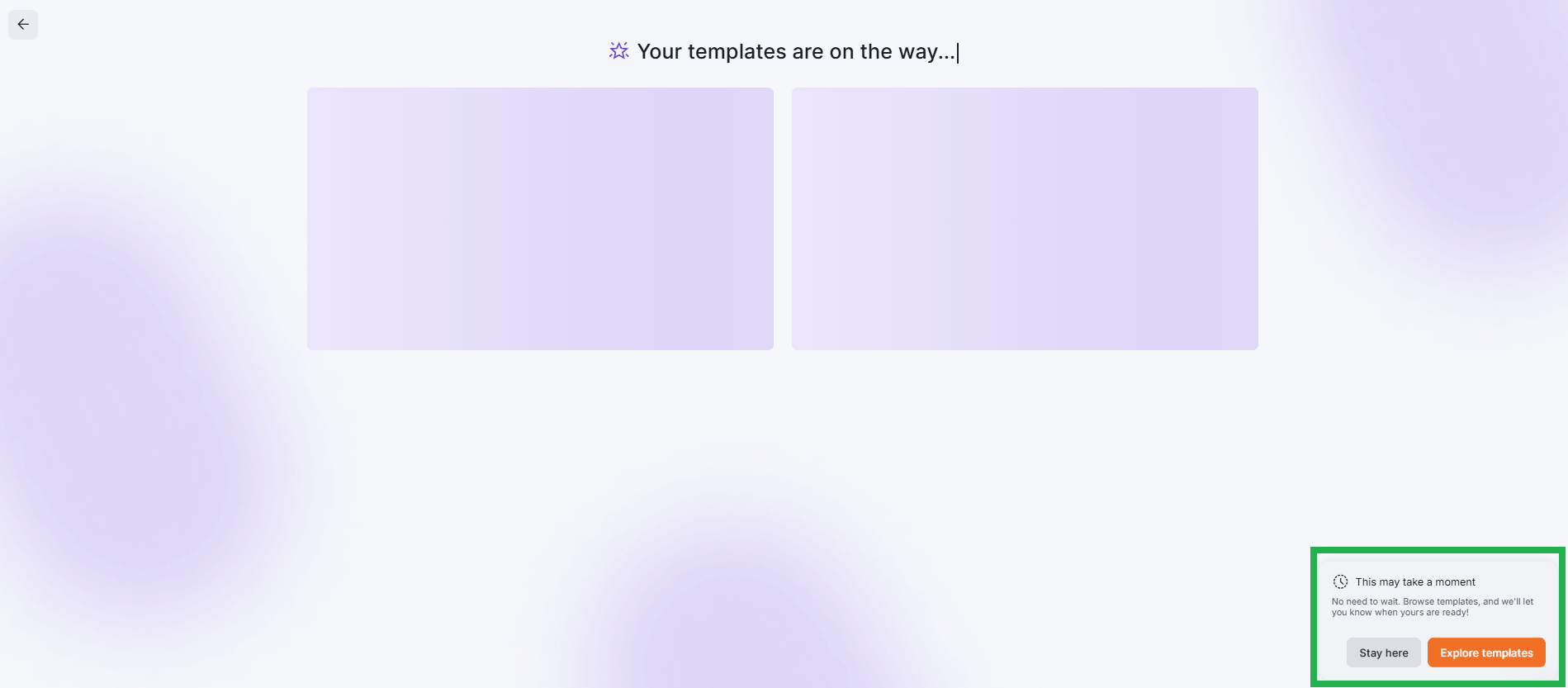
Step 5: Wait, or keep working
A generation takes a few minutes, not seconds. You do not have to stay on the page. Carry on working anywhere in Yodeck, and when your layouts are ready, you get a notification with a View my templates button, wherever you are in the Portal.
Step 6: Choose your layout
The two generated layouts appear side by side. Select the one you prefer and click Customize This Template.
From this step, you can also start a fresh prompt or go back to your original prompt with all your text and selections still in place.
Step 7: Edit it like any other layout
Your chosen layout opens in the Layout Editor in a new tab, with all widgets and the layout name already set. From here, it behaves exactly like a layout you built yourself: edit text, swap media, reposition elements, then save and set it to your screens.
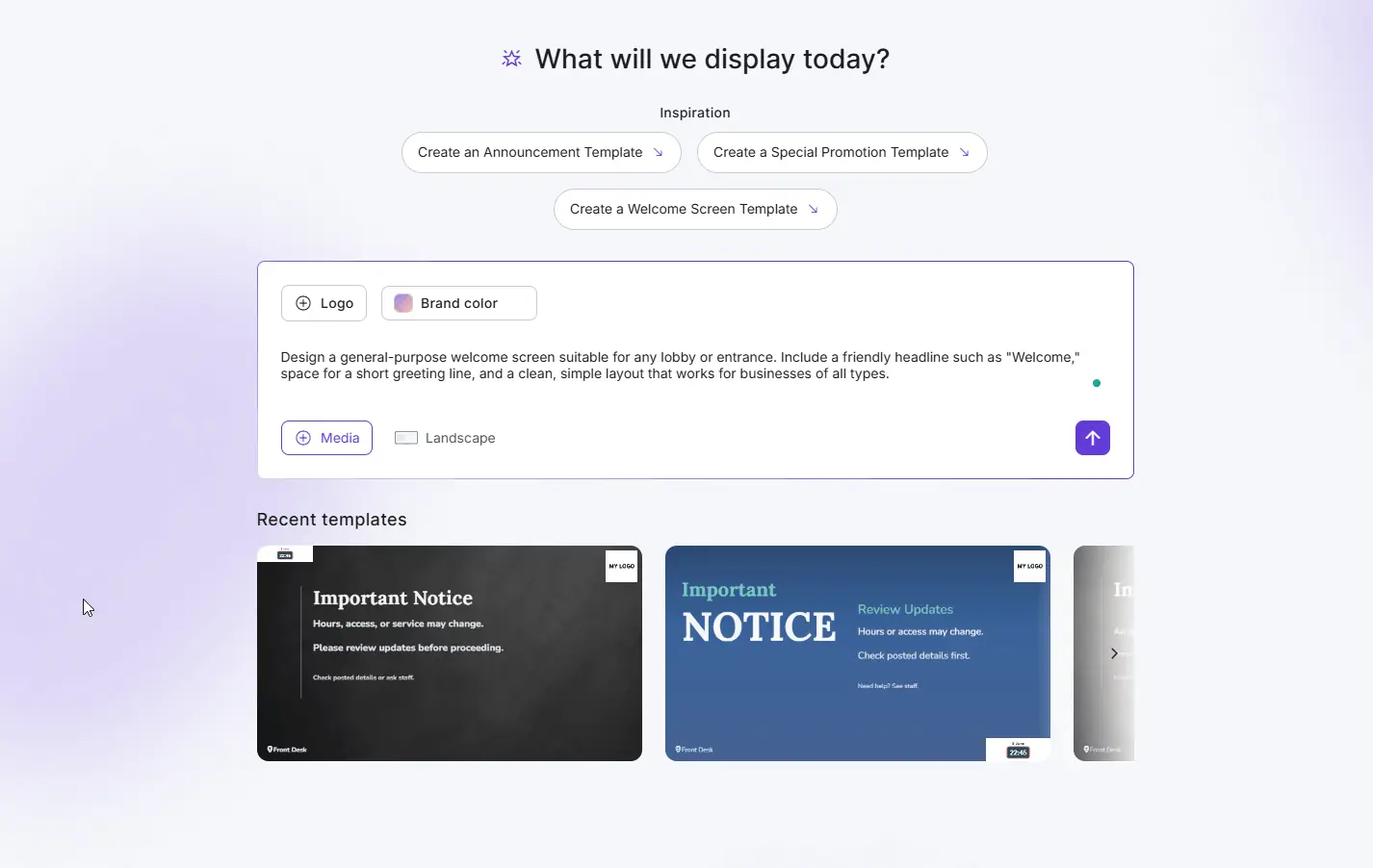
What You Can Control
| Control | What it does |
|---|---|
| Prompt | A free text description of the layout you want. This is the only required input. |
| Suggestion pills | Ready-made prompt ideas matched to your account’s industry. Click one to fill the text box. |
| Add Media | Up to 2 items from your existing Yodeck media library: 1 image plus 1 video, or 2 images. |
| Logo | One image from your media library, used as the logo. It does not count toward the 2 media items. |
| Orientation | Landscape or portrait. |
| Brand color | One color used to steer the design. |
- ℹ️ Media and logo come from your own Yodeck media library, so there is nothing new to upload. Any images Magic Layout creates for the design are saved in your Yodeck media library, too.
Usage Allowance
Magic Layout is not charged for at launch. Every account gets a monthly allowance of generations included.
Prompt submissions are also throttled; very rapid, repeated requests are slowed.
If your account reaches its allowance, you still reach the prompt page, but a message appears with two options: go back to templates, or contact us through a short form. Get in touch, and we will take it from there.
How Magic Layout Uses Your Data
Magic Layout is powered by OpenAI models.
What is sent to OpenAI:
- The prompt you typed.
- The instructions Yodeck builds around that prompt, such as layout rules, orientation and brand color.
- Text descriptions used to create the background and foreground images.
What is never sent to OpenAI:
- Your uploaded images and videos. These stay in Yodeck and are only referenced internally.
- Your account credentials.
What Yodeck stores: for each generation, we keep the original prompt, the layout type it was resolved to, and a couple of internal identifiers. We use this to understand how the feature is used and to assess the quality of its output.
Can I Disable Magic Layout?
Yes. The account owner can switch AI features off at any time in Account Settings > AI Content Creation. Switching them off turns Magic Layout off for everyone on the account.
Your existing layouts are unaffected. Anything you already created stays intact and fully editable.
What Magic Layout Does Not Do
Knowing the boundaries up front saves time:
- It produces a starting point, not a finished screen. Review and edit the result in the Layout Editor before you push it live.
- It does not generate video. It creates the background and foreground images itself, and places your own media alongside them.
- It does not connect live data sources or fill in real content such as actual menu prices or real event times. Widgets are placed, but the content still needs your input.
- It supports landscape and portrait only, with no custom screen ratios.
- It returns two options per generation.
- It accepts two media items per prompt at most.
- It is not instant. A generation takes minutes.
- It is not available on whitelabel or reseller accounts at launch.
Best Practices
- Describe the content, not the style. Listing what should be on screen gives a more useful result than describing a mood.
- Add your logo and brand color. Both take seconds and make the result far closer to something you can publish.
- Match the orientation to your screen before generating, so you are not repositioning elements afterwards.
- Treat the result as a first draft. Swap in your real media, correct the text and check the layout in Preview before setting it to a screen.
- Save the good ones. If a generated layout works well for your brand, Enterprise accounts can turn it into a Branded Template so your team can reuse it.
F.A.Q.s
Got questions? We’ve got answers! This section addresses common questions about Magic Layout.
Which plans include Magic Layout?
All plans, as long as AI features are switched on for your account. Magic Layout is not available on whitelabel or reseller accounts at launch.
I do not see the Create with AI button. Why?
Check three things, in this order: AI features are enabled on your account, the account owner has switched on AI Content Creation in Account Settings, and your user has permission both to create layouts and to add media. You need all three.
The button is there but greyed out. What does that mean?
AI features are switched off in Account Settings > AI Content Creation. Only the account owner can switch them back on.
I only see Magic Write in my AI settings. Is something wrong?
No. That is expected on whitelabel and reseller accounts. Magic Layout is not available on those accounts at launch.
It has been generating for a while. Should I refresh?
No. Generations take a few minutes, and you do not need to stay on the page. You will get a notification with a link to your results wherever you are in the Yodeck Portal.
I got an error. Did I lose my prompt?
No. If a generation fails you get an error message with a Try again button, and your prompt is still there.
Which AI powers Magic Layout, and where does my data go?
OpenAI models power the feature. Your prompt and the design instructions Yodeck builds around it are sent to OpenAI. Your own uploaded images and videos are not.
Are the images real or AI-generated?
The background and any supporting images in a generated layout are created by AI. Anything you added yourself is your own media.
Can I change the result?
Yes. The layout you choose opens in the Layout Editor as a normal layout and can be edited freely.
Why can I not add more images?
A prompt can include at most 2 media items: 1 image and 1 video, or 2 images. Your logo does not count toward that limit.
Can I turn this off for my team?
Yes. The account owner switches AI features off in Account Settings > AI Content Creation.
How much does it cost?
Nothing at launch.
Need Help?
The Yodeck Support Team can help you out! Log in to your Yodeck account and send us a message from the bottom right corner!
