Skip to content
yodeck digital signage
  • FAQ
  • Support Center
  • Contact
  • Home
  • Getting Started
    • Portal Overview
      • Overview of the Yodeck Portal
      • Pushing Changes to Screens
      • Help Icons
    • Creating a Yodeck Player
      • Creating a Yodeck Player - Introduction
      • Creating a Yodeck Player based on Raspberry Pi 4
        • Creating a Yodeck Player based on Raspberry Pi 4 - Introduction
        • Downloading and using Etcher
        • Yodeck Raspberry Pi Compatibility Chart
        • Raspberry Pi Comparison
        • What is the Yodeck Player?
        • Notes for the Raspberry Pi 4
        • Connect the Yodeck Player to a WiFi using your mobile phone by scanning a QR code
      • Creating a Yodeck Player based on Raspberry Pi 5
        • Creating a Yodeck Player based on Raspberry Pi 5 - Introduction
        • Raspberry Pi 5 Limitations
      • Creating a Yodeck Player based on Chrome browser
        • Setting up a Yodeck Web Player
        • Comparison Table RPi vs Web player
        • Web Player Chrome Extension and PWA
      • Create a Yodeck Android Player
        • Create a Yodeck Android Player - Introduction
        • Setting up an Android player with the Yodeck Software (via APK)
          • Install Yodeck in Android with the Windows and Linux Setup Helpers
          • Setting up an Android player with the Yodeck Software (via APK--Android 7 or earlier)
          • Install Yodeck in Android with Setup Helper
          • Setting Up Remote Device Management (RDM) on a Sony Bravia Professional Display with the Yodeck Android (APK)
          • Setting Up Remote Device Management (RDM) on a Sharp ME Display with the Yodeck Android (APK)
        • Creating a Yodeck player based on Android
          • Setting up an Android player with the Yodeck Software (from Play Store)
          • Tested and Approved Android Devices
          • Android Limitations
      • Create a Yodeck Amazon Player
        • Create a Yodeck Amazon Player - Introduction
        • Setting up a Yodeck Amazon FireOS Player
        • Creating a Yodeck Player based on Amazon FireOS TV/Stick
          • Setting up a Yodeck Amazon Signage Stick Player
          • Amazon FireOS Limitations
      • Creating a Yodeck Player based on Brightsign
        • Comparison Table Raspberry Pi vs Brightsign player
        • Supported Brightsign Players
        • Setting up a Brightsign player with the Yodeck Software
      • Creating a Yodeck Player based on Tizen
        • Samsung SSSP / Tizen Supported Devices
        • Setting up a Tizen player with the Yodeck Software
        • Tizen Limitations
        • Update the firmware version on your Samsung Tizen TV
      • Creating a Yodeck Player based on webOS
        • Setting up an LG webOS player with the Yodeck Software
        • LG webOS Supported Devices
        • LG webOS Limitations
      • Creating a Yodeck Player based on Windows
        • Installation Guide of WMIC Utility for Windows 11
        • How to uninstall the Windows application
        • Windows Supported Devices
        • Setting up a Windows player with the Yodeck Software
        • Set Up the Yodeck Windows Player
      • Creating a Yodeck Player based on ChromeOS
        • Setting up a Yodeck ChromeOS Player
        • ChromeOS Limitations
    • Getting Started FAQs
    • Logging into the Yodeck Portal and creating an account
    • Yodeck Registration Code
  • Navigating the Platform
    • Main Menu Overview
    • Dashboard Overview
    • The Dashboard
  • Media & Apps Management
    • Media Overview
      • Supported File Extensions
    • Media Library
      • Audio Assets
      • Documents
      • Images
        • Gallery
        • Images Introduction
      • Videos
        • How to create a simple Video-wall with Yodeck
        • How to setup an HDMI video feed input or connect a USB camera (Video Input)
        • Recommended USB devices
        • Videos Introduction
      • Web Pages
        • Web Pages Introduction
        • Web Scripting Engine & Webpage Recording Tool
          • Hide Cookie Banner - Script Automation (BETA) 
          • Webpage Recording Tool
          • Web Scripting Engine
            • Scripting Engine Reference
            • Scripting FAQ
            • Scripting Templates
            • Tutorial - Google Analytics
            • Tutorial - How to remove the cookie pop-up from your web page media
            • Useful Scripts To Use
            • Mask your credentials at the Scripting Engine text field
    • Media Management FAQs
    • Apps
      • App Compatibility Table
      • Apps Introduction
      • Available Apps!
      • ScreenFeed Apps in Yodeck
      • Weather Apps
        • Current Weather
        • Daily Weather
        • Hourly Weather
        • Weather Radar
        • Weather Wall
      • Time Apps
        • Analog Clock
        • Counter Down
        • Counter Up
        • Date & Time
        • Word Clock
        • World Clock
      • General Apps
        • Bonusly
        • Daily Feed
        • BambooHR
        • Ticker
        • Google Slides
        • DSMenu
        • TV Source
        • Teams Celebrations
        • Google Sheets
        • WiFi Share
        • Embed
        • Player Basic Info
        • Google Traffic
        • Waze
        • Birthday Notification
        • PosterMyWall
        • WikiQuotes
        • QR Code
        • Online Slideshow
        • Rich Text
        • Interactive Kiosk
          • Custom Keyboard Guide for Interactivity
          • Interactive Kiosk - Introduction
      • News Apps
        • Al-Jazeera RSS
        • Bloomberg News
        • BBC RSS
        • CBC RSS
        • CNN RSS
        • CTV News
        • ESPN RSS
        • Fox News
        • Google Alerts
        • Google News RSS
        • NU.nl News RSS
        • SharePoint News
        • Sky News RSS
        • The Guardian RSS
        • The New York Times
        • The Wall Street Journal
        • Yahoo
        • Custom RSS
      • Social Apps
        • Facebook
        • Instagram
        • LinkedIn
        • Twitter
        • Taggbox Display
        • Microsoft Teams Town Hall
        • Walls.io
      • Calendar Apps
        • Calendar Apps Introduction
        • Google Calendar
        • Outlook Calendar
        • Daily/Weekly Calendar
        • Monthly Calendar
        • Calendar Events Feed
      • Dashboard Apps
        • Salesforce
        • Qlik Sense
        • Power BI
        • Google Looker Studio
        • SmartSheet
        • Airtable
        • Tableau JWT
        • Cyfe
        • My Dashboard
        • Asana
        • Tableau
        • Google Analytics
        • Xero
        • Fathom
        • Shedul
        • Trello
        • Zoho
        • Baremetrics
        • Putler
        • ChartMogul
        • Chargebee
        • Zenkit
        • Grafana
        • Display "ServiceNow" Data on Your Screens Using Yodeck’s Grafana App
        • Monday.com
        • Jira
        • Power BI with Service Principal
          • Power BI with Service Principal - Introduction
          • Power BI with Service Principal - Identity Requirements
      • Business Tool Apps
        • Microsoft Planner
        • Canva
        • Microsoft Teams Rooms
        • Notion
        • Zoom Rooms
        • Qube
        • SharePoint
        • Teams Channels
        • Viva Engage
      • Interactivity Apps
        • Interactive Kiosk
        • Interactive Library
      • Custom Apps
      • Custom App Developer Guide
        • Static Apps
        • Custom Apps Introduction
        • UI Form Definition for Custom Apps
        • Building a Web App
        • App Codes & Examples
          • Display Public IP (sample App)
          • The Simple Clock
          • Shedul (sample App)
          • Trello (sample app)
          • Current Weather
          • Digital Clock (sample App)
          • Monthly Calendar
          • Calendar Events Feed
          • Date&Time App Code
          • Daily Weather App Source Code
          • ChartMogul (sample app)
          • Sample Web Widgets
          • Sample HTML Widgets
          • Tutorial - Your 1st Widget
          • Baremetric (sample app)
          • Hourly Weather App Source Code
          • Google Calendar (Sample App)
          • Count Down/Up
          • Rich Text (Sample App)
          • RSS Custom
        • Building an HTML App
          • Analog Clock (sample App)
          • 4. Adding Transparency (Optional)
          • 3. Making the Clock Efficient
          • HTML App API
          • HTML App Packaging
          • Player HTTP API
          • 2. Add Options to the Clock App
          • 5. Zipping and Uploading the Custom Sample Clock
      • Add-ons
        • Yodeck Assurance
        • Embeddable Feeds - Add-on
          • Embeddable Feeds
          • Counting Embeddable Feeds' Views
    • Apps Management FAQs
    • Media Availability
  • Content Management & Scheduling
    • Playlists
      • Playlists Introduction
      • Managing Playlists with Folder View ON
      • Interactive Playlist
      • Playlist of Layouts
      • Tag-Based Playlist [Premium & Enterprise Plans only]
      • Sub-Playlists [Premium & Enterprise Plans only]
      • Import CSV [Premium & Enterprise Plans only]
      • Google Drive Playlist
      • OneDrive Playlist
      • SharePoint Playlist
      • Dropbox Playlist
        • Dropbox Playlist Introduction
        • Dropbox - OneDrive - SharePoint - Google Drive - Google Photos Supported Media Formats
      • Playlists' FAQs
    • Layouts
      • Getting Started with the Yodeck Layout Editor
      • Using Templates in the Layout Editor
      • Editing and Customizing Content in the Layout Editor
      • Working with Screen Sizes and Aspect Ratios in the Layout Editor
      • Locking Elements and Controlling Access in the Layout Editor
      • Branded Templates: Create and Manage Reusable Layout Designs
      • Advanced Settings and Scheduling Layouts in the Layout Editor
      • Layouts' FAQs
    • Schedules
      • Schedules Introduction
      • Examples of Schedules
      • Turned Off option - How to Turn your TV On and Off
      • Scheduled Availability
      • Schedules' FAQs
    • Prioritization of Content Types
  • Screen & Device Management
    • Screens Overview
      • Screens Overview Introduction
      • Location
      • Status
      • Media Filtering
      • Working Hours
      • Screen Takeover
      • Screens Table Manual
      • Basic Info
    • Adding & Managing Screens
      • Screen Email Notifications
      • Sound/Display
        • Sound/Display Introduction
        • Support for LED board screens and billboards
      • Network
        • Network Introduction
        • Proxy
        • Static IPs
        • Keeping Your Players on Time by Configuring an NTP Server
        • Wireless
          • Configuring your player's WiFi network by editing the SETTINGS.TXT file
          • Configuring your WiFi network using an Ethernet cable
          • Quickly connect your Yodeck player to your WiFi network by using the WiFi wizard
          • Wireless Introduction
        • 3G/4G/LTE
          • Advanced Configuration for 3G / 4G / LTE modems
          • 3G/4G/LTE Introduction
    • Assigning Content to Screens
      • How to quickly assign content to your Screens
    • Monitoring Screen Status
    • Advanced Screen Options
      • Advanced Screen Options Introduction
      • On-screen Messages
      • Timed Events
      • Customization
        • Custom arguments/policies for Chromium
        • Customization Introduction
        • How to add custom proxy settings per Web Page using the Advanced Player Directives
      • Security
        • Security Introduction
        • Custom Certificates
        • Encrypt Player Storage [Enterprise Plan only]
        • Lock Down Player [Enterprise Plan only]
    • Interactivity
      • Interactivity Introduction
      • GPIO-Triggered Signage with Yodeck
        • GPIO Demo App: ON/OFF Trigger Example
        • GPIO HTTP API
        • GPIO Technical Documentation
        • Introduction to GPIO-Triggered Signage with Yodeck
    • Screen FAQs
  • User & Account Settings
    • Users & Groups
      • Users
      • Custom Roles
      • Groups
    • Account Settings
      • Account settings Introduction
      • Playback Reports
      • Custom Fonts
      • Volume Schedules
      • Security Policies
      • Audit Log
      • Players Boot Logo
      • Emergency Alerts
        • Default Emergency Alert Types
        • Common Alerting Protocol (CAP) Integration
        • National Weather Service Alerts
        • Emergency Alerts Introduction
      • Single Sign-on (SAML 2.0)
        • How to configure SSO with Salesforce
        • Introduction to Single Sign-on (SAML 2.0)
        • How to configure SSO with ADFS
        • How to configure SSO with Azure Active Directory (Microsoft Entra)
        • How to configure SSO with G Suite
        • How to configure SSO with OneLogin
          • How to configure SCIM with OneLogin
        • How to configure SSO with Okta
          • How to configure SCIM with OKTA
        • How to configure SSO with Azure Active Directory (Microsoft EntraID)
          • How to configure SCIM with Azure directory (EntraID)
    • Workspaces
      • Workspaces Introduction
      • Organize Yodeck Workspaces
      • Roll Out Workspaces at Scale
      • Workspaces Troubleshooting
      • Workspace Hierarchies
    • User & Account FAQs
    • Yodeck Unlimited Access Period
    • Subscriptions & Billing
    • My User Profile
    • Canceling Your Subscription and Deleting Your Account
    • Billing Entities: Bill Multiple Organizations Under One Yodeck Account
  • Help & Troubleshooting
    • Help Menu Overview
    • Troubleshooting
      • Issues with Logging into Yodeck Portal
      • Step-by-Step Troubleshooting Guide
    • Help & Troubleshooting FAQs
      • Tech FAQs
      • General FAQs
  • Best Practices
    • Best Practices Overview
    • Coming Soon!
  • Partner Portal
    • Partner Administrative Console
      • Introduction to Partner Administrative Console
      • Invoices
      • Recent Actions - Support/Download Links - Contact Us
      • Staff Permission Roles
      • Magic Write – Site Admin Guide (White Label Partners & Resellers)
      • Quick Links
        • Order Form for Partners
        • Quick links - Introduction
      • Applications
        • 2.5 My Users
        • Applications Introduction
        • 2.2 Site Settings
        • 2.3 Accounts
        • 2.4 Devices
        • 2.1 Audit Logs
      • Creating Whitelabel Playlists
        • Enable Third-Party Playlist and File Import Services for White-Label Partners
        • Create a Whitelabel SharePoint playlist
          • How to configure the SharePoint Playlist to your client's account
          • Introduction to Creating a Whitelabel SharePoint playlist
        • Create a Whitelabel OneDrive playlist
          • How to configure the OneDrive Playlist to your client's account
          • Introduction to Creating a Whitelabel OneDrive playlist
        • Create a Whitelabel Dropbox playlist
          • How to configure the Dropbox Playlist to your client's account
          • Introduction to Creating a Whitelabel Dropbox playlist
        • Create a Whitelabel Google Drive playlist
          • How to configure the Google Drive Playlist to your client's account
          • Introduction to Creating a Whitelabel Google Drive playlist
    • Partner Portal FAQs
    • Introduction to Yodeck Partner Manual

HOME Documentations Yodeck User Manual User & Account Settings Billing Entities: Bill Multiple Organizations Under One Yodeck Account

Billing Entities: Bill Multiple Organizations Under One Yodeck Account

Last updated on May 18th, 2026

Table of Contents

  • Overview
      • Available only on the Enterprise/Enterprise Plus plan!
  • What are Billing Entities?
  • Key Benefits
  • Who is “Billing Entities” for?
    • Standard Billing vs. Billing Entities
  • How “Billing Entities” works
  • What Is a Billing Organization?
  • Billing Organizations and Workspaces
      • License Distribution Tip Regarding Workspaces
  • Best Practices Before You Start
  • Actions Handled by Yodeck
  • Enabling Billing Entities on your Account
  • Create a Billing Organization
  • View and Manage Your Billing Organizations
  • Add Licenses with Billing Entities
  • Buy Yodeck Players and Other Hardware
  • View Orders, Invoices, and Quotes by Billing Organization
  • Payments
  • Renewals and In-App Notifications
  • Add-ons and Billing Entities
  • What’s Coming Next
  • F.A.Q.s
  • Need Help?

Overview

The Billing Entities feature allows large customers to keep a single Yodeck account while billing each legal entity, subsidiary, department, or franchise location separately. This means you can now order centrally and bill separately, without juggling multiple Yodeck accounts or routing every billing change through your Account Manager.

info

Available only on the Enterprise/Enterprise Plus plan!


This feature is only available on the “Enterprise/Enterprise Plus” Plan. You might not see some menus below if you are not on these Plans.

Remember that the “Enterprise” Plan is free if you only manage 1 screen to evaluate these features quickly.

💡Best for: Enterprise and Enterprise Plus accounts that need centralized account management with separate invoicing per entity.


What are Billing Entities?

Billing Entities is a Yodeck feature for Enterprise customers that allows you to create separate Billing Organizations within a single account. Each one gets its own invoices, billing details, currency, shipping addresses, license balance, and renewal date while your team manages everything from one place.


Key Benefits

  • One account, separate invoices. No more manual invoice splits over email and spreadsheets.
  • Centralized purchasing. A global admin places orders for any Billing Organization in one place.
  • Local currency per entity. Each Billing Organization is invoiced in its own currency.
  • Volume discounts are fairly applied. Discounts are calculated on your account’s total license count and shared proportionally across all Billing Organizations.
  • Per-organization renewal cycles and clean records filterable by entity, straight from your portal.

Who is “Billing Entities” for?

Billing Entities is designed for organizations with multiple billing entities under a single Yodeck account. Common cases include:

  • Global enterprises with subsidiaries in different countries
  • Companies with multiple departments, business units, or cost centers
  • Franchise networks where HQ manages Yodeck, but each location pays its own bills
  • Holdings with several legal entities that need their own tax IDs and invoices

If your finance team currently reconciles a single Yodeck invoice across multiple entities or asks Yodeck Support to manually split invoices per location, Billing Entities is for you.

Standard Billing vs. Billing Entities

Without “Billing Entities”With “Billing Entities”
One billing entity per accountMultiple Billing Organizations per account
One billing address, currency, and renewal dateEach Billing Organization sets its own
Manual coordination for separate invoicesEach entity gets its own invoice automatically
One central record of orders and invoicesRecords filterable per Billing Organization
Single account renewal datePer-Billing-Organization renewal dates

How “Billing Entities” works

The current version supports central ordering with separate invoicing. A central admin, typically in IT or Finance, handles purchasing for the whole account and selects which Billing Organization to bill at checkout.

  1. Start an order from the Yodeck account.
  2. Select the Billing Organization that should be billed.
  3. Yodeck issues the invoice using that Billing Organization’s billing details and local currency.
  4. The invoice is delivered to the configured invoice recipients.

ℹ️Important: Every Billing Entities order must be attributed to one Billing Organization. Make sure you select the correct one before submitting.


What Is a Billing Organization?

A Billing Organization (BO) is a separate billing entity inside your Yodeck account. It represents a distinct legal entity, subsidiary, department, country branch, franchise location, or any unit that needs its own invoices.

Each Billing Organization can include its own:

  • Organization name and description
  • Owner email and additional invoice recipients
  • Billing address and tax/VAT details
  • One or more shipping addresses
  • Currency
  • License balance and subscription balance
  • Renewal date
  • Orders, quotes, and invoices

When the Billing Entities feature is enabled, your account always has at least one Billing Organization. Existing accounts get a default Billing Organization created automatically; new accounts start with one and can add more anytime.


Billing Organizations and Workspaces

Billing Organizations and Workspaces are two separate parts of Yodeck that answer different questions.

AreaAnswersControls
Billing OrganizationsWho pays for this?Billing details, invoices, quotes, orders, license balance, renewals
WorkspacesWho manages and uses these screens?Screen organization, content access, user access

In the current version, Billing Organizations are not directly tied to specific Workspaces. Licenses contribute to your account’s overall license pool, and any Workspace can use those licenses according to your Workspace setup and limits. This separation is intentional since the billing structure doesn’t always match the content structure. A regional subsidiary might run several Workspaces while all those screens are paid for by the parent company.

info

License Distribution Tip Regarding Workspaces

Since Billing Organizations are not directly tied to Workspaces, you can use Workspace limits to manage license distribution across Workspaces.

💡Good to know: Billing Entities controls who is billed. Workspaces control how screens, content, and users are organized. To distribute licenses across Workspaces, use Workspace license limits in your Workspace settings.


Best Practices Before You Start

Before enabling the feature and then creating new Billing Organizations, prepare the following details for each entity:

  • Official organization or legal entity name
  • Billing owner email and additional invoice recipients
  • Billing address and tax/VAT details
  • One or more shipping addresses
  • Preferred currency
  • Number of licenses that should belong to the Billing Organization

💡Tip: Use the official legal entity name that should appear on invoices. This helps finance teams reconcile Yodeck invoices with their internal records on the first try.


Actions Handled by Yodeck

To protect your billing and license data, a few actions are managed by Yodeck rather than from the portal. Contact your Yodeck Account Manager or Yodeck Support if you need to:

  • Delete a Billing Organization
  • Disable Billing Entities or downgrade an account that has it enabled
  • Move licenses between Billing Organizations
  • Purchase, change, or remove add-ons
  • Migrate an existing account into a multi-Billing-Organization structure

Enabling Billing Entities on your Account

Enabling Billing Entities (Billing Organizations) varies by plan and requires communication with your account manager.

  • Enterprise Plus: Included by default, and available under the Account Settings > Subscription section.
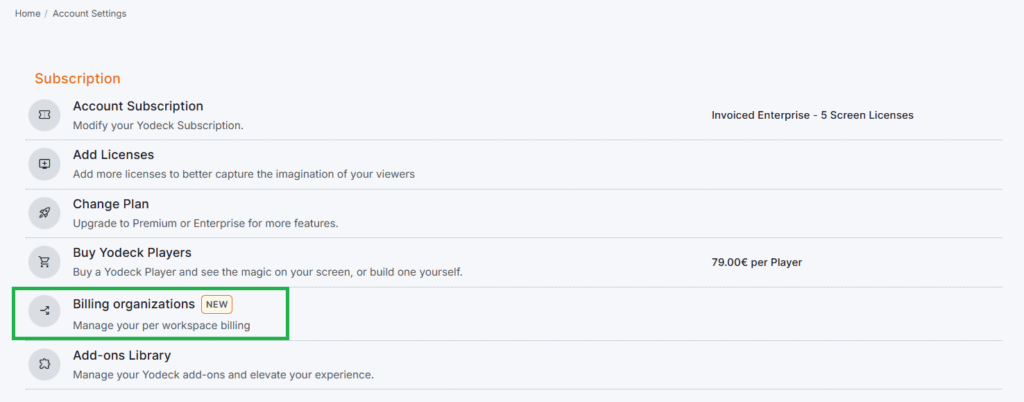
  • Enterprise: Available as an add-on. Activate it from the Account Settings > Add-ons Library, or contact your Account Manager.
  • Basic and Premium: Visible in the Add-ons Library with a Contact account admin button. However, an upgrade to Enterprise or Enterprise Plus is required.

When the Billing Entities feature is enabled on an existing account, your current billing setup is migrated to a default Billing Organization. From there, you can add and configure additional ones as needed.

💡Tip: Have your billing details, tax IDs, and shipping addresses ready before adding new Billing Organizations. See Best Practices Before You Start for the full checklist.


Create a Billing Organization

Once the Billing Entities feature is enabled, you can add a new Billing Organization at any time from your account.

  1. Go to Account Settings → Subscription → Billing Organizations.
  2. Click Create organization at the top of the list.
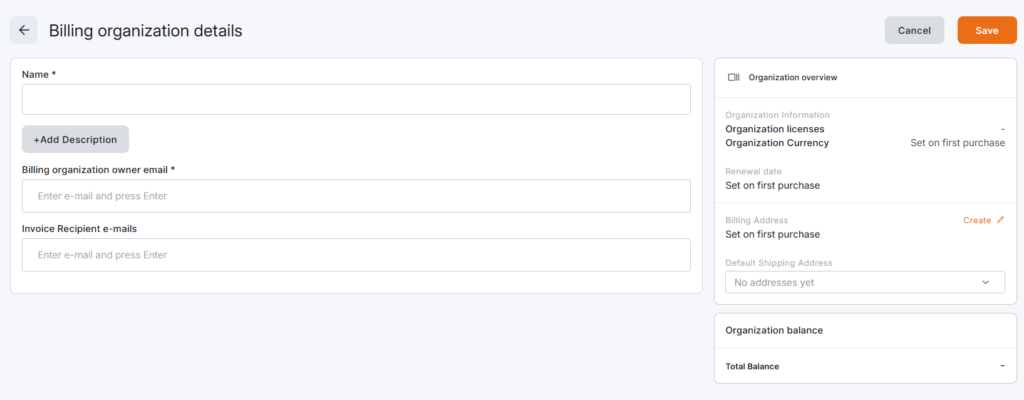
  3. Fill in the creation form:
    • Name (required) — the official name that should appear on this entity’s invoices.
    • Description (optional) — an internal label to help your team recognize the Billing Organization at a glance.
    • Billing Organization owner email (required) — the primary contact for this Billing Organization.
    • Invoice recipient emails (required) — one or more addresses that should receive this Billing Organization’s invoices.
  4. Optionally, you can set the Default Shipping Address, on the right side of the form:
    • Select an existing address from your account, or
    • Create a new address and save it for this Billing Organization.
  5. Click Save to create the Billing Organization.

✅The new Billing Organization appears in your Billing Organizations list and is immediately available for selection at checkout.

💡Good to know: Currency, billing address, tax/VAT details, and renewal date are not set in the creation form. The Billing Organization’s currency, and renewal date, are automatically set on the first order, while the billing address, shipping address, and VAT details can also be completed during the first order checkout (or at any time afterward from the Billing Organization’s detail page).

Creating a new Yodeck Billing Organization.
Step #2 of the creation
Filling in the Billing Organization details.
Step #3+4 of the creation
Finish of the creation of a new Billing organization in Yodeck.
Result after finishing the creation

View and Manage Your Billing Organizations

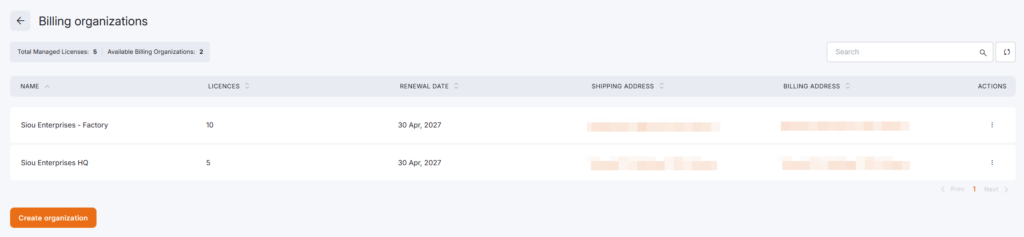
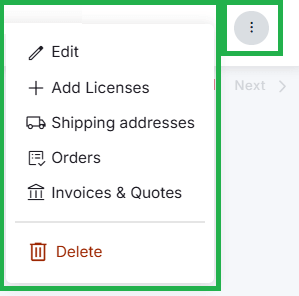
Go to Account Settings > Subscription section > Billing Organizations to see every entity connected to your account, with its name, license count, renewal date, and key billing details (shipping address & billing address). Open any Billing Organization to view, delete, or edit its full details, such as owner email, invoice recipients, billing address, shipping addresses, currency, and license balance. You can also access the quick actions of each Billing organization in the list by clicking on the three-dot icon next to each organization.
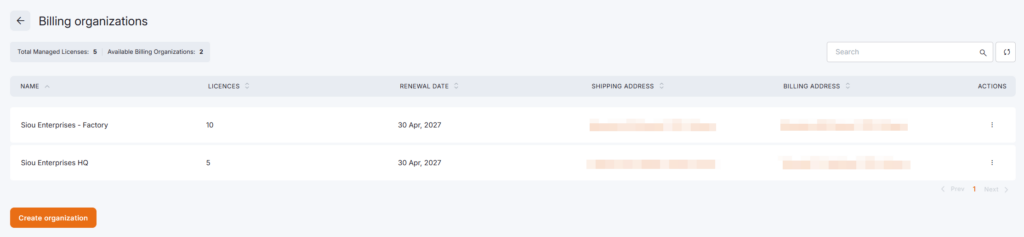
Billing Organizations list showing license counts and renewal dates per entity.
Billing organization's quick action options inside the Billing Organizations list displaying options such as edit, add licenses, shipping addresses, orders, invoices & quotes, and delete.

Add Licenses with Billing Entities

When the Billing Entities feature is enabled, the Add Licenses flow includes a step to select a Billing Organization.

  1. Start the Add Licenses flow from your subscription or billing area.
  2. Select the Billing Organization that should be billed.
  3. Enter the number of licenses you want to add.
  4. Review or complete the required billing and shipping details. If the Billing Organization is brand new, you’ll set its currency on this first purchase.
  5. Review the order summary: Billing Organization, line items, applied volume discount, and total.
  6. Submit the order.

The order and resulting invoice are attributed to the Billing Organization you selected.
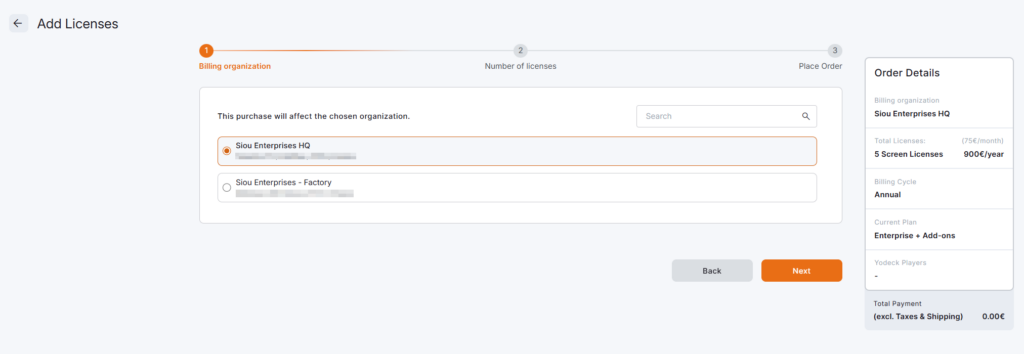
Selecting a Billing Organization while adding Yodeck licenses

How volume discounts work: Discounts are calculated on your account’s total license count across all Billing Organizations, then split proportionally across each Billing Organization’s invoices. Every entity gets a fair share of the savings your full account earns.


Buy Yodeck Players and Other Hardware

Hardware orders follow the same logic: the Billing Organization you select determines which entity is billed.

At checkout, you’ll also confirm the shipping address. Because each Billing Organization can have multiple shipping addresses, you can ship products directly to a specific office, branch, or franchise location.

If you start the order from a specific Billing Organization’s detail page, that Billing Organization (and its addresses) is preselected at checkout. The same logic applies also to licenses.
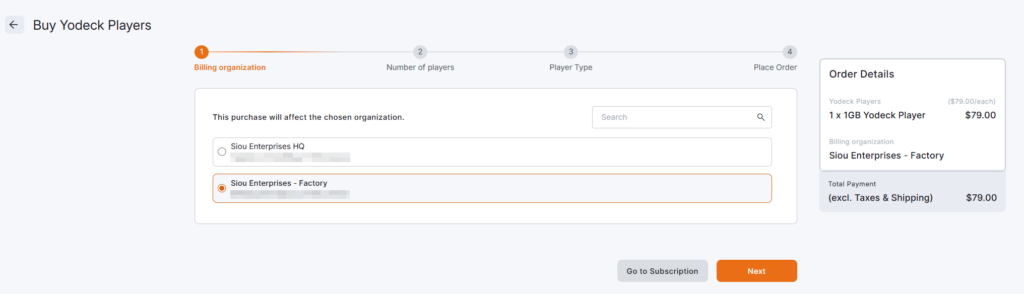
Platform Checkout page with Billing Organization and shipping address details when purchasing hardware.

View Orders, Invoices, and Quotes by Billing Organization

From your Account Settings > Account Subscription page (account’s billing page), you can view orders, invoices, quotes, and shipping addresses, and filter them by Billing Organization.
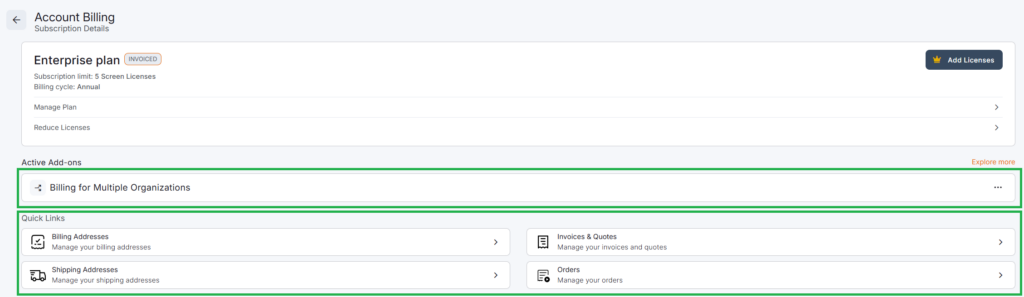
Filtering Yodeck invoices, quotes, and orders by Billing Organization.

Each record is tagged with the Billing Organization it belongs to, so finance teams can quickly find what belongs to a specific entity. You can also download invoice PDFs per record, issued in the Billing Organization’s billing details and local currency.

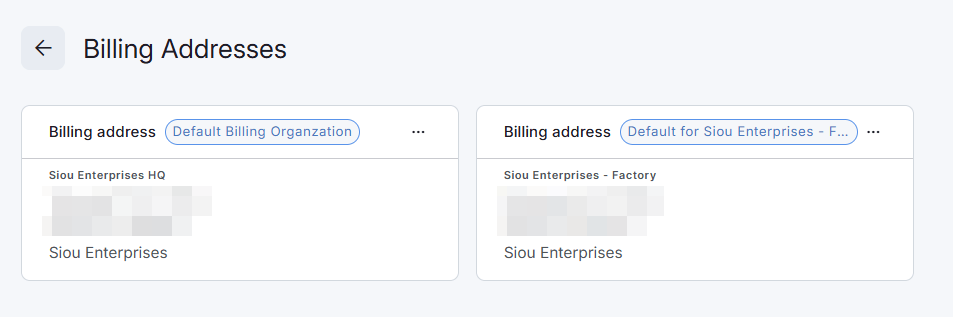
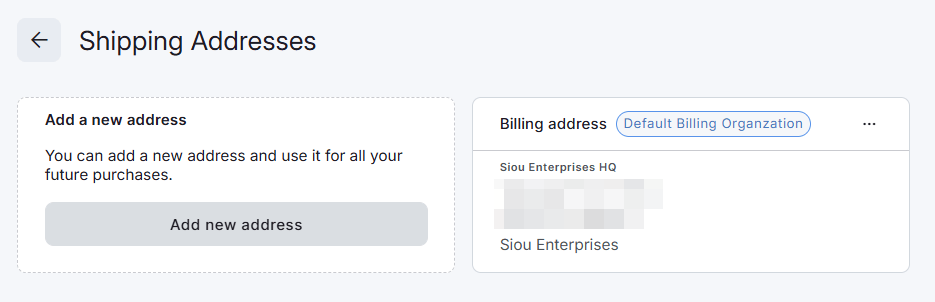
ℹ️You can access the invoices & quotes, orders, billing addresses, and shipping addresses from within each organization listed inside the Billing organization’s list page via their quick actions button.

ℹ️When there are pending quotes, the platform notifies you promptly and automatically, especially when a new quote is created.

⬇️You can view the following screenshots to have a better understanding of each billing element:
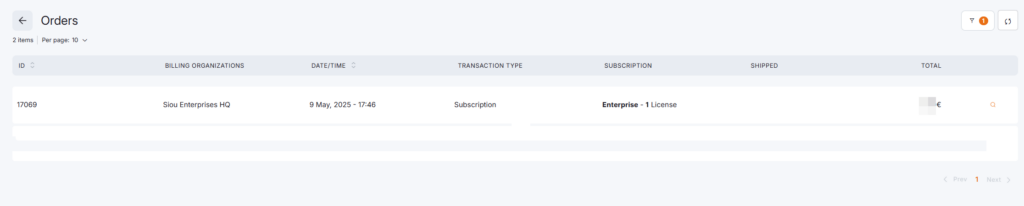
Orders list page
Invoices & Quotes list page
Billing Addresses list page
Shipping Addresses list page (available only per organization’s view)

Payments

Billing Entities currently uses invoice-based payment at checkout, with wire transfer as the supported method. Card payment may be available through the invoice payment link in some cases. Please contact your Account Manager or Yodeck Support for help with payment options.

⚠️Heads up: Direct card-on-file checkout for Billing Organizations isn’t part of the current release.


Renewals and In-App Notifications

Each Billing Organization renews on its own schedule. Existing Billing Organizations inherit the account’s current renewal date during migration; new Billing Organizations have their renewal date set automatically on the first purchase.

When a renewal needs your attention, Yodeck shows in-app notifications:

  • Order processing: confirms an invoiced order is being processed and that you can keep using Yodeck as usual.
  • Renewal pending: reminds you to complete payment by a specific date to avoid disruption, with a Make Payment link.

Add-ons and Billing Entities

Add-ons aren’t fully self-service in the current release. Because some add-ons affect screens or licenses across multiple Billing Organizations, their costs need to be fairly distributed between entities. Your Account Manager handles those changes today.

⚙️Contact your Account Manager or Yodeck Support to purchase, change, or remove any add-on while Billing Entities is active.


What’s Coming Next

The next iteration introduces local ordering: designated admins for a specific Billing Organization will be able to place orders for that entity directly, without access to the rest of the account. Workspace-level connections to Billing Organizations and richer permission controls will follow as part of the same expansion. We’ll share more details closer to release.


F.A.Q.s

Got questions? We’ve got answers! This section addresses common questions about the Yodeck Billing Entities feature.

Can each Billing Organization receive its own invoice?

Yes. Each order is attributed to a single Billing Organization, and the invoice is issued using that Billing Organization’s billing details and currency.

Can one central admin place orders for all Billing Organizations?

Yes. Billing Entities is designed for central ordering. The admin selects the relevant Billing Organization during checkout.

Can local admins order only for their own Billing Organization?

Not yet. Local ordering per Billing Organization is planned for a future phase.

How do volume discounts work with Billing Entities?

Discounts are calculated on your account’s total license count across all Billing Organizations, then split proportionally across each entity’s invoices.

Are Billing Organizations connected to Workspaces?

Not directly. Billing Organizations manage billing; Workspaces manage screens, content, and users. Distribute licenses across Workspaces using Workspace limits.

Can each Billing Organization have different invoice recipients, currencies, and renewal dates?

Yes. Each Billing Organization can have its own owner email and additional invoice recipients, its own currency (set on the first purchase), and its own renewal schedule.

How do I delete a Billing Organization?

Deletion is handled by Yodeck. Contact your Account Manager or Yodeck Support so we can apply the change safely.

Can I buy add-ons with Billing Entities enabled?

Add-ons are handled with help from your Account Manager in the current version. Reach out and we’ll arrange the purchase or change for you.

Can I pay by card?

Direct card checkout isn’t supported in the Billing Entities checkout flow. Wire transfer is the supported payment method. Card payment may be available through the invoice payment link in some cases.

What happens to my historical invoices when Billing Entities is enabled?

Your existing billing setup is migrated to a default Billing Organization. If you’d like historical invoices attributed differently, talk to your Account Manager so we can review your case.

Can I move licenses between Billing Organizations?

License reassignment between Billing Organizations is handled by your Account Manager in the current release.


Need Help?

The Yodeck Support Team can help you out! Log in to your Yodeck account and send us a message from the bottom right corner!


  • Homepage
  • General
    • What is Digital Signage
    • Free Signage Software
    • Raspberry Pi Signage
  • Product
    • Features
    • Apps
    • Free Signage Templates
    • Solutions
  • Support
    • Contact
    • Support Center
    • Give Feedback
    • FAQ

Copyright © 2015-2026 Flipnode LLC | All rights reserved.