Overview
When you place a Yodeck Player order in the Yodeck Portal, you can set up (pre-configure) your players before they ship. You name their screens, enter the network settings, and, on the Enterprise plan, assign them to workspaces, so each player connects and plays your content as soon as you plug it in. You also follow the order in the Yodeck Portal until it arrives.
How It Works
- When you complete an order that includes Yodeck Players, Yodeck creates one screen in your account for each player.
- You then have a 5-hour shipping window to set up the players. Yodeck applies the settings you save in that window to the players before they ship.
- The window ends when you click Complete setup or when the countdown ends. Either way, the order then goes to shipping.
- After the setup, you can create content and assign it to the new screens while the players are on their way.
Set Up Your Yodeck Players
Right after you complete your order, the order setup page opens. A countdown shows the time left in the shipping window.
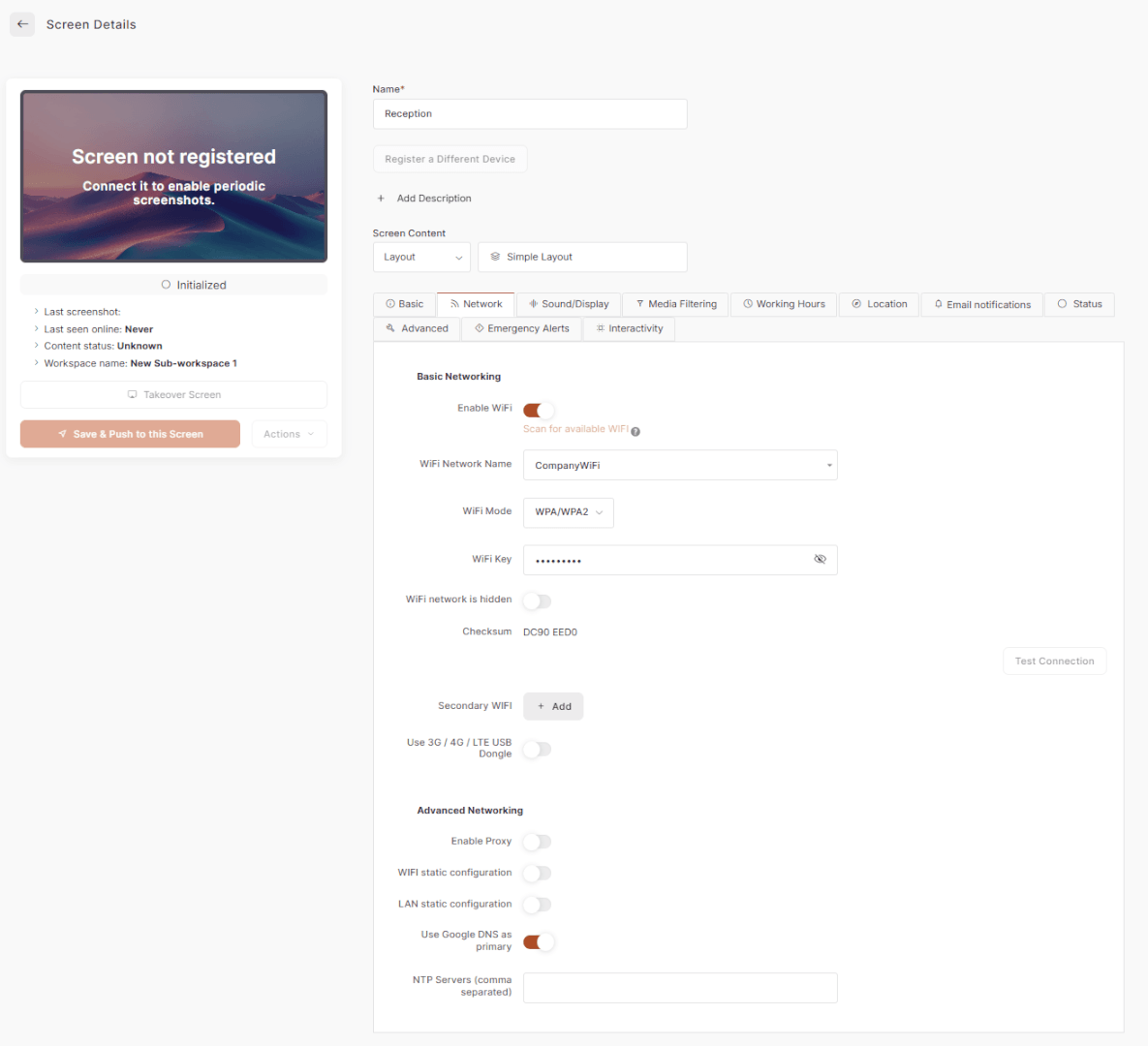
- Give each screen a name, so you can tell your players apart later (for example, Reception or Cafeteria).
- Assign each screen to a workspace (Enterprise plan).
- Set the network for each player: enter the Wi-Fi network name and password, or open the advanced network settings. They offer the same options as the Network tab of your screen settings, such as 3G/4G/LTE, a proxy, or a static IP. Learn more in Network Introduction.
- To use the same network settings on every player in the order, set them once and copy them to all players.
- When every player is set up, click Complete setup.
Finish the Setup Later
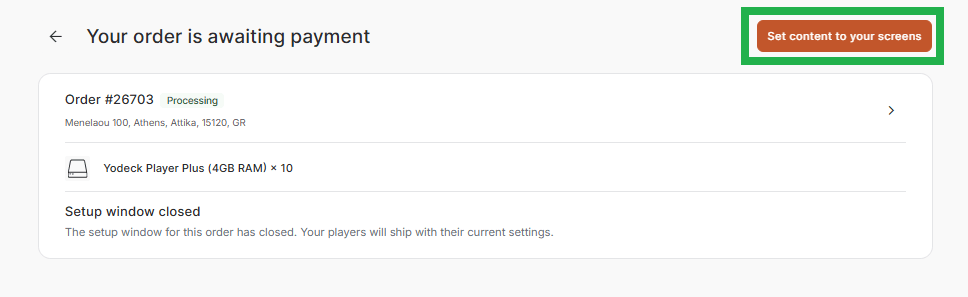
You do not have to finish everything at once. Click Finish later, or simply leave the order setup page.
- Your pending setup appears as a notification on your dashboard until the shipping window closes. Click it to continue where you left off.
- If the countdown ends before you click Complete setup, your players ship with the settings you saved up to that point.
Invite Someone Else to Complete the Setup
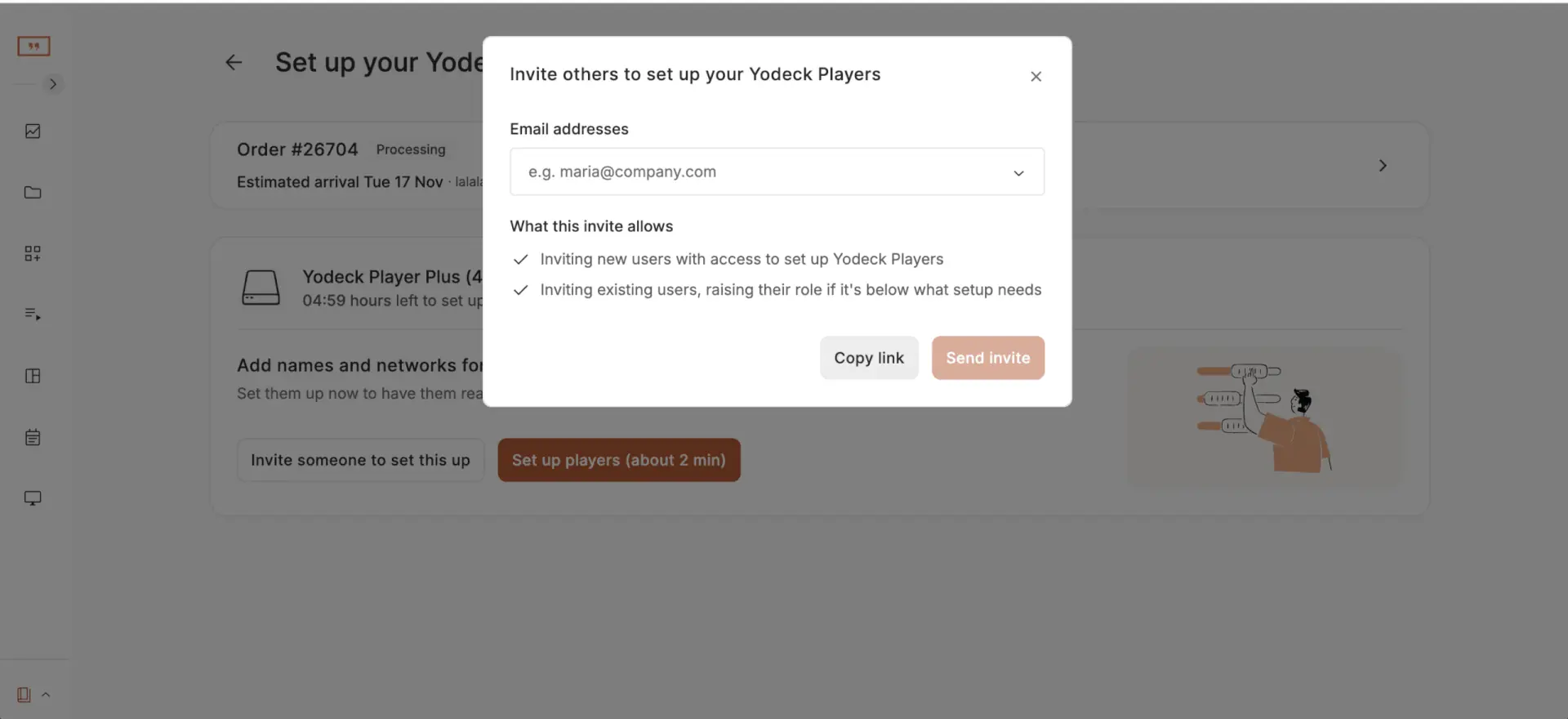
The person who orders the players is not always the person who knows the network details. From the order setup page, you can invite someone else, such as your IT contact, to complete the setup:
- A new user receives an invitation to join your Yodeck account. Learn more about users.
- An existing user of your account receives a notification to complete the setup.
The invited person completes the setup within the same shipping window.
Prepare Your Content While You Wait
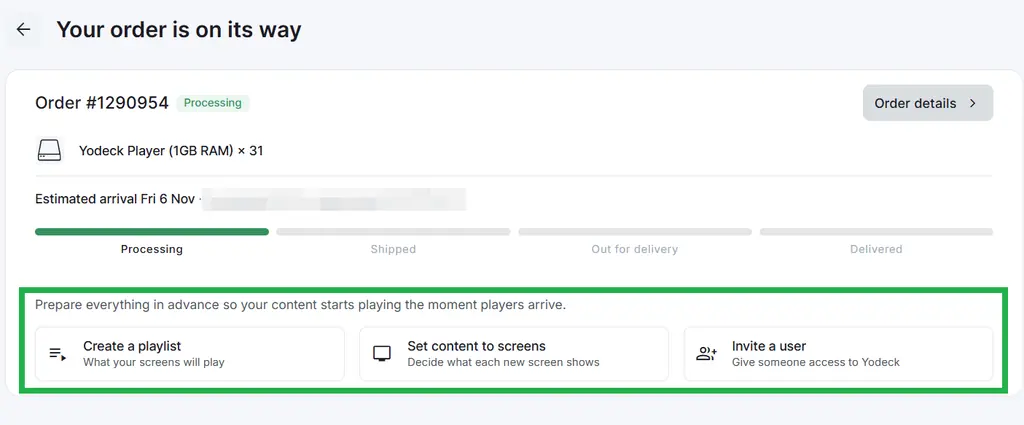
After you complete the setup, the Yodeck Portal guides you to create content and assign it to your new screens. If you need help, see how to create content for your Yodeck screens and how to assign content to your Yodeck Player.
Your content is not stored on the players when they ship. Each player downloads its content right after it connects for the first time, so wait a moment after you plug it in.
Track Your Yodeck Player Order
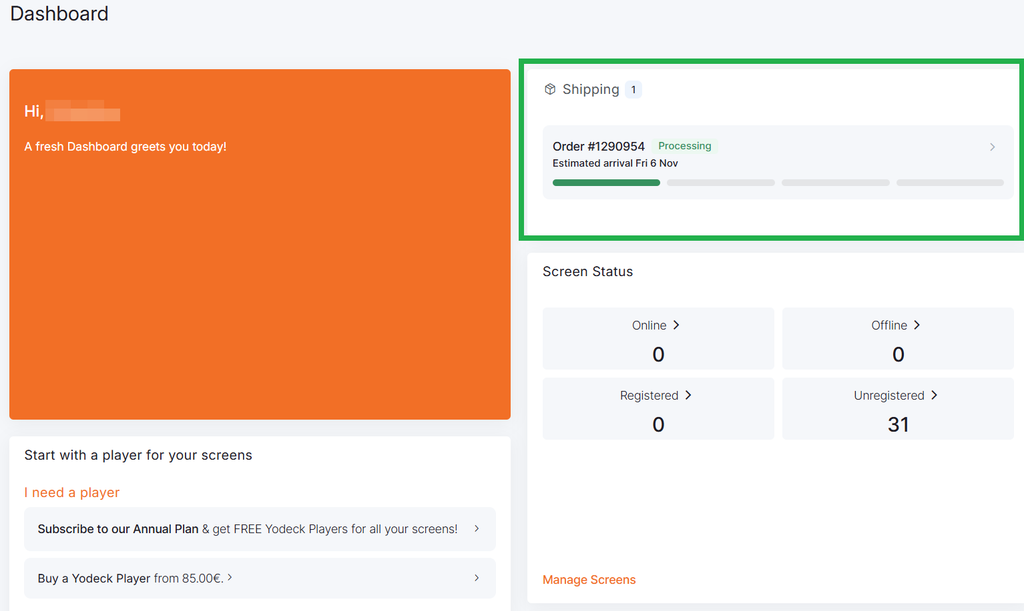
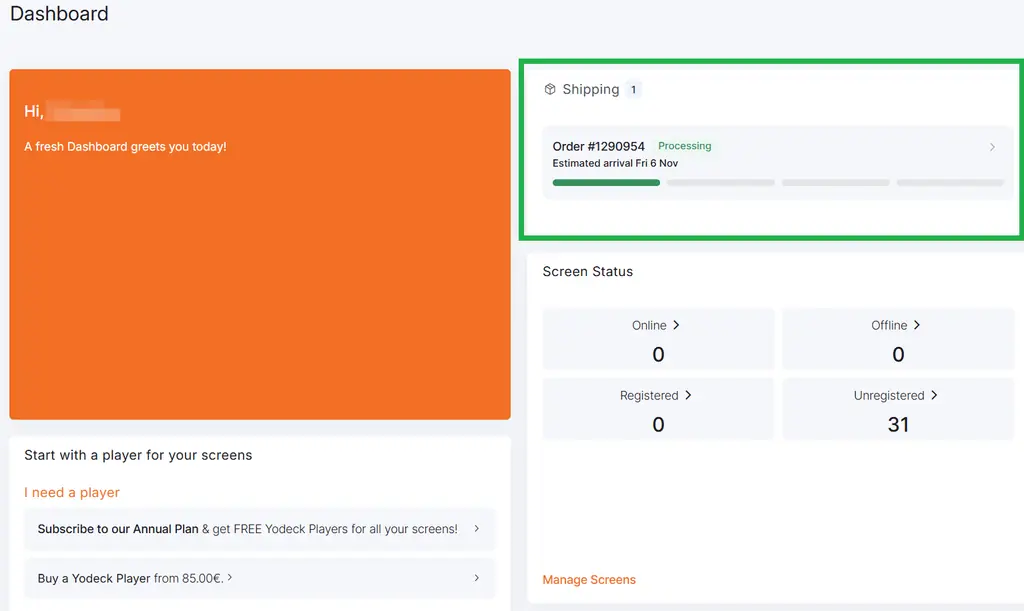
Every Yodeck Player order has an order notification in the Yodeck Portal. You find it on your dashboard and in the notifications panel until the order is delivered. It shows:
- The shipping status: Processing, Shipped, Out for delivery, or Delivered
- The estimated arrival
- The carrier tracking link
The order details page shows the same status and tracking link.
For delivery times and shipping costs, see When will my Yodeck player be here?
When Your Yodeck Players Arrive
When you set up your Yodeck players before they ship, getting them on screen takes a few minutes:
- Connect each player to its display with the HDMI cable.
- Plug in the power adapter.
- Wait a moment. The player connects to your network, picks up its settings and content, and starts playing.
ℹ️For the full unboxing steps, see how to set up your Yodeck devices.
Troubleshooting
Check that the network name and password you saved match your network exactly, and that your network did not change since your order. To connect the player now, use one of these options:
- Configure the Wi-Fi network using an Ethernet cable
- Configure the Wi-Fi network with the player Wi-Fi wizard
- Connect the player to Wi-Fi with a QR code
If your network restricts traffic, check which ports the Yodeck players need.
Your players ship with the settings you saved before the countdown ended. When they arrive, connect them with an Ethernet cable or the player Wi-Fi wizard, as described above.
Make sure you assigned content to its screen. See how to assign content to your Yodeck Player. The first download can take a few minutes, depending on the size of your content.
The player has no screen to connect to, so you need to register it manually. Contact our Support team if you need help.
F.A.Q.s
Got questions? We’ve got answers! This section addresses common questions about the Yodeck Player order setup feature.
How long do I have to set up my Yodeck players?
You have 5 hours after you complete your order. The window closes earlier if you click Complete setup.
Does Complete setup ship my order immediately?
Yes. It closes the shipping window and sends your order to shipping. Click it only when every player in the order is set up. If you are not sure, click Finish later.
Can I leave the order setup page and come back?
Yes, as long as the shipping window is open. Your pending setup appears as a notification on your dashboard. After the window closes, your players ship with the settings you saved up to that point.
Someone else knows our network details. What do I do?
Invite them from the order setup page. You can invite a new user, who receives an invitation to your account, or notify an existing user. They complete the setup themselves.
Will my content be on the player out of the box?
No. The player downloads its content right after it connects for the first time. Plug it in and wait a moment for your content to appear.
Can I rename or delete the screens created with my order?
You can rename them at any time. Do not delete them while your players are on their way: each player is bound to its screen before it ships, and a player whose screen was deleted needs manual registration.
Where do I find the tracking link of my Yodeck Player order?
In the order notification on your dashboard and in the notifications panel of the Yodeck Portal. The order details page shows the same status and link.
Can I change the Wi-Fi settings after the shipping window closes?
Not before the players ship: they ship with the settings saved when the window closed. If your network details change, connect each player with an Ethernet cable or the player Wi-Fi wizard when it arrives.
Need Help?
The Yodeck Support Team can help you out! Log in to your Yodeck account and send us a message from the bottom right corner!