Overview
When multiple branches, departments, or teams share screens, content management gets complex. Sub-playlists combined with Workspaces give enterprise customers a clean way to split ownership, control playback centrally, and keep brand consistency across locations.
This guide explains how sub-playlists work in detail, walks through the most common configuration patterns, and shows how to combine them with Workspaces for real enterprise scenarios.
Who this guide is for
This guide is intended for:
- Enterprise customers on the Premium plan (required for sub-playlists).
- Admins managing content across multiple locations, departments, or brands.
- Teams using Workspaces to delegate content ownership while keeping central control.
ℹ️If you’re new to Workspaces, start with the Workspaces introduction and the Workspaces overview.
How sub-playlists work
A sub-playlist is a regular playlist nested inside another playlist (the main playlist, also called the parent playlist). The main playlist controls the overall sequence on screen. Each sub-playlist contributes its own set of assets.
Three settings control how each sub-playlist behaves inside the main playlist:
- Max Time: the maximum number of seconds a sub-playlist plays before the main playlist moves on.
- Max Items: the maximum number of assets from the sub-playlist that play in each pass.
- Repeat items to reach max time/items: if neither limit is met, repeat the sub-playlist from the start until the limit is reached.
ℹ️For setup steps, see Sub-playlists.
Configuration scenarios
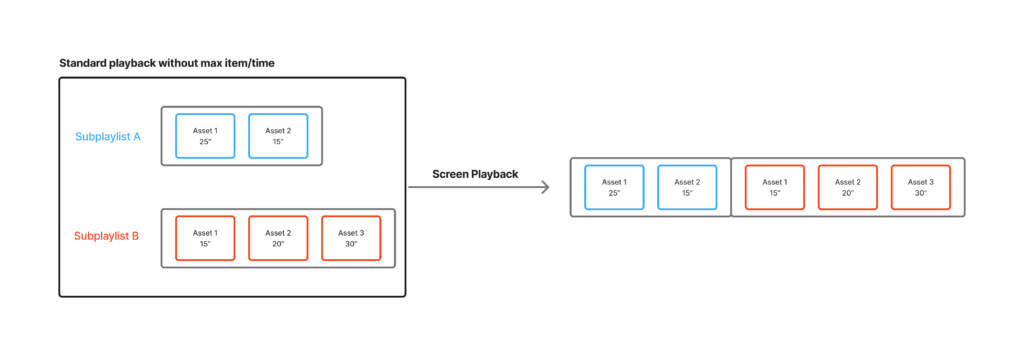
The following scenarios show how the same two sub-playlists behave under different settings. In each example:
- Sub-playlist A contains two assets: Asset 1 (25 seconds) and Asset 2 (15 seconds).
- Sub-playlist B contains three assets: Asset 1 (15 seconds), Asset 2 (20 seconds), and Asset 3 (30 seconds).
No limits set
With no Max Time or Max Items defined, each sub-playlist plays through completely before the main playlist moves on. Playback follows the order of the main playlist.
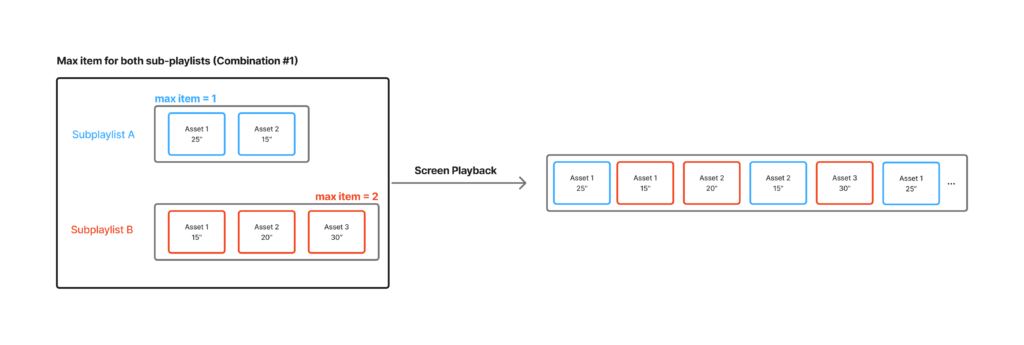
Different Max Items per sub-playlist
Sub-playlist A has Max Items = 1. Sub-playlist B has Max Items = 2. Playback alternates: one asset from A, then up to two assets from B. Because B has three assets and only two play per pass, the third asset appears alone on the next pass through B.
Same Max Time on both sub-playlists
Both sub-playlists are set to Max Time = 25 seconds. Asset 3 in Sub-playlist B is 30 seconds long, which exceeds the 25-second limit. As a result, it’s always skipped during playback.
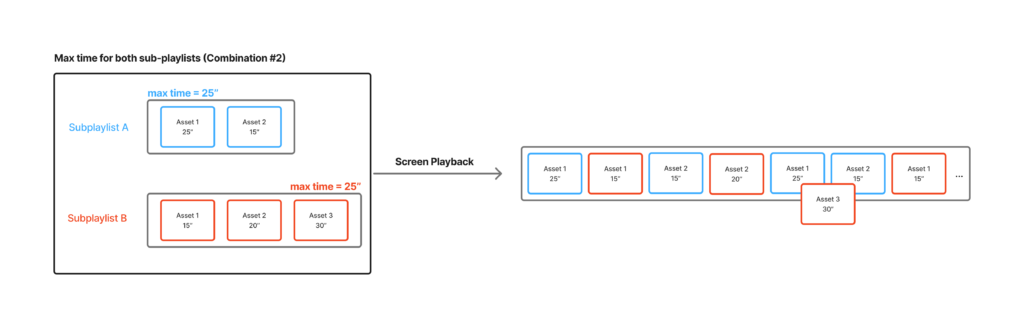
💡Takeaway: if an individual asset exceeds the sub-playlist’s Max Time, it never gets airtime. Raise Max Time, shorten the asset, or move it to a different sub-playlist.
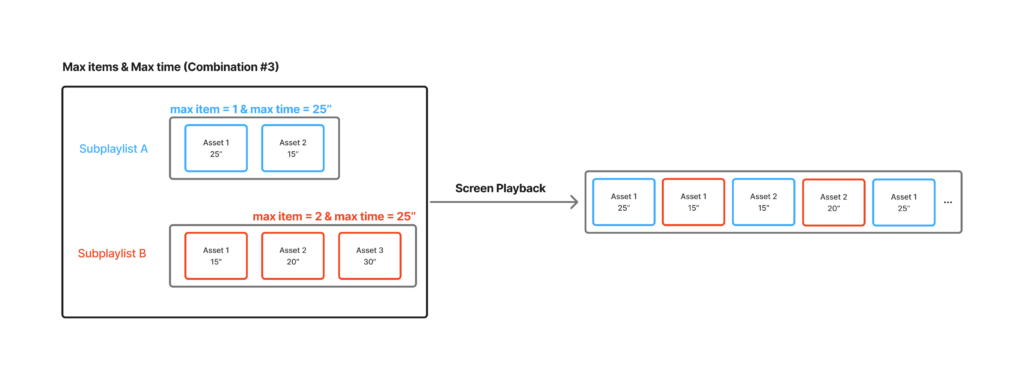
Max Items and Max Time together
Sub-playlist A has Max Items = 1 and Max Time = 25″. Sub-playlist B has Max Items = 2 and Max Time = 25″. The first limit reached ends that pass through the sub-playlist. So A plays one asset per pass, and B plays at most two assets, unless the 25-second clock runs out first.
Max Time with Repeat enabled
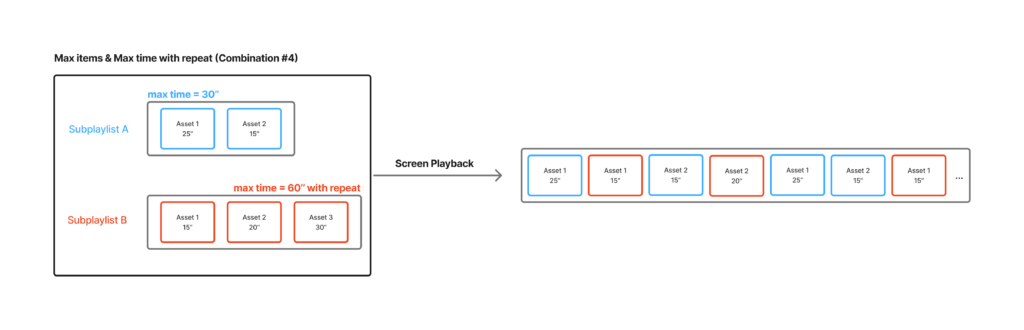
Sub-playlist A has Max Time = 30″. Sub-playlist B has Max Time = 60″ with Repeat items enabled. Because B has double the screen time and Repeat is on, it cycles through its assets and loops back to the start to fill the 60 seconds.
What happens when neither limit is reached
If both Max Time and Max Items are enabled but the sub-playlist’s content doesn’t reach either limit, the sub-playlist plays through once, and the main playlist moves on.
Example:
- Settings: Max Items = 7, Max Time = 90 seconds.
- Sub-playlist content: 5 items at 10 seconds each = 50 seconds total.
- Result: all 5 items play once (50 seconds total), then the main playlist continues.
To force the sub-playlist to repeat until a limit is hit, enable Repeat items to reach max time/items. This toggle becomes available once Max Time or Max Items is set, and it loops the sub-playlist from the start until the relevant limit is reached.
Performance and limitations
Plan for these constraints when designing sub-playlist structures at scale:
- Sync Playback may not be precise across sub-playlists, since their internal timing can vary.
- Background audio from the main playlist takes precedence over sub-playlist audio.
- Hardware load is higher than for single-level playlists. Avoid deep nesting (more than one level) on lower-end players.
Enterprise scenarios with Workspaces
The real value of sub-playlists at scale comes from combining them with Workspaces. Workspaces assign content ownership to specific teams (HQ, regional offices, branches). Sub-playlists then assemble that content into one cohesive screen experience.
ℹ️For workspace user roles, see User Roles in Workspaces.
Shared + Branch content: branches have maximum control
In this model:
- Each branch manages its own sub-playlist with local content.
- Shared content (logos, HQ announcements, brand assets) lives in a global Shared Workspace that all branches can pull from.
- Updates in the Shared Workspace automatically appear on every branch screen that uses the shared content.
Best for: companies where branches need autonomy but HQ still wants brand consistency.
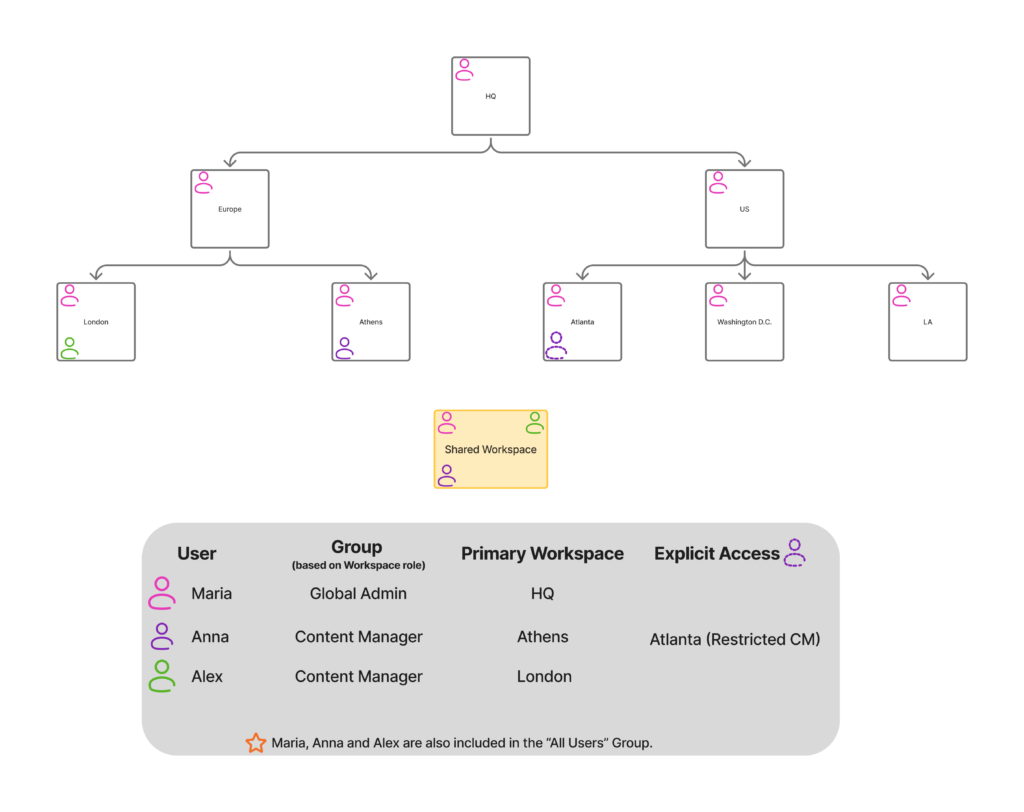
Example: Maria works at HQ and pushes shared content into the Shared Workspace. Anna and Alex are Content Managers for Athens and London. Each builds their own playlist by combining local content with the shared HQ assets:
- Anna’s screen: HQ-wide content + Athens news + local information.
- Alex’s screen: HQ messages from Maria + London weather + local updates.
HQ & Branch: HQ has full control
In this model:
- HQ owns the main playlist and decides exactly which sub-playlists appear, where, and for how long.
- Branches build their own sub-playlists but cannot modify the main playlist or its sequence.
- The result is local content, centrally controlled.
Best for: strict governance environments where brand control or regulatory consistency matters more than branch flexibility.
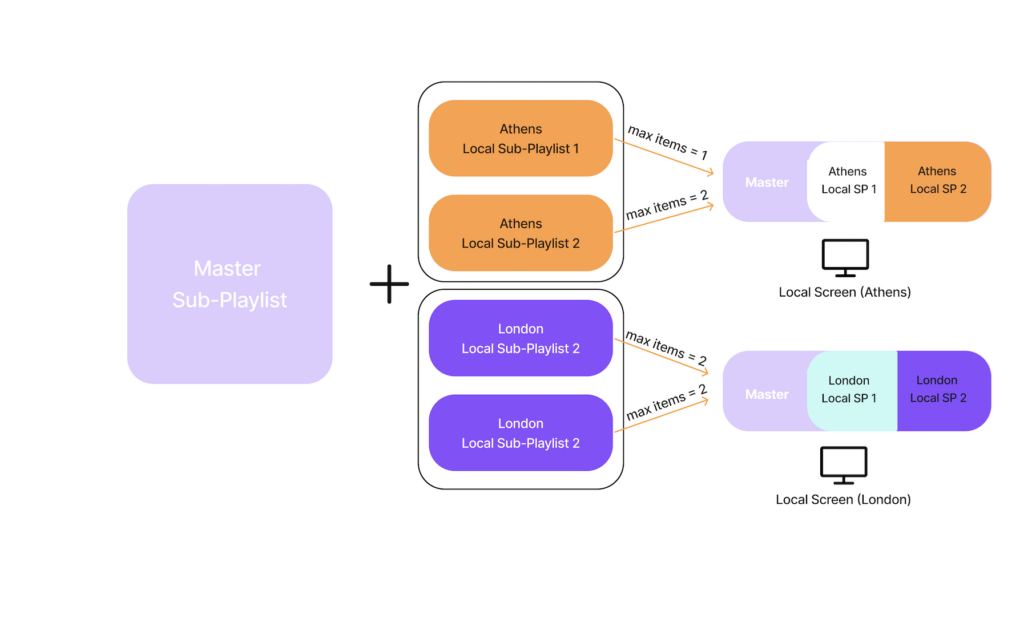
Example: Anna and Alex each build their own local sub-playlists. Maria assembles the main playlist at HQ, slotting each branch’s sub-playlist into specific positions with the Max Time or Max Items limits she chooses. The final result reaches each branch’s screens, but only Maria can change the structure.
Example use cases
- Global enterprises: combine corporate announcements (HQ) with local content (branches) so every location stays on-brand without losing local relevance.
- Manufacturing companies: split screen time between departments such as Production, HR, and Safety, each owning its sub-playlist.
- Universities and schools: separate sub-playlists for different departments, courses, programs, or events, assembled into one campus-wide rotation.
- Retail chains: blend corporate promotions with store-specific offers. HQ controls the promo timing, stores control the local mix.
Best practices for enterprise setups
- Start with a clear workspace hierarchy. Decide which workspace owns global content (HQ) and which handles local updates (branches or departments) before you build any playlists.
- Match the model to your governance needs. Use Shared + Branch when branches need autonomy. Use HQ + Branch when central control matters more.
- Use Max Time or Max Items to balance airtime. Give each team or content category a fair share of the screen.
- Enable Repeat only when you need to fill a fixed time slot. Otherwise, let sub-playlists play through once and move on.
- Keep nesting to one level. Multi-level nesting is harder to debug and heavier on the player.
- Review the structure quarterly. Remove outdated sub-playlists, audit workspace permissions, and confirm playback still matches your intent.
- Plan audio at the main playlist level. Remember that the main playlist audio overrides anything in a sub-playlist.
ℹ️For the basics of each playlist type and general playlist best practices, see Playlists in Yodeck: Types, Use Cases, and Best Practices.
