Overview
Content Flow gives multi-location organizations centralized control over what plays on every screen. Headquarters defines the global content and guarantees it screen time, regional teams fill their own slots, and local teams keep working as before. This article covers how the feature works, how to set it up, best practices, and common fixes, and is written for Account Administrators who set it up and the teams who manage content within it. It’s an advanced feature, but the running example walks you through every concept.
What Is Content Flow?
Content Flow lets every team in your organization contribute content to the same screens, each within its own guaranteed share of screen time. Think of a screen’s day as airtime on a TV channel: headquarters reserves a slot for company-wide messages, each region reserves one for its campaigns, and the local team fills the rest. The Yodeck Portal merges these slots into one playlist that loops automatically on every targeted screen.
Before Content Flow, this meant building a separate playlist for every screen and endless coordination between teams. Now you set the rules once, at the top, and every level manages only its own content. Nobody can overwrite anyone else’s work, and headquarters always knows its message is playing.
A running example: Nordic Coffee Co.
We will use the same example throughout this article. Nordic Coffee Co. is a coffee chain with a headquarters, two regions (Europe and North America), and dozens of stores, each with a screen. Three teams want content on those screens:
- HQ (Global content): the internal communications team wants the new brand video and the “Employee of the Month” announcement playing in every store worldwide.
- Regions (Regional content): the Europe team runs a winter promotion, while the North America team runs a pumpkin spice campaign. Each should play only in its own region.
- Stores (Local content): every store shows its own daily specials and opening hours, managed by the store manager.
With one Content Flow, all three happen at once. The Athens screen plays HQ content, then the Europe promotion, then its own daily specials. The Boston screen plays the same HQ content, then the North America campaign, then its own specials. Every screen gets a unique combination without anyone building it by hand.
How content levels combine on each screen
Brand video, announcements
Winter promo
Pumpkin spice campaign
Daily specials
Daily specials
Daily specials
Athens plays HQ + Europe + its own content. Boston plays HQ + North America + its own content. One setup, unique screens.
Key Concepts
A few terms keep coming up in this article. Here is what each one means, with our running example next to it:
| Term | What it means | In our example |
|---|---|---|
| Level | A layer of your organization, generated from your Workspace tree. Each level gets its own content slot on the final screen, and the wizard shows the top one as “Global”, the middle ones as “Regional”, “Sub-regional” and “Sub-sub regional” and the last one as “Local”. A structure supports 2 to 5 levels. | HQ is level 1, the regions are level 2 and the stores are level 3. |
| Global content | The content assigned to the top level. In a Hierarchical structure the top level is the Starting Workspace; in a Flat structure it applies account-wide. Either way, it plays on every targeted screen. | The brand video and the “Employee of the Month” slide. |
| Regional content | The content assigned to the Workspaces of a middle level. Each Workspace in the level has its own content slot, all sharing the level’s max time, and each plays only on the screens under its branch of the tree. | The winter promotion plays only on screens under the Europe Workspace. |
| Local content | The content each local team assigns directly to its own screen, exactly as it always has. The final level of every structure is reserved for it. | Each store’s daily specials. |
| Airtime budget | The maximum time, in seconds, that each level’s content plays before the screen moves to the next level. You set it in each level’s max time field in the Airtime breakdown panel. | HQ decides: 30 seconds for Global, 20 for Regional, 40 for Local. |
| Target screens | The screens that receive the merged content. Include all screens or filter by Screen Tags; a screen must carry all the selected tags to match. | HQ targets only screens tagged “customer-area”, leaving kitchen screens untouched. |
Choosing a Structure: Flat or Hierarchical
The first decision you make is the structure. There are two options, and the right one depends on whether the middle levels of your organization need their own content slot.
Which structure do I need?
(regions, countries, buildings) need their own content slot?
Global + Local, account-wide
2 to 5 levels from your Workspace tree
Flat: Global + Local only
A flat structure has exactly two levels: your global content and each screen’s local content. It works account-wide, so your global content can reach every screen in the account regardless of how your Workspaces are organized. Choose it when you only need one company-wide message combined with what each screen already plays. It is also the easiest way to try the feature.
Hierarchical: levels that mirror your Workspace tree
A hierarchical structure creates one content slot for every level of your Workspace tree. Choose it when teams between headquarters and the screens, such as regions, countries, or buildings, also need to contribute content. The Yodeck Portal generates the levels automatically: the Starting Workspace becomes the Global level, and its child Workspaces populate the levels below, up to 5 levels deep.
Flat vs Hierarchical at a glance
Flat
(each screen’s own)
One message everywhere, plus whatever each screen already plays.
Hierarchical
(each screen’s own)
Every level of your organization gets its own slot.
Choose carefully: the structure type and its levels lock permanently once you save. You can change the content and the airtime budgets at any time, but to change the structure itself, you must delete the Content Flow and create a new one.
How Playback Works
Content Flow divides screen time by duration, not by number of items. Each level plays for up to its airtime budget, then the screen moves to the next level down. After the last level, the loop starts again from the top. This guarantees that every level gets its agreed share of screen time, no matter how much or how little content each team has uploaded.
In our example, HQ set these budgets: Global 30 seconds, Regional 20 seconds, Local 40 seconds. Here is what one loop looks like on the Athens screen:
One loop on the Athens screen (90 seconds total)
In every 90 seconds of screen time, HQ is guaranteed 30, the region 20 and the store 40.
Why time instead of items? Because it is the only fair way to share a screen between teams that manage their content independently. HQ does not need to know how many items each store uploads. It only needs to know that its own message plays for 30 seconds out of every loop, on every screen, always.
The three playback rules
Three simple rules decide exactly what plays inside each level’s time slot. Understanding them prevents almost every “why is my content not playing?” question.
- Rule 1: No item is ever cut in the middle. The player only starts an item if it fits completely in the level’s remaining time. If the next item does not fit, the player skips ahead to the next level instead of playing half a video.
- Rule 2: Each level continues where it stopped. When the loop comes back around to a level, its playlist resumes from the item where it left off. It does not restart from the top. This way, all items eventually get screen time across multiple loops, not just the first one or two.
- Rule 3: An item longer than the whole budget never plays. If a single video or image is longer than its level’s entire airtime budget, it can never fit, so the player skips it permanently. The Yodeck Portal warns you when this happens, but the golden rule is simple: keep every item shorter than its level’s budget.
Rules 1 and 2 in action
HQ’s Global playlist has Video A (20s), Video B (20s) and Video C (20s). The Global budget is 30s.
Loop 1: Video A plays. Only 10s remain, so Video B does not fit and the level ends early (Rule 1).
Loop 2: the level resumes at Video B, not back at Video A (Rule 2).
Loop 3: Video C plays, and by now every item has had screen time.
If HQ had instead uploaded one 40s video into this 30s budget, it would never play at all (Rule 3).
Rule 3: an item longer than the budget never plays
Global budget: 30s. Uploaded video: 40s.
The fix: shorten the item or raise the level’s max time.
What if a level’s content is shorter than its budget?
Say the Europe team’s winter promo is a single 8-second slide, but the Regional budget is 20 seconds. What fills the remaining time? That depends on the Repeat Items setting of the playlist assigned to that level:
- Repeat Items ON: the playlist starts over from the beginning to fill the remaining time. The 8-second slide plays twice (16 seconds). A third play does not fit in the remaining 4 seconds, so the screen moves to the next level (repeats follow Rule 1 too: an item only replays if it fits completely).
- Repeat Items OFF: the slide plays once and the screen moves to the next level early. The remaining 12 seconds go to nobody; they are not redistributed.
Repeat Items: one 8s slide in a 20s budget
ON: the slide replays while a full play still fits.
OFF: one play, then the screen moves on early.
What if a level has no content at all?
If a level has no content assigned, or a screen’s branch of the tree has no Workspace for that level, the player skips the level entirely. The loop simply becomes shorter. In our example, if the Europe team has not assigned anything yet, the Athens screen plays Global 30s and then Local 40s in a 70-second loop until Europe adds its content.
A skipped level shortens the loop
All levels assigned: 90-second loop.
Regional level empty: the loop shrinks to 70 seconds. The 20 seconds are not redistributed.
Who Does What
Content Flow is built around a clear division of responsibilities. Each role only touches its own part, which is exactly what keeps the whole setup safe and low-maintenance.
| Role | Who this typically is | What they can do |
|---|---|---|
| Account Administrator (Global level) | The HQ team, such as internal comms or IT | Everything: create the Content Flow, choose the structure, assign the Global content, set all airtime budgets, choose the target screens and publish. |
| Workspace manager or content editor (Regional levels) | Regional marketing or comms teams | View the Content Flow and assign or change content only for the levels they manage. They cannot touch the structure, the budgets, the target screens or any level above them. |
| Local user (Local level) | Store managers, office managers, front-desk staff | Nothing new. They assign content to their screens exactly as they always have, and it automatically becomes the Local content slot. |
The Account Administrator’s workflow
At Nordic Coffee Co., the internal comms manager creates the Content Flow once (see “Creating a Content Flow” below), assigns the “Corporate 2026” playlist to the Global level, and sets the budgets. From then on, updating what plays worldwide means editing that playlist: swap the brand video, add an announcement, push. There is no need to reopen the Content Flow for everyday content changes.
The Regional editor’s workflow
The Europe marketing lead has manager permissions on the Europe Workspace. When she opens the Content Flow, the Yodeck Portal shows her only what she can edit: her Europe Workspace’s row on the Regional level. She expands it, assigns her “Winter Promo” playlist, and manages it over the season. HQ’s content, the budgets, and the target screens stay out of reach, so she cannot break anything outside her region, even by accident.
The Local user’s workflow
The Athens store manager may not even know the feature exists, and that is by design. He assigns his “Daily Specials” playlist to his screen the same way he always has, from the screen’s page or from the playlist’s options. Whatever he assigns plays in the Local slot of the loop. If he later swaps it for a different playlist, the Local content updates automatically.
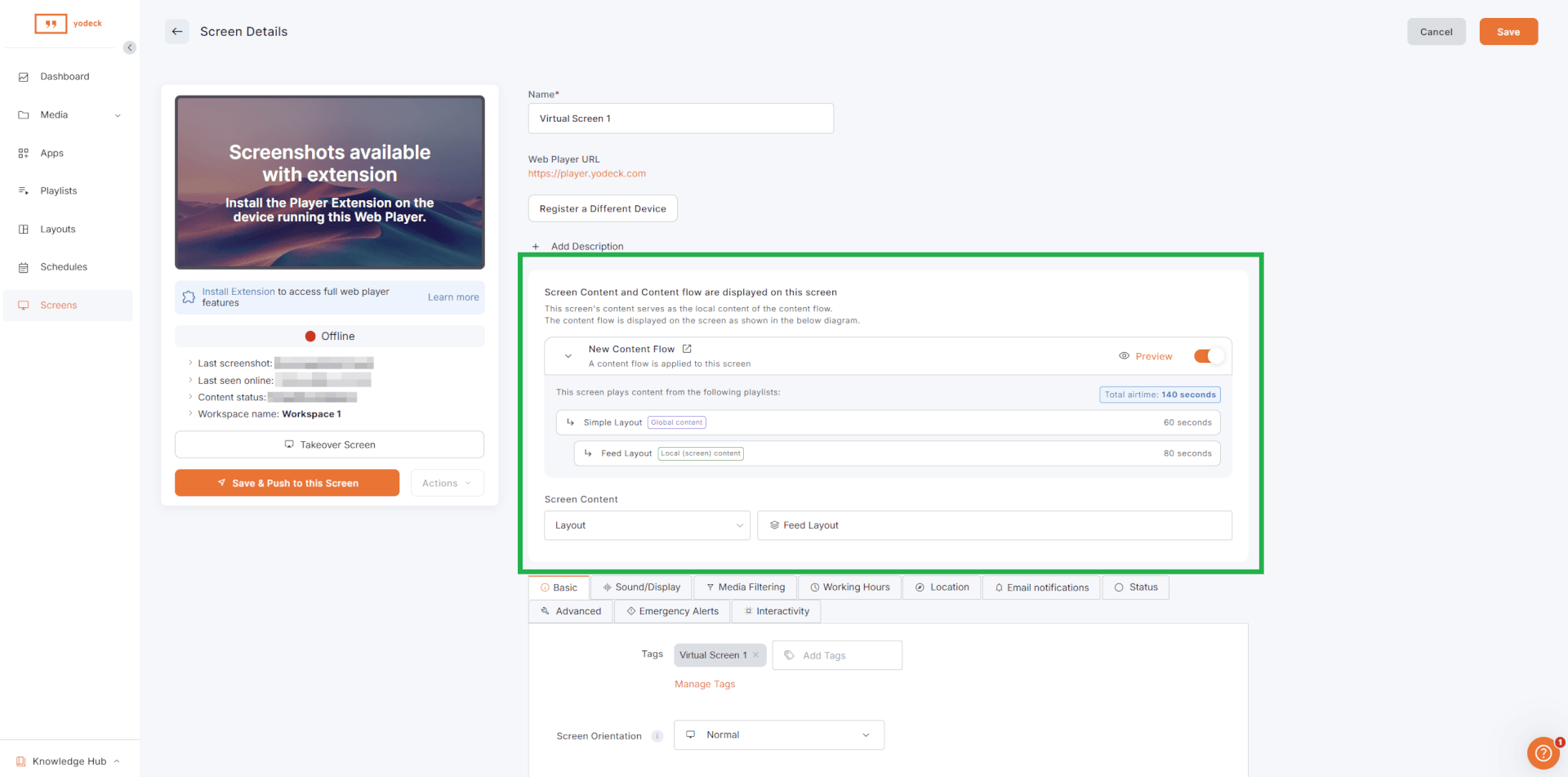
On the screen’s page in the Yodeck Portal, local and regional users can see the full picture for that screen: which levels play on it, how much airtime each level gets, and what their own slot contains, together with the total airtime of one full loop. So even though they only control their own part, everyone can see why the screen plays what it plays.
Before You Start
Before you create your first Content Flow, run through this quick checklist. Two minutes here saves you from restarting the setup later:
- Your account is on the Enterprise plan.
- You are an Global Admin. Only administrators can create, edit or delete a Content Flow.
- For a hierarchical structure, your Workspace tree already mirrors your organization, because the levels are generated from it automatically. The Starting Workspace needs at least one child Workspace (2 levels minimum, 5 maximum). For a flat structure, no hierarchy is needed.
- The playlists or media for each level are ready, and no single item is longer than the airtime budget you plan to give its level.
- You know which screens should receive the content. If only some screens should, make sure those screens carry a common Screen Tag so you can target them easily.
- None of the screens you plan to target uses a Schedule as its content. Schedules take precedence and keep the Content Flow inactive (see “Rules and Limitations” below).
- Your targeting avoids overlaps: each screen can have only one Content Flow assigned.
Creating a Content Flow
To get started, go to Account Settings in the Yodeck Portal, open the Content section, and select Content Flows. A three-step wizard guides you through the setup: Structure, Distribution and Content, and Screen Selection. You can move freely between steps before saving, and the Open setup guide link in the wizard offers help at any point.

The Content Flow wizard at a glance
Name it, pick Flat or Hierarchical, choose the Starting Workspace.
Assign content per level and set each max time.
Target screens, resolve conflicts, Save & Push.
Step 1: Structure
- Give it a clear, recognizable name by clicking the pencil icon next to the “New Content Flow” title. Nordic Coffee Co. names theirs “Store Screens 2026”.
- Choose Flat or Hierarchical (see “Choosing a Structure” above for how to decide).
- For a Hierarchical structure, select the Starting Workspace. This becomes the Global level: the Yodeck Portal reads the Workspace tree below it and generates one level for each layer. Click View Selected Hierarchy to preview the tree as a chart before moving on. A Flat structure needs no Starting Workspace, because it applies to all screens in the account.
- For a Hierarchical structure, decide on Automatically include new workspaces. Switched on, any Workspace you later create under the hierarchy joins the structure automatically, which is what most growing organizations want. Switched off, the structure freezes exactly as your tree looks right now. Choose carefully: you cannot change this toggle after you save the Content Flow.
- Click Next to continue.
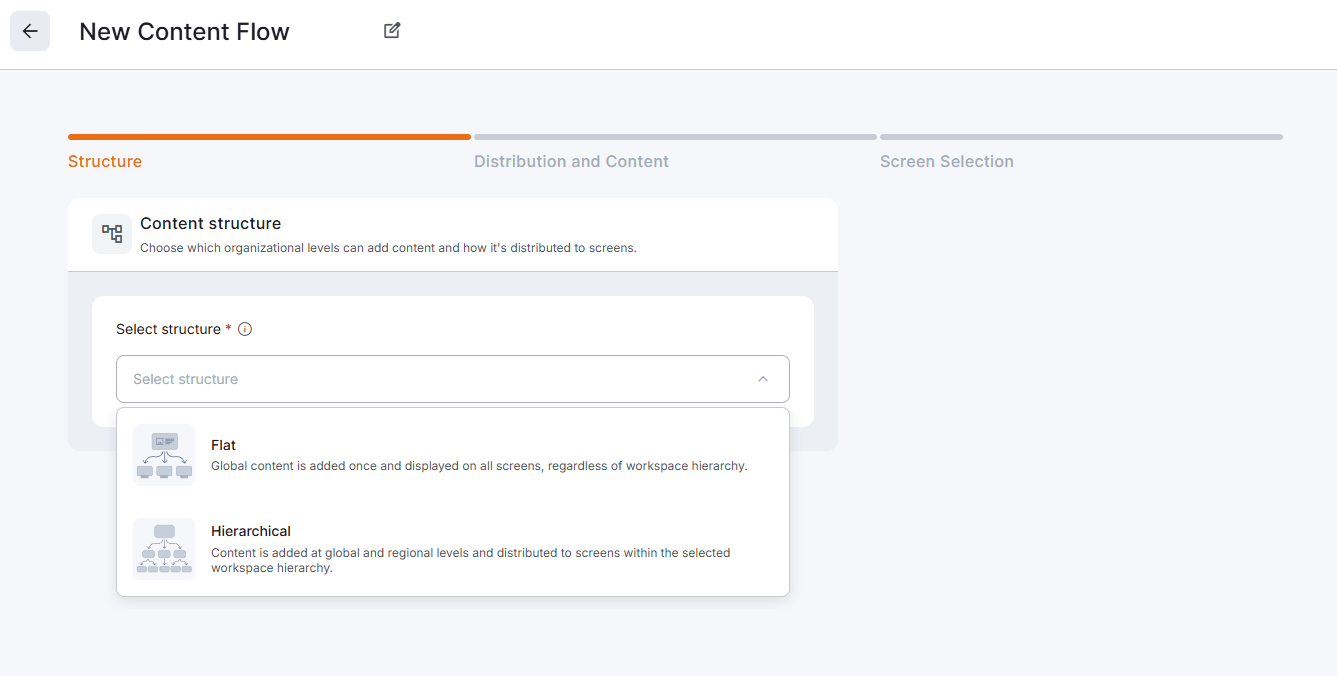
⚠️Be careful before moving on: the structure locks when you save (see “Choosing a Structure” above), and changing the structure while still drafting resets any content and screen choices you have made in the later steps.
Step 2: Distribution and Content
This is where you decide what plays and for how long. You see one card per level:
- Assign the content: under Content, use Select Type to choose a Playlist, Media, Layout or App, then pick the item; the Preview Content link lets you double-check. The Global level has a single content slot. The middle levels (shown as Regional, Sub-regional and Sub-sub regional, depending on depth, under Lower Levels (optional setup)) work per Workspace: expand a Workspace row to assign that Workspace’s own content. As an Account Administrator you typically fill in only Global and leave the rows to the regional teams. The Local level needs no assignment: the Yodeck Portal reserves it for each screen’s own content.
- Set the max time (the airtime budget) for each level, in seconds, in the Airtime breakdown panel on the right. In our example: 30 for Global, 20 for Regional, 40 for Local. The colored bar shows the time split at a glance, together with the max total airtime of one full loop.
- Optionally, switch off a level or a specific Workspace using its toggle: each level card between Global and Local has one, and so does every Workspace row inside it. Use this for Workspaces that need no content slot, for example one you use only to store media. Global and Local cannot be switched off.
- Check the preview to see how the loop will play on a real screen.
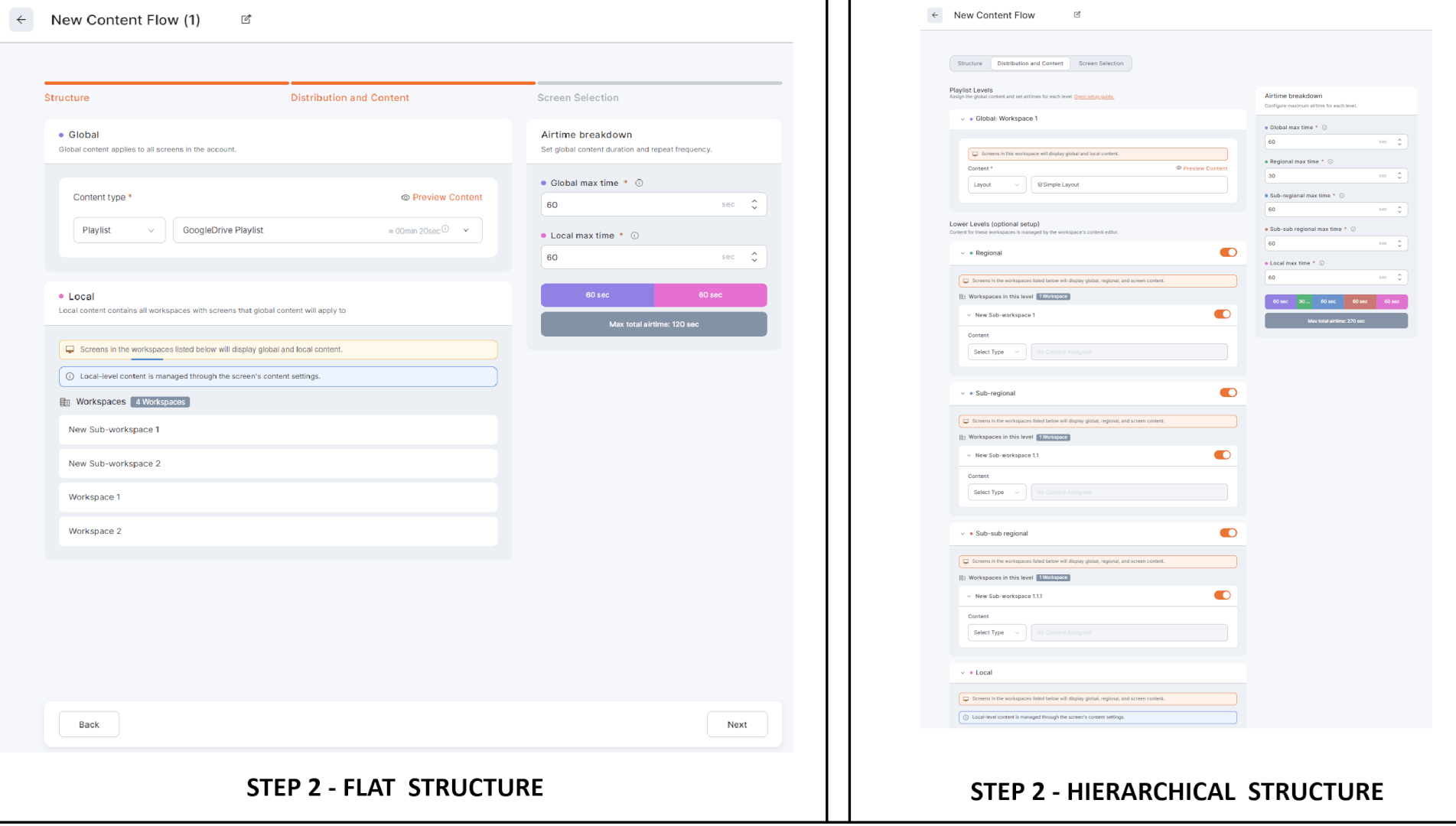
The Yodeck Portal warns you at this step if something will not play as expected: a playlist longer than its budget continues across multiple loops (that is fine, see Rule 2), while a single item longer than its budget never plays at all (that needs fixing, see Rule 3).
⚠️A note on playlist durations: the duration shown next to a playlist is an estimate. Items with unknown length, such as YouTube videos, and any sub-playlists inside it are not counted. If your playlists contain such items, give the budget some extra headroom.
Step 3: Screen Selection
- Under Include screens, choose All screens or Filter specific screens by tag. When filtering, a screen must carry all of the selected tags to match. Nordic Coffee Co. targets the “customer-area” tag so kitchen screens keep playing their own content untouched.
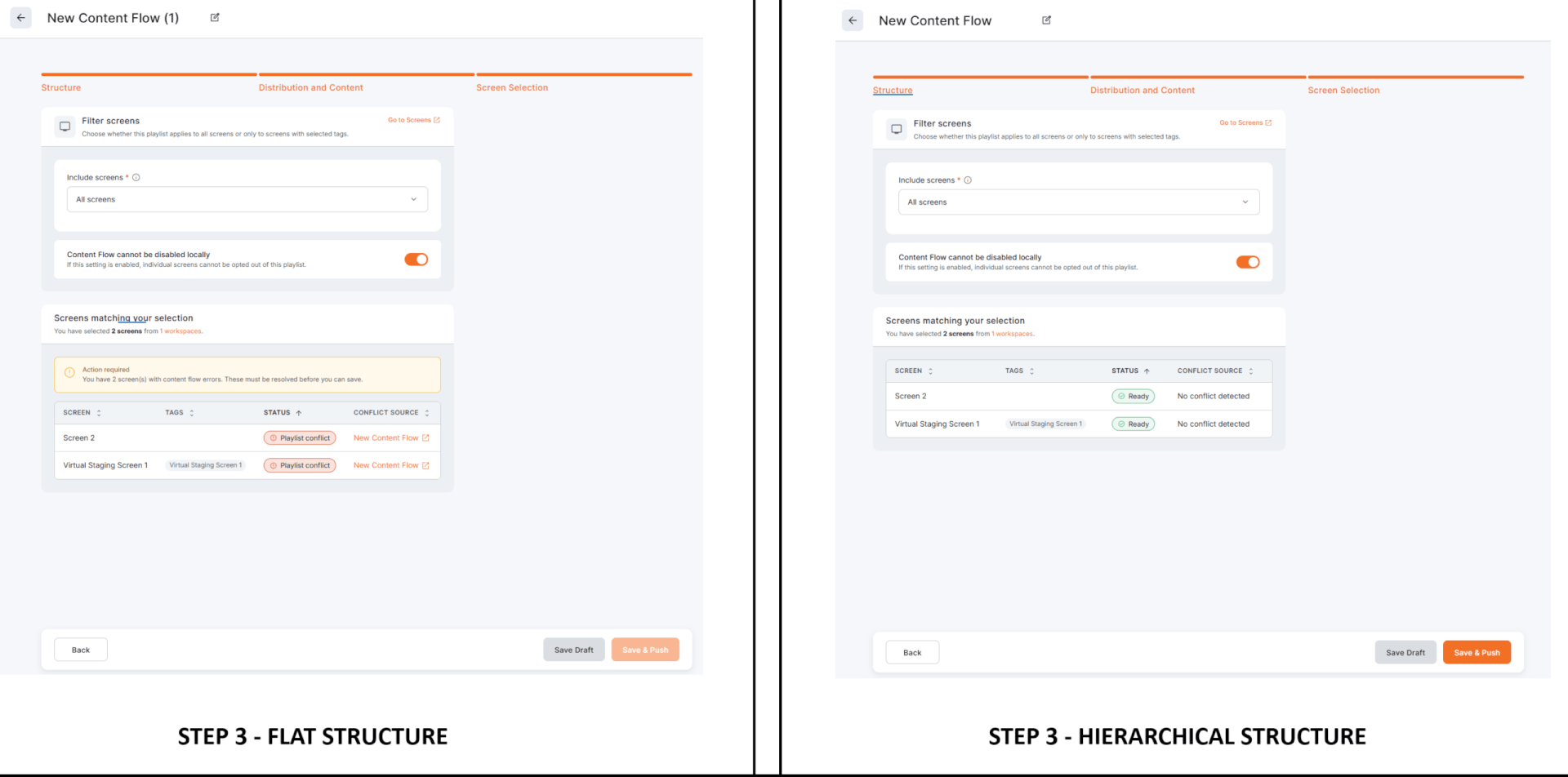
- Review the Screens matching your selection table. It shows each screen’s tags, status and conflict source, and it automatically checks every screen for conflicts (see “Rules and Limitations” below).
- Decide whether to keep Content Flow cannot be disabled locally enabled; it is switched on by default. Switched on, individual screens cannot opt out of the playlist. Switched off, local teams can turn it off on their own screens, which suits organizations that prefer to offer the shared content rather than enforce it.
- Click Save Draft to store the setup without publishing, or Save & Push to publish it to the screens immediately. Pushing from here updates every targeted screen at once. Local teams do not need to push anything themselves.
⚠️Note: You must visit this step before you can publish. The conflict check runs when the screen preview loads, and Save & Push stays disabled until the check completes without blocking conflicts.
After saving: statuses and actions
The Content Flows list shows each one’s name, status, last modified date, and structure type (Flat, Hierarchical). A Draft is saved but not yet playing; a Published one is live on its targeted screens.
Moreover, the three-dot Actions menu adapts depending on the Content Flows’ statuses:
- Published offers: Edit, Unpublish, and Delete,
- Draft offers: Edit and Delete.
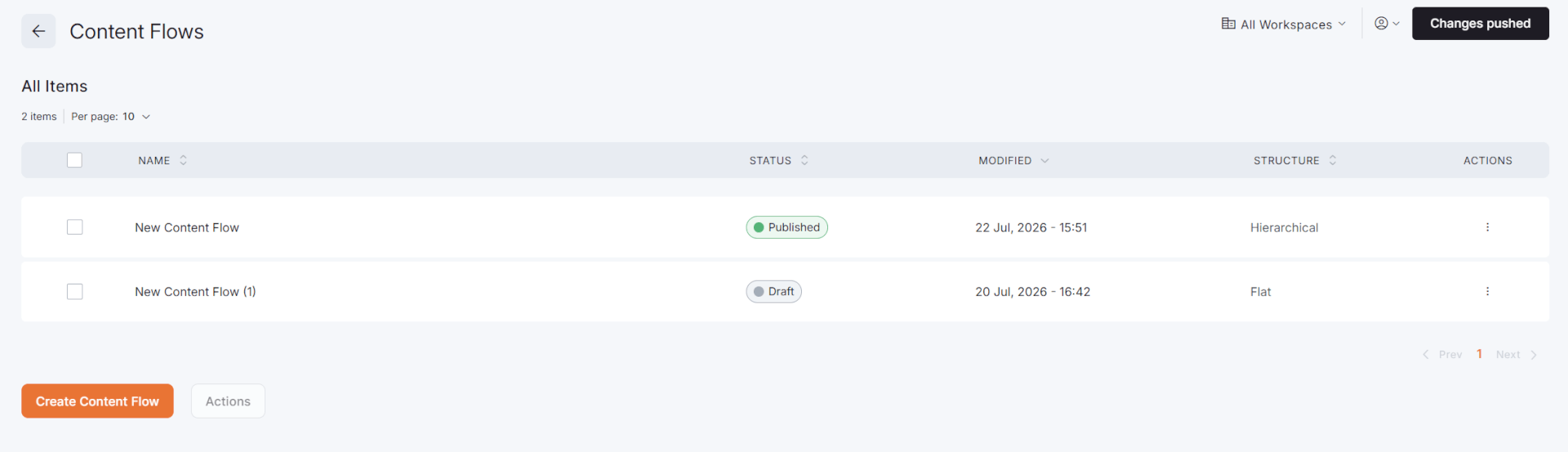
💡Of course, you can open a Draft with Edit to pick up where you left off. Unpublishing or deleting reverts the targeted screens to their own Workspace content.
Examples
Here are three common setups we see in the real world. Pick whichever looks most like your own organization and use it as a starting point.
Example 1: A brand video on every screen (Flat)
A restaurant franchise wants its 30-second brand video on every screen while each restaurant keeps its own menus. The Account Administrator creates a Flat Content Flow, gives the brand video a 30-second Global budget and the Local level 60 seconds. Every screen now alternates: brand video for 30 seconds, menus for 60, repeat. No restaurant changes anything in its daily workflow.
Example 2: Internal communications across countries (Hierarchical)
A company with offices in several countries uses a Hierarchical structure with three levels: HQ, Country, and Office (shown in the wizard as Global, Regional, and Local). HR at HQ assigns the company-wide announcements, each country’s team assigns its own news, and every office keeps its own screen content, such as meeting room availability.
One 90-second loop on every office screen
Every office screen plays a 90-second loop with its own unique combination: HQ announcements (40 seconds), its country’s news (20 seconds), and its own office content (30 seconds). HQ set this up once, and if a country has not assigned content yet, that level is simply skipped on its screens until it does (see “How Playback Works” above).
Example 3: Shared content that locations can opt out of
A cooperative of independently owned stores offers its members a shared promotional playlist, but each owner decides whether to show it. The administrator switches off Content Flow cannot be disabled locally (on by default) in the Screen Selection step. Every store receives the content, and any owner can switch it off on their own screen without contacting the administrator.
Rules and Limitations
Keep these boundaries in mind. Most of them exist to protect your screens from conflicting instructions.
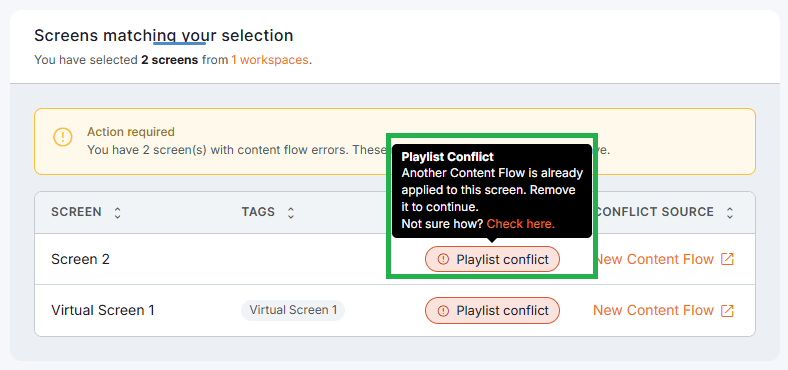
- One Content Flow per screen. A screen can belong to only one Content Flow at a time, so its content always has a single source of truth. If a targeted screen already belongs to another one, its status shows Playlist conflict in the Screen Selection step and an “Action required” banner blocks publishing until you remove the screen from one of the two.
- Schedules take precedence. In line with Yodeck’s content prioritization, if a targeted screen uses a Schedule as its content, you can still save and publish, but the Content Flow stays inactive on that screen until you remove or replace the Schedule. Bulk enabling from the screens list blocks scheduled screens entirely; remove the Schedule first. For on/off times use Working Hours; for media that change during the day use Scheduled Availability on playlist items. Both work alongside Content Flows.
- The structure is locked after saving. Content and airtime budgets stay editable forever; the structure type and levels do not. To restructure, delete and recreate.
- Skipped levels shorten the loop. The player skips any level with no content or no matching Workspace, and it does not redistribute that time to the other levels.
- Duplicates do not copy screen assignments. When you duplicate a Content Flow, the duplicate keeps the content and budgets but not the target screens, so two Content Flows never end up targeting the same screens by accident.
- Moving Workspaces affects active playlists. Moving a Workspace to a different position in your tree can change which level it belongs to in an active Content Flow. The Yodeck Portal warns you before you complete such a move.
- Emergency Alerts and Screen Takeover still come first. As with all screen playback, Emergency Alerts and Screen Takeover sit at the top of Yodeck’s content prioritization and temporarily override a Content Flow. Playback resumes automatically when they end.
- Warnings protect content in use. The Yodeck Portal warns you when you try to delete a playlist or media item that is active inside a Content Flow, and when you unpublish or delete a Content Flow, since the targeted screens then revert to their own content.
What works alongside Content Flow?
Works: controls screen on/off times
Works: time-based media inside playlists
Takes precedence: Content Flow stays inactive
Override temporarily, then playback resumes
Best Practices
A few good habits make Content Flow smooth from day one:
- Finalize your Workspace tree first. The levels come from your Workspaces and lock after saving, so organize the tree before creating the Content Flow. Make sure the subtree under your Starting Workspace matches how you want content distributed, and plan to switch off sub-workspaces that need no content slot, such as department or media-storage Workspaces, in the Distribution and Content step. For more on multi-location content, see Enterprise Sub-Playlists and Workspaces: Best Practices.
- Keep the total loop short. Most organizations keep each level under a minute. A short loop means viewers see every level’s content during a typical visit, instead of catching only one slot.
- Match item durations to budgets. Keep every item shorter than its level’s budget (Rule 3) and prefer uniform durations, such as all 10-second or all 15-second items, so they fill the budget cleanly with little unused time (Rule 1).
- Avoid items with unknown durations in budgeted levels. Items such as YouTube videos count as 0 seconds in the estimated playlist duration, which makes airtime planning unreliable. Prefer uploaded videos with a known length.
- Use Screen Tags for targeting. Tag screens by purpose, such as “customer-area” or “lobby”. You can target exactly the right screens now, and any screen you tag later joins the targeting automatically.
- Pilot before you roll out. Target a small test tag first, verify the loop with the screen preview (see “Checking What Is Playing on a Screen” below) and then widen the targeting to all screens.
- Tell your teams their airtime. Regional and local users can see their allocation on the screen’s page, but a short heads-up prevents surprise when their content starts alternating with global content.
- Use Working Hours, not Schedules, on target screens. Working Hours handle on/off times and Scheduled Availability handles time-based media changes, and both work alongside Content Flows. A Schedule assigned as screen content keeps the Content Flow inactive (see “Rules and Limitations” above).
Checking What Is Playing on a Screen
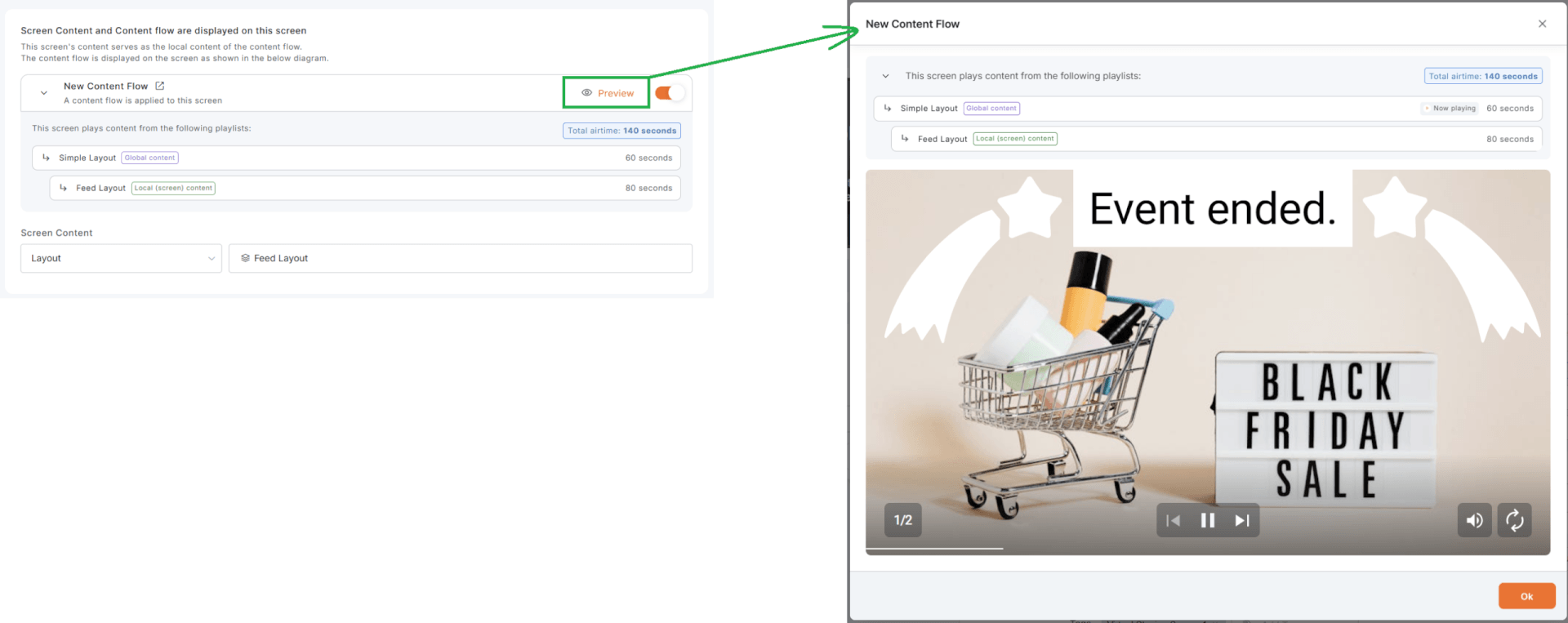
With several teams contributing content, you’ll sometimes want to check what a remote screen is showing right now. Open the screen’s preview in the Yodeck Portal: it highlights the media item currently playing, its level and its full path in your structure. Anyone from HQ to a store manager can verify the loop without standing in front of the screen.
Troubleshooting
Something not playing the way you expected? Find your symptom below and apply the fix. Most issues come down to one of the three playback rules or a Schedule getting in the way.
Resolving a Playlist conflict
| Symptom | Cause | Fix |
|---|---|---|
| Save & Push is grayed out. | You have not visited the Screen Selection step, so the conflict check has not run yet. | Open the Screen Selection step and let the screen preview load. Resolve any conflicts shown. |
| Save & Push is blocked and an “Action required” banner reports content flow errors. | One or more targeted screens already belong to another Content Flow. Their status shows “Playlist conflict”. | In the Conflict source column, click the linked name to open the other Content Flow in a new tab, then remove the screen from one of the two (unassign it or adjust its tags). |
| A screen keeps playing its old content instead of the Content Flow. | The screen has a Schedule assigned, and Schedules take precedence. | Change the screen’s content from the Schedule to a playlist, media or layout. The Content Flow activates automatically. |
| A specific video never plays. | The video is longer than its level’s airtime budget, so the player skips it permanently (Rule 3). | Increase the level’s airtime budget or use a shorter version of the video. |
| Local content gets little or no screen time. | The airtime budgets of the upper levels consume almost the whole loop. | In the Distribution and Content step, review the airtime bar and reduce the budgets of the upper levels. |
| Regional content is not playing on any screen. | No content has been assigned to that level yet, so the player skips it. | Ask the regional team to open the Content Flow and assign content to their level, or assign it yourself as an administrator. |
| A newly created Workspace is missing from the structure. | Automatically include new workspaces was off when you created the Content Flow, so the structure froze at that moment. | The toggle cannot be changed after saving. Recreate the Content Flow with Automatically include new workspaces switched on. |
| A level plays fewer items than expected within its budget. | The next item did not fit in the remaining time, so the player skipped ahead (Rule 1). | This is expected behavior. The level resumes from that item on the next loop (Rule 2). Use shorter items if you want more of them per loop. |
| A regional editor cannot change the airtime or target screens. | Non-admin users can only edit content for the levels they manage. | This is by design. Ask an Account Administrator to make structural changes. |
F.A.Q.s
Got questions? We’ve got answers! This section addresses common questions about the Yodeck Content Flow feature.
The Enterprise plan. On other plans, the feature does not appear in the Yodeck Portal at all. Contact your account manager if you would like to upgrade.
The flat has two levels: global content and each screen’s local content. Hierarchical mirrors your Workspace tree with 2 to 5 levels, so regional and other middle levels also get their own content slot. See “Choosing a Structure: Flat or Hierarchical” above for guidance on choosing.
No. The structure type and its levels lock when you save. Content assignments and airtime budgets stay editable at any time. To restructure, delete the Content Flow and create a new one.
No. Each screen belongs to at most one Content Flow, so its content always has a single source of truth. The Yodeck Portal blocks publishing if a targeted screen already belongs to another one.
No. Local users keep assigning content to their screens as usual, and whatever they assign automatically becomes the Local content slot in the loop.
Only if the Account Administrator switches off Content Flow can it be disabled locally in the Screen Selection step. The toggle is on by default, so screens cannot opt out unless the administrator allows it.
Almost always because the video is longer than its level’s airtime budget, so the player skips it permanently (Rule 3 in “How Playback Works” above). Shorten the video or ask an administrator to increase the budget.
Not while the Schedule is assigned as the screen’s content. Schedules take precedence, so the Content Flow stays inactive until the Schedule is removed or replaced. Use Working Hours for on/off times and Scheduled Availability for time-based media changes instead.
No. Save & Push from the Content Flow updates every targeted screen immediately. No second push from local teams is needed.
The player skips that level, and the loop becomes shorter. The unused time is not redistributed to the other levels. The level starts playing as soon as content is assigned to it.
No. Regional editors can only assign or change content for the levels they manage. The structure, budgets, and targeting are the responsibility of Account Administrators. This is by design, so no team can affect another team’s setup.
Need Help?
The Yodeck Support Team can help you out! Log in to your Yodeck account and send us a message from the bottom right corner!

