Overview
The Yodeck Community is the public forum of Yodeck at community.yodeck.com. Users, partners and the Yodeck team ask and answer questions there, share use cases and tips, vote on product ideas and follow release notes, events and announcements. Its content lives in spaces such as Discussions or Product Updates. Anyone can read the Community. A free Community account lets you post, reply, react, vote, RSVP to events and message other members. If you already have a Yodeck account, sign in directly with your Yodeck credentials through Login with Yodeck.
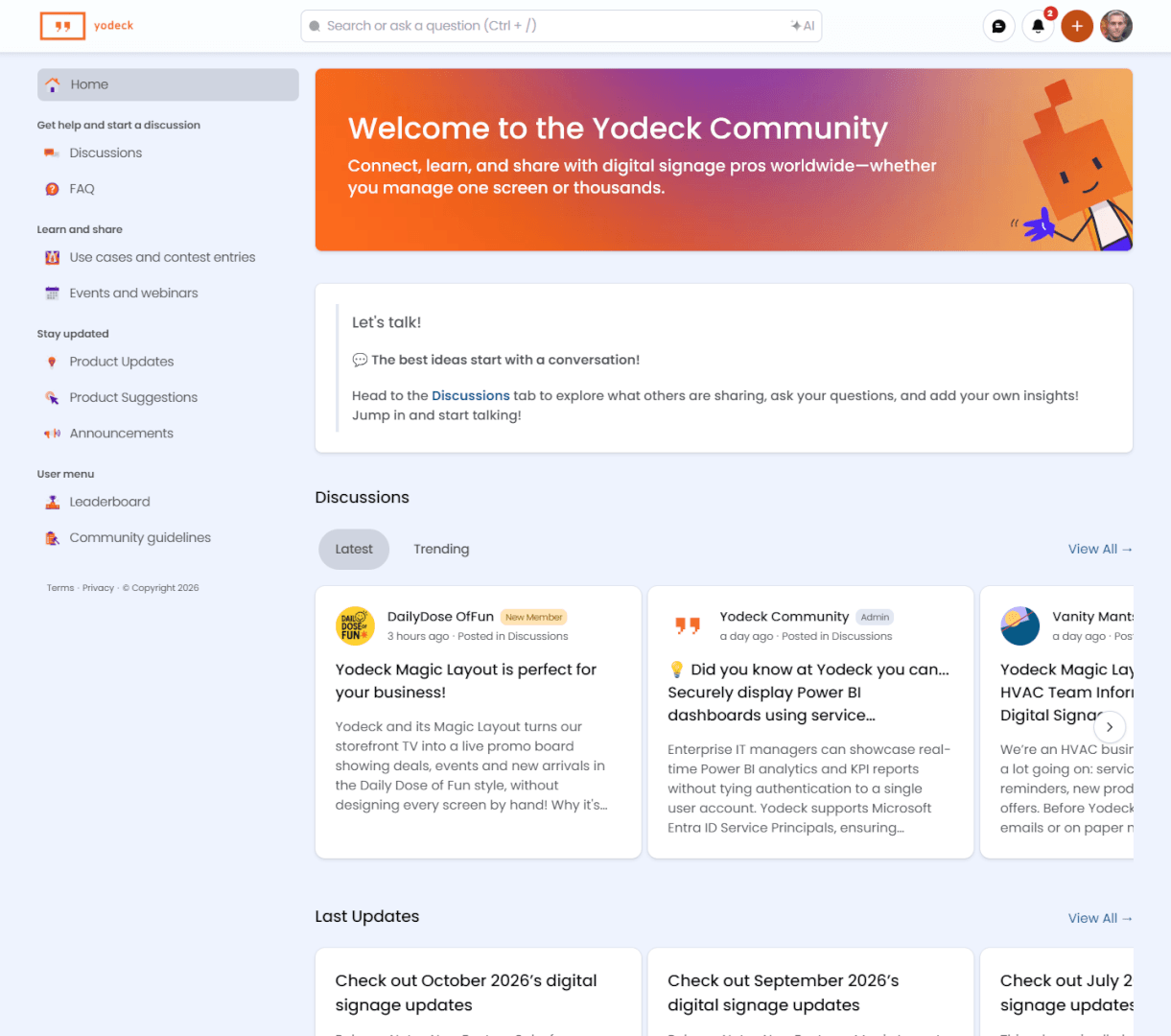
What you can do as a guest and as a member
| Action | Guest | Member (signed in) |
|---|---|---|
| Read every space, search and use Ask AI | Yes | Yes |
| Start a discussion or reply to one | No | Yes |
| React to posts and vote on product suggestions | No | Yes |
| Join or subscribe to a space and follow posts | No | Yes |
| RSVP to a webinar or event | No | Yes |
| Send direct messages and appear on the leaderboard | No | Yes |
Joining the Yodeck Community
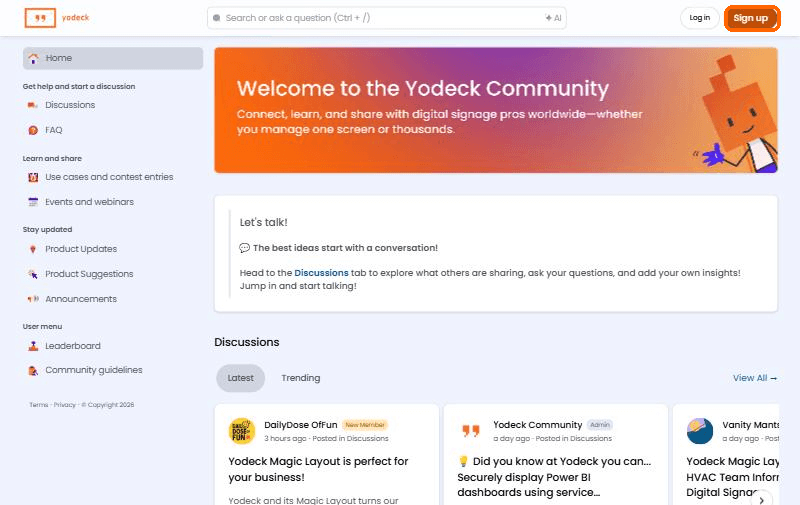
- Open community.yodeck.com and click Sign up in the top right corner.
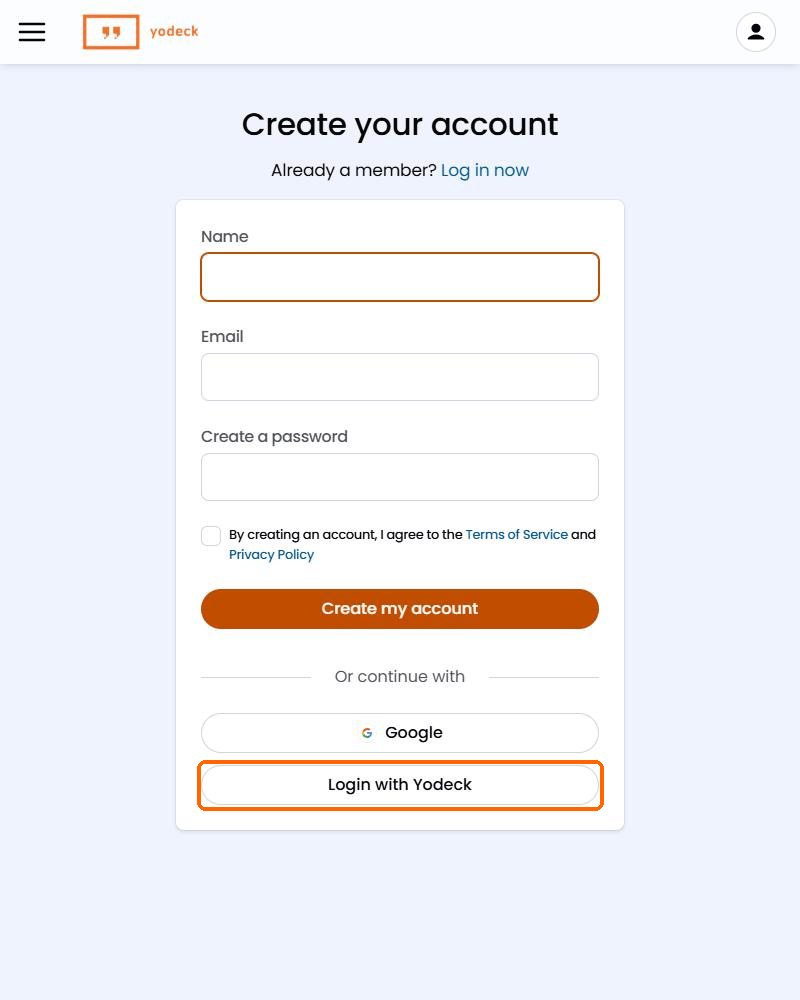
- Choose how to create your account:
- Email and password: Fill in Name, Email, and a password, accept the Terms of Service and Privacy Policy, and click Create my account. Then confirm your email address by following the verification link in the email the Community sends you.
- Google: Sign up with your Google account.
- Login with Yodeck: The Yodeck login page opens. Sign in as you do in the Yodeck Portal, and you return to the Community signed in.
- On later visits, click Log in and use the same method.
Navigating the Yodeck Community
The header

- Search bar: Search posts, official resources, events, and the knowledge base. You can also ask the AI Assistant here. Ctrl + / jumps to it.
- Messages: Your direct messages with other members.
- Notifications bell: Replies, mentions, and activity in the spaces, posts, and members you follow.
- Create post (+): Start a new Discussion or Article from any page.
- Avatar menu: Your profile, Account settings, and Log out.
ℹ️Guests see Log in and Sign up in place of items 2 to 5.
The left navigation
The left navigation groups the spaces by what you want to do: Get help and start a discussion, Learn and share, Stay updated, and User menu.
| Space | What you find there |
|---|---|
| Discussions | Questions, tips and conversations with other users and the Yodeck team |
| FAQ | A pointer to the Yodeck FAQ page and an invitation to ask the Community |
| Use cases and contest entries | Real setups shared by members and entries for Community contests |
| Events and webinars | Upcoming and past webinars and events |
| Product Updates | The software release notes |
| Product Suggestions | Feature ideas from members that you can vote on |
| Announcements | News from the Yodeck team, such as trade shows |
| Leaderboard | The most active members |
| Community guidelines | The Community values and the code of conduct |
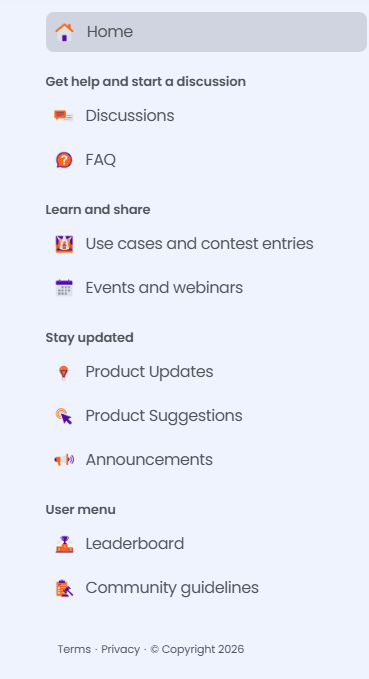
The Terms and Privacy links under the navigation open the Yodeck Community Usage Policy.
The Community spaces
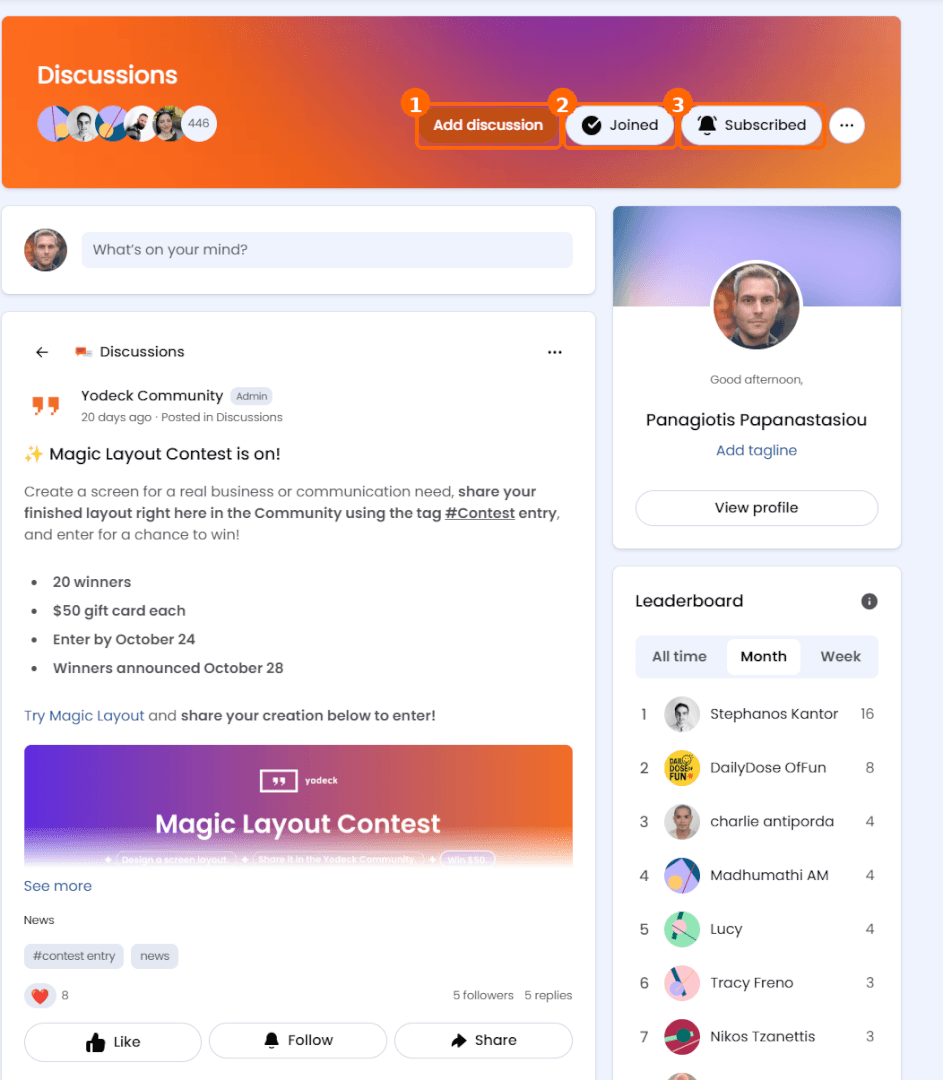
The Yodeck Community has nine spaces. Click Join to become a member of one and Subscribe to get notified about its new posts; the buttons then read Joined and Subscribed. Members post in Discussions and Product Suggestions; the Yodeck team posts in Product Updates, Announcements, and Events.
Discussions
Discussions is the main space. Ask a question, share a tip, or start a conversation about Yodeck and digital signage. Every discussion has a topic (News, General discussions, Product, Best practices, Tips, or Use cases) and tags. The feed sorts by Latest or Trending.
Add discussion in the space header opens the new discussion form. The What’s on your mind? box does the same.
The FAQ space
The FAQ space is not a list of questions. It invites you to ask the Community and links to the Yodeck FAQ page for quick feature and setup details.
Use cases and contest entries
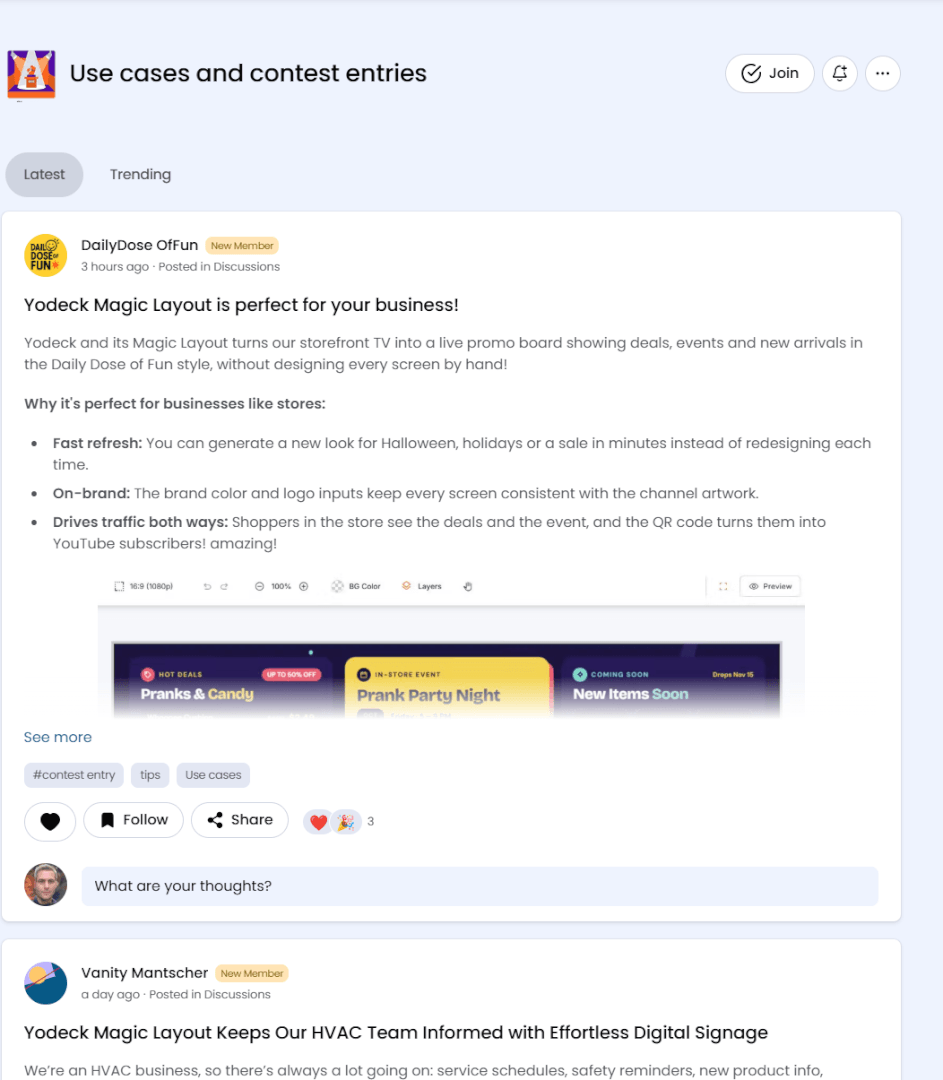
Members show how they use Yodeck: the need, what they built, and the result on their screens. The space collects the discussions with the Use cases topic, so start a discussion with that topic to share yours. Contest entries live here too; the contest announcement in Discussions names the tag to add, for example, #contest entry.
Events and webinars
Upcoming and past Yodeck webinars and events. Open an event for its date, its format (for example Virtual) and the Join now link. Click RSVP now to save your spot; guests are asked to log in first.
Product Updates
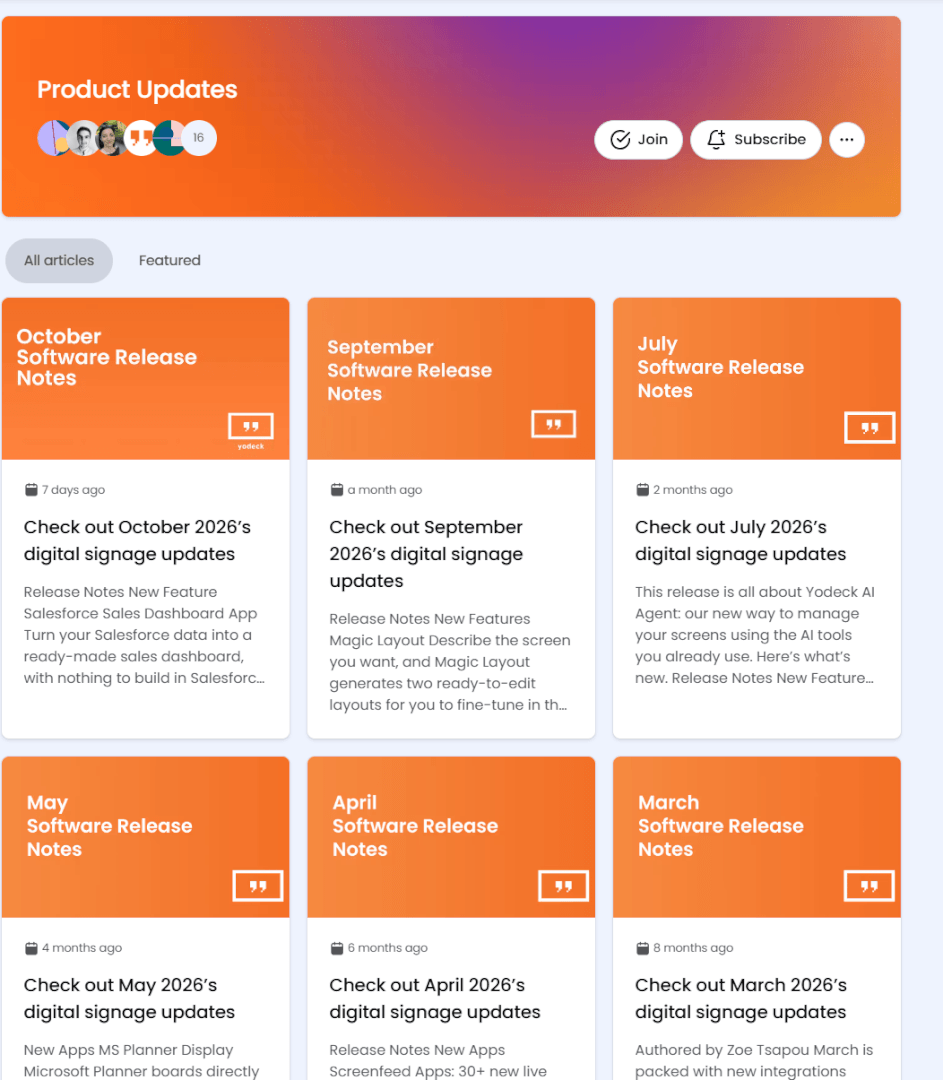
The software release notes from the Yodeck team: new apps, new features and improvements, with links to the matching User Manual articles. Subscribe to the space, and the Community will notify you of each new release note.
Product Suggestions
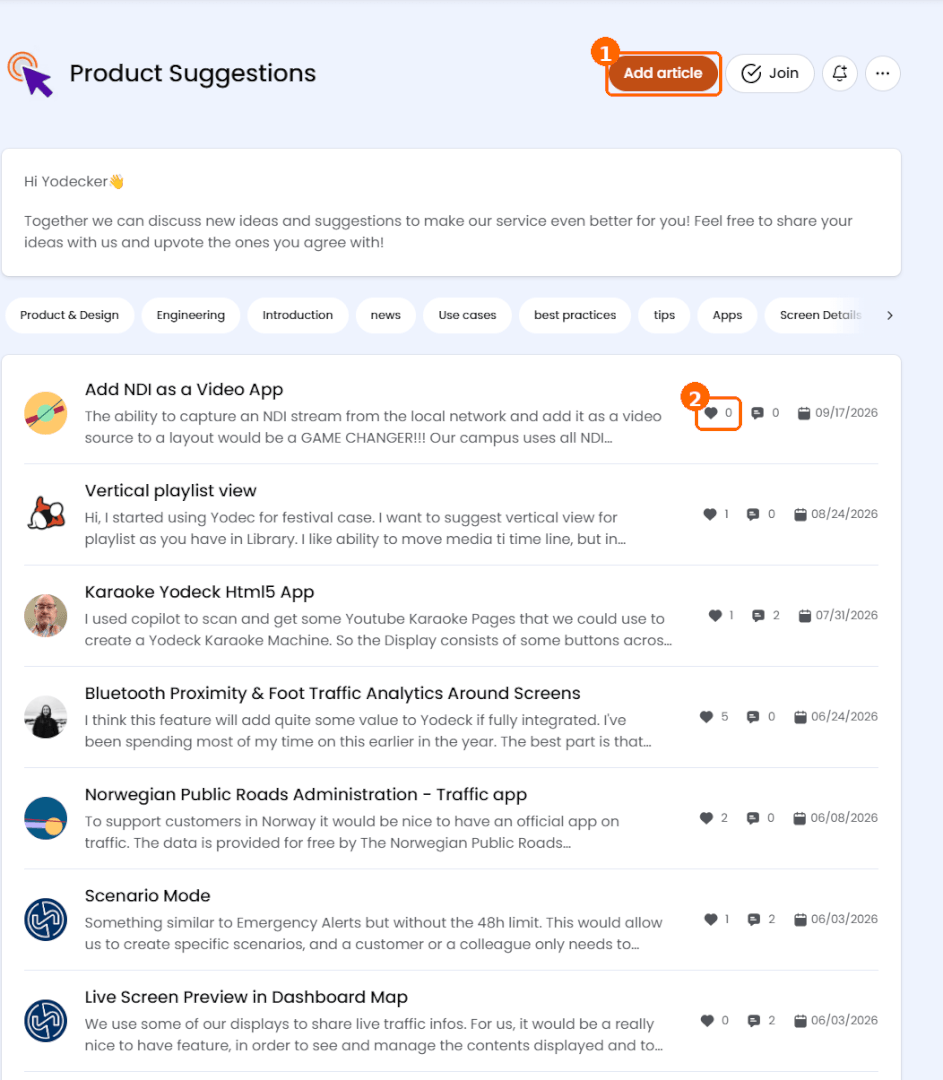
Feature ideas from members. Filter the list with the category filters above it, open a suggestion, and click Like (the heart) to vote for it. The number next to the heart is the vote count. Votes help the Yodeck team see which ideas matter most; they do not promise a release.
- Add article: submit your own idea after you search the space; a vote on an existing idea carries more weight than a duplicate.
- Heart: the votes a suggestion has received.
Announcements
Here, you can find news from the Yodeck team, including details on the trade shows and partner events Yodeck attends, with links to the full story on yodeck.com.
Leaderboard
The Leaderboard ranks members by activity. The score is based on posts, replies, and reactions, for All time, Month or Week.
Community guidelines
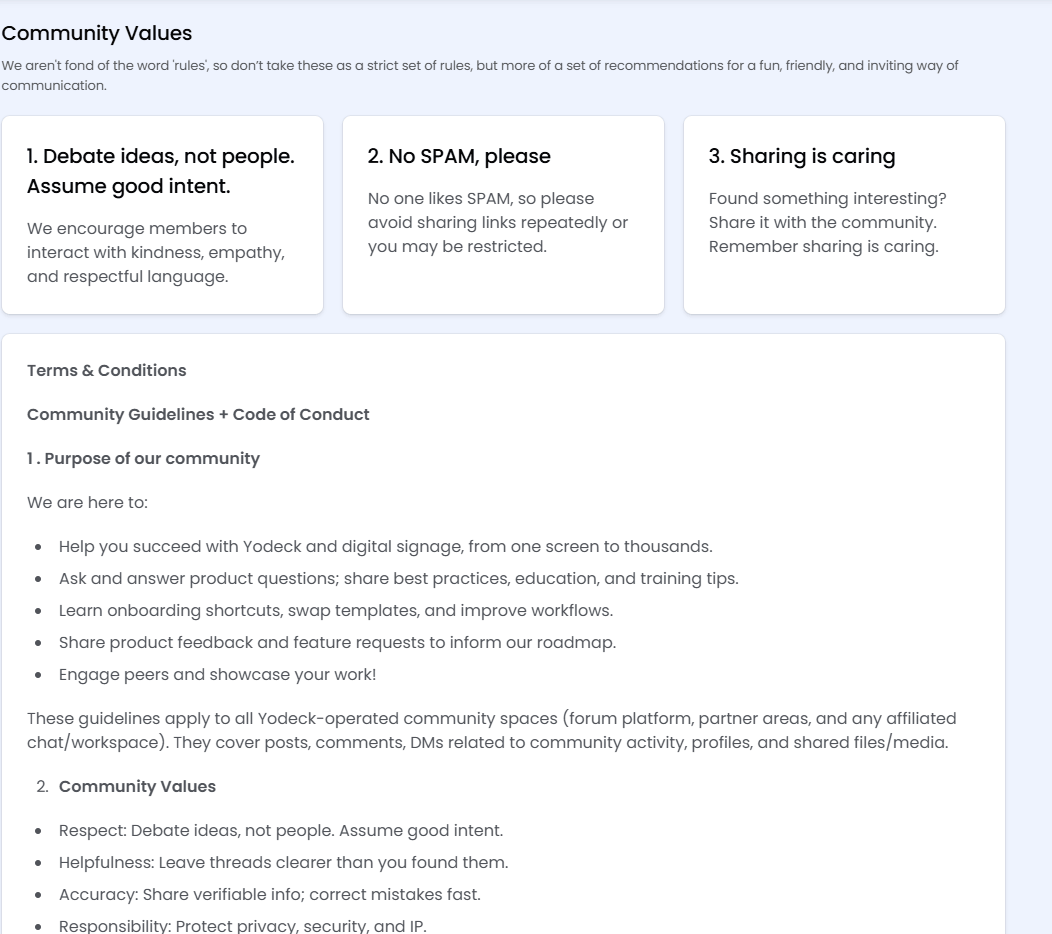
Read the guidelines before your first post. The page opens with three values (debate ideas, not people; no spam; sharing is caring) and continues with the code of conduct. The points that matter daily:
- Stay on topic: Yodeck and digital signage, one issue per post, in English.
- Never post credentials, API keys, license keys, device IDs, serial numbers, or MAC addresses.
- Discuss moderation privately through community@yodeck.com, not in public threads.
Searching the Yodeck Community
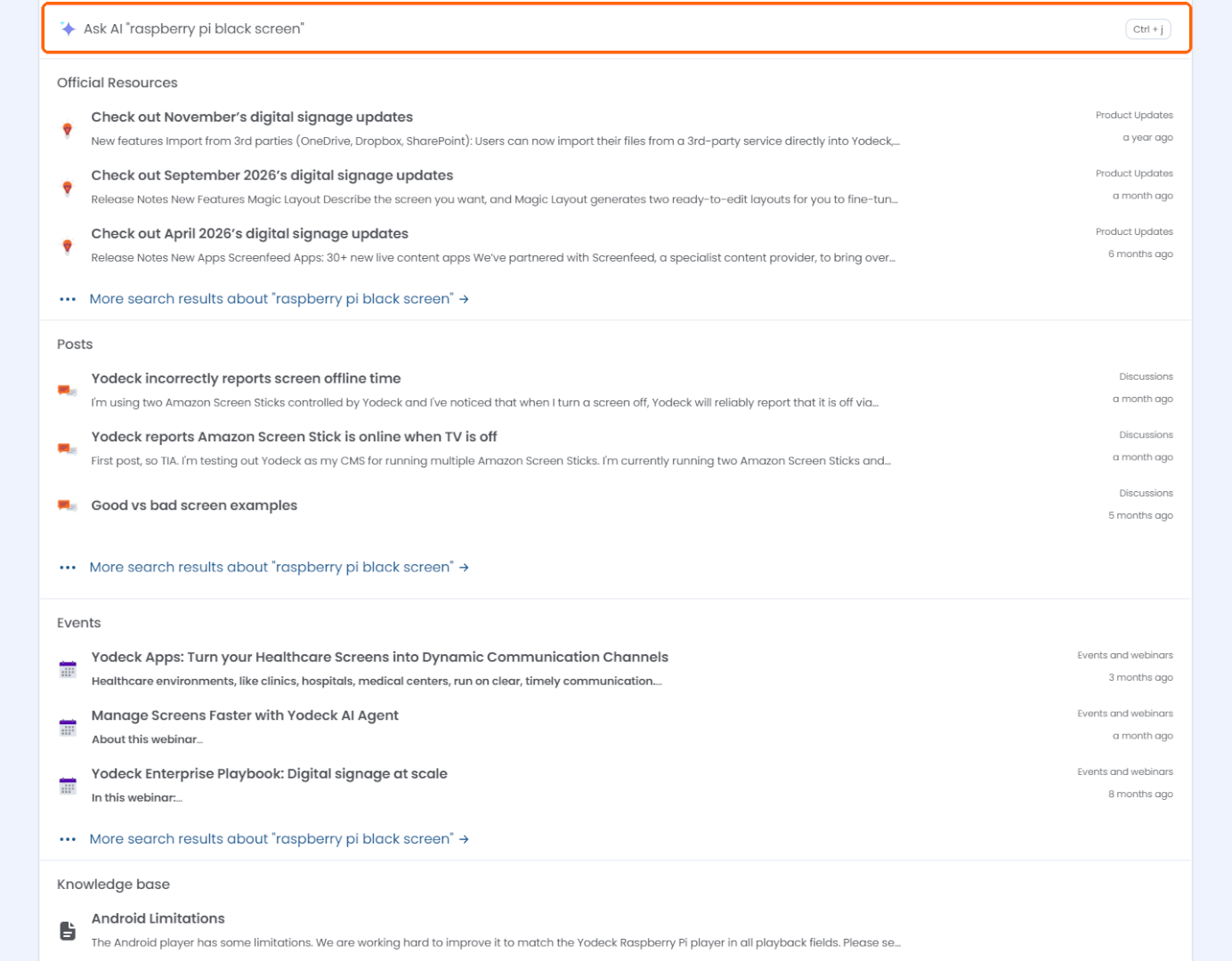
Type a keyword in the search bar and press Enter. The results group into Official Resources (posts by the Yodeck team), Posts (by members), Events, and Knowledge base (Yodeck documentation). The first row, Ask AI (or Ctrl + J), opens the AI Assistant, which answers from Community content and lists its sources. Guests can use it too. AI answers may contain errors, so check the sources before you act on one.
Posting and replying
Search the Yodeck Community before you post. If nobody has asked your question yet, start a discussion.
Starting a discussion
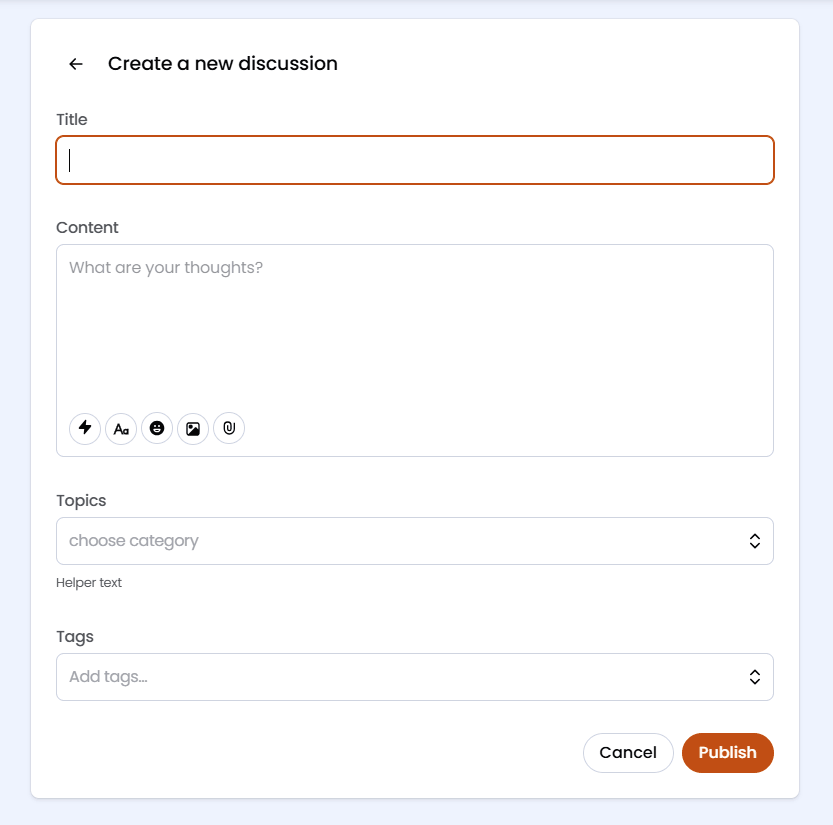
- In Discussions, click Add discussion, or click + in the header and choose Discussion.
- Enter a Title that states your question in one line.
- Write the post in Content. The buttons under the editor format text and add emojis, images, and attachments.
- Under Topics, choose the category that fits best. Under Tags, add the app or player your post is about.
- Click Publish.
Name the player model, the app or feature, what you expect, and what happens instead. Say what you have already tried. A screenshot helps, with any personal data hidden.
Replying and reacting
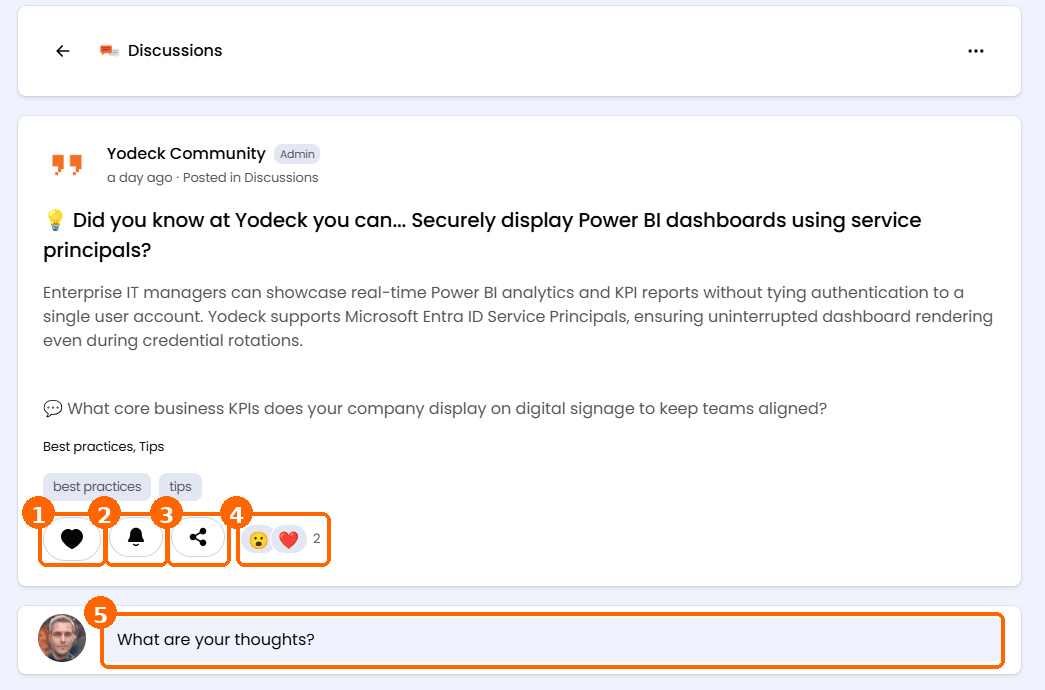
Under every post, you find the same actions:
- Like: react to the post. In Product Suggestions, this is your vote.
- Follow: get notified about new replies.
- Share: copy or share the link.
- Reactions: who reacted so far and how many.
- What are your thoughts?: the reply box, with the same editor as a new post. Click the send button to post your reply.
Staying informed
The Yodeck Community keeps you up to date through the Notifications bell, browser notifications, and email. Subscribe to a space for its new posts and follow a post for its replies.
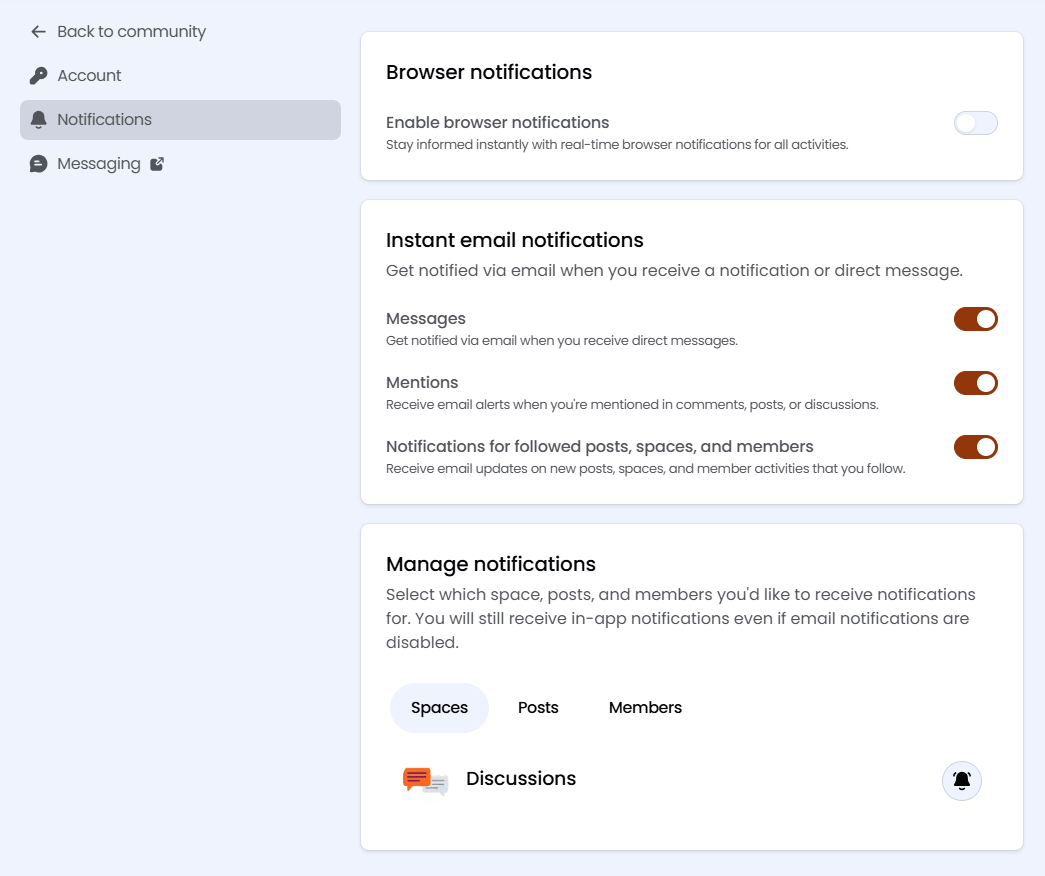
To tune the notifications, open the avatar menu, then Account settings, and Notifications:
- Browser notifications: real-time notifications in your browser.
- Instant email notifications: an email for direct messages, mentions, and the posts, spaces, and members you follow. In-app notifications stay on even when you turn the emails off.
- Manage notifications: mute a single space, post, or member.
Your profile and account settings
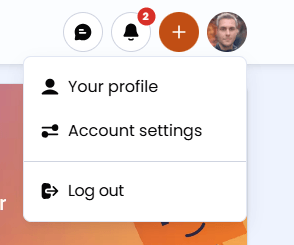
Click your avatar in the top right corner:
- Your profile: Your public page. Everyone, including guests, sees your name, avatar, tagline, posts, replies, and the spaces you joined; your email address stays private. Add tagline on your profile card in Discussions adds a line under your name.
- Account settings: Change your login email (the Community confirms it by email), set your Preferred timezone, and see your Connected Accounts. Notifications and Messaging sit next to it. Delete my account removes your account for good.
- Messaging: Choose whether Anyone or Only admins and moderators can message you and manage the members you have blocked under Blocked.
- Log out: Sign out on this browser.
Troubleshooting
Common issues in the Yodeck Community. Click a symptom to see what to do.
You are browsing as a guest. Click Log in, or Sign up if you have no account yet. If a space asks you to join first, click Join in its header. Members cannot post in Product Updates, Announcements, or Events, which the Yodeck team manages.
Login with Yodeck opens the Yodeck login page and expects your Yodeck Portal credentials, including Google, Microsoft or your organization’s SSO if that is how you sign in to the Portal. Once you allow the connection, you return to the Community signed in. Login with Yodeck only identifies you; it gives the Community no access to your screens or content. If you created your Community account with an email address and password, click Log in and use those instead.
Click Log in and then Forgot your password?, and follow the email. Accounts that use Google or Login with Yodeck have no separate Community password.
Open Account settings and then Notifications, and turn on the emails you want. Check your email address under Account and look in your spam folder.
The moderation team removes content that breaks the guidelines, sometimes without notice; to question a removal, write to community@yodeck.com, not in a public thread. To report a post, open its Options menu (the three dots) and choose Report post.
F.A.Q.s
Got questions? We’ve got answers! This section addresses common questions about the Yodeck Community.
Is the Yodeck Community free?
Yes, for everyone, with or without a Yodeck subscription.
Do I need a Yodeck account to join the Yodeck Community?
No. Sign up with an email address and password or with Google. If you have a Yodeck Portal account, Login with Yodeck saves you a second password.
Can I get Yodeck Support in the Yodeck Community?
The Yodeck team takes part in the Community, but the Community does not replace a support ticket and nobody guarantees a reply time. For issues with your own account, screens, content or billing, contact Yodeck Support through the Yodeck Portal.
How do I suggest a new feature?
Open Product Suggestions and search for the idea. If it exists, open it and click Like to add your vote. Otherwise click Add article and describe the problem it solves.
How is the leaderboard score calculated?
The score is based on the number of posts, replies and reactions of each member, for all time, the current month or the current week.
How do I report a post or contact the moderators?
Open the post’s Options menu (the three dots) and choose Report post or write to community@yodeck.com with the link. The Yodeck Community Usage Policy describes the reporting and complaint process.
Need Help?
The Yodeck Support Team can help you out! Log in to your Yodeck account and send us a message from the bottom right corner!