Overview
When you use the new Power BI app with Service Principal authentication, you may need to provide identity information, depending on the Power BI settings of your report or semantic model (dataset).
Identity information applies only to the Authenticate with Service Principal option. With the Log-in with your Microsoft Account option, Power BI uses the identity of the account you sign in with, so you do not fill in any identity fields. If you have not set up your service principal yet, start with the Power BI with Service Principal – Introduction guide.
This guide explains:
- When identities are required
- What information you need to provide
- How to set identities in the app
- Where to find more information from Microsoft if needed
What Are Identities and Why Are They Needed?
Power BI supports Row-Level Security (RLS) and user impersonation to restrict or personalize data. When you use a service principal to access and display content, Power BI sometimes requires you to specify which “user” you’re acting on behalf of, especially when:
- A semantic model (dataset) uses RLS
- The report uses live data connections that impersonate users (e.g., DirectQuery, SSAS)
- The application serves multiple end-users with different data access levels
Yodeck does this by passing what Power BI calls an EffectiveIdentity, which includes a username, roles (if any) and, optionally, semantic model (dataset) IDs.
Setting Identities in the App
When you authenticate with a service principal and select a report in Select Resource, the Set Identities field appears with an Add button. Use it only when your report needs an identity, as described in When Are Identities Required? below:
- Click Add next to Set Identities.
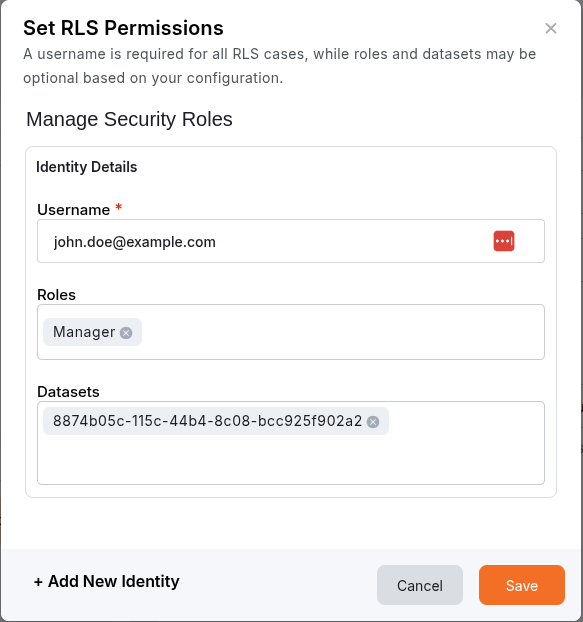
- In the window that opens, fill in the Username and, if needed, the Roles and Datasets, as described in What to Provide below.
- To add another identity, click + Add New Identity.
- Click Save, and then save the app.
Workspaces, reports, or apps that the app cannot use appear disabled in Select Resource. Hover over them to see why. For example, a report without a semantic model (dataset) shows the message No dataset ID found.
When Are Identities Required?
| Scenario | Are identities required? | Required fields |
|---|---|---|
| Semantic model (dataset) with Row-Level Security (RLS) | Yes | username, roles, datasets |
| Report using DirectQuery or Live Connection with impersonation | Yes | username, roles (if RLS), datasets |
| Report connected to SQL Server Analysis Services (SSAS) | Yes | username, roles (if RLS), datasets |
| Report for multi-tenant use (serving multiple users) | Yes | username, roles (if RLS), datasets |
| Semantic model is import-only, with no RLS or impersonation | No | – |
| Service principal has full access and no RLS is defined | No | – |
What to Provide
When your report needs an identity, fill in the following fields in the Set Identities window:
- Username (required)
The user you’re impersonating. This is typically an email address (UPN), e.g.user@example.com - Roles
If your semantic model uses RLS, add the exact name of each role defined in Power BI, e.g.Manager. Each role appears as a separate tag. - Datasets
Required only in certain configurations (e.g., when the report uses a semantic model from another workspace). This is the semantic model’s ID (a GUID), added as a tag like the roles. To find it, open the semantic model in the Power BI service and copy the ID that follows/datasets/in your browser’s address bar.
Example
Let’s say your semantic model has RLS and you want to show the report as user John Doe, who belongs to the “Manager” role.
Fill in the identity like this:
- Username:
john.doe@example.com - Roles:
Manager - Datasets:
8874b05c-115c-44b4-8c08-bcc925f902a2
How to Check If RLS Is Used
To verify whether a semantic model in Power BI uses Row-Level Security:
- Go to the Power BI service
- Open the workspace and locate the relevant semantic model
- Select More options (…) next to it and then select Security
- If roles appear in the list, the semantic model uses RLS
You can ask the report owner or your Power BI administrator if you’re unsure.
Common Signs You Need Identities
- The view editor shows an error or no data for your report
- You know the report is using RLS or pulling live data
- You expect the content to show different data for different users
- You see access-related errors in the view editor or on your screen
Further Reading (Microsoft Docs)
For more technical details and reference, you can review the following official Microsoft documentation:
- Generate embed token using EffectiveIdentity
- Display a report with Row-Level Security (RLS)
- Display a report on an on-premises SQL Server Analysis Services (SSAS)
- Display a report with an Azure Analysis Services (AAS) database
- Display a report with token-based identity (SSO)
Need Help?
The Yodeck Support Team can help you out! Log in to your Yodeck account and send us a message from the bottom right corner!

