Overview
You can now install the Yodeck Portal as a Progressive Web App (PWA) on your computer, tablet or phone. Once installed, the Yodeck Portal opens directly from your desktop, taskbar, dock, app launcher or home screen, without opening a browser and navigating to the site every time.
The PWA is not a separate product, account or subscription. It is a faster, app-like way to access the same Yodeck Portal you already use at app.yodeck.com, with the same login and the same functionality. An internet connection is always required.
Installation does not go through an app store. You install the Yodeck Portal directly from a supported browser, as described below.
What Is a Progressive Web App
A Progressive Web App is a web application that behaves like a native app. Instead of typing the URL or searching through bookmarks, you open the Yodeck Portal from a dedicated icon on your device. The Portal then runs in its own standalone window, giving you a cleaner, more focused experience.
This is especially useful if you manage your signage content frequently, share a workstation with your team, or simply prefer app-like workflows over browser tabs.
Before You Start
Keep the following in mind:
- Supported browser required. PWA support depends on your browser and operating system. Chrome and Edge offer the smoothest experience. The exact wording and placement of the install option can differ between browsers and devices.
- Same account. You log in with your existing Yodeck account. No new account is needed.
- Internet connection required. The PWA uses the web version of the Yodeck Portal, so you always need to be online.
- No app store. There is nothing to download from the App Store or Google Play. Installation happens directly from the browser.
Installing on Desktop
Google Chrome and Microsoft Edge
- Go to app.yodeck.com in Chrome or Edge. When the browser detects that the site can be installed, an install icon (a monitor with a down arrow) appears on the right side of the address bar. The icon does not appear on every visit, only when the site qualifies and has not already been installed or dismissed.
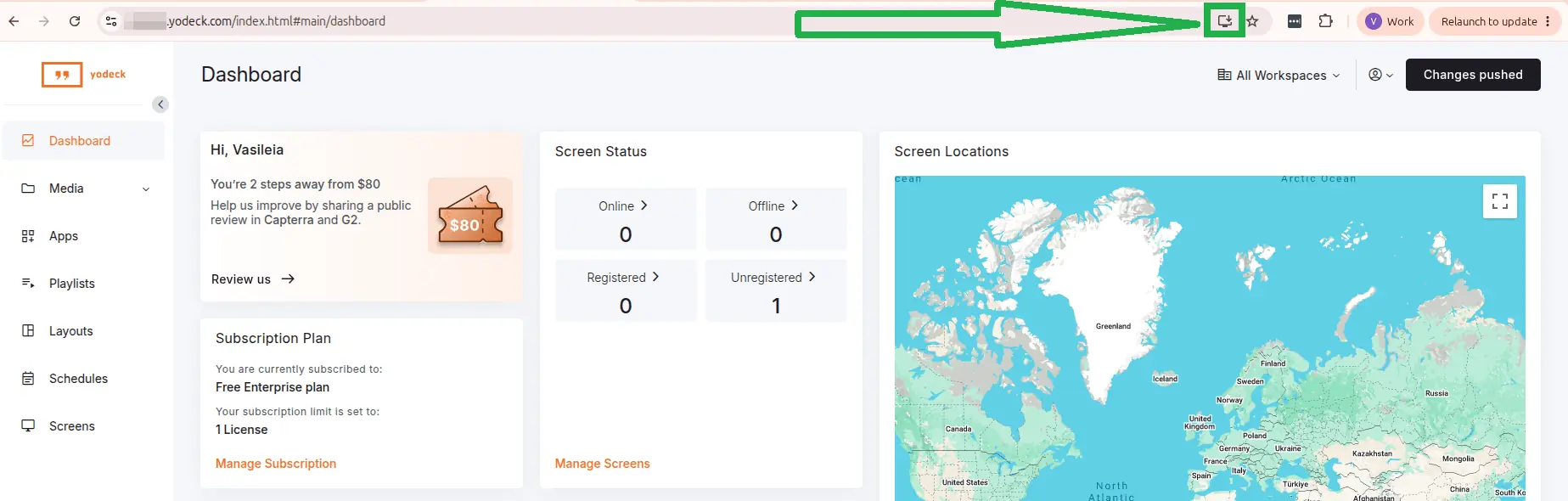
- Click the icon. A confirmation dialog appears, showing the app name and icon along with an Install button.
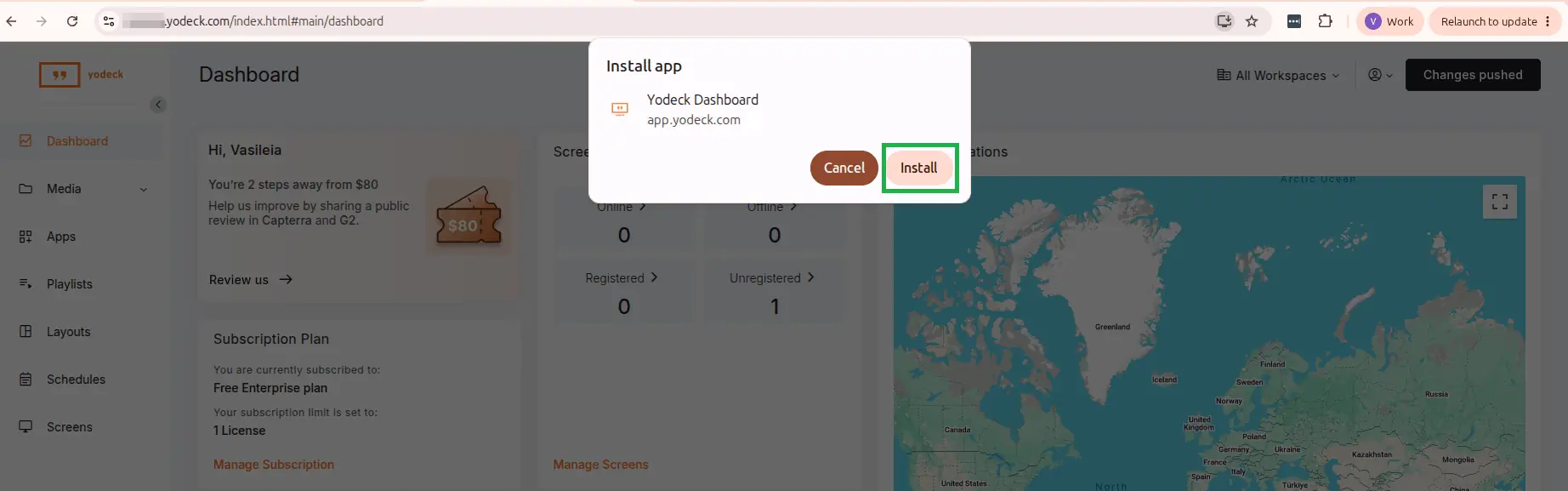
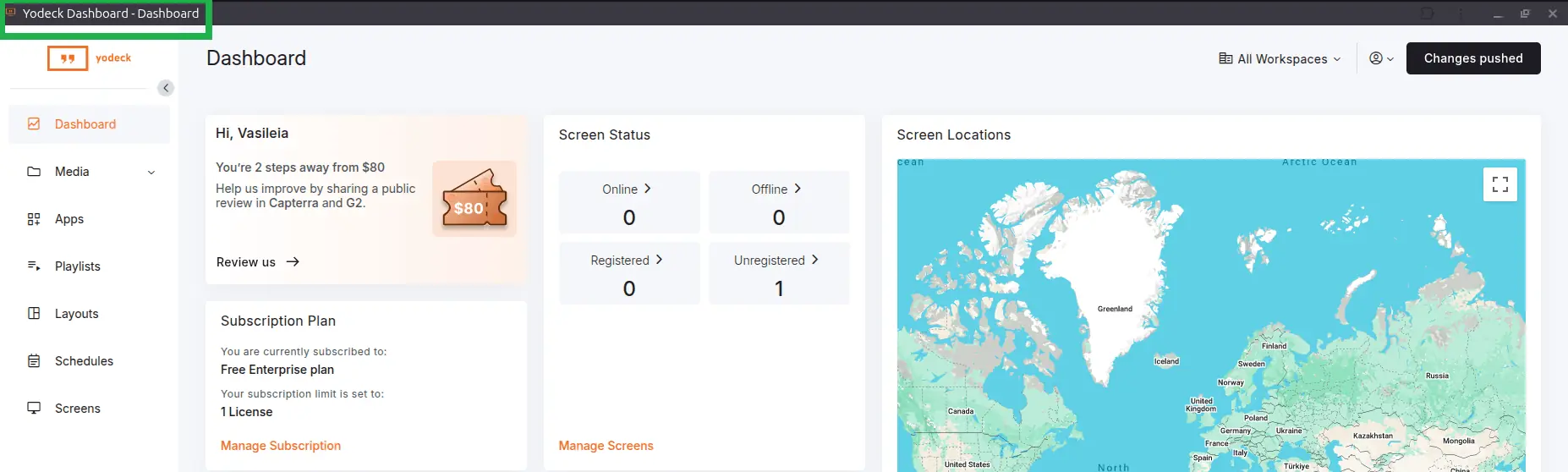
- Click Install. The Yodeck Portal opens in its own standalone window, and the browser creates a desktop shortcut (Windows, macOS or Linux) and an entry in your operating system’s app list.
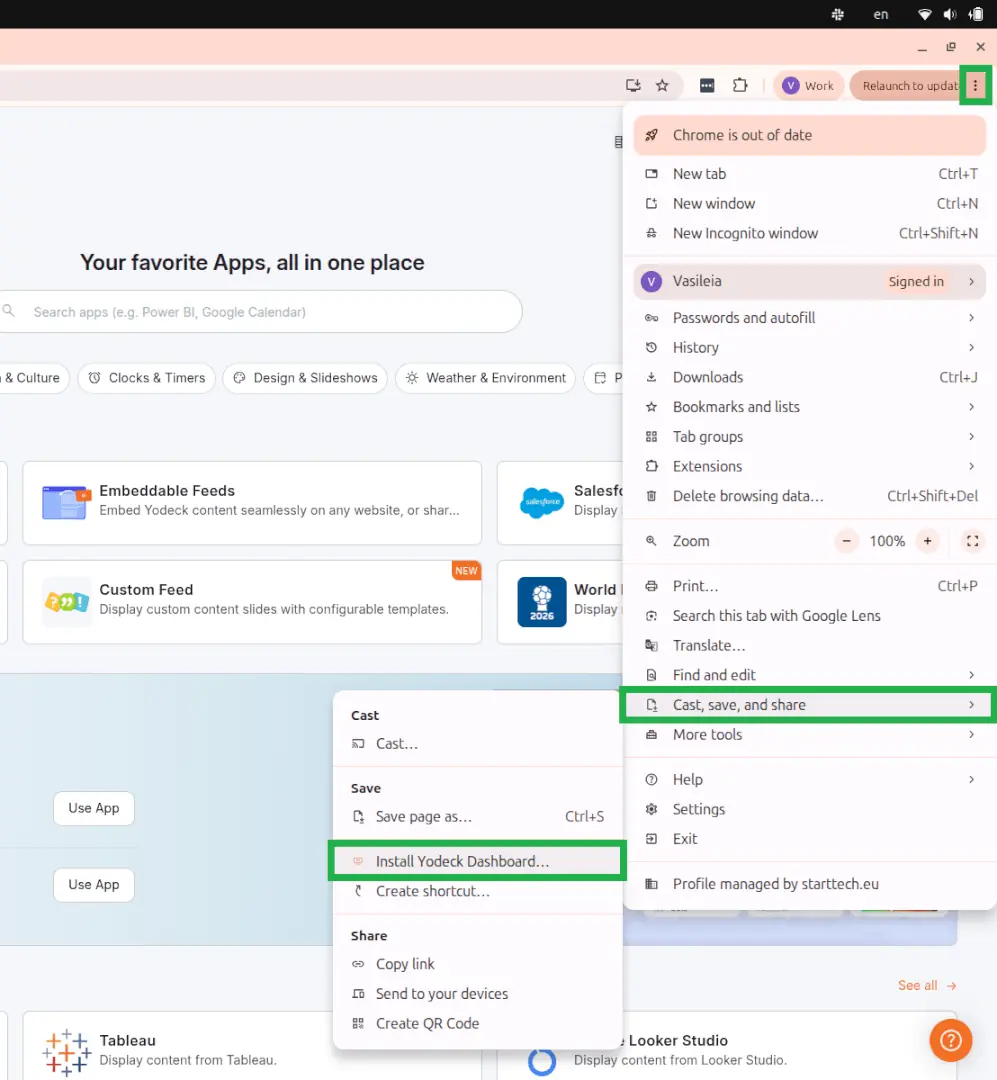
Alternative entry point: open the browser’s three-dot menu, select Save and Share (or Cast, save, and share), then Install Yodeck.
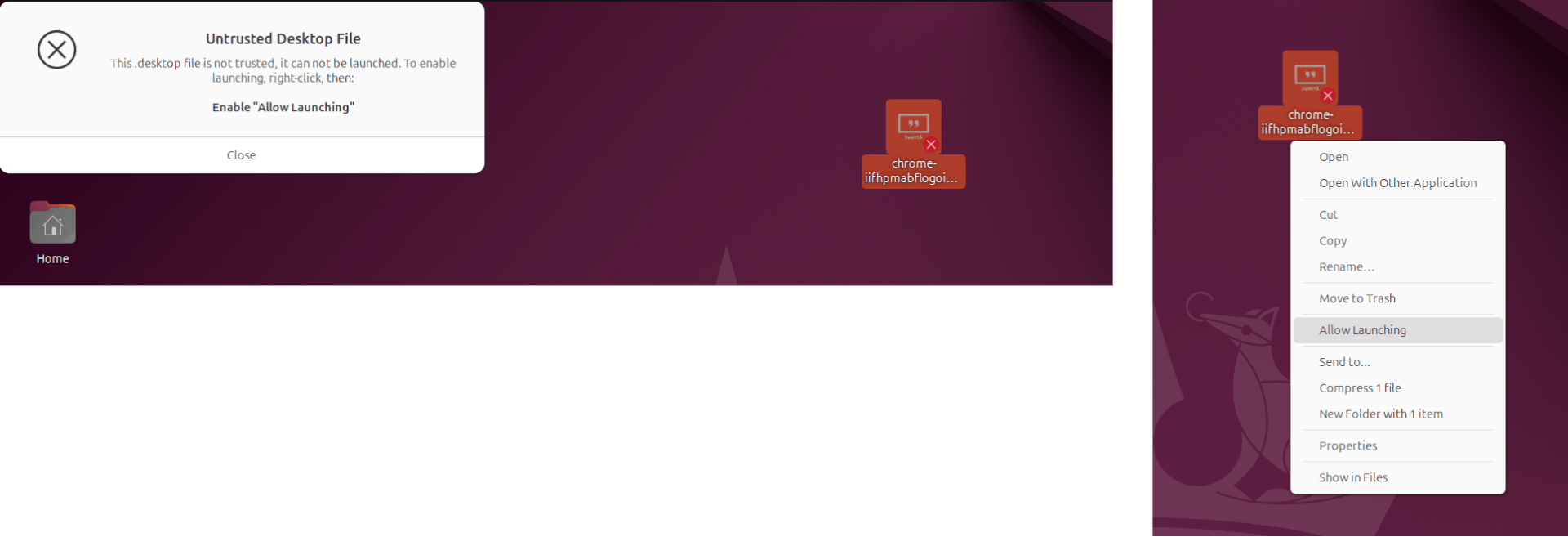
⚠️Note for Linux users: on Linux desktop environments, the shortcut is created as an untrusted .desktop file by default, so double-clicking it does not launch the app right away. Right-click the icon and select Allow Launching (the wording varies slightly by desktop environment). This is a one-time step per shortcut, enforced by the operating system for security reasons, not by the browser or the Yodeck Portal.
Firefox on Desktop
⚠️Firefox does not support installing PWAs on desktop. There is no install icon or menu option. To use the Yodeck Portal in Firefox on desktop, open it in a normal browser tab, or install the PWA using Chrome or Edge instead.
Installing on Android
Google Chrome and Microsoft Edge
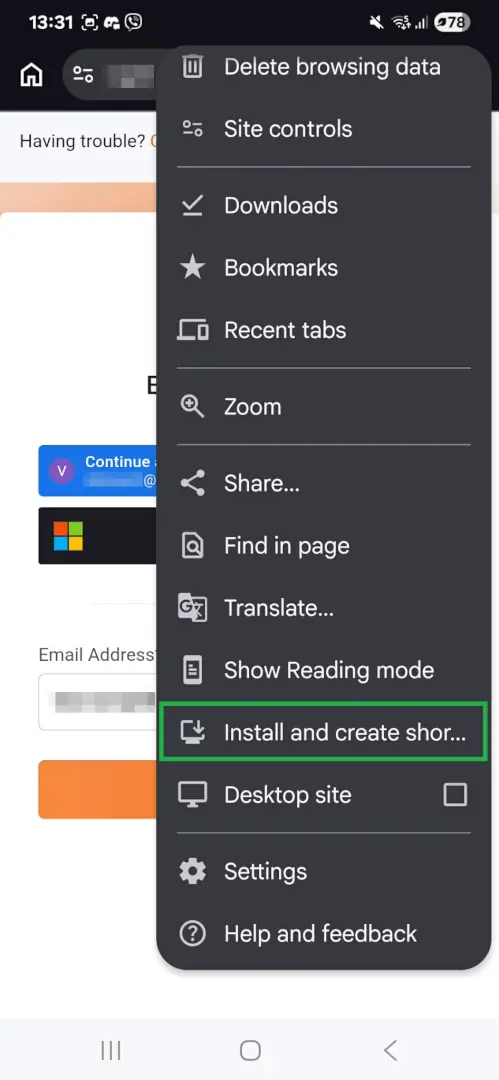
- Go to app.yodeck.com, tap the three-dot menu at the top right, scroll down and select Install and create shortcut. The wording may vary slightly by browser version. Some versions show Add to Home screen or Install app instead.
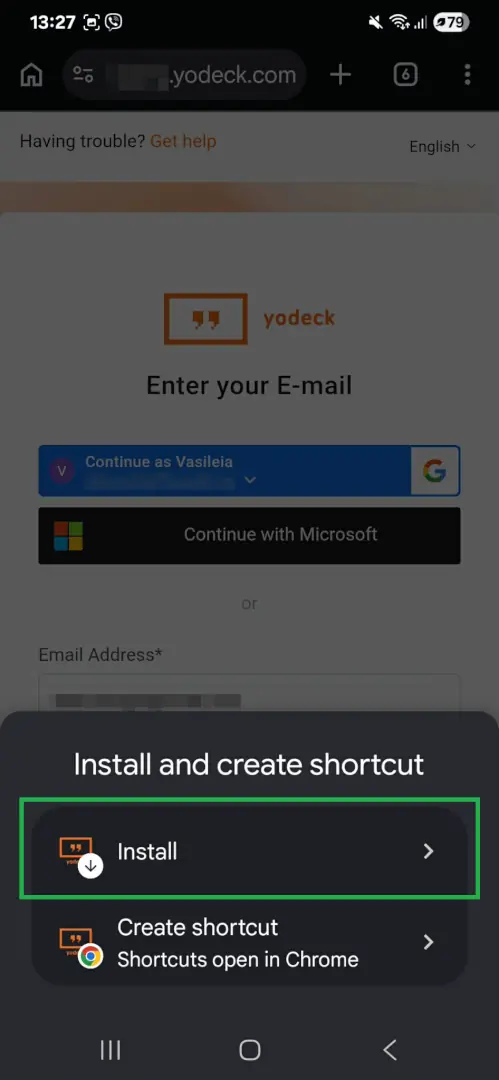
- A modal appears. Tap Install.
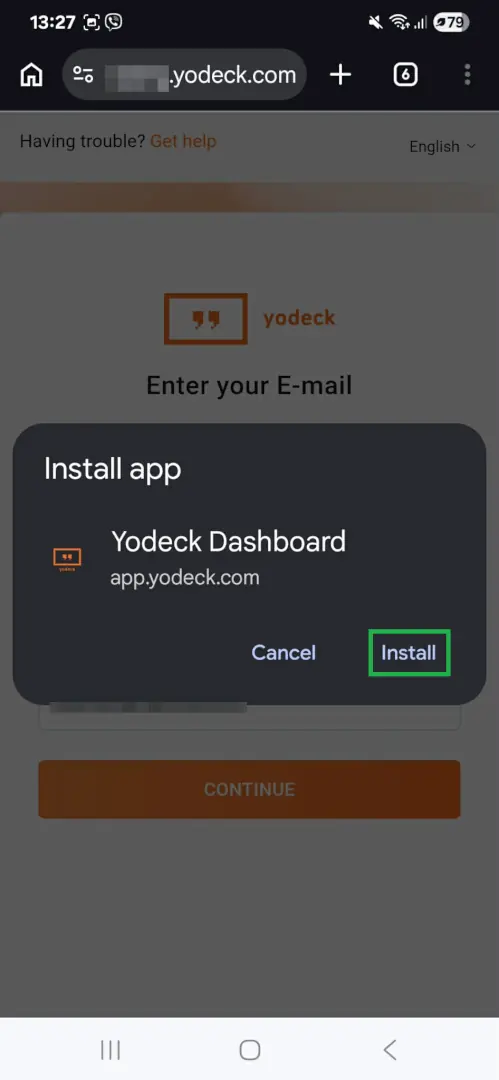
- A second confirmation modal appears. Tap Install again. The Yodeck icon is added to your home screen and app list.
Samsung Internet
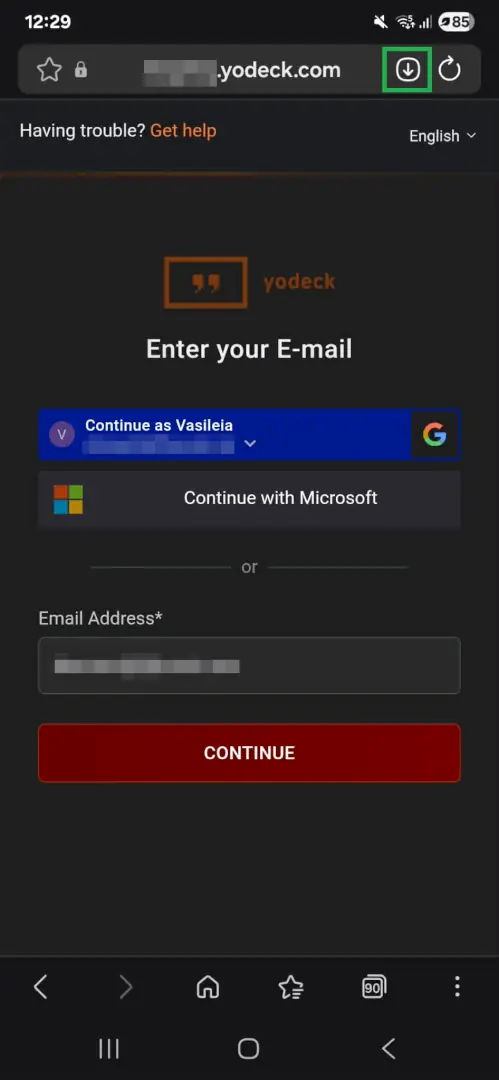
- Go to app.yodeck.com and tap the download icon on the right side of the address bar.
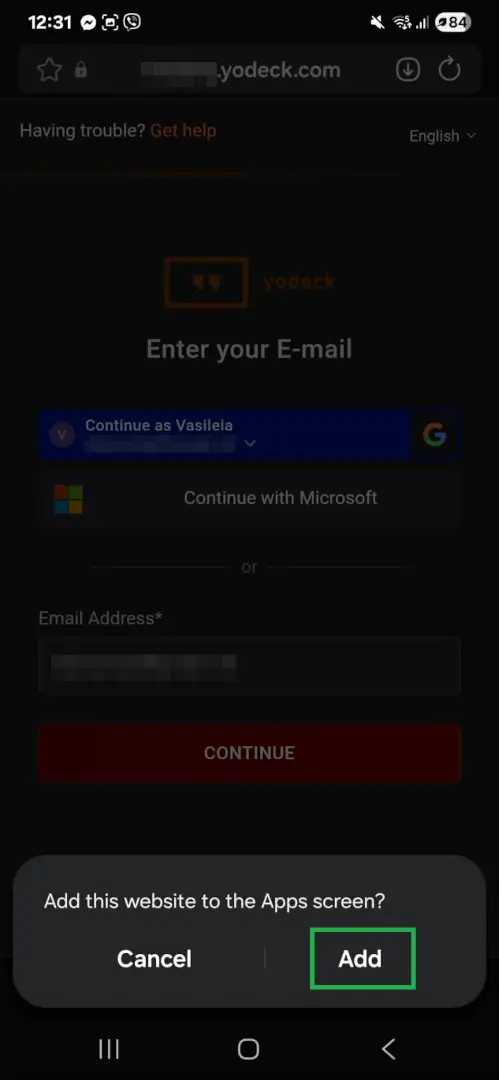
- A modal asks whether to add the website to the Apps screen. Tap Add.
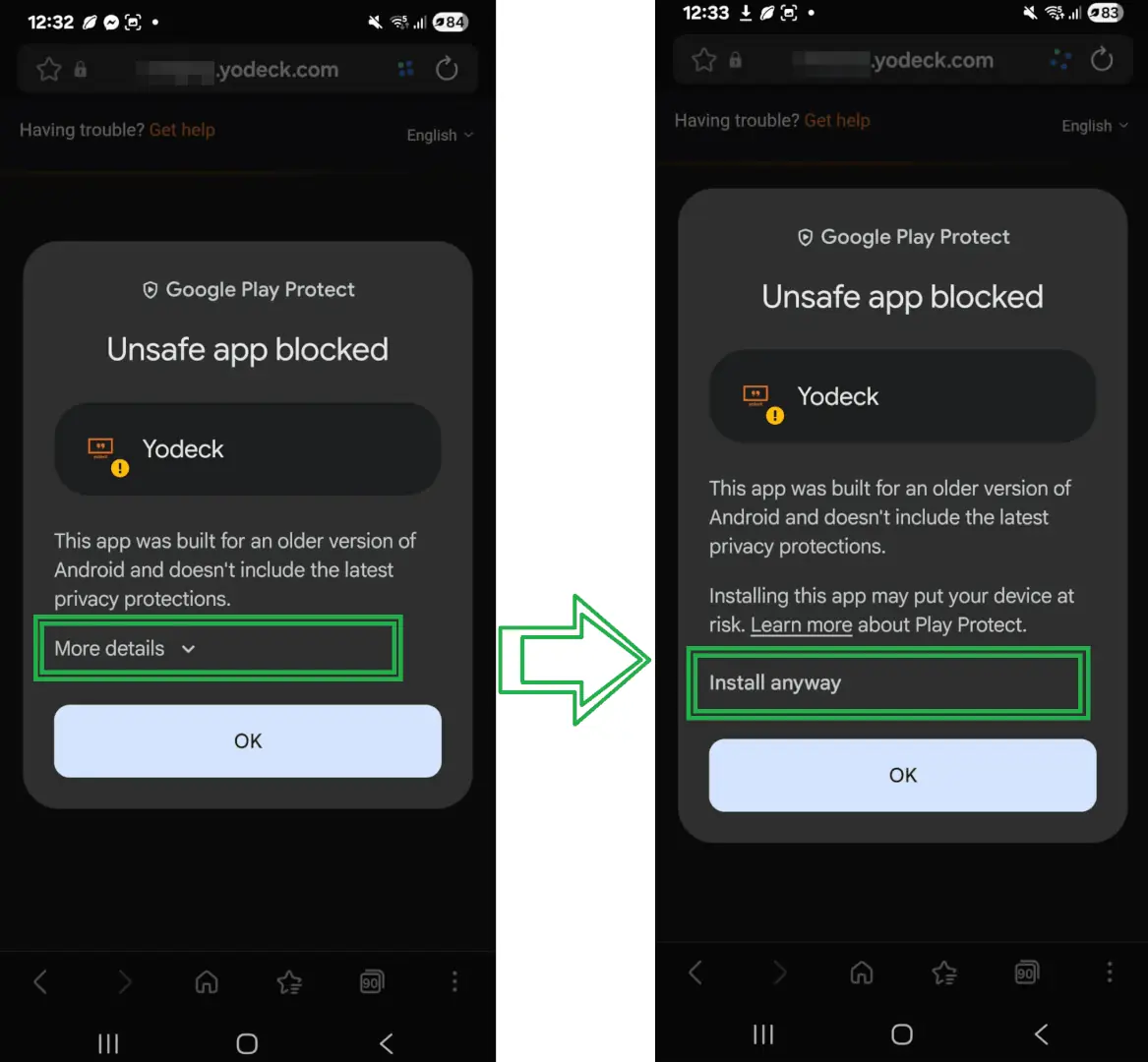
- Google Play Protect may show a warning at this point. This is standard Android behavior for apps installed outside the Google Play Store and relates to how Samsung Internet packages web apps. It does not indicate an issue with the Yodeck Portal, and it is safe to proceed. Tap More details, then Install anyway. The Yodeck icon is then added to your Apps screen.
Firefox
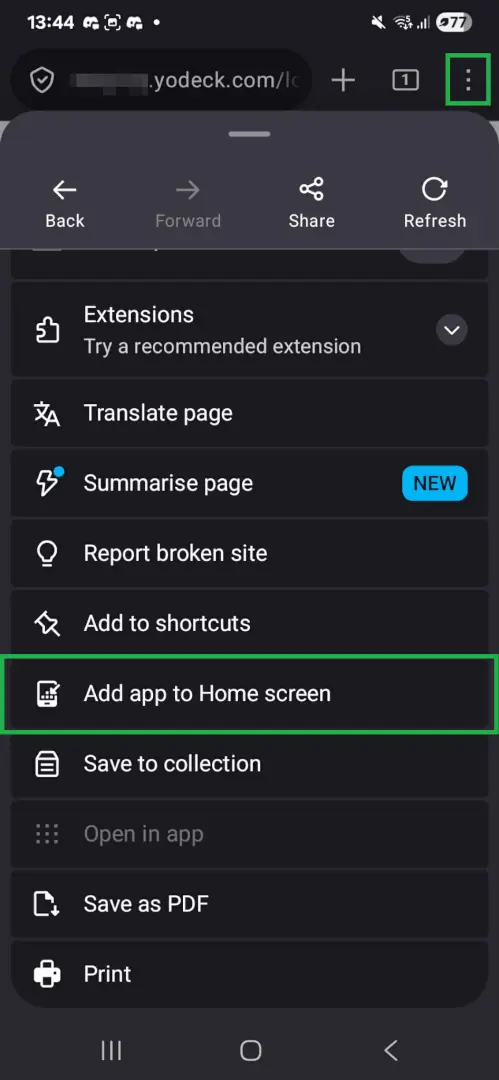
- Go to app.yodeck.com, tap the three-dot menu, then More, then Add app to Home screen.
- A confirmation modal appears. Tap Add.
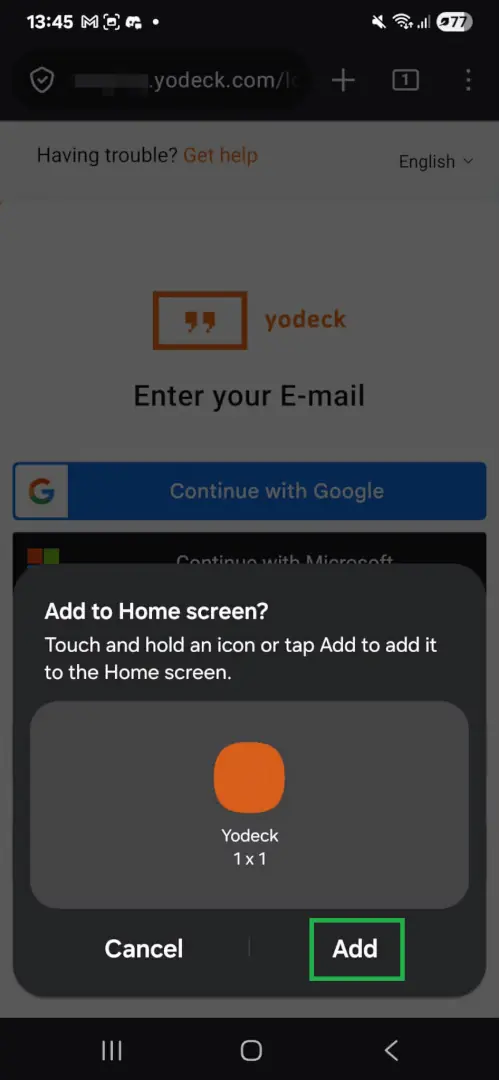
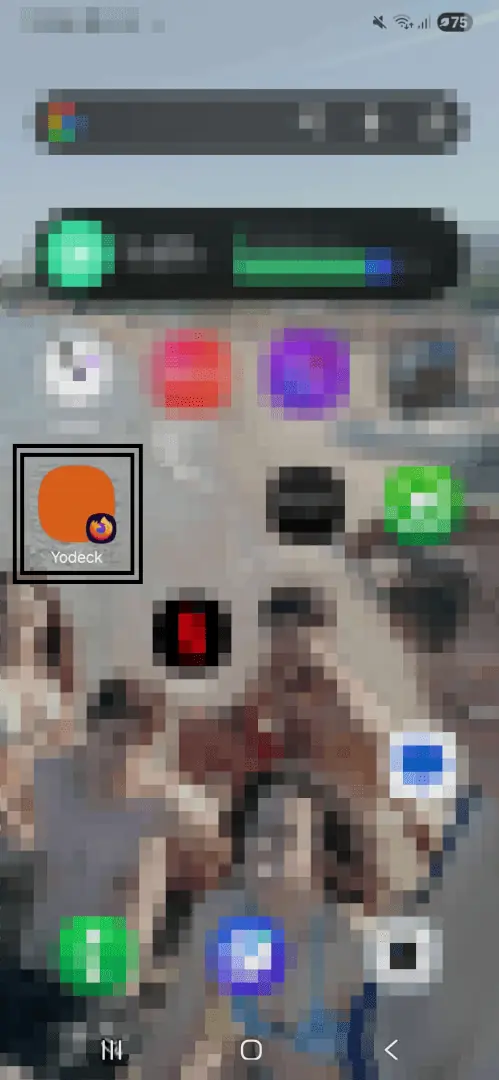
- The Yodeck icon is added to your home screen. Tapping it opens the Portal in standalone mode, without the browser interface.
Installing on iPhone and iPad (Safari)
- Go to app.yodeck.com in Safari and tap the Share icon (a square with an up arrow) in the toolbar.
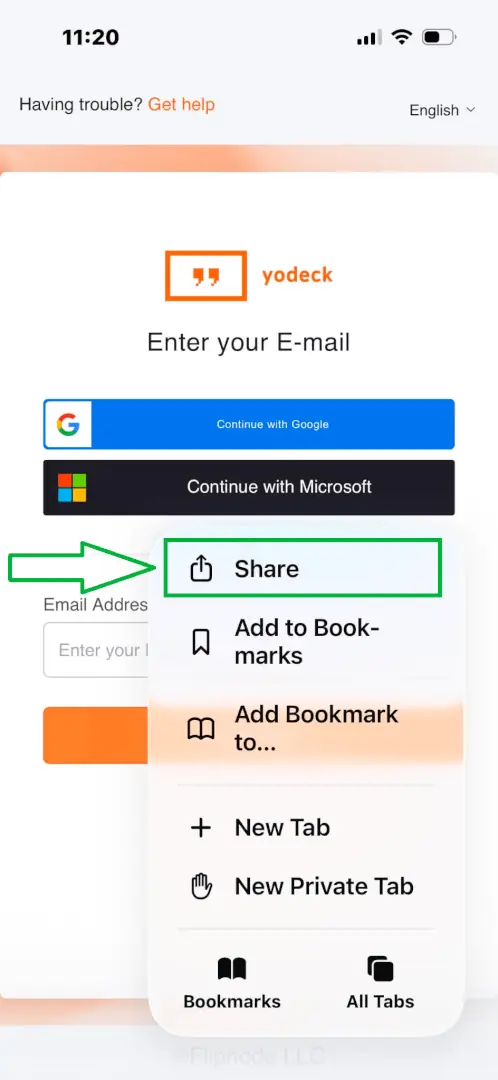
- In the share sheet, scroll down and tap Add to Home Screen.
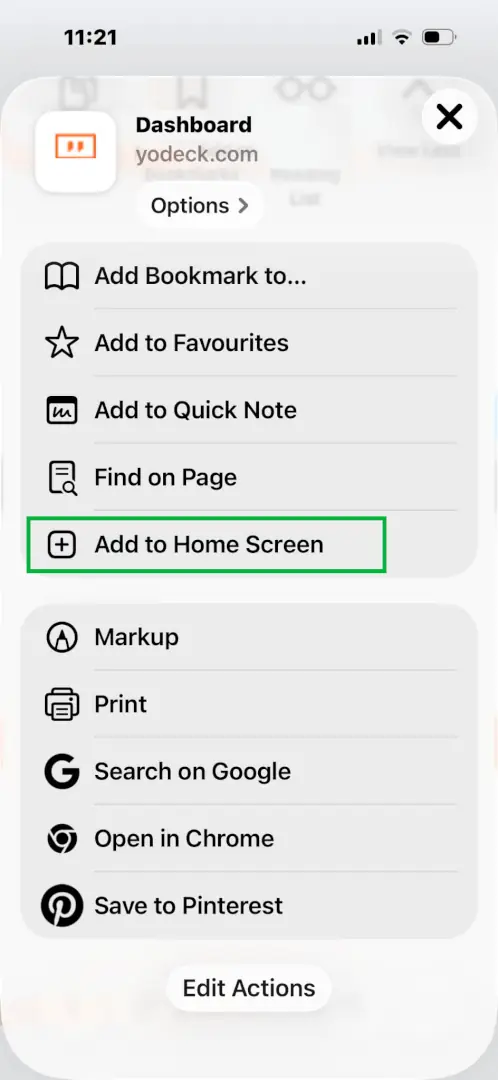
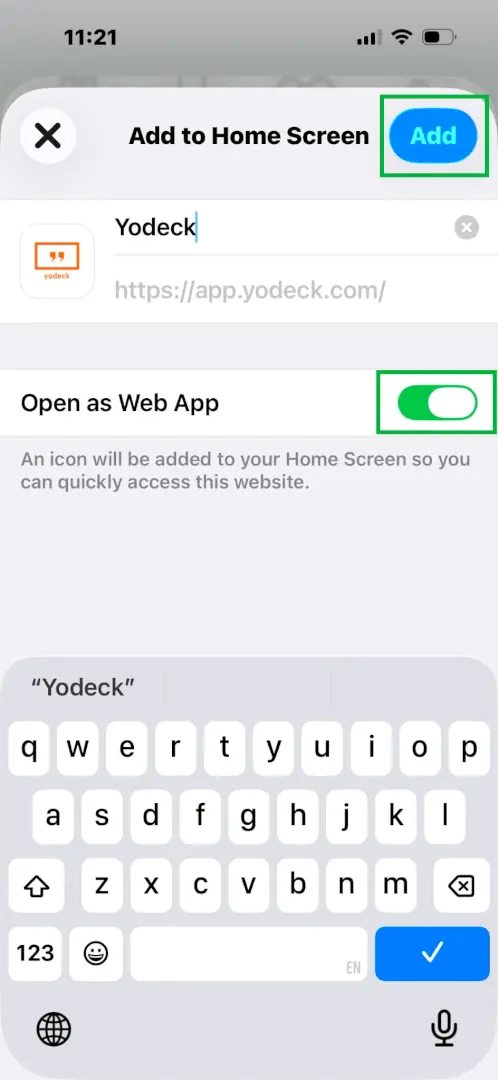
- A screen appears showing the app icon and an editable name field. Adjust the name if you want, then tap Add in the top-right corner. Make sure Open as Web App is enabled.
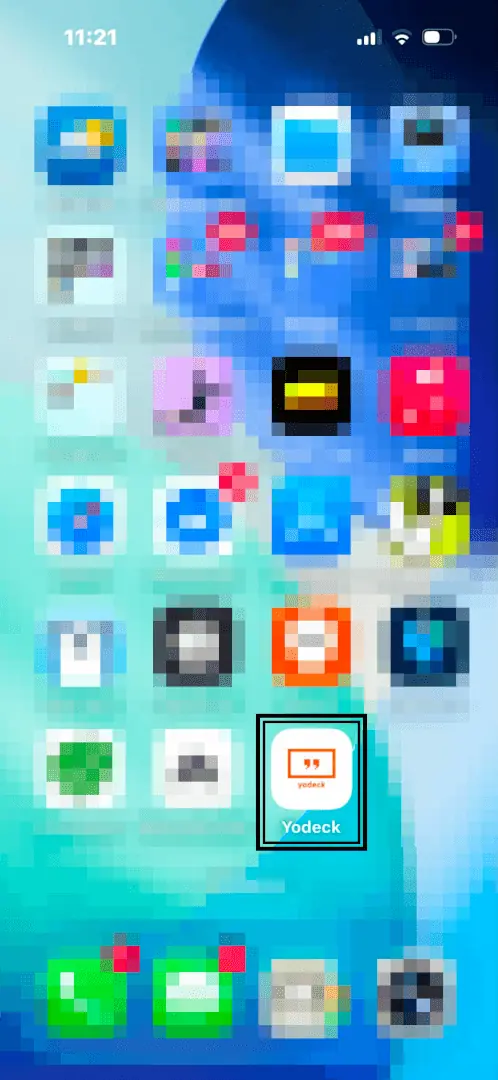
- The Yodeck icon is added to your Home Screen and launches in standalone mode when tapped.
Logging In
Log in with your existing Yodeck account. If you are already logged in through the browser, the installed app may or may not pick up that session, depending on your browser, device, and session settings. If you are not logged in, the Portal asks you to sign in as usual.
Uninstalling the PWA
You can remove the installed Yodeck Portal at any time, the same way you remove other installed apps or shortcuts on your device. On desktop, open the installed app, click its menu and select the uninstall option, or remove it from your operating system’s app list.
On mobile, press and hold the icon and remove it as you would any app. The browser version of the Yodeck Portal remains available either way.
Troubleshooting
| Symptom | Possible cause | Fix |
|---|---|---|
| The install icon or menu option does not appear | The browser or device does not support PWA installation, the browser is outdated, or the app is already installed or was previously dismissed | Use an updated version of Chrome or Edge. Check the browser menu for Install app, Add to Home Screen or Create shortcut. Check whether the app is already installed on your device. |
| The installed app does not open or does not load correctly | Network issue, expired session or corrupted local browser data | Check your internet connection and log in again if prompted. Open app.yodeck.com directly in your browser. If the browser version works but the installed app does not, clear the browser data or uninstall and reinstall the PWA. |
| The desktop shortcut does not launch on Linux | The .desktop file is marked as untrusted by the operating system | Right-click the shortcut icon and select Allow Launching. This is a one-time step per shortcut. |
| Samsung Internet shows a Google Play Protect warning during installation | Standard Android behavior for apps installed outside the Google Play Store, related to how Samsung Internet packages web apps. It does not indicate an issue with the Yodeck Portal. | Tap More details, then Install anyway to complete the installation. |
| The app cannot be installed in Firefox on desktop | Firefox does not support PWA installation on desktop | Use the Yodeck Portal in a normal Firefox tab, or install the PWA with Chrome or Edge. |
If the issue persists after these steps, contact our Support team and let us know your browser, operating system and device type, and whether the same issue occurs when you open app.yodeck.com directly in your browser.
Frequently Asked Questions
Is the PWA different from the normal Yodeck Portal?
No. It uses the same Yodeck Portal, account, and functionality. It only gives you a more direct, app-like way to open it.
Do I need to download it from an app store?
No. You install it directly from a supported browser.
Do I need a new account or subscription?
No. You log in with your existing Yodeck account, and your current subscription applies.
Does the PWA work offline?
No. The Yodeck Portal requires an internet connection, whether you open it in a browser or as an installed app.
Can I still use the Yodeck Portal in my browser?
Yes. The browser version remains fully available. The PWA is an additional way to access it, not a replacement.
Why don’t I see the install option?
The install option depends on your browser and device. Check the browser menu for options such as Install app, Add to Home Screen or Create shortcut. If none appear, your browser or device may not support PWA installation. Try an updated version of Chrome or Edge.
Need Help?
The Yodeck Support Team can help you out! Log in to your Yodeck account and send us a message from the bottom right corner!
