Basic Settings
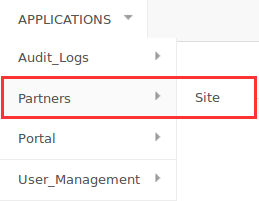
It can also be found here:
Change branding Logo and colors (Only for Whitelabels)
Basic Branding Color
Specifications: hex format (#RRGGBB)
Restriction: very light colors cannot be used as white text on top of this color, as it should be readable

Secondary Branding Color
This color will apply on hover
Specifications: hex format (#RRGGBB)
Restriction: very light colors cannot be used as white text on top of this color, as it should be readable

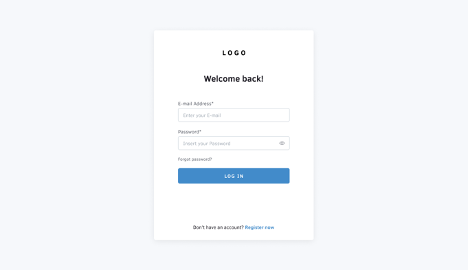
Logo for Login
Specifications: 185×55 (max), JPG/PNG
Alignment: center
Restriction: the logo should be visible on a white background
Square Logo (or Icon) for Collapsed Menu
Specifications: 46×46 (max), JPG/PNG
Alignment: center
Restriction: the logo should be visible on a white background
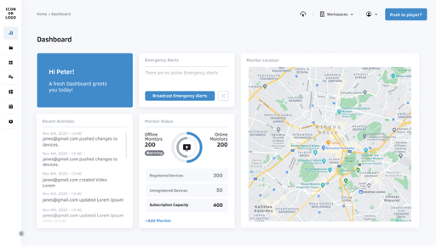
Horizontal Logo on the top left of the Sidebar
Specifications: 185×55 (max), JPG/PNG
Restriction: the logo should be visible on a white background
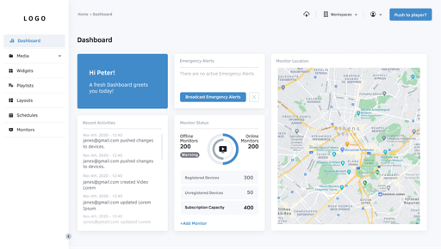
Favicon
This attribute will be available in the upcoming release as a separate field.
Specifications: 16×16 pixels, .ico file
How to update the Player’s boot logo
Logo Player
Specifications: 1920×1080 (max), JPG/PNG
Alignment: Full-Screen
- Go to your site settings.
- 💡The URL should be something like this: https://YOUR_WHITELABEL_DOMAIN/yconsole/partners/site/XXX/change/
- Find the Logo player field and upload the new logo.

- Then, you must trigger the boot logo change for all your players under your site.
- ⚠️If you do not do that, the players will not get the latest uploaded boot logo and will keep displaying the old one in each reboot.
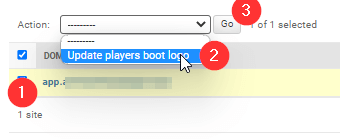
- Go to your site’s list.
- 💡The URL should be something like this: https://YOUR_WHITELABEL_DOMAIN/yconsole/partners/site
- Follow the steps below and click Go.
- A new screen will appear. Click the “Yes, I’m Sure” button, and the players will download the new boot logo.
- ⚠️Bear in mind that this procedure might take some minutes to complete.
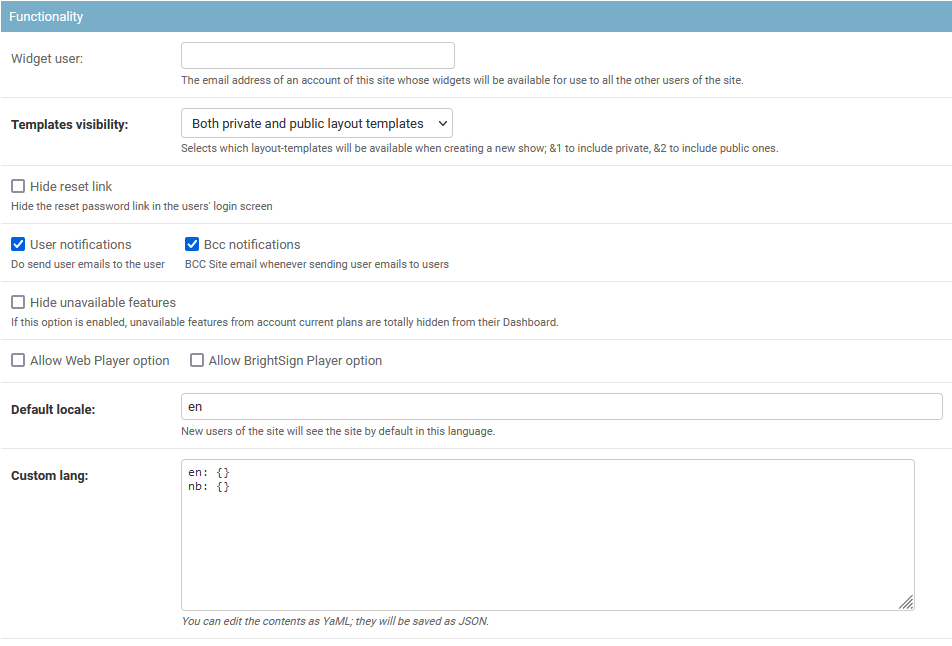
Functionality
For each field of the site configuration, a short description can be found, as seen in the picture below:
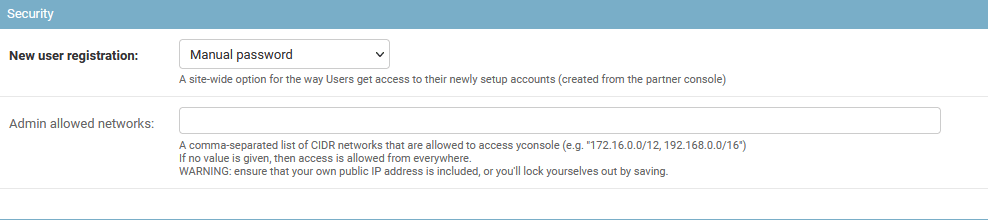
Security
For each field of the site configuration, a short description can be found, as seen in the picture below:
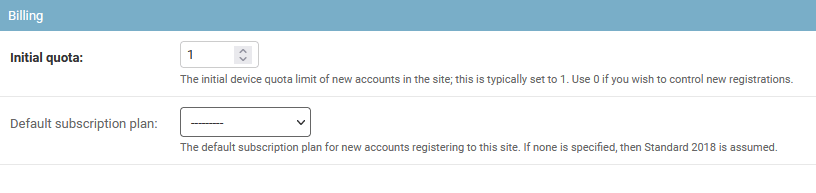
Billing
For each field of the site configuration, a short description can be found, as seen in the picture below:
Site Notification
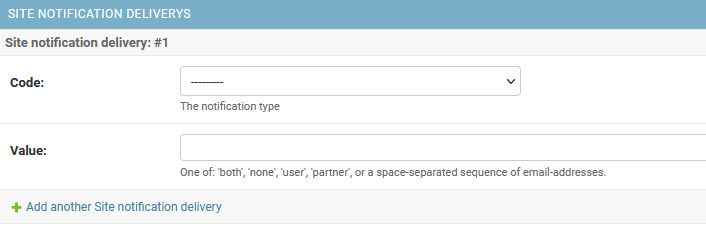
For each field of the site configuration, a short description can be found, as seen in the picture below: