Overview
A service principal lets the new Yodeck Power BI app connect to Power BI through a Microsoft Entra app registration instead of a personal Microsoft account. Because the authentication belongs to the app and not to a user, your screens keep playing when employees change roles or passwords, and you re-authorize far less often. This guide walks you through the one-time setup in Azure and Power BI, and then the app setup in Yodeck.
For every setting of the app, including the Microsoft Account option, see the Power BI article.
Step 1 – Create a Microsoft Entra app in the Azure portal
- Sign in to the Azure portal.
- Search for and select App registrations.

- Select New registration.

- Enter a Name for your application and leave the other options as they are. You can change them at any time.

- Select Register.
- On the app’s Overview page, copy the Application (client) ID and the Directory (tenant) ID and keep them for later. In Yodeck, they go into the Client ID and Tenant ID fields.

- Select Certificates & secrets.

- Select New client secret.

- In the Add a client secret window, enter a description, choose when the secret expires and select Add.

- Copy the secret’s Value (not the Secret ID) and keep it for later. It goes into the Client Secret field in Yodeck.

Step 2 – Enable the Power BI service admin settings
For a Microsoft Entra app to access Power BI content and APIs, a Power BI admin needs to enable two settings. In the Power BI Admin portal, go to Tenant settings and scroll down to Developer settings:
- Enable Embed content in apps for the entire organization or for a security group that includes your service principal.

- Enable Service principals can call Fabric public APIs for the same scope. In some tenants, this setting still appears as Service principals can use Fabric APIs or Allow service principals to use Power BI APIs.

Step 3 – Add the service principal to your workspace
- In the Power BI service, open the workspace you want to give access to and select Manage access.

- In the Access pane, select Add people or groups.

- Add one of the following:
- Your service principal (used in this example). Its name is the Display name of your Microsoft Entra app, as shown on the app’s Overview page.
- A security group that includes your service principal.

- Select Member in the drop-down menu and then select Add.

- The Access pane now lists the service principal as a Member.

Step 4 – Set up the Power BI app with Service Principal in Yodeck
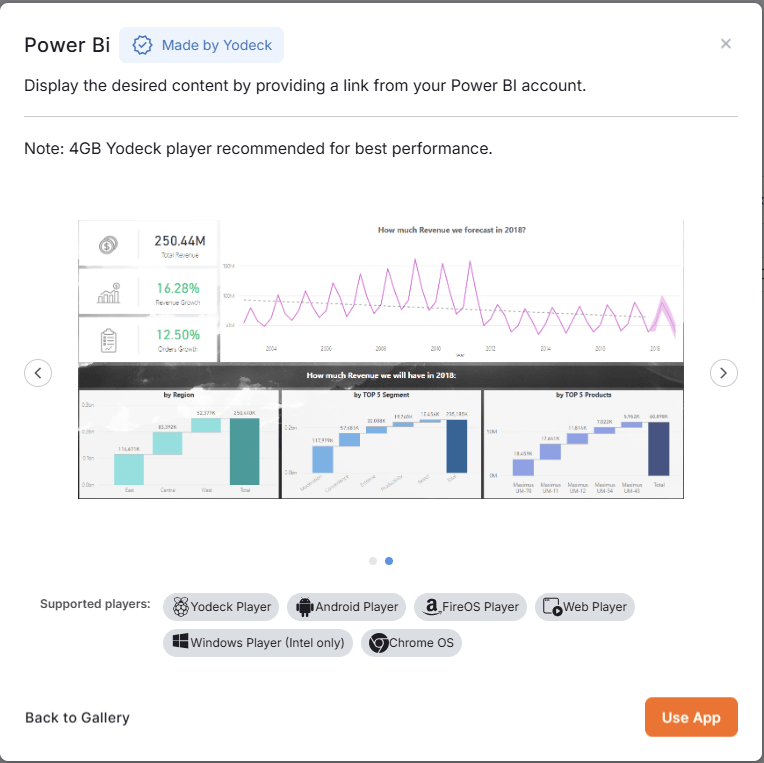
- In the Yodeck Portal, open the Apps section, locate the Power BI app in your app gallery and click Use App.
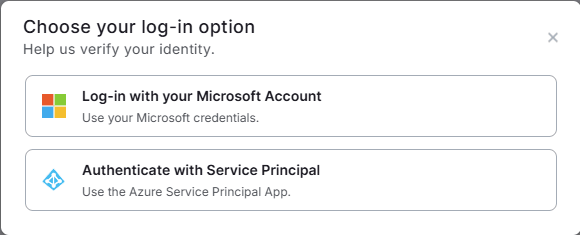
- In the Choose your log-in option window, select Authenticate with Service Principal.
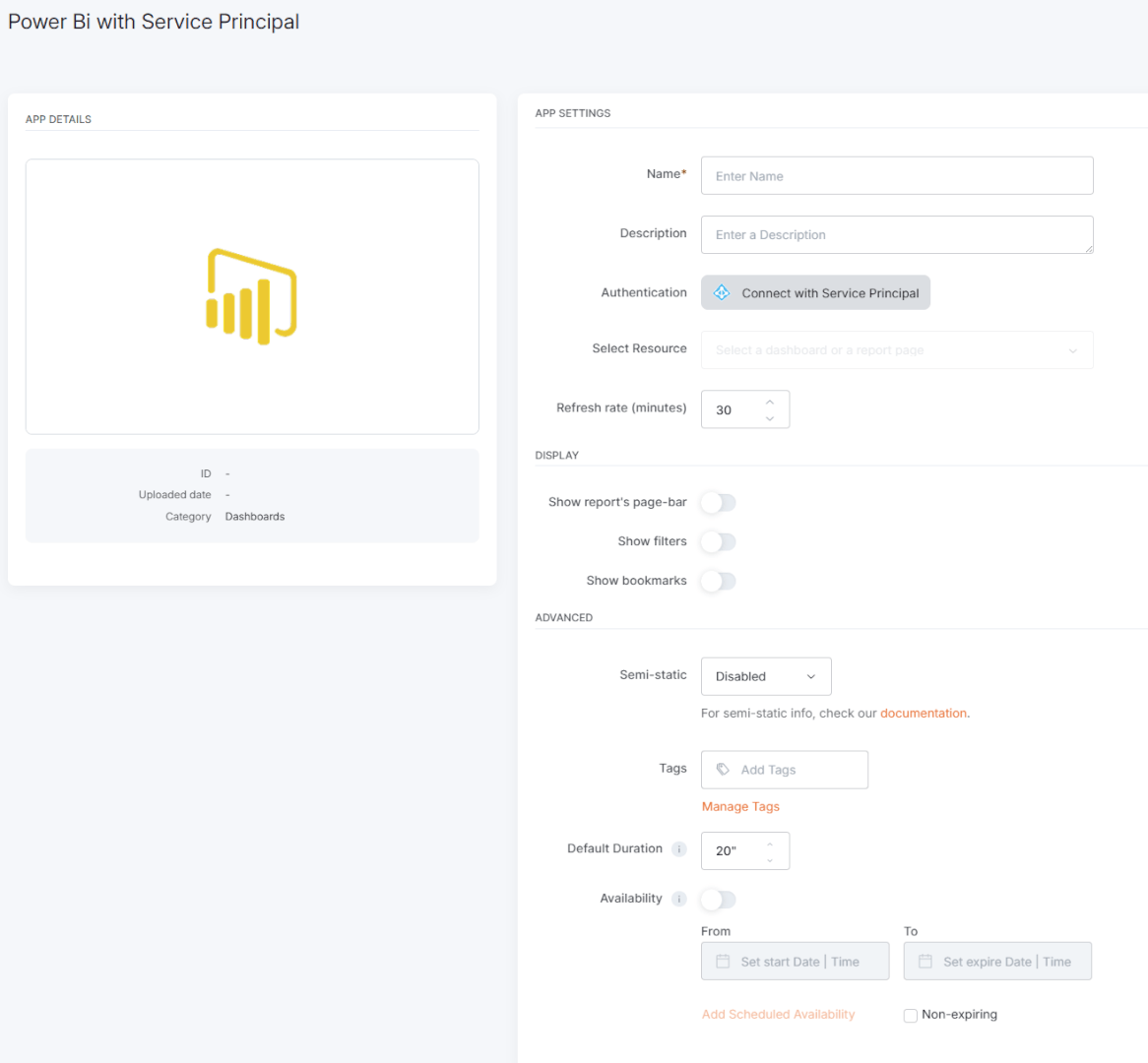
- In the Authenticate via service principal window, enter the Tenant ID, Client ID and Client Secret from Step 1 and click Authenticate. All three fields are required.

- Enter a Name for the app and an optional Description.
- Click Select Resource and choose the dashboard or the report you want to display. The list shows only the content of the workspaces you added the service principal to.
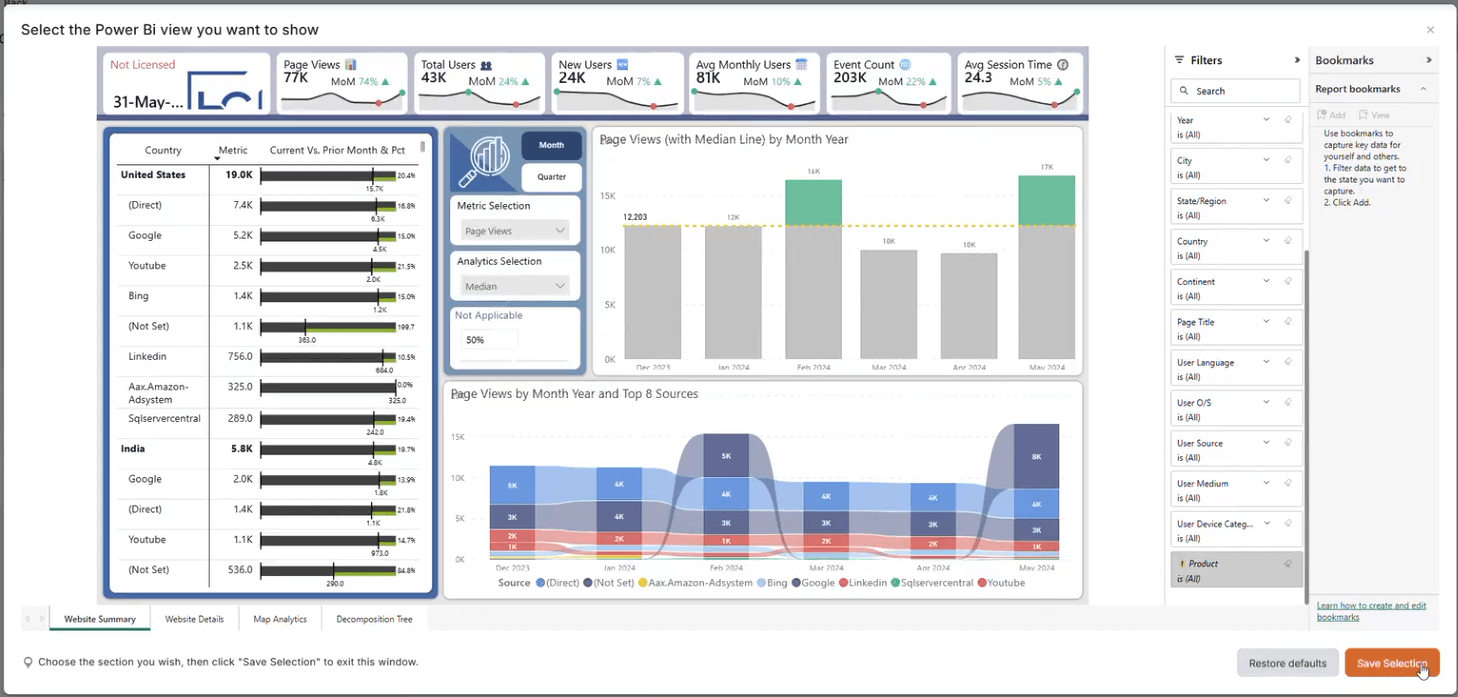
- If you selected a report, click Open view editor, choose the page, bookmarks and filters you want to show and click Save Selection.
- If your report uses Row-Level Security or user impersonation, add an identity with Set Identities, as described in the Identity Requirements guide.
- Adjust the remaining settings if needed (refresh rate, display options, Semi-static, tags, duration and availability) and click Save. For details on each setting, see the Power BI article.
Your Power BI app with Service Principal authentication is now ready to use.
F.A.Q.s
Got questions? We’ve got answers! This section addresses common questions about the Power BI app.
Why does my screen show “Embed token has reached its limit”?
This error comes from Microsoft Power BI, not from Yodeck. It means your workspace has reached Microsoft’s free embed token limit, which applies when Yodeck displays Power BI content with Service Principal authentication. It can happen over time as usage grows (more screens, apps or refreshes). Power BI Pro licenses do not remove this limit.
To remove the limit, Microsoft requires the workspace to run on a Power BI Embedded, Premium or Microsoft Fabric capacity. This is a Power BI licensing requirement, and Yodeck cannot change it.
Why do I see “Checking permissions…” instead of a report tile in my dashboard?
The dashboard contains a report whose semantic model (dataset) the service principal cannot access. Grant the service principal access to that semantic model in the Power BI service, and the tile appears.
Which Power BI content can I display with a service principal?
Dashboards and reports in Workspaces where the service principal is a Member or Admin. My Workspace and Power BI Apps are not supported.
I cannot find my dashboard or report in Select Resource.
The service principal is probably not a member of that workspace. Add it as described in Step 3, then reopen Select Resource. If the workspace still does not appear, use the Refresh sources button in the list.
Why is a report greyed out in Select Resource?
The report has no semantic model (dataset) attached, so Yodeck cannot embed it. Hover over the report to see the message No dataset ID found.
My client secret expired. What do I do?
In Azure, create a new client secret as described in Step 1 and copy its value. Then edit the Power BI app in Yodeck, reconnect the service principal through the Authentication field with the new client secret and save the app.
Do I still need a Power BI report URL?
No. The new Power BI app lists your dashboards and reports in Select Resource. URLs apply only to apps created with the legacy Power BI app. For details, see the Power BI article.
Need Help?
The Yodeck Support Team can help you out! Log in to your Yodeck account and send us a message from the bottom right corner!
