Part 4: Safety, Troubleshooting, and Best Practices
Overview
Once you set up your Workspaces, prioritize keeping them safe, easy to support, and easy to maintain over time. This article covers deletion, troubleshooting, best practices, and the most common questions about Yodeck Workspaces.
If you have not yet created your Workspaces or set up their structure, go back to the earlier articles in this series before using this guide.
Delete a Workspace
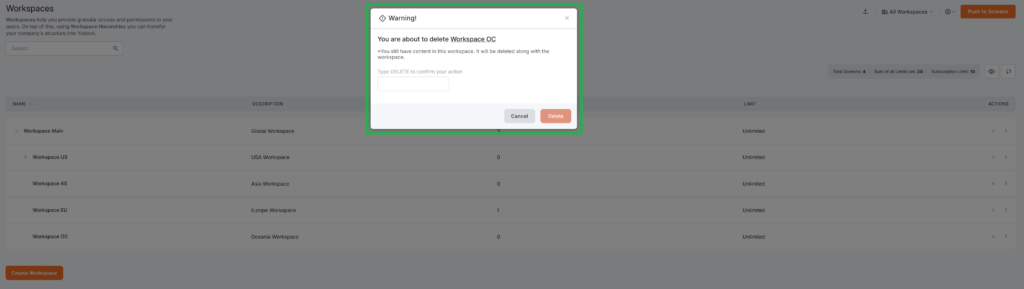
Of course, you have the option to delete any Workspace that you wish. However, you must use great caution because of the following reasons.
⚠️ This is an irreversible action. Read before you click.
When you delete a Workspace:
- Its content is permanently deleted (Media, Playlists, Layouts, Schedules, and more)
- Its screens are moved out of the Workspace
- Playback and content setup may be affected
ℹ️Before deleting: review everything inside the Workspace. If you want to keep anything (Media, Playlists, Layouts, Schedules, or other items), move or recreate it elsewhere first. When in doubt, read the warning shown in the portal and pause before confirming.
Best practices
- Mirror your real structure. Build your hierarchy around how your organization actually works.
- Keep hierarchies simple. Two or three levels is the sweet spot for most organizations.
- Use clear names. They should make sense at a glance, even to someone new.
- Use numeric prefixes (like
01-HQ) to keep the list in order. - Keep parent Workspaces clean. Use them for structure unless you genuinely share their content.
- Use Groups for standard access. Much easier to maintain than per-user assignments.
- Always set a Primary Workspace. It’s the foundation for scalable user management.
- Use explicit access sparingly. Too many exceptions make your setup harder to support.
- Review screen limits regularly as your deployment grows.
- Check the selected Workspace before creating content. It saves a lot of “where did my playlist go?” moments.
Troubleshooting
You can click on each expandable arrow to see common situations and how to resolve them.
“I can’t see a Workspace I should have access to.”
Check the Active Workspace drop-down. If the Workspace isn’t listed, you probably don’t have access to it yet. Ask an admin to:
- Grant explicit access to that Workspace
- Confirm your Primary Workspace is set
- Add you to the right Group, or grant you explicit access to that Workspace
“I can see the Workspace, but can’t create or edit anything.”
Your role in that Workspace is likely Content Viewer (read-only), or you’re viewing content through Read access from another Workspace. Ask an admin to upgrade your role, or switch back to a Workspace where you have write access.
“My Content Manager can’t publish content.”
They’re probably set as Restricted Content Manager, which allows managing content but not publishing it. Change their role in that Workspace to Content Manager.
“I can’t add a new screen to this Workspace.”
The Workspace has likely hit its Screen Limit. An admin can raise the limit or move existing screens to another Workspace to free up space.
“I created something, but now I can’t find it.”
It’s almost always saved in a different Workspace than you expected. Switch to the All view and search for it. To avoid this next time, check the Active Workspace selector before creating content.
“Yodeck won’t let me create new content.”
If the Active Workspace is set to All, Yodeck will ask you to pick a specific Workspace first. Content always needs a home. Switch to the right Workspace and try again.
“I can’t use media from another Workspace in my Playlist.”
You need at least Read access to the other Workspace to reference its content. Ask an admin to grant Read access and the media will become available.
“A user’s permissions don’t look right after I added them to a Group.”
Check three things, in this order:
- Is their Primary Workspace set correctly?
- Is the Group actually assigned to that user?
- Is there explicit access elsewhere that’s overriding what you expected?
Most Group-related issues trace back to a missing or incorrect Primary Workspace.
“An SSO user didn’t land in the right Primary Workspace.”
The SAML claim mapping probably isn’t matching your Workspace names as expected. Review your SSO configuration, confirm the claim values coming from your identity provider, and check that they map to the correct Workspaces in Yodeck.
“I deleted a Workspace and need its content back.”
Deletion is permanent. Content inside a deleted Workspace can’t be restored from the portal. If you have a recent backup, restore from there. Otherwise, the content will need to be recreated. When in doubt about a future deletion, pause and review the warning carefully before confirming.
F.A.Q.s
Got questions? We’ve got answers! This section addresses common questions about the Yodeck Workspaces.
Not always. If all users need access to the same content and screens, a single Workspace may be enough. Workspaces are most useful when you need access boundaries.
Yes. A user can have access to multiple Workspaces and different roles in each one.
You see items from every Workspace where you have at least Read access. However, you must choose a specific Workspace before creating new content.
Only if they have access to more than one Workspace. If they can access only one, Yodeck may hide the selector to simplify the interface.
Yes. If you have at least Read access to the source Workspace, you can use eligible content from it in other Workspaces.
Yes. You can change the Parent Workspace at any time.
Yes. You can set a Screen Limit for each Workspace.
Use Groups for your standard setup. Use explicit access only for one-off cases or exceptions.
Yes. You can use SSO for Primary Workspace assignment and Group-based access mapping.
Deleting a Workspace removes its content. Screens are moved elsewhere. Always review the Workspace carefully before confirming deletion.
When you select “All,” Yodeck displays content from every Workspace where you have at least Read access. However, new content must belong to one specific Workspace. That is why Yodeck asks you to choose a Workspace before creating a new item.
A user can see only the Workspaces they have access to. If a Workspace does not appear, check that the admin has assigned the user the correct role through a Group or explicit access. Also, verify the user’s Primary Workspace and ensure that you have configured your Groups properly.
In most cases, the user only has Read access to that Workspace. Yodeck may still allow them to view or reference content from it, but they cannot edit it unless they have a role with editing permissions in that specific Workspace.
Wrap up the Workspaces Series
Workspaces are most effective when they are easy to understand, easy to support, and easy to maintain. If you keep the structure clean, assign permissions consistently, and test changes before rolling them out widely, your account will stay much easier to manage over time.
This concludes the 4-part Yodeck Workspaces series.
- Article 1: Yodeck Workspaces: Introduction and Basics
- Article 2: Organize Yodeck Workspaces: Hierarchies, Roles, Groups, and Primary Workspace
- Article 3: Roll Out Yodeck Workspaces at Scale: Setup Workflow, Screen Limits, Working Hours, Emergency Alerts, and SSO
- Article 4: Yodeck Workspaces: Safety, Troubleshooting, and Best Practices -> You are here!
Need Help?
The Yodeck Support Team can help you out! Log in to your Yodeck account and send us a message from the bottom right corner!
