Overview
You can create an appearance with your logos and brand color, then apply it to every user in your account. System Appearance, therefore, replaces the Yodeck logo and accent color in the Yodeck Portal with your own branding.
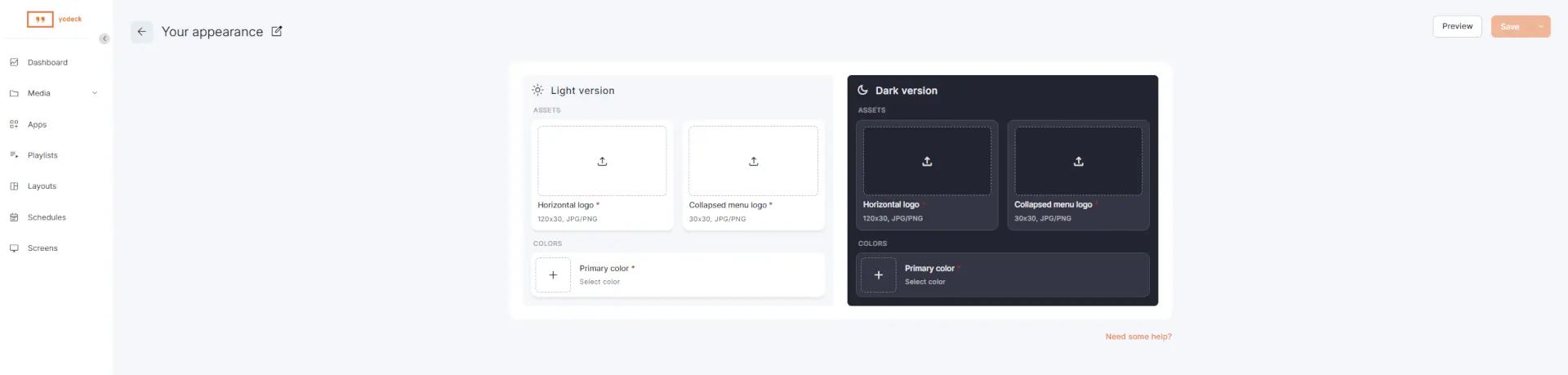
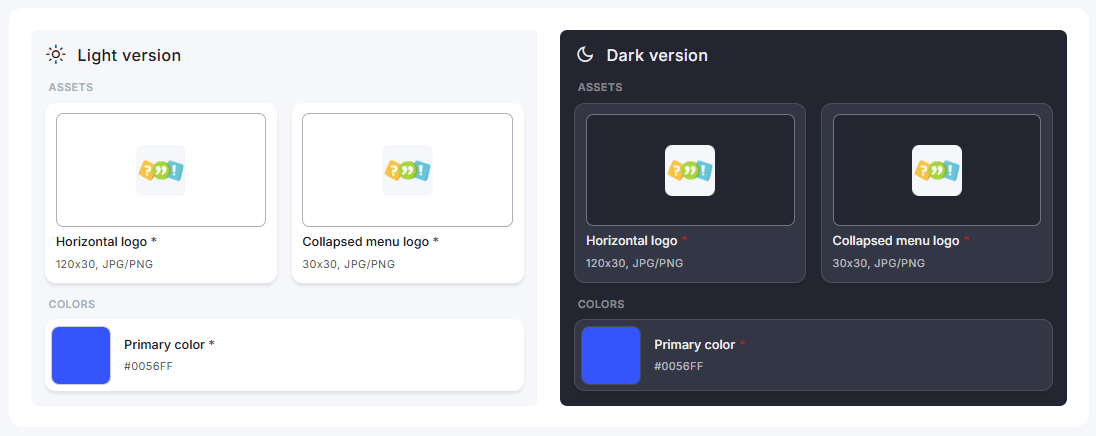
Each appearance has a Light version and a Dark version, and each version contains three items:
- Horizontal logo: your main logo, shown at the top of the expanded side menu.
- Collapsed menu logo: a compact icon or logomark, shown when the side menu is collapsed.
- Primary color: the accent color of buttons, links, and other interactive elements, which is common for both the Light and Dark versions.
Only account admins (the Account Owner and Global Admins) can manage appearances. Each user chooses Light Theme, Dark Theme, or System in the Theme tab of My User Profile, and that choice decides which version they see.
Preparing Your Logos and Colors
The appearance form needs all of the following before you can save it, so prepare them first:
- A horizontal logo for each version: JPG or PNG, 120×30 px or larger in the same 4:1 proportions.
- A collapsed menu logo for each version: JPG or PNG, square, 30×30 px or larger.
- The hex code of the primary color for each version, for example, #FF6600.
You can use the same file in both versions if it reads well on light and dark backgrounds.
💡Tip: Use PNG files with a transparent background. For the Dark version, pick a light logo and a color that stays easy to read on a dark background.
Viewing System Appearance
- Open the user menu in the top-right corner of the Yodeck Portal and click Account Settings.
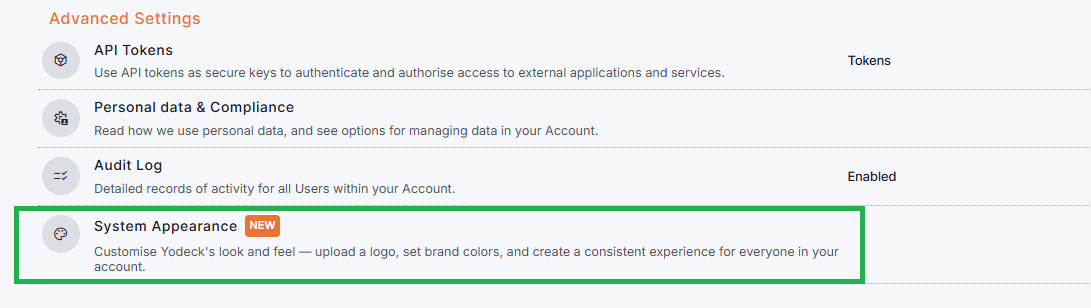
- Under Advanced Settings, click System Appearance.
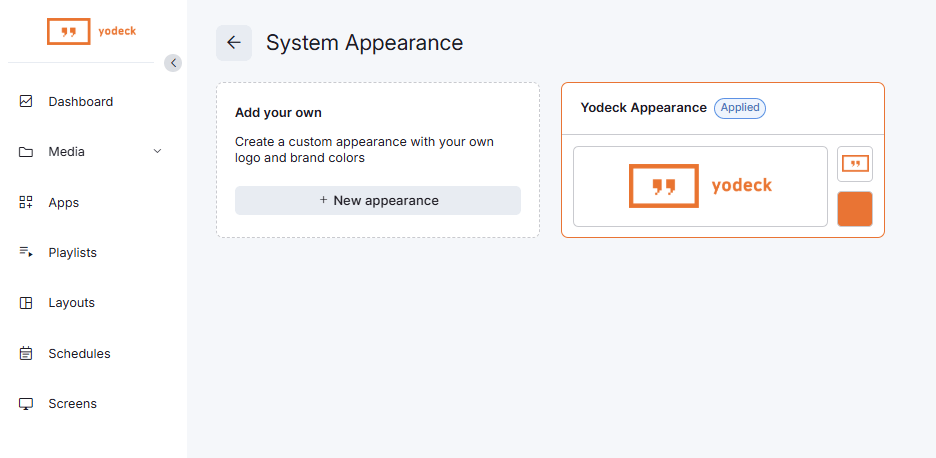
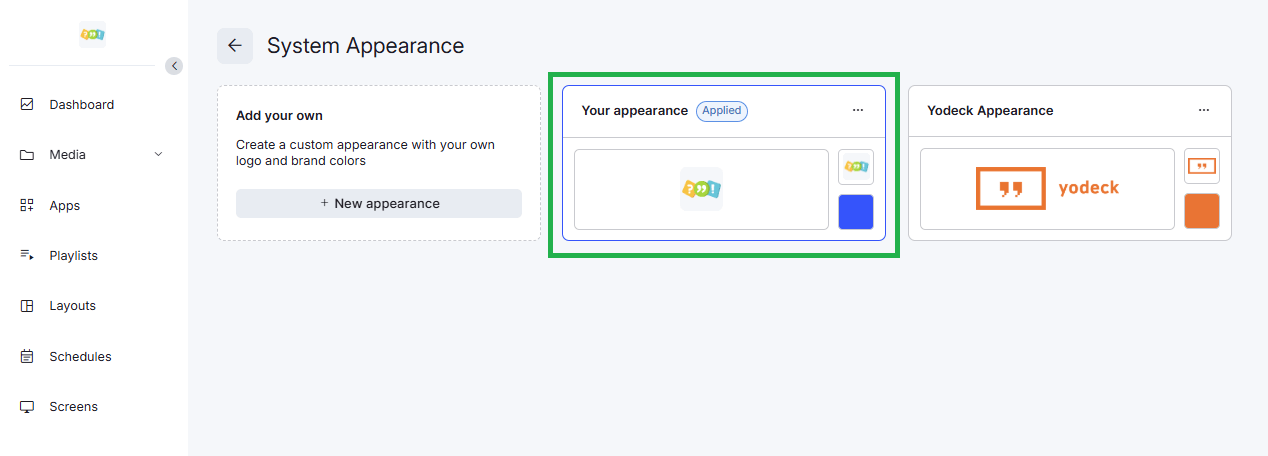
The System Appearance page shows each appearance as a card:
- Add your own: starts a new appearance with the New appearance button.
- A card for each appearance you saved.
- Yodeck Appearance: the default Yodeck look, which you can’t edit or delete.
The Applied badge marks the appearance your users see right now.
Creating a Custom Appearance
Click New appearance on the Add your own card and complete the form as follows:
- Click the edit icon next to the default name Your appearance, type a name, and press Enter.
- In the Light version panel, click the Horizontal logo box. In the Insert Image window, do one of the following:
- Open the Media tab, select an image from your Media library, and click Insert.
- Open the Image file tab and drop a file from your device or click to choose one. Then click Import.
- Click the Collapsed menu logo box and add your compact logo the same way.
- Next to Primary color, click + and pick your brand color or type its hex code.
- All three fields are required, so Save stays disabled until all common fields are complete.
- Click Save to keep the appearance without applying it. To apply it to all users right away, click the arrow next to Save, select Save & Apply, and confirm (see Applying an Appearance).
After Save, Yodeck shows “Your appearance has been saved.” and adds the new card to the System Appearance page.
💡Tip: A short in-app guide opens the first time you open the form. To see it again, click Need some help? below the form.
Previewing an Appearance
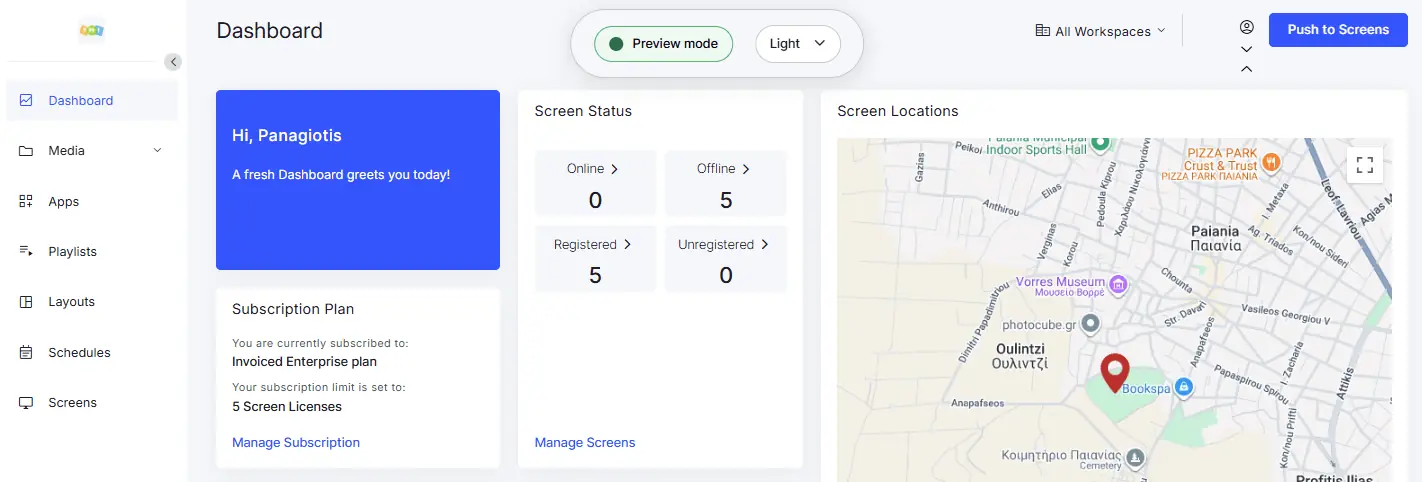
Preview shows how an appearance looks in the Yodeck Portal before you apply it. Only you see the preview.
- Click Preview at the top of the appearance form, or open the menu (three dots) on a saved appearance that isn’t applied and select Preview. From the form, Preview uses your current values, even the ones you haven’t saved yet.
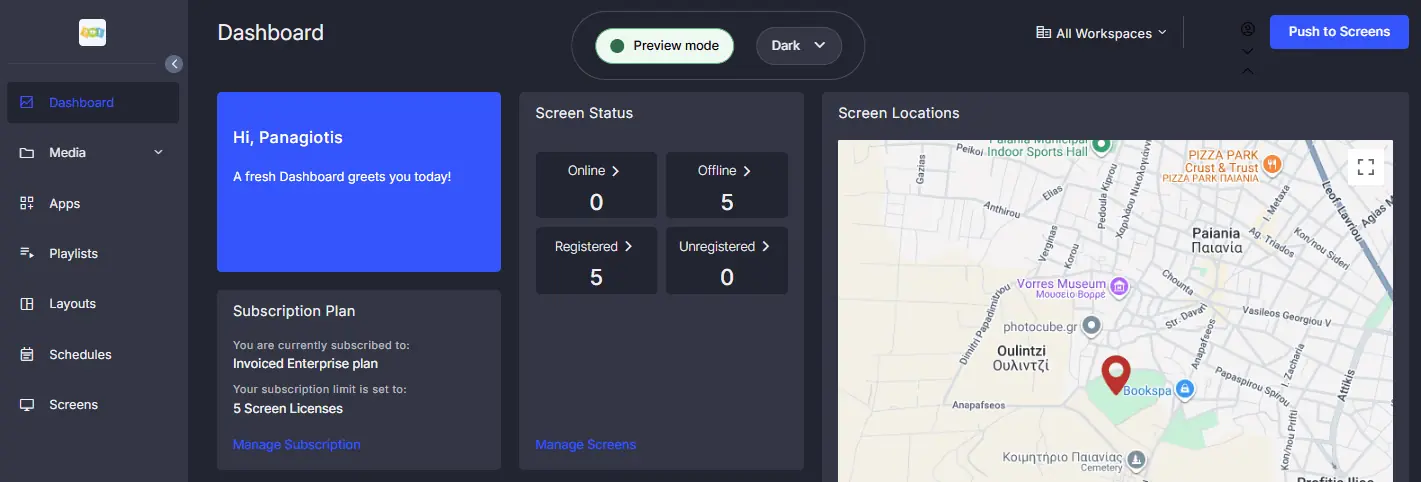
- Yodeck opens the Yodeck Portal in a new browser window with your appearance and a floating Preview mode badge.
- Use the Light and Dark switch on the badge to check both versions. To move the badge, point to it with your mouse and drag the handle that appears.
- Close the preview window when you finish.
Applying an Appearance
When you apply an appearance, every user in your account sees it. You can apply only one appearance at a time, so a new one replaces the current one. Some buttons and messages call an appearance a theme, for example, Apply this theme.
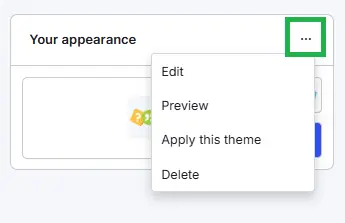
- On the System Appearance page, open the menu (three dots) on the appearance card and select Apply this theme.
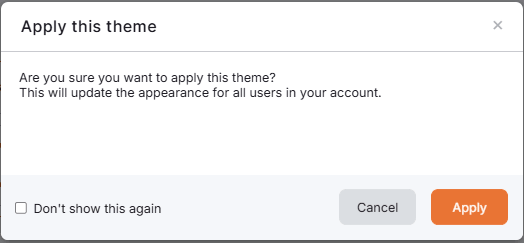
- Confirm the message “Are you sure you want to apply this theme? This will update the appearance for all users in your account.” If you select Don’t show this again, Yodeck stops asking you to confirm this step. The setting affects only your user.
- The page reloads with your appearance, and Yodeck shows “Your theme is now live.”
To apply an appearance from its form, select Save & Apply and confirm the message “Are you sure you want to save and apply this theme?” Yodeck saves and applies the appearance in one step.
Other users see the new appearance the next time they load the Yodeck Portal. Each of them also receives a System appearance notification in the Notification Center.
Managing Your Appearances
Open the menu (three dots) on a card to manage an appearance. The options depend on the card:
- The applied appearance: Edit and Delete.
- Any other appearance you saved: Edit, Preview, Apply this theme, and Delete.
- Yodeck Appearance: Apply this theme, available while one of your appearances is applied.
Editing an Appearance
Select Edit, change the name, logos, or colors, and click Save.
Restoring the Default Yodeck Appearance
Open the menu on the Yodeck Appearance card, select Apply this theme, and confirm. Your own appearances stay saved, so you can apply them again later.
Deleting an Appearance
Select Delete and confirm. Yodeck shows “You have deleted your custom theme.”
F.A.Q.s
Got questions? We’ve got answers! This section addresses common questions about the System Appearance feature.
System Appearance is available only on the Enterprise plan. If its card in Account Settings shows an Enterprise badge, your plan doesn’t include it, and clicking the card shows the upgrade options. If the card is missing, your user doesn’t have account admin rights, so ask your Account Owner or a Global Admin.
Check that its card shows the Applied badge, because Save alone doesn’t apply it. Other users see the change the next time they load the Yodeck Portal, so ask them to refresh the page. Users in dark mode (Dark Theme) see the Dark version and users in light mode (Light Theme) see the Light version.
Check that all six fields in the form have a value and that your browser allows pop-ups for the Yodeck Portal. If Yodeck shows “Your browser blocked the preview window. Please allow pop-ups for this site and try again.”, allow pop-ups and click Preview again. A preview expires after 15 minutes, so click Preview again to keep checking.
Check the message on the logo box:
– This file is too large: use a smaller file. The message shows the size limit.
– Invalid file type: use a JPG or PNG file.
– This image couldn’t be processed: try again. If the message stays, export the image again and upload the new file.
Images you upload from your device can be up to 50MP.
Yodeck keeps the proportions of your logo and never stretches it. A logo that isn’t 4:1 (horizontal logo) or square (collapsed menu logo) appears smaller in the side menu, and a file smaller than 120×30 px or 30×30 px appears at its own, smaller size. Upload a file with the right proportions at the recommended size or larger.
No. It changes only the look of the Yodeck Portal. To show your branding on screens, see Player Boot Logo and Branded Templates.
No. The applied appearance covers your whole account and every user in it. Each user only chooses whether they see the Light or the Dark version.
Yes, when you apply an appearance: every user in your account receives a System appearance notification in the Notification Center. Yodeck doesn’t send a notification when you delete the applied appearance or restore the Yodeck Appearance.
Yodeck switches off the applied appearance, and every user returns to the Yodeck Appearance. Your saved appearances stay in your account.
No. It does not affect the users’ theme selection.
Need Help?
The Yodeck Support Team can help you out! Log in to your Yodeck account and send us a message from the bottom right corner!
