Overview
You can create a new playlist on the fly by importing media files directly into it. If you have your own 3rd-party tool creating playlists with any logic, this feature is for you.
The only thing you have to do is to create your playlist using a CSV, and the platform will automatically import this content.
Prerequisites
- The media names that you will add to your CSV file must be already exist on your Yodeck account. If the specific media names are not uploaded to your Yodeck account they cannot be imported to your playlist.
- The CSV file must have at least one column with the media names.
Importing a Playlist
To add a CSV playlist, you click on the ”Add Playlist” button found at the bottom of the Playlists list and select Import CSV in the pop-up window.
If you are on the Enterprise Plan, you can choose in which Workspace this playlist will be created.
By clicking the Add button, the system will import your uploaded media in the playlist with the order and duration you defined in your CSV file.
Examples
Below is an Excel sheet containing only the name of the media to be imported.
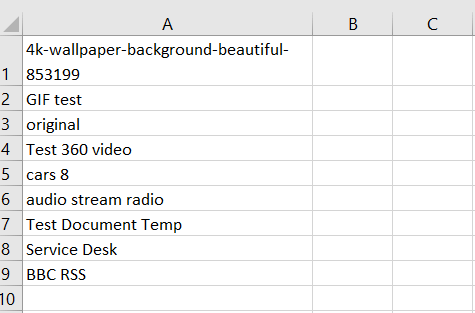
With the above setup, the media will inherit their default duration.
Below is a simple text file saved with the suffix .CSV
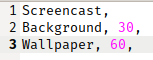
In this setup, we have also configured the duration of the media files in our playlist. The “Screencast” media, is a video file that will play for its whole duration.

