Overview
White-label partners can now enable OneDrive, Dropbox, and SharePoint directly from the Yodeck Console, without creating their own third-party apps or handling manual setup.
This gives Site Admins a faster way to control which third-party services are available on each white-label site for Third-Party Playlists and Import Files from Third-Party Services.
What changed
Previously, white-label partners had to create and configure their own third-party apps to support integrations with OneDrive, Dropbox, and SharePoint. Now, Site Admins can enable or disable supported third-party services directly from the Yodeck Console. This removes the need for manual app setup and makes these options much easier to manage across white-label sites.
What happens to existing connections
ℹ️If a supported third-party connection already exists, Yodeck preserves it. If a site already has a manually created and supported third-party connection, that connection remains available after the option inside the Yodeck Console is enabled.
ℹ️Enabling these options does not overwrite the existing connection and does not create a duplicate connection. For example, if a user already has an active OneDrive connection, they will continue using that same connection after the relevant option is enabled for that site.
What is disabled by default
The following services are disabled by default for white-label sites.
| Import Files from Third-Party Services | Third-Party Playlists |
|---|---|
| OneDrive | OneDrive |
| SharePoint | SharePoint |
| Dropbox |
Before you start
Before making changes, make sure you:
- Have access to the Yodeck Console.
- Have permission to manage the white-label site you want to update.
How to enable or disable third-party services
As a Yodeck Console Site Admin, please follow the three steps below.
Step 1: Open the Site section in the Yodeck Console
From the Yodeck Console Dashboard, go to: Applications → Partners → Site
This action opens the area where you can manage settings and service availability for partner sites.
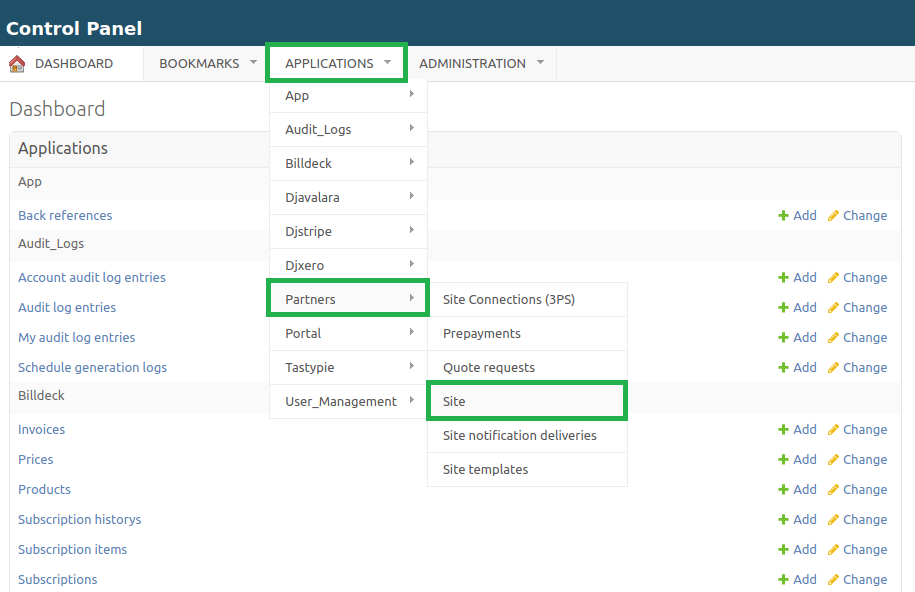
Step 2: Select the white-label site you want to update
Locate the partner site you want to manage, then open it. You can use the search field to find the site more quickly if needed.
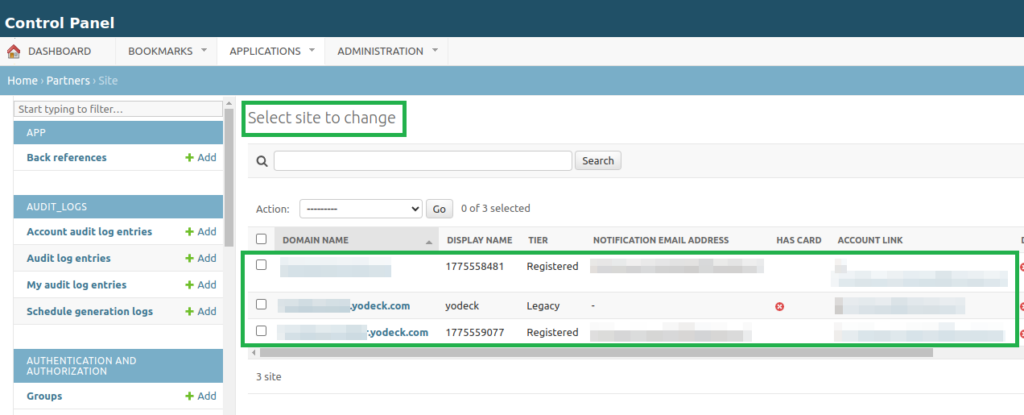
Step 3: Go to the Functionality section
Inside the selected site, scroll down to the Functionality section. There, you will find the third-party service options as separate checkboxes. You can enable or disable each service independently.
| Import Files from Third-Party Services | Third-Party Playlists |
|---|---|
| Enable any of the following: | Enable either or both of the following: |
| Allow Import Files from OneDrive | Allow OneDrive 3rd Party Playlists |
| Allow Import Files from SharePoint | Allow SharePoint 3rd Party Playlists |
| Allow Import Files from Dropbox |
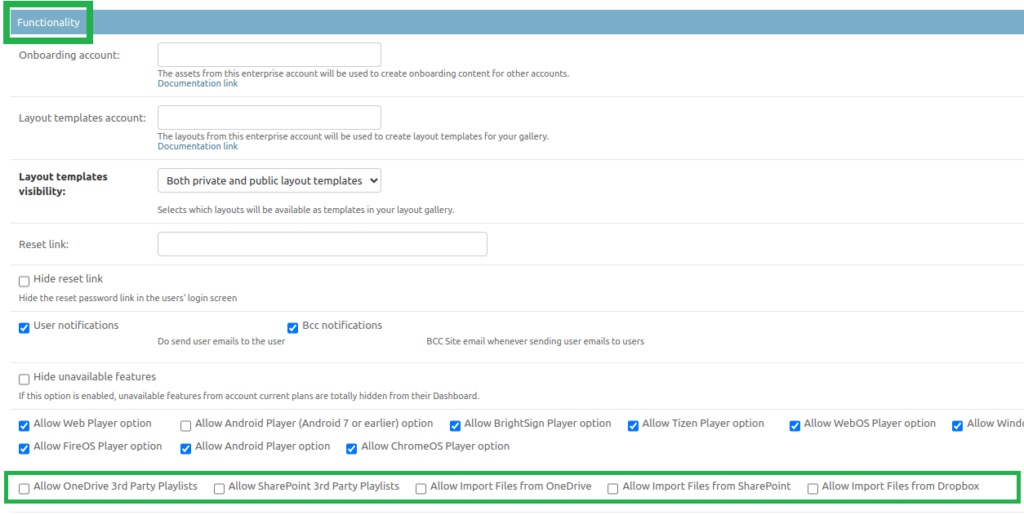
⚙️Make sure to Save the changes on your Yodeck Console!
Step 4: Refresh the portal
After saving your changes on the Yodeck Console, refresh the Yodeck portal page for the changes to take effect.
✅That is it! You have successfully enabled the third-party playlist(s) and/or file import services for your White-Label partners.
Troubleshooting
If you or the Site users do not see a newly enabled service right away, please proceed with the following actions:
- Make sure you have saved the changes on your Yodeck Console.
- Refresh the portal page via this keyboard key combination:
Ctrl + Shift + R - Confirm that the correct option was enabled for the correct white-label site.
- Verify whether you enabled the playlist option, the file import option, or both, depending on what you want to offer.
💡Because these settings are separate, enabling one option does not automatically enable the other.
F.A.Q.s
Got questions? We’ve got answers! This section addresses common questions on enabling Third-Party Playlist and File Import Services for White-Label Partners.
No. White-label partners can now enable supported third-party services directly from the Yodeck Console, eliminating the need for manual app setup.
Yes. Each service can be enabled or disabled separately, so Site Admins can choose exactly which options to offer.
No. These settings are separate. Enabling a playlist option does not automatically enable the matching file import option, and vice versa.
Their existing supported connection is preserved. Yodeck does not overwrite it or create a duplicate connection.
Need Help?
The Yodeck Support Team can help you out! Log in to your Yodeck account and send us a message from the bottom right corner!