
Display Waze Traffic Updates on your screen. Use the embed link to share real-time traffic data, and keep your team informed and up to date.
Creating a Waze App
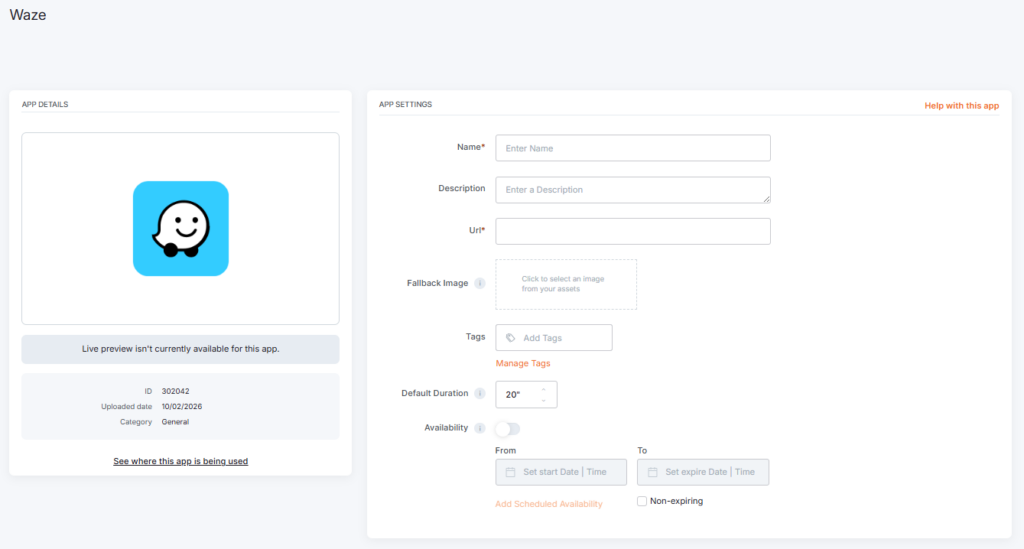
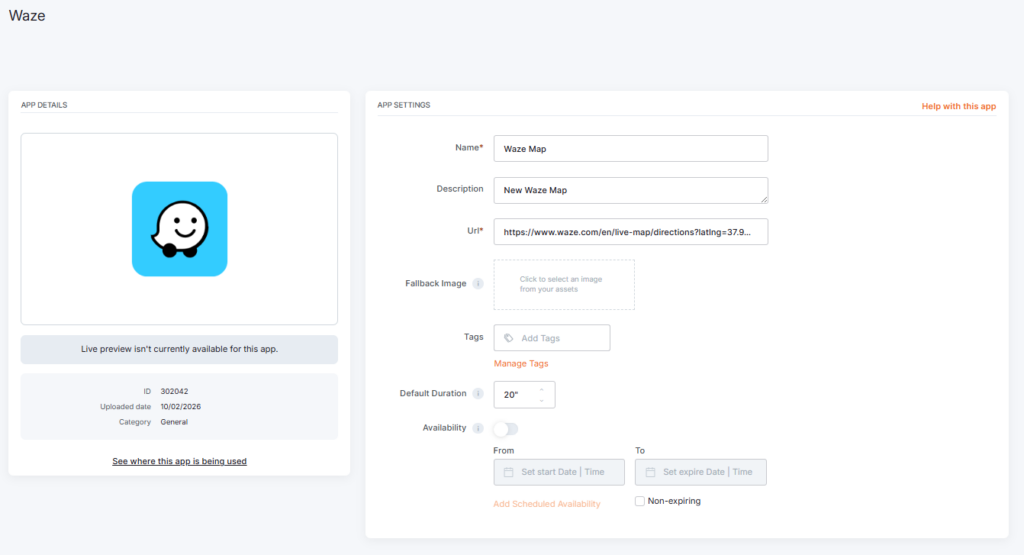
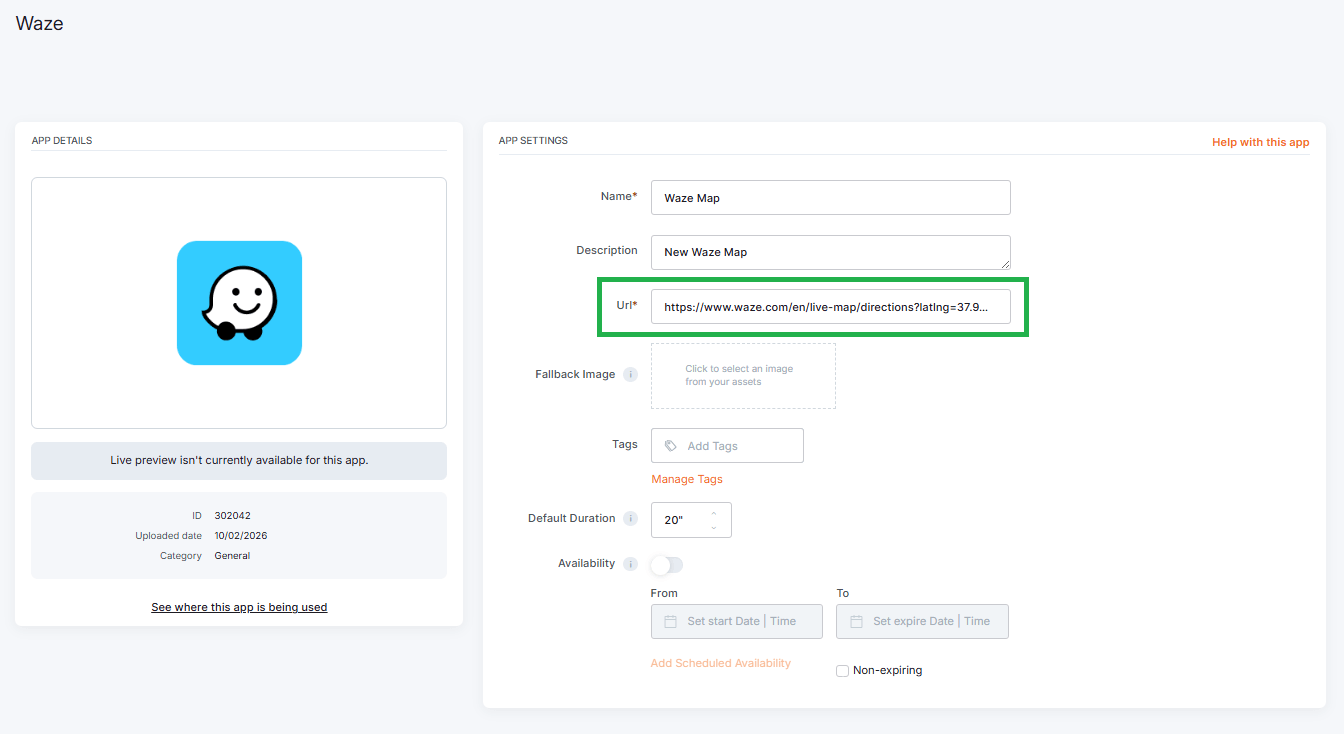
Click on the Waze app within your app gallery to add it, and fill in the app details as follows:
- A name and an optional description are required for the app.
- Paste the map ‘URL’ as it appears in Waze settings, under the Share and embed section.
You can check the next section on how to get the Map’s URL. - Of course, you can upload an image to the Fallback Image button to display if the app fails to load.
- You can also set a tag for this app to manage it better in the future.
- Set the Default Duration so that the app will appear in a playlist.
- You can set the Availability. More details can be found in the Media Availability guide.
How to get the Map URL from Waze
- Visit this page, https://www.waze.com/, with your browser and navigate to the desired location you want to display.
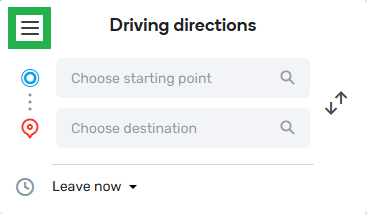
- Then, open the settings (from the box of driving directions, highlighted in green).

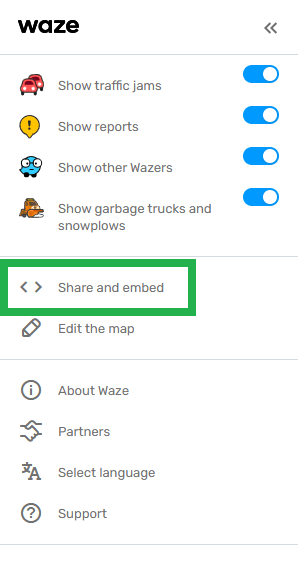
- Select the Share and embed option.

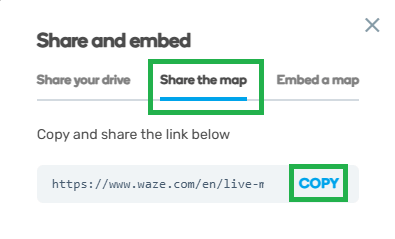
- And on the pop-up window that appears, select the Share the map tab.

- You can then click on the Copy button to paste the map into the Url field of Yodeck’s Waze app.

- After completing the configuration, please click on the Save button.
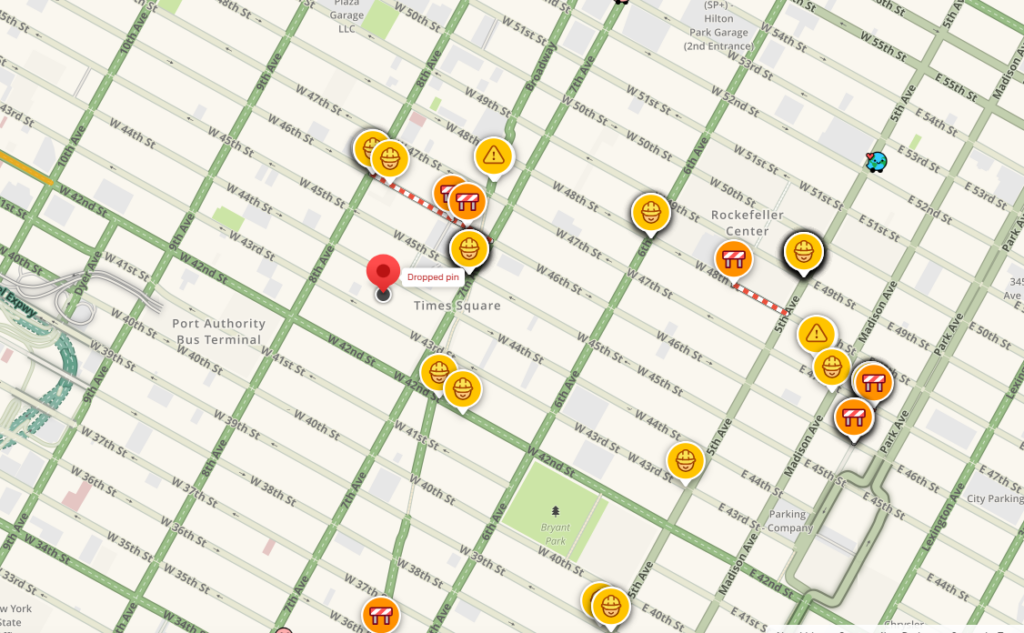
Waze app example
F.A.Q.s
Got questions? We’ve got answers! This section addresses common questions about the Waze app.
Can I embed driving directions on my display?
No. Embeds cannot display driving directions (a route from an origin to a destination). You can only embed a single pinned location.
Need Help?
The Yodeck Support Team can help you out! Log in to your Yodeck account and send us a message from the bottom right corner!

