Overview

The Salesforce Sales Dashboards app turns your Salesforce Opportunity data into four ready-made sales dashboards for your screens: Performance, Pipeline Health, Leaderboard and Efficiency. Connect your Salesforce org, pick the dashboards you want and Yodeck builds and refreshes them for you, so your sales floor always sees where the team stands without logging in to Salesforce.
ℹ️Best used for: sales floors, team rooms and meeting rooms that need a live, shared scoreboard of revenue against target, pipeline and team rankings.
ℹ️Do you want to show dashboards that you have already built in Salesforce Lightning? Use the Salesforce app instead. The Salesforce Sales Dashboards app builds its own dashboards from your Opportunity data.
Before You Start
Before you create the Salesforce Sales Dashboards app, make sure you have the following:
- A Salesforce account with administrator access and access to Salesforce Setup, so you can create an External Client App.
- Opportunity records in Salesforce with amounts, stages, close dates and owners filled in. The dashboards read this data.
- A Yodeck account on the Premium or Enterprise plan.
What the Dashboards Show
The app includes four ready-made dashboards. Each one reads live Opportunity data from your Salesforce org, uses Salesforce terminology and adapts to landscape and portrait screens.
| Dashboard | What it shows |
|---|---|
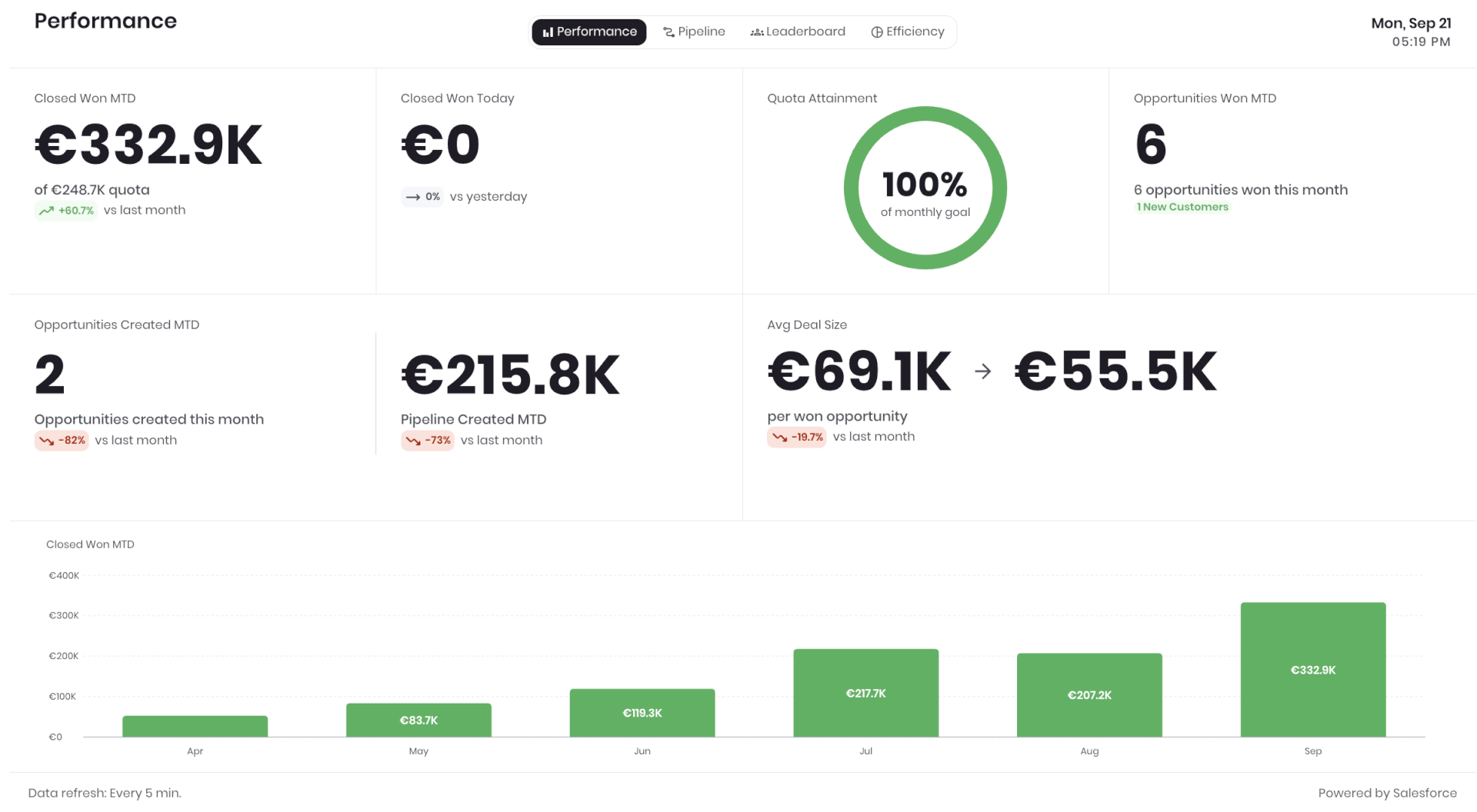
| Performance | Where the team stands this month: Closed Won amount month to date against quota, Closed Won today, quota attainment, Opportunities won and created month to date, pipeline created, average deal size and a month by month Closed Won trend. |
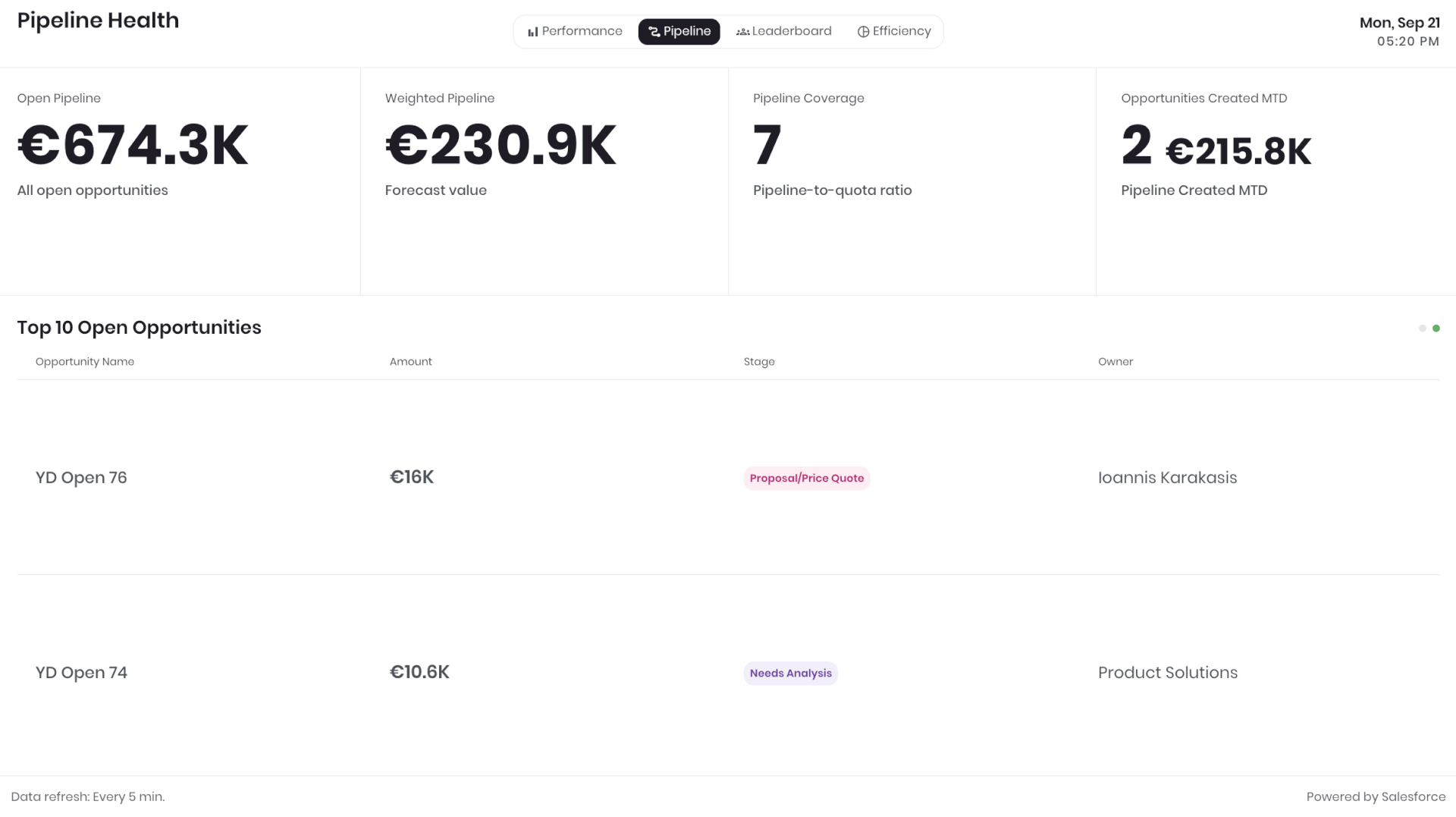
| Pipeline Health | What is coming next: total open pipeline value, weighted amount, pipeline coverage, new Opportunities created and a list of open Opportunities with their stages. |
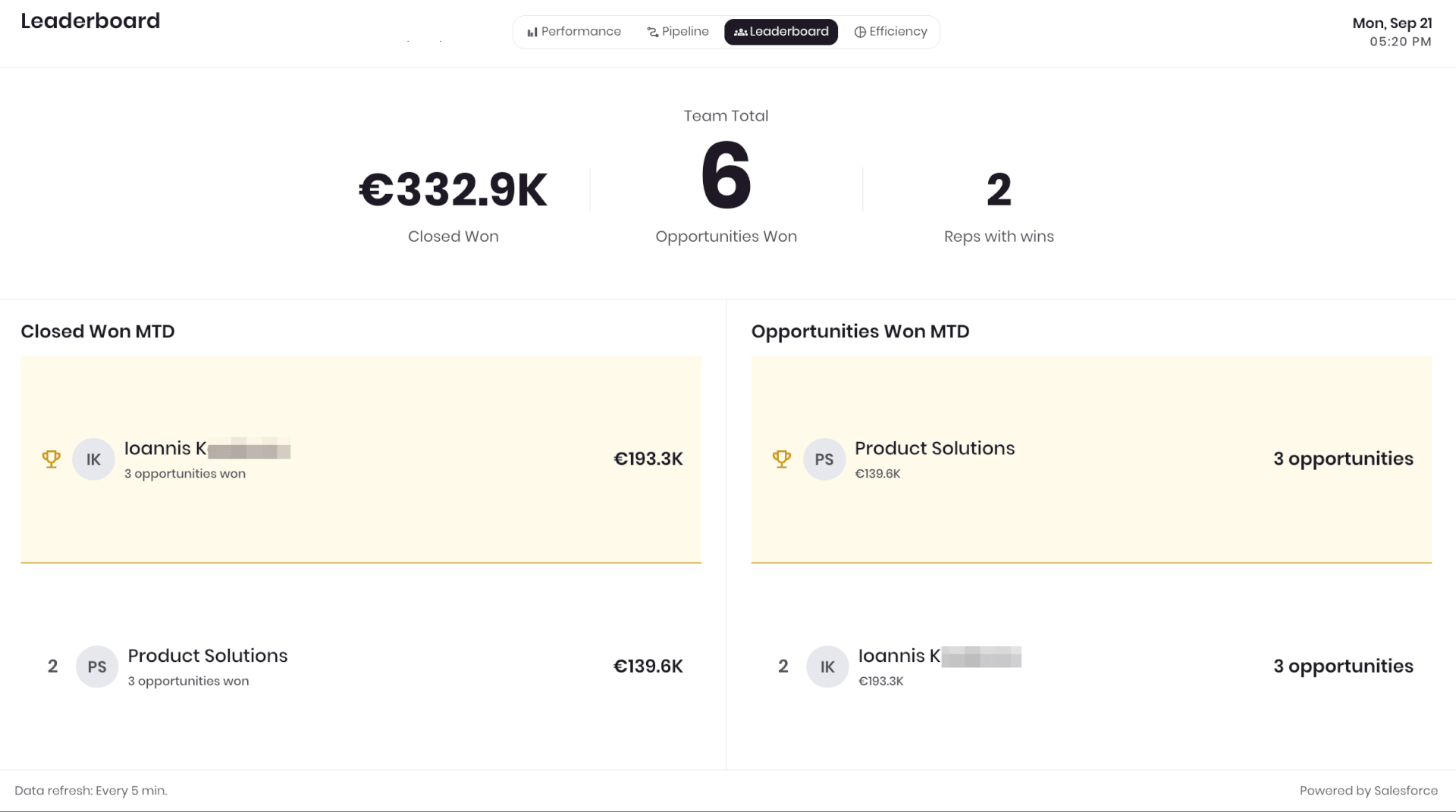
| Leaderboard | Who is contributing: team revenue and Opportunities won, the number of active reps and the top reps ranked by revenue and by Opportunities won. |
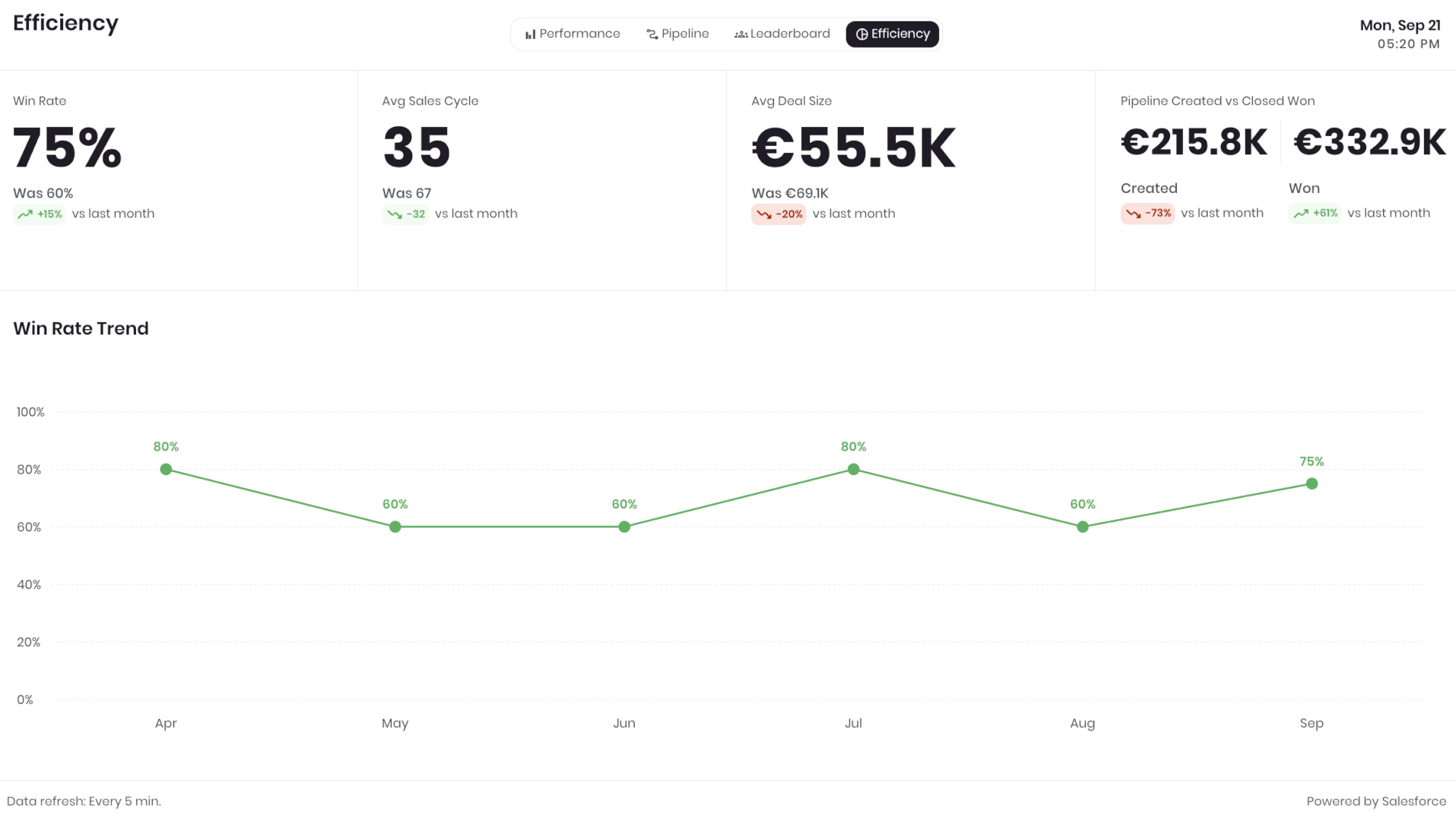
| Efficiency | How well the team converts: win rate, average sales cycle, average deal size, revenue created versus won and the win rate trend against the previous period. |
ℹ️The metrics in each dashboard are fixed, so the dashboards stay readable from across the room. If you need another dashboard, click Contact us under the Dashboards field in the app to send a request.
Creating an External Client App in Salesforce
The Salesforce Sales Dashboards app connects to Salesforce through an External Client App that uses the Client Credentials Flow. This is the same connection method the Salesforce app uses. Follow the five steps below in Salesforce, then enter the resulting credentials in Yodeck.
ℹ️If you already created an External Client App for the Salesforce app, you can reuse its Consumer Key, Consumer Secret and custom host here. First make sure its Run As user has the View All permission on Opportunity, as described in Step 3, then skip to Creating a Salesforce Sales Dashboards App.
Step 1: Create an External Client App
- Log in to Salesforce.
- Click the gear icon in the top-right corner and select Setup.
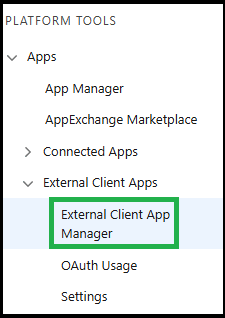
- Go to Apps > App Manager.
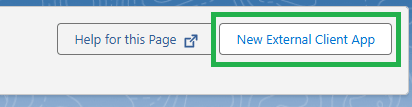
- Click New External Client App.
ℹ️You can also manage your External Client Apps from Apps > External Client Apps > External Client App Manager.
Step 2: Configure the OAuth settings
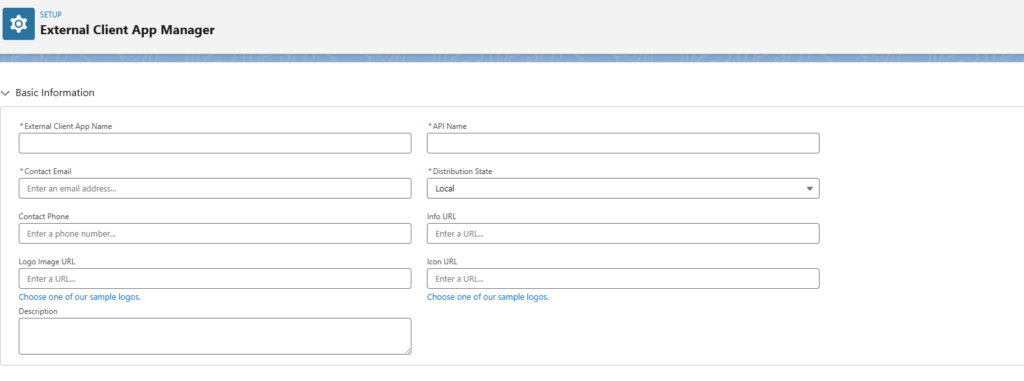
Fill in the required fields:
- External Client App Name: for example,
Yodeck Integration - API Name: this fills in automatically
- Contact Email: enter your email address
In the same form:
- Scroll to API (Enable OAuth Settings).
- Enable OAuth Settings.
Then configure the following four settings:
| App Settings | Selected OAuth Scopes | Flow Enablement | Security |
For the Callback URL, enter any valid URL, such as: ℹ️Salesforce requires this field, but Yodeck does not use it for the Client Credentials Flow. | Add these scopes: Access the identity URL service (id, profile, email, address, phone) Manage user data via APIs (api) | Enable Client Credentials Flow. | Enable Issue JSON Web Token (JWT)-based access tokens for named users. |
⚙️When you are done, click the Create button.
ℹ️Note: Salesforce may need 2 to 10 minutes to apply the changes.
Step 3: Configure the Client Credentials policy
After creating the app:
- Open your External Client App.
- Go to Policies and click Edit.
- Scroll to OAuth Policies > OAuth Flows and External Client App Enhancements.
- Enable Client Credentials Flow.
- In Run As (Username), enter the username of the Salesforce user whose access Yodeck should use.
- Click Save.
⚠️Important: The Run As user needs the View All permission on Opportunity. The dashboards report on your whole organization, and Salesforce returns only the records the Run As user can see. Without this permission, the figures silently count just that one user’s own deals and read far too low.
To grant it, go to Setup > Users > Profiles, open the Run As user’s profile and, under Standard Object Permissions > Opportunity, check View All. You can also grant it through a Permission Set if you prefer not to edit the profile.
Step 4: Copy your Consumer Key and Consumer Secret
- Go to Setup > Apps > External Client Apps > External Client App Manager.
- Find your app.
- Open Settings > OAuth Settings.
- Click Consumer Key and Secret.
- Copy both values.
⚠️Important: Keep your Consumer Secret secure.
Step 5: Find your Salesforce custom host
Look at the Salesforce URL you use to sign in. It follows this format: https://your-custom-host.my.salesforce.com
For example, if your URL is https://mycompany.my.salesforce.com, your custom host is “mycompany“.
Creating a Salesforce Sales Dashboards App
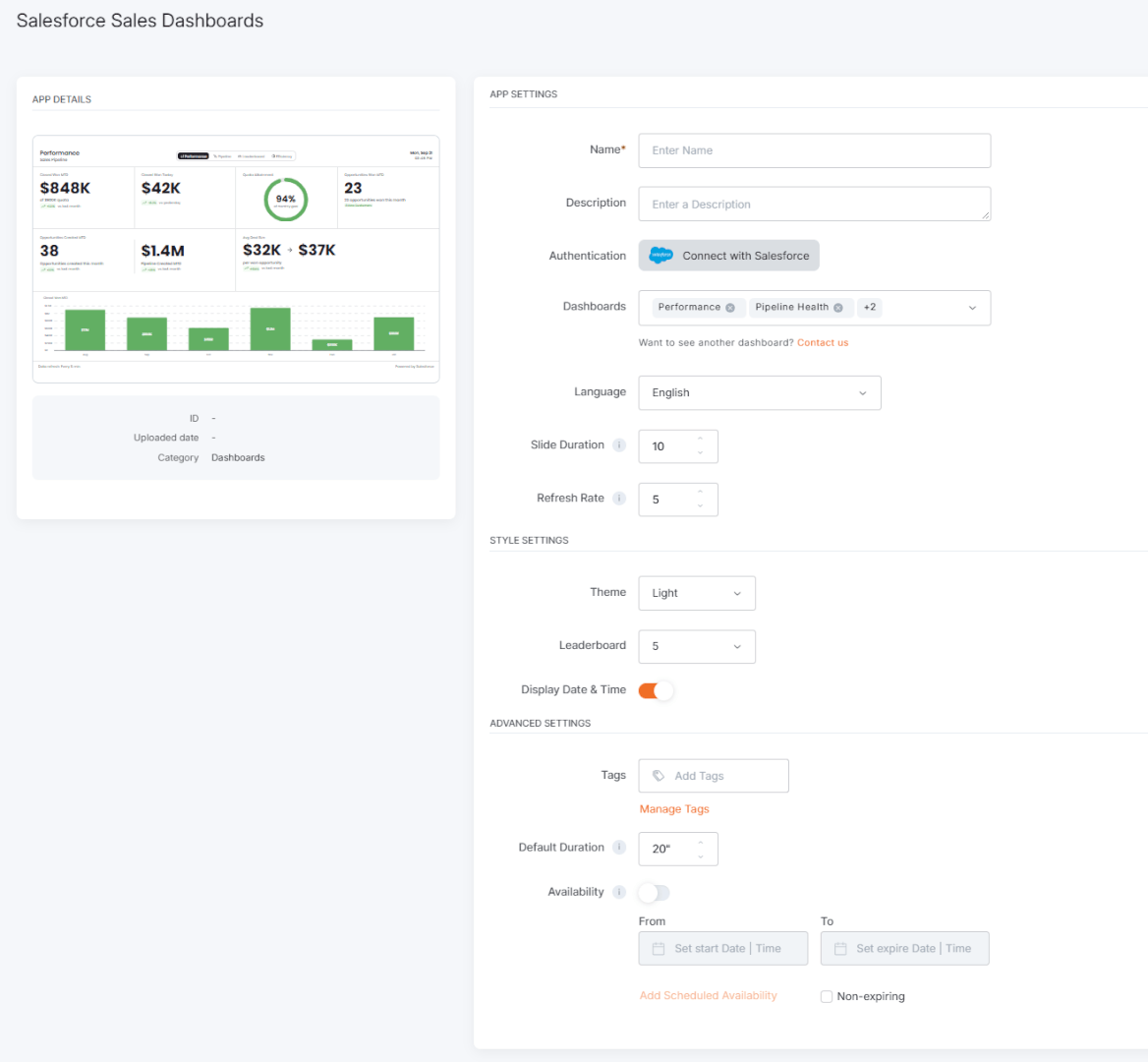
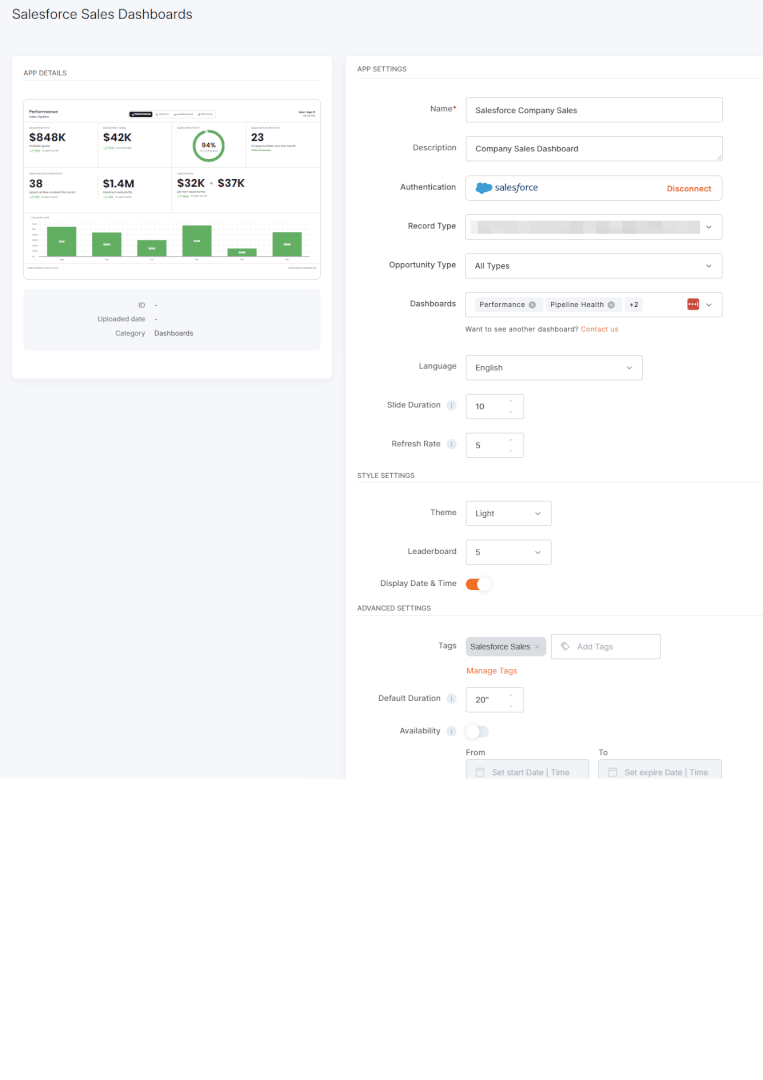
To display Salesforce Sales Dashboards on your Yodeck screens, open the Salesforce Sales Dashboards app from the Apps gallery and complete the setup fields described below.
1. Locate and create the app
- Open the Apps gallery.
- Locate and select the Salesforce Sales Dashboards app.
- Click Use App.
Once the app window opens, you can begin configuring it.
2. Add the basic app details
Fill in the following fields:
- Name: Enter a name for the app.
- Description: Optionally enter a short description.
3. Connect your Salesforce account
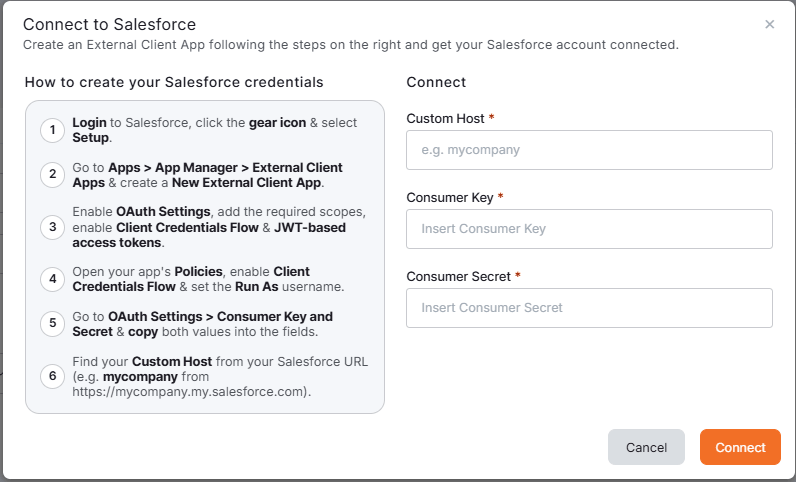
Click Connect with Salesforce. The Connect to Salesforce window opens. Its left panel summarizes the Salesforce steps from the previous section. On the right, fill in the required fields:
- Custom Host: Your Salesforce custom host (subdomain), for example “mycompany”.
- Consumer Key: The Consumer Key from your External Client App.
- Consumer Secret: The Consumer Secret from your External Client App.
Click Connect. Yodeck verifies the credentials with your Salesforce org.
Once the connection succeeds, two more fields appear. Select the Record Type the dashboards should read and, optionally, an Opportunity Type to narrow the data further.
4. Select the dashboards
Use the Dashboards field to choose which dashboards the app plays. All four dashboards are selected when you create a new app. Click the × on a dashboard to remove it. The app rotates through the selected dashboards automatically.
ℹ️Want to see another dashboard? Click Contact us under the field to send a request.
5. Configure content and timing
- Language: Select the language of the app interface. See the F.A.Q. on which elements the Language drop-down translates.
- Slide Duration: Set how many seconds each dashboard stays on screen before the app moves to the next one, from 10 to 300 seconds in steps of one second. The default is 10 seconds.
- Refresh Rate: Set how often the app fetches fresh data from Salesforce, from 5 minutes to 1440 minutes (once a day) in steps of one minute. The default is 5 minutes, which is also the minimum.
6. Customize the appearance
Use these settings to control how the app looks on screen:
- Theme: Choose the overall visual style of the app: Light or Dark.
- Leaderboard: Choose how many reps the Leaderboard dashboard ranks: 3 or 5.
- Display Date & Time: Show or hide the current date and time in the top-right corner of every dashboard.
7. Set the advanced settings
- Tags: Add tags to help organize and manage the app more easily.
- Default Duration: Set how long the app plays when you add it to a playlist. The default is 20 seconds.
- Availability: Set the app’s availability. For more information, see the Media Availability guide.
ℹ️To let a screen cycle through every selected dashboard, set the Default Duration to at least the Slide Duration multiplied by the number of selected dashboards. For example, four dashboards at 10 seconds each need a Default Duration of at least 40 seconds.
8. Save the app
Once you finish configuring the app, click Save.
✅Your Salesforce Sales Dashboards app is now ready to use.
Salesforce Sales Dashboards App Final Result
The examples below showcase how Yodeck displays the Salesforce Sales Dashboards app in its preview and on screens.
Troubleshooting
– The connection to Salesforce fails -> Check that:
- the Consumer Key and Consumer Secret are correct and complete
- the custom host contains only the subdomain (for example
mycompany), not the full URL - the Client Credentials Flow is enabled in both the OAuth Settings and the Policies of the External Client App
- a valid Run As (Username) is set in the Policies
- Salesforce had 2 to 10 minutes to apply your changes
– A dashboard shows no data or the figures look too low -> Check that:
- the Run As user has the View All permission on Opportunity (see Step 3). Without it, the dashboards count only that user’s own deals
- the Opportunities have amounts, stages, close dates and owners filled in
- the Opportunities belong to the selected Opportunity Record Type
- the Refresh Rate interval has passed since the last change in Salesforce
F.A.Q.s
Got questions? We’ve got answers! This section addresses common questions about the Salesforce Sales Dashboards app.
The Salesforce app displays dashboards you have already built in Salesforce Lightning. The Salesforce Sales Dashboards app builds four ready-made sales dashboards for you from your Opportunity data, so you do not need to create a dashboard in Salesforce first.
Yes. If you already set up an External Client App for the Salesforce app, enter the same custom host, Consumer Key and Consumer Secret in the Salesforce Sales Dashboards app. Make sure the Run As user of that External Client App has the View All permission on Opportunity, otherwise the dashboards count only that user’s own deals and read too low.
The app uses the permissions of the user you set in the Run As (Username) field when you configure the Client Credentials policy in Salesforce. Only the Opportunities this user can see appear on the dashboards, so give this user the View All permission on Opportunity.
The app fetches fresh data from Salesforce at the interval you set in Refresh Rate. The default is every 5 minutes, which is also the minimum. You can set any interval up to 1440 minutes, which is once a day.
No. The metrics in each dashboard are fixed so the dashboards stay readable from a distance. To request another dashboard or metric, click Contact us under the Dashboards field in the app.
Yes. The Salesforce Sales Dashboards app works as a standalone app and inside layouts.
Yes. The dashboards adapt their layout to both landscape and portrait screens.
– Only Yodeck’s built-in text is translated. This includes: labels, headings, and any text generated directly by the Yodeck app.
– Content coming from external platforms or APIs is not translated by Yodeck. This includes:
Data retrieved from external services (e.g., quotes, calendar events), posts or media from social platforms, text or metadata supplied by the API source, and system messages generated by external platforms.
Need Help?
The Yodeck Support Team can help you out! Log in to your Yodeck account and send us a message from the bottom right corner!
