Skip to content
yodeck digital signage
  • FAQ
  • Support Center
  • Contact
  • Home
  • Getting Started
    • Logging into the Yodeck Portal and creating an account
    • Portal Overview
      • Overview of the Yodeck Portal
      • Pushing Changes to Screens
      • Help Icons
    • Creating a Yodeck Player
      • Creating a Yodeck Player based on Raspberry Pi 4
        • Creating a Yodeck Player based on Raspberry Pi 4 - Introduction
        • Downloading and using Etcher
        • Yodeck Raspberry Pi Compatibility Chart
        • Raspberry Pi Comparison
        • What is the Yodeck Player?
        • Notes for the Raspberry Pi 4
        • Connect the Yodeck Player to a WiFi using your mobile phone by scanning a QR code
      • Creating a Yodeck Player based on Raspberry Pi 5
        • Creating a Yodeck Player based on Raspberry Pi 5 - Introduction
        • Raspberry Pi 5 Limitations
      • Creating a Yodeck Player based on Chrome browser
        • Setting up a Yodeck Web Player
        • Comparison Table RPi vs Web player
        • Web Player Chrome Extension and PWA
      • Create a Yodeck Android Player
        • Setting up an Android player with the Yodeck Software (via APK)
          • Install Yodeck in Android with the Windows and Linux Setup Helpers
          • Setting up an Android player with the Yodeck Software (via APK--Android 7 or earlier)
          • Install Yodeck in Android with Setup Helper
          • Setting Up Remote Device Management (RDM) on a Sony Bravia Professional Display with the Yodeck Android (APK)
          • Setting Up Remote Device Management (RDM) on a Sharp ME Display with the Yodeck Android (APK)
        • Creating a Yodeck player based on Android
          • Setting up an Android player with the Yodeck Software (from Play Store)
          • Tested and Approved Android Devices
          • Android Limitations
        • Create a Yodeck Android Player - Introduction
      • Create a Yodeck Amazon Player
        • Creating a Yodeck Player based on Amazon FireOS TV/Stick
          • Amazon FireOS Limitations
          • Setting up a Yodeck Amazon Signage Stick Player
        • Create a Yodeck Amazon Player - Introduction
        • Setting up a Yodeck Amazon FireOS Player
      • Creating a Yodeck Player based on Brightsign
        • Setting up a Brightsign player with the Yodeck Software
        • Comparison Table Raspberry Pi vs Brightsign player
        • Supported Brightsign Players
      • Creating a Yodeck Player based on Tizen
        • Samsung SSSP / Tizen Supported Devices
        • Tizen Limitations
        • Update the firmware version on your Samsung Tizen TV
        • Setting up a Tizen player with the Yodeck Software
      • Creating a Yodeck Player based on webOS
        • Setting up an LG webOS player with the Yodeck Software
        • LG webOS Supported Devices
        • LG webOS Limitations
      • Creating a Yodeck Player based on Windows
        • Setting up a Windows player with the Yodeck Software
        • Installation Guide of WMIC Utility for Windows 11
        • How to uninstall the Windows application
        • Windows Supported Devices
        • Set Up the Yodeck Windows Player
      • Creating a Yodeck Player based on ChromeOS
        • Setting up a Yodeck ChromeOS Player
        • ChromeOS Limitations
      • Creating a Yodeck Player - Introduction
    • Getting Started FAQs
  • Navigating the Platform
    • Main Menu Overview
    • Dashboard Overview
    • The Dashboard
  • Media & Apps Management
    • Media Overview
      • Supported File Extensions
    • Media Library
      • Images
        • Gallery
        • Images Introduction
      • Videos
        • How to create a simple Video-wall with Yodeck
        • How to setup an HDMI video feed input or connect a USB camera (Video Input)
        • Recommended USB devices
        • Videos Introduction
      • Web Pages
        • Web Scripting Engine & Webpage Recording Tool
          • Web Scripting Engine
            • Scripting Engine Reference
            • Scripting FAQ
            • Scripting Templates
            • Tutorial - Google Analytics
            • Tutorial - How to remove the cookie pop-up from your web page media
            • Useful Scripts To Use
            • Mask your credentials at the Scripting Engine text field
          • Hide Cookie Banner - Script Automation (BETA) 
          • Webpage Recording Tool
        • Web Pages Introduction
      • Audio Assets
      • Documents
    • Media Management FAQs
    • Apps
      • Weather Apps
        • Current Weather
        • Daily Weather
        • Hourly Weather
        • Weather Radar
        • Weather Wall
      • Time Apps
        • Analog Clock
        • Counter Down
        • Counter Up
        • Date & Time
        • Word Clock
        • World Clock
      • General Apps
        • Interactive Kiosk
          • Custom Keyboard Guide for Interactivity
          • Interactive Kiosk - Introduction
        • World Football Feed 2026
        • Bonusly
        • Custom Feed
        • Daily Feed
        • BambooHR
        • Ticker
        • Google Slides
        • DSMenu
        • TV Source
        • Teams Celebrations
        • Google Sheets
        • WiFi Share
        • Embed
        • Player Basic Info
        • Google Traffic
        • Waze
        • Birthday Notification
        • PosterMyWall
        • WikiQuotes
        • QR Code
        • Online Slideshow
        • Rich Text
      • News Apps
        • Al-Jazeera RSS
        • Bloomberg News
        • BBC RSS
        • CBC RSS
        • CNN RSS
        • CTV News
        • ESPN RSS
        • Fox News
        • Google Alerts
        • Google News RSS
        • NU.nl News RSS
        • SharePoint News
        • Sky News RSS
        • The Guardian RSS
        • The New York Times
        • The Wall Street Journal
        • Yahoo
        • Custom RSS
      • Social Apps
        • Facebook
        • Instagram
        • LinkedIn
        • Twitter
        • Taggbox Display
        • Microsoft Teams Town Hall
        • Walls.io
      • Calendar Apps
        • Calendar Apps Introduction
        • Google Calendar
        • Outlook Calendar
        • Daily/Weekly Calendar
        • Monthly Calendar
        • Calendar Events Feed
      • Dashboard Apps
        • Power BI with Service Principal
          • Power BI with Service Principal - Introduction
          • Power BI with Service Principal - Identity Requirements
        • Salesforce
        • Qlik Sense
        • Power BI
        • Google Looker Studio
        • SmartSheet
        • Airtable
        • Tableau JWT
        • Cyfe
        • My Dashboard
        • Asana
        • Tableau
        • Google Analytics
        • Xero
        • Fathom
        • Shedul
        • Trello
        • Zoho
        • Baremetrics
        • Putler
        • ChartMogul
        • Chargebee
        • Zenkit
        • Grafana
        • Display "ServiceNow" Data on Your Screens Using Yodeck’s Grafana App
        • Monday.com
        • Jira
      • Business Tool Apps
        • Microsoft Planner
        • Canva
        • Microsoft Teams Rooms
        • Notion
        • Zoom Rooms
        • Qube
        • SharePoint
        • Teams Channels
        • Viva Engage
      • Interactivity Apps
        • Interactive Kiosk
        • Interactive Library
      • Custom Apps
      • Custom App Developer Guide
        • App Codes & Examples
          • Display Public IP (sample App)
          • The Simple Clock
          • Shedul (sample App)
          • Trello (sample app)
          • Current Weather
          • Digital Clock (sample App)
          • Monthly Calendar
          • Calendar Events Feed
          • Date&Time App Code
          • Daily Weather App Source Code
          • ChartMogul (sample app)
          • Sample Web Widgets
          • Sample HTML Widgets
          • Tutorial - Your 1st Widget
          • Baremetric (sample app)
          • Hourly Weather App Source Code
          • Google Calendar (Sample App)
          • Count Down/Up
          • Rich Text (Sample App)
          • RSS Custom
        • Building an HTML App
          • Analog Clock (sample App)
          • 4. Adding Transparency (Optional)
          • 3. Making the Clock Efficient
          • HTML App API
          • HTML App Packaging
          • Player HTTP API
          • 2. Add Options to the Clock App
          • 5. Zipping and Uploading the Custom Sample Clock
        • Static Apps
        • Custom Apps Introduction
        • UI Form Definition for Custom Apps
        • Building a Web App
      • Add-ons
        • Embeddable Feeds - Add-on
          • Embeddable Feeds
          • Counting Embeddable Feeds' Views
        • Yodeck Assurance
      • App Compatibility Table
      • Apps Introduction
      • Available Apps!
      • ScreenFeed Apps in Yodeck
    • Apps Management FAQs
    • Media Availability
  • Content Management & Scheduling
    • Playlists
      • Dropbox Playlist
        • Dropbox Playlist Introduction
        • Dropbox - OneDrive - SharePoint - Google Drive - Google Photos Supported Media Formats
      • Playlists' FAQs
      • Playlists Introduction
      • Managing Playlists with Folder View ON
      • Interactive Playlist
      • Playlist of Layouts
      • Tag-Based Playlist [Premium & Enterprise Plans only]
      • Sub-Playlists [Premium & Enterprise Plans only]
      • Import CSV [Premium & Enterprise Plans only]
      • Google Drive Playlist
      • OneDrive Playlist
      • SharePoint Playlist
    • Layouts
      • Layouts' FAQs
      • Getting Started with the Yodeck Layout Editor
      • Using Templates in the Layout Editor
      • Editing and Customizing Content in the Layout Editor
      • Working with Screen Sizes and Aspect Ratios in the Layout Editor
      • Locking Elements and Controlling Access in the Layout Editor
      • Branded Templates: Create and Manage Reusable Layout Designs
      • Advanced Settings and Scheduling Layouts in the Layout Editor
    • Schedules
      • Schedules' FAQs
      • Schedules Introduction
      • Examples of Schedules
      • Turned Off option - How to Turn your TV On and Off
      • Scheduled Availability
    • Prioritization of Content Types
  • Screen & Device Management
    • Adding & Managing Screens
      • Sound/Display
        • Support for LED board screens and billboards
        • Sound/Display Introduction
      • Network
        • Wireless
          • Configuring your player's WiFi network by editing the SETTINGS.TXT file
          • Configuring your WiFi network using an Ethernet cable
          • Quickly connect your Yodeck player to your WiFi network by using the WiFi wizard
          • Wireless Introduction
        • 3G/4G/LTE
          • Advanced Configuration for 3G / 4G / LTE modems
          • 3G/4G/LTE Introduction
        • Network Introduction
        • Proxy
        • Static IPs
        • Keeping Your Players on Time by Configuring an NTP Server
      • How to Register a Screen in Yodeck
      • Yodeck Registration Code
      • Screen Email Notifications
    • Screens Overview
      • Screens Overview Introduction
      • Location
      • Status
      • Media Filtering
      • Working Hours
      • Screen Takeover
      • Screens Table Manual
      • Basic Info
    • Assigning Content to Screens
      • How to quickly assign content to your Screens
    • Monitoring Screen Status
    • Advanced Screen Options
      • Customization
        • Custom arguments/policies for Chromium
        • Customization Introduction
        • How to add custom proxy settings per Web Page using the Advanced Player Directives
      • Security
        • Security Introduction
        • Custom Certificates
        • Encrypt Player Storage [Enterprise Plan only]
        • Lock Down Player [Enterprise Plan only]
      • Advanced Screen Options Introduction
      • On-screen Messages
      • Timed Events
    • Interactivity
      • GPIO-Triggered Signage with Yodeck
        • GPIO Demo App: ON/OFF Trigger Example
        • GPIO HTTP API
        • GPIO Technical Documentation
        • Introduction to GPIO-Triggered Signage with Yodeck
      • Interactivity Introduction
    • Screen FAQs
  • User & Account Settings
    • Users & Groups
      • Users
      • Custom Roles
      • Groups
    • Account Settings
      • Emergency Alerts
        • Default Emergency Alert Types
        • Common Alerting Protocol (CAP) Integration
        • National Weather Service Alerts
        • Emergency Alerts Introduction
      • Single Sign-on (SAML 2.0)
        • How to configure SSO with OneLogin
          • How to configure SCIM with OneLogin
        • How to configure SSO with Okta
          • How to configure SCIM with OKTA
        • How to configure SSO with Azure Active Directory (Microsoft EntraID)
          • How to configure SCIM with Azure directory (EntraID)
        • How to configure SSO with Salesforce
        • Introduction to Single Sign-on (SAML 2.0)
        • How to configure SSO with ADFS
        • How to configure SSO with Azure Active Directory (Microsoft Entra)
        • How to configure SSO with G Suite
      • Account settings Introduction
      • Playback Reports
      • Custom Fonts
      • Volume Schedules
      • Security Policies
      • Audit Log
      • Players Boot Logo
    • Workspaces
      • Workspaces Introduction
      • Organize Yodeck Workspaces
      • Roll Out Workspaces at Scale
      • Workspaces Troubleshooting
      • Workspace Hierarchies
    • User & Account FAQs
    • Yodeck Unlimited Access Period
    • Subscriptions & Billing
    • My User Profile
    • Canceling Your Subscription and Deleting Your Account
    • Billing Entities: Bill Multiple Organizations Under One Yodeck Account
  • Help & Troubleshooting
    • Help Menu Overview
    • Troubleshooting
      • Issues with Logging into Yodeck Portal
      • Step-by-Step Troubleshooting Guide
    • Help & Troubleshooting FAQs
      • Tech FAQs
      • General FAQs
  • Best Practices
    • Best Practices Overview
    • Playlists in Yodeck: Types, Use Cases, and Best Practices
    • Enterprise Sub-Playlists and Workspaces: Best Practices for Multi-Location Teams
  • Partner Portal
    • Introduction to Yodeck Partner Manual
    • Partner Administrative Console
      • Introduction to Partner Administrative Console
      • Invoices
      • Recent Actions - Support/Download Links - Contact Us
      • Staff Permission Roles
      • Magic Write – Site Admin Guide (White Label Partners & Resellers)
      • Quick Links
        • Order Form for Partners
        • Quick links - Introduction
      • Applications
        • Applications Introduction
        • 2.1 Audit Logs
        • 2.2 Site Settings
        • 2.3 Accounts
        • 2.4 Devices
        • 2.5 My Users
      • Creating Whitelabel Playlists
        • Enable Third-Party Playlist and File Import Services for White-Label Partners
        • Create a Whitelabel SharePoint playlist
          • How to configure the SharePoint Playlist to your client's account
          • Introduction to Creating a Whitelabel SharePoint playlist
        • Create a Whitelabel OneDrive playlist
          • How to configure the OneDrive Playlist to your client's account
          • Introduction to Creating a Whitelabel OneDrive playlist
        • Create a Whitelabel Dropbox playlist
          • How to configure the Dropbox Playlist to your client's account
          • Introduction to Creating a Whitelabel Dropbox playlist
        • Create a Whitelabel Google Drive playlist
          • How to configure the Google Drive Playlist to your client's account
          • Introduction to Creating a Whitelabel Google Drive playlist
    • Partner Portal FAQs
      • Partner Portal Operational FAQs

HOME Documentations Transfer Your Free Account to Your Company’s Paid Yodeck Plan

Transfer Your Free Account to Your Company’s Paid Yodeck Plan

Last updated on October 10th, 2025

Table of Contents

  • How to Transfer from a Free Yodeck Account to Your Organization’s Paid Account
  • Steps for Newly Signed-Up Users
  • Steps for Administrators / Account Owners
      • How Admin/Account Owner Notifications Work
  • Final Steps for Completing the Transfer via the In-app Support Chat Instructions for New Users & Admins
      • Before proceeding with the numbered steps below, please know the following:
  • Completion of the Account Transfer
  • Need Help?

How to Transfer from a Free Yodeck Account to Your Organization’s Paid Account

Follow this quick step-by-step guide to transfer your free Yodeck account under your company’s paid-plan account, with clear instructions for both new users and admins/account owners.


Steps for Newly Signed-Up Users

You can sign up by utilizing your Google or Microsoft credentials or by providing an email and a password. In any case, the steps below address all scenarios.

  1. After completing sign-up and making sure to verify your email address, Yodeck automatically detects that your organization already has a paid account and shows a pop-up message:
    “Good news! Your organization is already on Yodeck.”
  2. Click on the first option, Request to join your organization’s Yodeck account.
    o This action begins the first steps of the transfer process and sends an informative join request notification to your company’s account administrator
  3. You will then be redirected to the Yodeck Dashboard, where the in-app support chat opens automatically with further instructions for completing the transfer, as analyzed below.
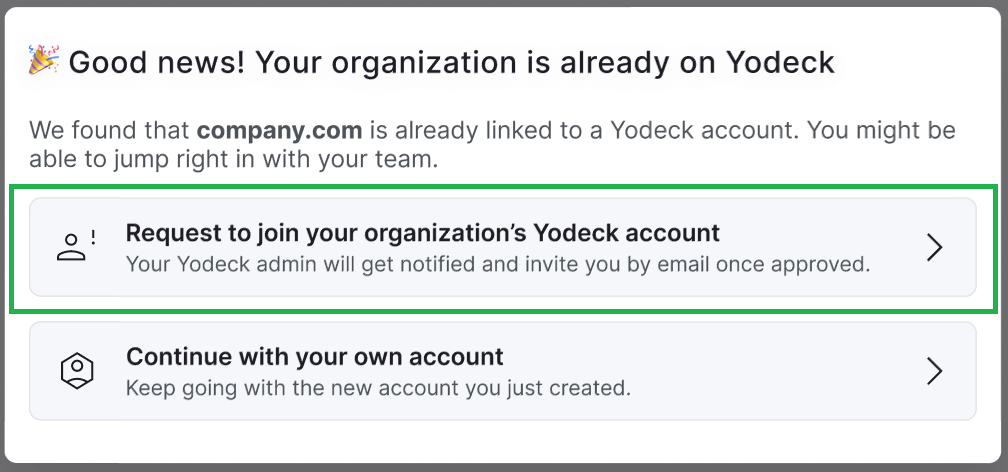
Requesting to join your organization’s paid Yodeck account

In-app support chat with instructions

Steps for Administrators / Account Owners

When a user from your organization requests to join your paid account, Yodeck notifies you.

info

How Admin/Account Owner Notifications Work

An alert is sent to the Admin or Account Owner of the organization’s paid plan, accessible via the Notifications bell icon. This informs them when a free plan user is seeking to join the organization and offers guidance on facilitating the plan change.

  1. Log in to your Dashboard.
  2. Click the Notification Bell icon (top-right corner).
  3. You’ll see a notification:
    “A user wants to join your organization account.”
  4. At this stage, you need to reach out to our support team for the transfer process to be completed. Specifically, you can reach a support associate by submitting a support ticket, by chat, by email, or by phone.
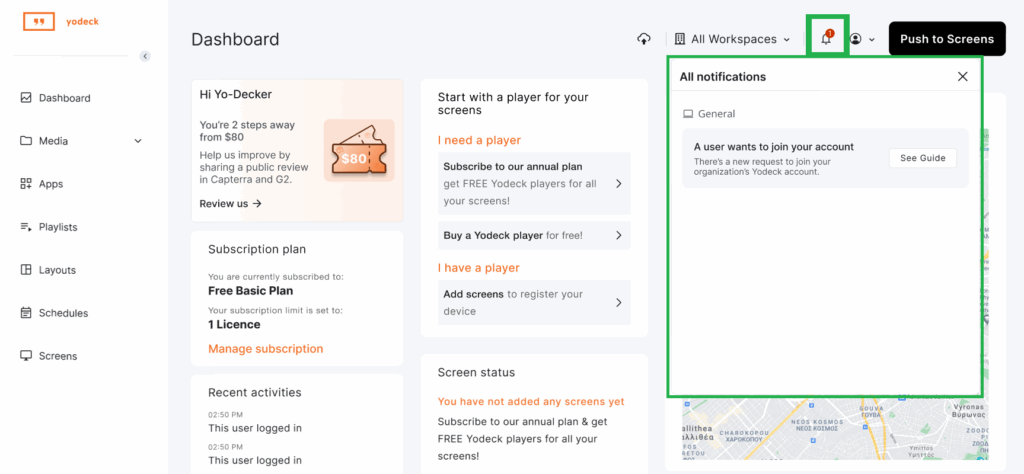
Notification message for Admins/Account owners

Final Steps for Completing the Transfer via the In-app Support Chat Instructions for New Users & Admins

The following steps explain the instructions from the in-app support chat for new users and admins/account owners.

info

Before proceeding with the numbered steps below, please know the following:

– Only the newly signed-up user profile will be moved under the organization’s paid account.
– Any media you uploaded or players to that paid account will not be moved.
– The current free account will be deleted.

  1. Go to the account deletion page: You need to visit: https://app.yodeck.com/index.html#main/accountcompliance
  2. Follow the deletion process: The system will guide you through the account deletion steps.
  3. Check for the confirmation email: A confirmation email is sent to your registered email address. You should check both your inbox and spam/junk folder for this email.
  4. Confirm the deletion: You’ll need to confirm the deletion through email to complete the process.
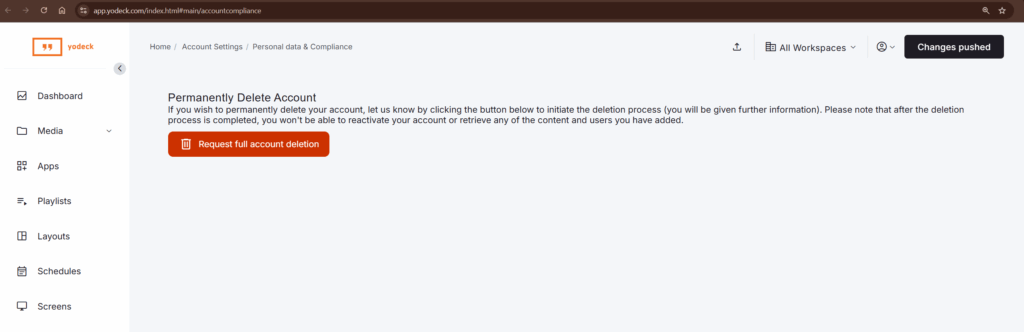
Account deletion page

Completion of the Account Transfer

Once the new user or admin/account owner completes the step-by-step instructions in the in-app support chat, as analyzed above, one of our support agents will reach out as soon as possible to transfer the user’s profile to the organization’s paid Yodeck plan once the free account is completely deleted.


Need Help?

The Yodeck Support Team can help you out! Log in to your Yodeck account and send us a message from the bottom right corner!


  • Homepage
  • General
    • What is Digital Signage
    • Free Signage Software
    • Raspberry Pi Signage
  • Product
    • Features
    • Apps
    • Free Signage Templates
    • Solutions
  • Support
    • Contact
    • Support Center
    • Give Feedback
    • FAQ

Copyright © 2015-2026 Flipnode LLC | All rights reserved.