Partner Portal FAQs
Device Quota and Account Management FAQs
Overview
This Partner Portal FAQ section covers device quota vs registered devices, license transfers, demo licenses, and the differences between quota adjustment paths.
F.A.Q.s
What’s the difference between adjusting Device Quota and requesting New Quota without Hardware?
These are two different billing flows:
- Adjusting Device Quota under the account reflects on the monthly billing for that account.
- Request New Quota without Hardware in the “Place an Order” form is for annual orders only . It adds prepaid quota to the account for a 1, 2, or 3-year term.
Who is responsible for managing screen quota vs. active screens? (What’s the difference?)
The partner is responsible for managing both. Partner billing works in two layers:
- Per-account billable count is calculated on the higher of device quota and registered devices , minus any demo licenses on that account. Whichever number is greater is what counts for that customer.
- Your monthly invoice sums the per-account totals across all your customer accounts. The partner-site 10-screen minimum then applies on this site-wide total. If your sum is below 10, you are billed for 10.
This means setting quota to 0 alone does NOT stop billing on an account if devices are still registered against it.
Worked examples at the per-account level:
- Account A: quota 10, 7 registered devices → billed for 10 (quota is higher).
- Account B: quota 10, 12 registered devices → billed for 12 (registered is higher).
- Account C: quota 10, 8 registered devices, 2 demo licenses → billed for 8 (max of quota and registered, minus demos).
- Account D: quota 0, 3 registered devices → billed for 3 (quota at 0 alone does not stop billing).
Worked example at the partner-site level:
- If Accounts A, B, C, and D are all the customer accounts you manage, your site total is 10 + 12 + 8 + 3 = 33 screens . Above the 10-screen minimum, so the floor does not apply and you are invoiced for 33 screens that month.
- If your only account on the partner site was Account C (8 screens), your site total would be 8. The 10-screen minimum kicks in and you are invoiced for 10 screens that month.
To fully stop billing on an account whose customer has cancelled:
- Set the device quota to 0 on the account (this disables the screens for the customer).
- Request Support to delete the registered devices from the account. Device deletion is not a partner-facing self-serve action.
- Charges stop on the next billing cycle once both steps are complete (subject to the partner-site 10-screen minimum still applying across your remaining accounts).
How do I temporarily block screens for a customer who has stopped paying, without continuing to be billed?
Recommended workflow when a customer goes overdue on your invoice:
- Set the account’s device quota to 0 . This disables all screens under that account (they stop displaying content). Your customer will notice the service is interrupted and usually reaches out.
- Wait a few days for the customer to respond. The quota change alone disables the screens immediately and serves as a strong signal to the customer to resolve their overdue balance.
- If there is no contact from the client, or they confirm they want to cancel , request Support to delete the registered screens from the account. Once deleted, you will no longer be billed for them.
Example timeline: a customer fails to pay your March invoice. On April 1 you set their account’s quota to 0; screens stop displaying immediately. You wait 5 to 7 days for the customer to respond. On April 8, with no response, you submit a Support ticket to delete the registered devices. Starting with your May 1 invoice, that account no longer generates charges.
Important nuance: while screens remain registered (even with quota at 0), you continue to be billed for them as a partner because billing is based on max(quota, registered devices). The quota-to-0 step alone interrupts service for the customer but does not stop your charges. The Support-side device deletion is what stops billing.
If the customer later resumes service, the screens will need to be re-registered under the account.
Can I reassign a player or license from one client account to another?
Not directly. License and player transfers require Support team involvement and follow this process:
- Confirm in writing with the source account owner.
- The destination account must already have the required license quota available.
- Open a request with Support specifying the source account email, destination account email, screen IDs, and subscription details. The Support team handles the backend migration.
Known edge case: if you try to reduce device quota on the source account and see the error “You can’t set device quota lower than the free devices given associated with active prepayments!”, it means the account has bundled free hardware tied to an active annual prepayment. In that case, the quota cannot be reduced until the prepayment cycle ends or until Support adjusts both the quota and the bundled-hardware count together. Submit a Support ticket to handle this manually.
Note: content (media, playlists, layouts, schedules) does not transfer between accounts and must be recreated. Hardware registered to one account cannot be transferred to another in all cases.
Need Help?
The Yodeck Support Team can help you out! Log in to your Yodeck account and send us a message from the bottom right corner!
Client Subscription Management
Overview
This Partner Portal FAQ section covers creating client accounts, plan changes, demo accounts for prospects, and the customer cancellation workflow.
F.A.Q.s
Do I need to create a client account before ordering a licence?
Yes. The “Place an Order” form requires you to select an existing account. To set up a new client:
- Go to Portal → Accounts → Add Account +, fill in the client details, and save.
- Set or change the subscription plan via Portal → Accounts → Change Subscription Plan.
- Place the annual prepayment via Quick Links → Place an Order, selecting the client account.
Account creation is separate from inviting the client user. You can set up the account, configure it, and invite the user later.
How do I change a customer’s subscription plan (e.g., Basic to Premium)?
Plan changes are made from the customer’s account in YConsole:
- Go to Portal → Accounts and select the customer.
- Open Change Subscription Plan.
- Select the new plan (Basic, Premium, or Enterprise) and save.
Billing impact:
- Upgrades on monthly accounts are prorated and invoiced immediately for the remainder of the current month.
- Upgrades on annual or multi-year accounts: the difference for the remaining cycle is invoiced as a one-off charge.
- Downgrades take effect at the next renewal. No mid-cycle credit is issued.
Note on bundled hardware: when a customer upgrades from Basic to Premium, the 4GB players included with Premium on direct subscriptions are not auto-issued on partner-billed accounts. If you believe a hardware credit applies for the upgrade, contact your Account Manager.
How do I create a demo or trial account for a prospective customer?
Partner-created customer accounts do not get the 30-day Reverse Trial available to direct <yodeck.com> signups. Partners use the Demo account feature in YConsole instead:
- Create the customer account as usual under Portal → Accounts → Add Account +.
- In the account settings, mark it as a Demo account and assign demo licenses. Demo licenses do not generate charges, and they offset the billable count.
- The customer can test Yodeck on real screens at no charge for as long as the account stays in demo state.
- When the customer is ready to convert, remove the demo flag and adjust the device quota to match the production screen count. The account becomes a paying subscription in the next billing cycle.
Demo accounts can remain in demo state indefinitely until you convert them. There is no auto-expiry, so review your demo accounts periodically to make sure they reflect active opportunities.
What happens when a customer wants to cancel?
When a customer notifies you they want to cancel, the recommended sequence is:
- Confirm the cancellation in writing with the customer (email is fine).
- Set the account’s device quota to 0 in YConsole. Screens stop displaying immediately, and the customer can no longer use the service.
- Delete the registered devices from the account. In YConsole, go to Accounts, open the customer account, and click Login as. In the customer’s portal, go to Screens, select the devices you want to remove, and choose Actions > Delete. If your staff role does not include Login as, submit a Support ticket, and we will delete the devices for you. Billing stops on the next cycle once the devices are deleted. Quota at 0 alone does not stop billing because billing is calculated on
max(quota, registered). - If the customer has unused prepaid time, contact your Account Manager to convert the remaining balance into a monetary credit applied to your partner site.
The customer’s account can be left dormant on your partner site afterwards, in case they return. Content (media, playlists, layouts, schedules) and registered hardware do not transfer automatically to another account, so leaving the account dormant is safer than full deletion if there’s any chance the customer comes back.
For the practical “give the customer a few days to respond” version of this workflow, when payment is overdue rather than confirmed-canceled, see How do I temporarily block screens for a customer who has stopped paying… in Section 3.
Need Help?
The Yodeck Support Team can help you out! Log in to your Yodeck account and send us a message from the bottom right corner!
Product and Features
Overview
This Partner Portal FAQ section covers customer support tools, enabling player types, cross-account content distribution, feature differences between site types, and partner marketing/sales materials.
F.A.Q.s
How do I support my customers?
As a Reseller or Whitelabel Partner, you get access to a Partner Account that lets you log in as any user of your customer accounts. This lets you see exactly what your users see and troubleshoot issues, configure settings, or offer personalized support on their behalf.
For issues you cannot resolve, escalate to the Yodeck Support Team for help.
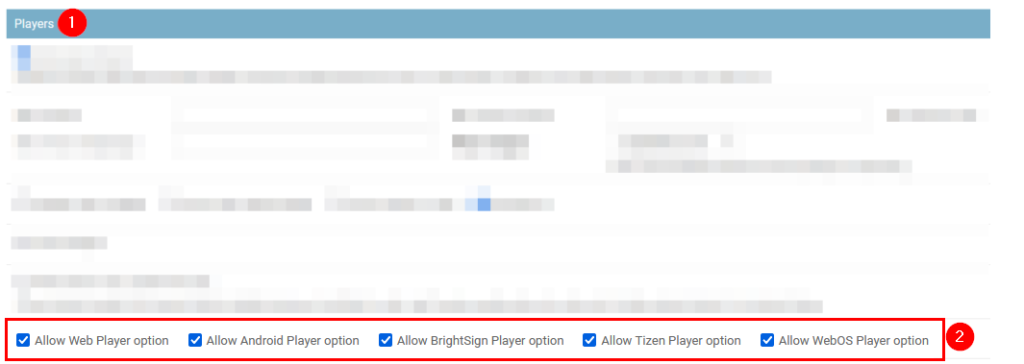
How can I enable my site’s Web, Brightsign, Android, Tizen, WebOS, and FireOS players?
Go to your site’s settings and enable the relevant options in the Functionality section.
To enable these player types for a specific account: find the client’s account via your site settings, then in the client’s account Players section enable the relevant option and save the form. That specific account will then be able to create the relevant player type.
What features are available on Direct Yodeck accounts but NOT on Reseller or Whitelabel sites?
A handful of features are available on Direct accounts (app.yodeck.com) but are restricted or unavailable when an account sits under a Reseller or Whitelabel partner site. Known differences include:
- Microsoft SSO : Not available on Reseller and Whitelabel sites. Customers migrating from Direct lose this option and need to use standard email/password authentication.
- Player preconfiguration : Not available on Reseller and Whitelabel sites. Customers cannot preconfigure players through the partner portal in the same way they can on Direct.
- Workspaces : Not used the same way on Whitelabel sites. Whitelabel customers are separated by full account rather than by workspaces within one account.
- Yodeck’s published pricing : Resellers and Whitelabel Partners set their own pricing for end customers, separate from <yodeck.com> published rates.
A complete and updated feature comparison list is maintained internally and can be requested from your Account Manager. The list is helpful when migrating Direct customers under a partner site, so any features they will lose can be flagged in advance.
Can I push a content update to all my clients’ screens from one place without using the API?
It depends on how the customers are set up:
- Separate customer accounts (the standard partner setup): No. There is no “push to all” across separate accounts without the API. You can log into each account via YConsole and push changes individually.
- Sub-workspaces under a parent account : Yes. Media uploaded to the parent workspace is automatically available to all sub-workspaces.
What marketing and sales materials are available to Yodeck partners?
All Resellers and Whitelabel Partners receive a partner kit on joining. The standard kit includes:
- Sales decks : reseller pitch deck for end customers, plus vertical-specific decks (retail, healthcare, hospitality, education, corporate communications, restaurants).
- One-pagers : feature one-pagers, plan comparison sheets, hardware spec sheets.
- Vertical narratives : industry-specific positioning you can re-skin or co-brand.
- Email and social templates : co-marketing email sequences, LinkedIn and social post templates, banner ads.
- Case studies : real-world deployments by industry, with metrics where available.
- Demo licenses : Demo accounts you assign to prospective customers so they can trial the platform without being billed.
- Training resources : access to product training, certification materials, and recorded webinars via the Partner Portal.
Whitelabel Partners additionally receive:
- Custom-branded SD card images for Yodeck Players.
- Custom CSS, logos, favicon, and a custom web address for the partner portal.
- White-labelled installers for Android and Brightsign players where applicable.
For specific or localized materials (different language, regional case studies, custom co-branded assets), contact partners@yodeck.com.
Need Help?
The Yodeck Support Team can help you out! Log in to your Yodeck account and send us a message from the bottom right corner!
RFPs and Enterprise Deals
Overview
This Partner Portal FAQ section covers the RFP submission process, what to include in the submission, turnaround time, and what the Yodeck response contains.
F.A.Q.s
How do I submit an RFP through a Yodeck partner and how long does it take?
Submit RFPs through your Account Manager:
- Under 20 screens: RFP support is not provided. Use the standard Quote Request flow in YConsole instead.
- 20+ screens: Turnaround is 10 business days from submission via your AM.
Email your AM directly with the RFP document and supporting details. Avoid forwarding through generic support inboxes for RFPs, since that adds routing delay.
What information should I include in an RFP submission?
To get an accurate proposal back within the 10-day window, include the following in your submission:
- End customer profile: company name, industry, headquarters location, parent company if relevant.
- Deployment scope: total number of screens, number of physical locations, regions or countries involved (US, EU, APAC, etc.), expected rollout phases and dates.
- Hardware requirements: whether the customer needs Yodeck Players (1GB or 4GB), is bringing their own hardware (Brightsign, Android, Tizen, WebOS, FireOS), or a mix. Note any preferred shipping arrangements.
- Subscription plan: Basic, Premium, or Enterprise. List any specific features the customer needs (Power BI, Microsoft apps, advanced scheduling, custom user roles, proof of play, etc.).
- Term: monthly, annual, or multi-year prepayment.
- Integrations: SSO requirements (note: Microsoft SSO is not available on Reseller or Whitelabel sites), API access, third-party content sources, calendar or CMS integrations.
- Security and compliance: SOC 2, ISO 27001, GDPR, HIPAA, accessibility, or other certifications the customer requires documented.
- Timeline and decision criteria: when the customer expects to decide, who the evaluators are, and which alternative vendors are also bidding if known.
The more complete the brief, the less back-and-forth before pricing is locked.
What does the RFP response include?
The standard RFP response from Yodeck covers:
- Pricing proposal with partner discount applied (per-screen or bundled).
- Hardware quote, including shipping and customs handling notes.
- Feature mapping against the customer’s requirements: what’s in scope, what needs custom work, what is unavailable on Reseller or Whitelabel sites.
- Security and compliance documentation to attach to the customer’s response.
- Suggested deployment plan and timeline.
- Account management and post-sale support model.
Coordinate with your AM during the response period if the customer asks follow-up questions. Material changes to the scope after the response is delivered restart the 10 business day clock.
Need Help?
The Yodeck Support Team can help you out! Log in to your Yodeck account and send us a message from the bottom right corner!
Affiliate and Co-Sell
Overview
This Partner Portal FAQ section covers upgrade paths between Affiliate, Reseller, and Whitelabel partner tiers, and combining roles.
F.A.Q.s
Can I sign up as an Affiliate first and upgrade to Reseller later?
Yes. To make the move:
- Reach out to the Partners team to initiate the Reseller onboarding process.
- Customer confirmation is required to transfer their existing account to your partner site.
See also: What are the different types of Yodeck Partners? for the full definitions of Affiliate, Reseller, and Whitelabel tiers.
Can I be a Reseller or Whitelabel Partner and also enroll as an Affiliate?
Yes. The Affiliate program runs as a separate role, and there is no automatic link between an existing Reseller or Whitelabel account and a new Affiliate registration. To combine them, you sign up for the Affiliate program separately and keep the workflows distinct:
- Use Affiliate for pure lead generation (referrals through your website, ads, content, or campaigns) where Yodeck handles the customer relationship directly.
- Use your Reseller or Whitelabel account for customers you onboard, support, and bill yourself.
The same customer cannot be counted under both models. Affiliate commission is paid on customers who sign up directly with Yodeck through your referral, while your Reseller or Whitelabel accounts are billed to you at partner rates. Affiliate commission percentage is set per agreement. Contact the Partners team to set up the Affiliate side.
Need Help?
The Yodeck Support Team can help you out! Log in to your Yodeck account and send us a message from the bottom right corner!
Prepayment and Renewal
Overview
This Partner Portal FAQ section covers billing cycles, switching between monthly and annual, charge triggers, and trial behavior for partner-created accounts.
F.A.Q.s
Can I pay annually as a partner?
Yes. Yodeck offers monthly invoicing, annual prepayment, and multi-year prepayment options. Annual and multi-year prepayments come with additional discounts.
Billing cycle is set per account. You can mix monthly, annual, and multi-year cycles across accounts under the same partner site. On annual and multi-year accounts, mid-cycle additions (extra screens, plan upgrades, add-ons) are prorated and invoiced immediately, while reductions take effect at the next renewal.
How do I switch from prepaid annual to monthly billing?
No action is needed from the partner. If the prepayment is not renewed, billing simply transitions to monthly on the same account. There is no disruption in service.
Is my license monthly or annual? What triggers a new charge?
Both options are available. Billing cycle is set per account and can be monthly, annual, or multi-year. You can mix cycles across accounts.
- Monthly accounts: a consolidated invoice is issued on the 1st of each month covering the month ahead.
- Annual / multi-year: individual invoices per account on each renewal date (co-terming available).
- Mid-cycle adds (screens, plan upgrade, add-ons) are prorated and charged immediately. Reductions take effect at the next renewal.
When do trial/evaluation licenses auto-renew, and how do I prevent renewal?
The 30-day Reverse Trial available to direct Yodeck signups does not apply to partner-created customer accounts. Accounts you create through YConsole are paid subscriptions from day one. There is no auto-renewal step at the end of a trial because there is no trial period.
For evaluation purposes, partners use the separate Demo account feature, which is set in YConsole when creating or editing the account. Demo licenses do not generate charges and can remain in place indefinitely until you convert the account to a paying customer.
Need Help?
The Yodeck Support Team can help you out! Log in to your Yodeck account and send us a message from the bottom right corner!
Onboarding and Partner Portal
Overview
This Partner Portal FAQ section covers partner types, eligibility, becoming a partner, partner site setup, the Partner Wizard, content and account migration, and finding invoices in YConsole.
F.A.Q.s
What are the different types of Yodeck Partners?
There are three partner levels:
- Affiliate: Direct sales leads to <yodeck.com> or sign up customers directly on the platform. Affiliates do not bill or support customers. They earn a recurring affiliation fee on all tracked subscription payments.
- Reseller: Sell Yodeck directly to customers and support them throughout deployment. Resellers sign up and bill their customers, while Flipnode LLC bills the Reseller at a discounted rate. Resellers are required to provide Yodeck support services to their customers through their Partner Account.
- Whitelabel Partner: All Reseller benefits plus a fully branded Portal (custom CSS, custom web address, custom-branded SD card image, no Yodeck mention). Whitelabel Partners set their own pricing. Annual fee applies.
See also: Yodeck Partner Programs, Reseller, Whitelabel.
I want to use Yodeck for my customers!
Yodeck has three partner tiers to choose from, depending on how you want to work with end customers:
- Affiliates: Bring in sales leads through ads/banners or direct contact, and earn a recurring affiliate fee.
- Resellers : Resell Yodeck subscriptions at a discount, access a Partner Account on the backend to support customers.
- Whitelabel Partners: Everything a Reseller gets, plus custom branding (no Yodeck mention) and your own pricing.
Contact us to join the Yodeck Partner Network.
What do I need to qualify as a Yodeck Partner?
You need to be an IT or Digital Signage professional who provides Digital Signage solutions to other companies. That’s the only requirement.
There is a minimum billable volume of 10 screens for both Resellers and Whitelabel Partners, applied across all customers managed under your partner site (not per customer). If your actual screen count is below 10, you are billed for 10. The minimum acts as a fixed billing floor. Once your actual count exceeds 10, billing reflects the real count going forward. There is no retroactive credit for the period under the minimum.
To apply, contact us.
Can I use Yodeck for my customers without being a Reseller?
Yes, but your customers must be on a paid account, even if only one screen is used. Free accounts are restricted to one screen per person or legal entity. You have two options:
- Your customer subscribes directly to a Monthly or Annual Plan with a credit card.
- You get a Reseller or Whitelabel account and resell the service to your customers (Yodeck invoices you, you bill the end customer).
If you are using Yodeck to serve your customers, Flipnode may ask you to sign a partnership agreement.
Can I change from being a Reseller to a Whitelabel Partner?
Yes. Yodeck allows partners to switch between Reseller and Whitelabel modes. Many partners start as Resellers and later switch to white-label as their business grows. To request a switch, contact us, and the team will evaluate your request and provide a custom proposal.
How long does it take to set up my partner site?
Partner sites are typically set up within 1 to 2 business days.
What information do I need to complete the Partner Wizard / Partner Portal setup?
Both Reseller and Whitelabel partners need:
- A signed Partner Terms of Collaboration agreement (handled before the wizard launches)
- Payment of the initial fee ($50 one-time for Reseller, $450 annual for Whitelabel)
- Business email (no public domains like Gmail/Yahoo), business name, address, tax ID/VAT, contact name, phone
- A payment card (added via Stripe in the wizard)
Whitelabel partners additionally configure branding post-wizard: primary/secondary brand colors (HEX), logos (horizontal, collapsed, login, player boot), favicon, and Terms of Service URL.
I’m an existing Yodeck customer. How do I become a Whitelabel partner, and what happens to my licenses?
The switch is handled case-by-case. Contact Yodeck via the Partners page for a custom proposal. A new Partner Account is created. It does not automatically convert from your existing account.
Existing licenses cannot be moved directly. They are migrated via a cancel/downgrade on the source account and a new order on the partner account. Any unused subscription time is converted to a monetary balance and applied to the new account. Content and hardware do not transfer. Content must be recreated and hardware stays registered to its original account.
How do I migrate a Direct Yodeck customer under my partner site?
When a customer currently subscribed directly to Yodeck wants to move under your Reseller or Whitelabel site, the process is:
- Confirm the migration in writing with the customer (account owner email).
- Open a Support ticket with the source account email, destination partner site, and any active subscription details.
- The Yodeck team downgrades the customer’s direct subscription and calculates the remaining balance (unused subscription time converted to a monetary credit).
- The customer’s account is re-created under your partner site, with the credit applied to the new partner subscription.
Notes:
- SSO: If the customer has SSO enabled on the direct account, SSO must be disabled before the migration . After the account moves under your partner site, it must be re-enabled and re-configured from scratch because the IDP URLs change with the new domain.
- Player preconfiguration: Not available on Reseller or Whitelabel sites. Customers migrating from Direct lose access to this feature.
- Content and hardware: Content does not transfer automatically and must be recreated. Hardware (registered players) usually stays with the original account unless Support handles a manual transfer.
Can I transfer content between customer accounts under my partner site?
Yes, but only through a Support request. Partners cannot move content between accounts self-serve from YConsole. Examples of supported transfers:
- Move screens (and their associated content) from one customer account to another under the same partner site.
- Split a single account that uses workspaces into multiple separate customer accounts (often needed when migrating from Reseller to Whitelabel, since Whitelabel sites do not use workspaces in the same way).
- Transfer a single folder of media, apps, playlists, or layouts from one account to another.
To request a content transfer, submit a Support ticket including the source account email, destination account email, and a list of the screen IDs, folders, or content groups to be moved. Yodeck’s Support team handles the backend operation.
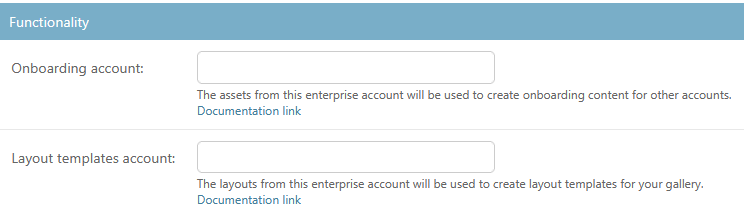
How do I create an Onboarding and Layout Template account for my site?
You can set up dedicated Onboarding and Layout Template accounts to streamline customer onboarding and provide ready-to-use layout templates.
- Onboarding Account : Media assets and apps added to this account serve as onboarding content for new customer accounts.
- Layout Templates Account : Layouts created in this account serve as reusable templates in your customers’ gallery.
Setup steps:
- Create new user accounts under your site, each with a distinct email address.
- Go to your site’s settings and navigate to the Functionality section.
- Add the email addresses of your Onboarding and Layout Template accounts in the appropriate fields.
- Save your settings.
Notes:
- Existing customer accounts will not automatically inherit newly created custom apps or layout templates. Only new accounts created after these customizations will benefit.
- If you later add more custom apps or templates to these accounts, only newly created customer accounts will inherit them. Existing customer accounts retain the original set they inherited initially.
Where can I find my partner account invoice or quote request invoices in YConsole?
- All subscription invoices : YConsole dashboard → Invoices widget (left column). Includes monthly subscriptions, hardware, prepayments, and one-off invoices, with PDF download and a link to the Xero invoice.
- Quote request invoices :
Home → Partners → Quote Requests. Each row has Invoice Number and Invoice Link columns, auto-populated once the request reaches invoiced status.
⚠️Invoices are not sent automatically by email. Access them through the Partner Console.
Need Help?
The Yodeck Support Team can help you out! Log in to your Yodeck account and send us a message from the bottom right corner!
Quote Requests, Purchase Orders, and Hardware FAQs
Overview
This Partner Portal FAQ section covers submitting orders, attaching POs, hardware turnaround, customs documents, and renewal handling.
F.A.Q.s
Does Yodeck provide hardware to partners?
Yes. Partners can order Yodeck Players (1GB or 4GB Raspberry Pi-based) directly through the Partner Portal using the “Place an Order” form in YConsole. Resellers may also be eligible for free hardware bundled with subscription orders, depending on the deal structure. Speak to your Account Manager for details. Standard hardware turnaround is 6 to 10 business days (3 to 5 days warehouse prep plus 3 to 5 days standard shipping, varies by region).
How do I submit and track a Quote Request through the partner portal?
Use the “Place an Order” link in the Quick Links widget on your YConsole dashboard (Home → Place an Order). Fill in the form (account, prepay type, quota, term, hardware if applicable, payment method, optional comments), click Calculate Costs to review, then Submit your Order to finalize.
To track requests, go to Home → Partners → Quote Requests. Each row shows status, payment method, invoice number, and (for hardware) tracking number. Click the order ID for full details. Status flow: pending → approved → invoiced → completed (or cancelled / declined).
How do I submit a Purchase Order (PO) as a partner?
POs are submitted through the same “Place an Order” form in YConsole. Choose your payment method (Wire Transfer is the typical option for PO-based orders). Once submitted, the Partners team reviews and accepts the request, then issues an invoice referencing your PO.
How do I attach a PO number to a YConsole quote request?
Add the PO number to the Comments section of the quote request form. Your Account Manager will manually add it to your invoice once the request is processed.
How do hardware POs work, and what is the expected turnaround?
Standard turnaround is 6 to 10 business days from order placement: 3 to 5 days warehouse preparation plus 3 to 5 days standard shipping. Delivery time after shipment varies by region (US/UK/EU: 2 to 4 business days; rest of world: 5 to 10 business days). Expedited shipping is available and reduces delivery time to 1 to 2 days after shipment.
A tracking number is sent by email once the order ships and is also visible under the Orders tab in your account. Orders still in warehouse prep show “Processing”.
Can I place a hardware order but delay license activation until I say so?
Please contact your Account Manager. This is handled on a case-by-case basis under the current billing rules.
How do I get a signed and paid invoice for the hardware shipment customs clearance?
A paid commercial invoice is generated as part of the standard order flow once payment is received. If you need additional information for customs (HS codes, Incoterms, declared values, RFC for Mexico, VAT IDs, etc.), contact Support and specify the country requirements. The Support team coordinates with the warehouse to issue or adjust the commercial invoice with all required details.
How do I consolidate multiple licenses into one renewal and use prepay credits?
Talk to your Account Manager. They will prepare a consolidated renewal quote, apply any prepayment credits, and align renewal dates as needed.
Which discount tier do I get as a Reseller vs. a Whitelabel partner?
The discount tier is based on screen volume. Initial discounts are communicated at onboarding; volume-based discounts grow as the partnership scales and are handled by your Account Manager.
Can I apply volume discounts across multiple sub-accounts? Can I redistribute licenses?
Talk to your Account Manager. Volume discount scope and license redistribution rules depend on your partner agreement and are handled on a case-by-case basis.
Need Help?
The Yodeck Support Team can help you out! Log in to your Yodeck account and send us a message from the bottom right corner!
Billing, Suspension, and Disputes’ FAQs
Overview
This Partner Portal FAQ section covers site disabled, invoice questions, charge disputes, and payment method issues.
F.A.Q.s
Why did my partner site go down? How do billing failures cause service interruption?
Partner sites are automatically disabled when invoices remain unpaid beyond defined overdue thresholds. There are 4 stages of overdue notifications, each tied to an action on the site:
- 45 days past due: Warning email sent. The site is still active but at risk.
- 60 days past due: Site is disabled. Partner admin and accounts under the partner cannot log in.
- 75 days past due: Warning email that devices will be disabled. Site remains disabled.
- 90 days past due: Site and devices are both disabled. Screens show a “check your account” notice.
Example timeline: an invoice issued on March 1 that stays unpaid would trigger the warning email around April 15 (45 days), site disabled around April 30 (60 days), device-disable warning around May 15 (75 days), and full screen disable around May 30 (90 days).
To restore service, the overdue invoice(s) must be settled. Reactivation is automatic once payment is reconciled, typically within 1 to 2 business days.
How does Yodeck handle failed card-on-file payments, and when does it retry?
Partner invoices are generated on the 1st of each month. For partners on card-on-file, the system attempts the charge automatically and, if it fails, retries on the 2nd, 8th, and 15th of the same month. No manual action is required during the retry window.
Example: an invoice issued on May 1 that fails to charge will retry on May 2, May 8, and May 15. If all three retries fail, the site enters the overdue flow described above starting around mid-June. Once you update your card, you still need to trigger the payment manually from the Invoices section. Updating the card alone does not auto-pay outstanding invoices.
Recommended actions if a charge fails:
- Update your card details in YConsole under Account Settings → Payment Method as soon as possible. After updating, trigger the payment manually from the Invoices section.
- If updating the card in the portal fails, contact Support to request a Stripe payment link.
What should I do if my partner site is suspended unexpectedly?
First, check for unpaid invoices in YConsole under Invoices on the dashboard. If invoices are outstanding, pay them online via the dashboard (Account Settings → Invoices → Pay Now) or via wire transfer using the details on the invoice. Once payment is confirmed, the site reactivates automatically.
- If you believe the suspension is in error, contact your Account Manager or the Partners team immediately to request a manual review.
- If you cannot pay through the portal (e.g., card update fails), ask your Account Manager to convert the invoice to a Stripe payment link.
- For wire transfer payments, reconciliation requires manual review by the Finance team and may take 2 to 3 business days from the transfer date. Share the proof of payment with your Account Manager to speed up the process.
How do I dispute a charge for a canceled hardware order?
Contact your Account Manager directly to request a refund. If the dispute relates to a player order that was shipped, the AM will assist with a return label and process the refund once the hardware is returned.
Why am I being charged extra? How does sub-account billing work for resellers?
Partner billing has two layers:
- Per-account billable count is calculated on the higher of device quota and registered devices , minus any demo licenses on that account.
- Your monthly invoice sums the per-account totals across all your customer accounts. The partner-site 10-screen minimum is then applied to this site-wide total. If your total across all customer accounts is below 10, you are billed for 10.
Worked examples at the per-account level:
- Account A: quota 10, 7 registered devices → billed for 10 (quota is higher).
- Account B: quota 10, 12 registered devices → billed for 12 (registered is higher).
- Account C: quota 10, 8 registered devices, 2 demo licenses → billed for 8 (max of quota and registered, minus demos).
- Account D: quota 0, 3 registered devices → billed for 3 (quota at 0 alone does not stop billing if devices are still registered).
Worked example at the partner-site level:
- If Accounts A, B, C, and D above are all the customer accounts you manage, your site total is 10 + 12 + 8 + 3 = 33 screens. This is above the 10-screen minimum, so the floor does not apply, and you are invoiced for 33 screens that month.
- If your only account on the partner site was Account C (8 screens), your site total would be 8. The 10-screen minimum kicks in, and you would be invoiced for 10 screens that month.
To keep billing aligned with actual usage:
- Adjust the device quota down when a customer reduces their screen count. Reductions take effect at the next renewal.
- If a customer has canceled, set the quota to 0 and request Support to delete the registered devices. Both steps are required to stop billing.
- Annual orders placed for an account do not automatically reduce the monthly billable quota. These are tracked separately.
When and why does Yodeck charge me? How do I dispute a charge?
Partners are billed monthly under a “Pay-As-You-Go” model. One consolidated invoice is issued on the 1st of each month covering all monthly accounts under your partner site. Annual and multi-year accounts are invoiced separately on their renewal dates.
Charges are triggered immediately for plan upgrades, device quota increases, add-on activations, and hardware orders. Downgrades, plan reductions, and device removals take effect at the next renewal with no mid-cycle credit.
To dispute a charge: email support@yodeck.com with the invoice number, amount, date, and account email. The billing team will review and, if a correction is warranted, issue an adjusted invoice or credit.
How do I request a corrected or reissued invoice (for a wrong address or amount)?
Invoices cannot be edited from the partner dashboard once issued. To request a correction:
- First, update your billing details in YConsole at Account Settings → Account Subscription → Billing Address so future invoices are correct.
- Then contact support@yodeck.com with the invoice number, the specific correction needed, and whether the invoice has been paid. The billing team will either edit the invoice (if unpaid) or void and reissue it.
For corrections on a partner order specifically, email partners@yodeck.com OR your AM before payment is processed so the invoice can be adjusted before final approval.
Why can’t I update my payment method, and how do I fix it?
Payment method updates are done from YConsole. If the update screen shows a blank pop-up or otherwise fails, raise a ticket with Support so the issue can be investigated and your card can be updated manually if needed.
Can I switch from card-on-file to invoice (wire transfer) payment?
Yes. Switching from card-on-file to invoice payment (or vice versa) requires Partner team involvement and is not a partner self-serve setting. Contact your Account Manager with the reason for the change (government or finance requirements, treasury policy, etc.). The team will update the billing method on your partner site so the next invoice is issued for manual payment instead of being auto-charged.
Need Help?
The Yodeck Support Team can help you out! Log in to your Yodeck account and send us a message from the bottom right corner!
Can I change from being a Reseller to a Whitelabel Partner?
Switching Between Reseller and Whitelabel Partner
Yodeck offers the flexibility for Partners to easily switch between being a Reseller and a Whitelabel Partner. This allows for a customizable experience that best fits your business needs.
Contact us if you want to switch, and we will evaluate your request. Our team at Yodeck will then provide you with a custom proposal for the switch.
Why Switch?
Many Partners choose to start as Resellers and then later review our Partnership to consider switching to Whitelabel. Others may choose to start as a Whitelabel from day one. We understand that business needs and goals can change over time, and we strive to accommodate requests as they come in.
How to Switch
To switch between Reseller and Whitelabel Partner, contact us and let us know your request. Our team will work with you to make the transition as smooth as possible.
Become a Yodeck Partner
Would you be interested in becoming a Yodeck Partner? Contact us today and join our growing network of Partners. We offer a range of benefits and support to help you succeed as a Yodeck Partner.
This opportunity will enhance your business and offer clients a top-notch digital signage solution. Contact us now and become the next Yodeck Partner!
What do I need to qualify as a Yodeck Partner?
How to Become a Yodeck Partner
Are you an IT or Digital Signage professional looking to provide Digital Signage solutions to other companies? Then you’re in luck! Becoming a Yodeck Partner is easy and comes with many benefits.
Requirements
To become a Yodeck Partner, you need to be an IT or Digital Signage professional who provides Digital Signage solutions to other companies. That’s it! Of course, there is a minimum billable volume for Resellers and another for Whitelabel Partners, but these are low. This means that even if you are starting, you can still become a Yodeck Partner.
Any difference between your actual volume and the minimum billable volume is reimbursed as soon as you exceed this required volume. Thus, becoming a Yodeck Partner does not result in any loss of money.
How to Apply
If you meet the requirements and are interested in becoming a Yodeck Partner, contact us, and we will guide you through the application process. We always look for new partners and would love to have you on board!
What are the different types of Yodeck Partners?
Yodeck Affiliate
Affiliates direct sales leads to https://www.yodeck.com/, or may directly sign up customers on the Yodeck platform. After the customer has reached the Yodeck site or app, affiliates will not interact with the customer. Affiliates do not bill or provide any service to customers. They only bring in new sign-ups to Yodeck. When a tracked user signs up for a subscription, all payments are considered when calculating the affiliation fees.
Yodeck Reseller
Resellers sell the Yodeck service directly to their customers and also support them throughout the deployment and operation of the service. Resellers sign up and bill their customers directly, while Flipnode LLC bills Resellers for the services provided at a discounted rate.
Resellers are expected to provide local purchasing and assembly of Yodeck Players. Although not mandatory, it allows for higher service discounts to Resellers. They may provide Yodeck Players for free, as a lease, or offer them to customers for purchase. They may also provide additional equipment (TV sets, TV mounts, cables, network equipment, etc) and installation services, directly or through a subcontractor, to provide a complete solution to their customers.
Resellers are required to provide Yodeck support services to their customers through their Partner Account. These must include remote support of Yodeck installations and may include on-site support services. Providing a completely managed service over Yodeck is also an option, where the Partner manages the customer’s account, and the customer never has to deal with Yodeck directly.
Yodeck Whitelabel Partner
Whitelabel Partners are resellers who own their version of a Yodeck Portal. Users need to see Yodeck branding. Whitelabel Partners have the following benefits:
Custom CSS, changing text or branding, even hiding whole sections of the Portal.
Custom web address for the management Portal, e.g., https://app.yourcompany.com
Customized SD Card image with custom branding for easy and safe SD card imaging.
Additionally, there is an annual fee for servicing a Whitelabel Partner Account.
Whitelabel Partners are free to use their pricing policy with customers, while Resellers are naturally bound by the published Yodeck Pricelist that customers can see on Yodeck.com.
Contact us, and you could become the next Yodeck Partner!
Does Yodeck provide hardware to partners?
How to Explore Your Options with Us
At our company, we understand that everyone has different needs and preferences. That’s why we offer various options to help you find the perfect solution for your unique situation. Whether you’re looking for a new product or service or need guidance, we’re here to help.
Contact Us
You should contact us if you’re ready to explore your options with us. You can reach us by phone, email, or through our website. Our team of experts is available to answer any questions and guide you through the process.
What to Expect
Once you contact us, we’ll work with you to understand your needs and preferences. We’ll then present you with various options that best suit your situation. Our team will guide you through each option, explaining the benefits and helping you make an informed decision.
I want to use Yodeck for my customers!
Yodeck Partner Network
Welcome to the Yodeck Partner Network! We are excited to announce the launch of our new program, designed for IT and Digital Signage professionals worldwide. Our goal is to provide complete turn-key solutions to end customers, and our partners are vital to achieving this goal.
Our Partner Network comprises three levels: affiliates, Resellers, and Whitelabel Partners. Each level offers unique benefits and opportunities for our partners. Let’s take a closer look at each level and its entails.
Affiliates
The first level of our Partner Network is Affiliates. As an Affiliate, you bring in sales leads for Yodeck through various methods, such as ads/banners or direct contact. In return, you will receive a recurring affiliation fee. This is a great option for those who want to be involved with Yodeck but may need more resources to resell or whitelabel our product.
Resellers
The second level of our Partner Network is Resellers. As a Reseller, you will have the opportunity to resell Yodeck subscriptions at a discounted rate. This means that you can offer our product to your customers at a lower price, making it more attractive to them. In addition, you will also have access to a Partner Account on our backend, which will allow you to better support your customers.
Whitelabel Partners
The highest level of our Partner Network is Whitelabel Partners. As a Whitelabel Partner, you will receive all the benefits of a Reseller, plus some additional perks. One of the main benefits is that you will have your custom branding on our Portal. This means that there will be no mention of the Yodeck brand, giving you full control over the branding of our product. In addition, you will also have the ability to set your custom pricing for Yodeck subscriptions.
✅ If you want to become a Yodeck Partner, we would love to hear from you! Please contact us; we will provide more information on joining our Partner Network. We are always looking for new partners; you could be the next one!
Thank you for considering Yodeck as your partner. We look forward to working with you and providing top-notch digital signage solutions to our customers together.
Can I pay annually as a partner?
Flexible Payment Options with Our Partner
At our partner, we understand that every business has different financial needs and preferences. That’s why we offer various payment options to make it easier for you to manage your partnership with us.
Monthly Invoicing
If you prefer to pay on a monthly basis, we offer the convenience of monthly invoicing. This means that you will receive a bill at the end of each month for the services you used during that period.
Annual and Multi-Year Prepayments
In addition to monthly invoicing, our partner offers the flexibility of annual or multi-year prepayments. This means that instead of paying on a monthly basis, you have the option to pay upfront for a full year or even multiple years in advance.
Not only does this provide convenience by reducing the frequency of payments, but it also comes with additional discounts. By choosing to prepay for a longer period, you can take advantage of special pricing options that can help you save even more on your partnership with us.
Choose What Works Best for You
Whether you prefer the ease of monthly payments or want to capitalize on the cost savings of annual or multi-year prepayments, our partner has you covered. We want to ensure that our payment options work for you and your business so you can focus on what’s important – growing your business.
Thank you for choosing our partner for your business needs. If you have any further questions about our payment options, please don’t hesitate to contact our customer support team. We are always happy to help.
How do I support my customers?
How to Use Your Partner Account to Provide Exceptional Support
As a Reseller or Whitelabel Partner, you can access a special Partner Account that allows you to log in as any user of your customer Accounts. This Partner Account allows you to see precisely what your users see, making it easier to provide them with the needed assistance.
You can troubleshoot issues, configure settings, and offer personalized support by logging in as your customers. This feature gives you a comprehensive understanding of the platform from your customers’ perspective, enabling you to address their concerns more effectively.
How This Feature Benefits You
Having a Partner Account allows you to provide exceptional support to your customers. By logging in as them, you can troubleshoot issues and configure settings on their behalf, saving them time and effort. This feature also allows you to offer personalized support, as you can see exactly what your customers are experiencing and tailor your assistance accordingly.
Also, our dedicated Yodeck Support Team is always available to help you. If you encounter any difficulties or need more help, please feel free to escalate the issue to us; we will be more than happy to help you. Our team is knowledgeable, responsive, and committed to ensuring your success as a Reseller or Whitelabel Partner.
Partnering with Yodeck for Success
With the combination of the Partner Account and our reliable support, you can confidently provide top-notch service to your customers and build strong, lasting relationships. We are here to support you every step of the way.
Thank you for choosing Yodeck as your digital signage solution. We are committed to helping you succeed as a Reseller or Whitelabel Partner. If you have any more questions or need help, please don’t hesitate to contact our Support Team.
How long does it take to set up my partner site?
We understand the importance of keeping your Partner’s site up and running quickly. Our dedicated team of experts is committed to delivering results efficiently and effectively.
With our streamlined processes and extensive experience, we guarantee that your Partner’s site will be completed within the timeframe of 1-2 business days.
Rest assured, we will work diligently to ensure a smooth and seamless transition, providing you with a high-quality, fully functional website that meets all your requirements.
Yodeck Partner Network FAQ
Info
Find helpful information about Yodeck’s Partner Programs and answers to frequently asked questions.
Can I pay annually as a partner?
Right now, our Partner’s pricing model is monthly invoicing. But annual or multi-year prepayments are also an option, and additional discounts are offered!
What are the different types of Yodeck Partners?
Yodeck Affiliate
Affiliates direct sales to https://www.yodeck.com/ or may directly sign up customers on the Yodeck platform. After the customer has reached the Yodeck site or app, affiliates will not interact with the customer. Affiliates do not bill or provide any service to customers. They only bring in new signups to Yodeck. When a tracked user signs up for a subscription, all payments are considered when calculating the affiliation fees.
Yodeck Reseller
- Sell the Yodeck service directly to their customers and support them throughout the deployment and operation of the service.
- Sign up and bill their customers directly, while Flipnode LLC bills Resellers for the services provided at a discounted rate.
- They are expected to provide local purchasing and assembly of Yodeck Players. Although not mandatory, this allows for higher service discounts for resellers. They may provide Yodeck Players for free, as a lease, or offer them to customers for purchase. They may also provide additional equipment (TV sets, TV mounts, cables, network equipment, etc.) and installation services, directly or through a subcontractor, to provide a complete solution to their customers.
- They are required to provide Yodeck support services to their customers through their Partner Account. These must include remote support of Yodeck installations and may consist of on-site support services. Providing a wholly managed service over Yodeck is also an option, where the Partner manages the customer’s account, and the customer never has to deal with Yodeck directly.
Yodeck Whitelabel Partner
Whitelabel Partners are Resellers with their version of a Yodeck Portal. Users do not see Yodeck branding anywhere. Whitelabel Partners have the following benefits:
- Custom CSS, changing text or branding, even hiding whole sections of the Portal.
- Custom web address for the management Portal, e.g., https://app.yourcompany.com
- Customized SD Card image with custom branding for easy and safe SD card imaging.
Additionally, there is an annual fee for servicing a Whitelabel Partner Account.
Whitelabel Partners are free to use their own pricing policy with customers, while the published Yodeck Pricelist naturally binds Resellers that customers can see on Yodeck.com.
Find out moreHow long does it take to set up my partner site?
Our team will have your Partner’s site in less than 1-2 business days!
What do I need to qualify as a Yodeck Partner?
You need to be an IT or Digital Signage professional who provides Digital Signage solutions to other companies. That’s it.
Of course, there is a minimum billable volume for Resellers and another for Whitelabel Partners, but these are low. Any difference between actual volume and minimum billable volume is reimbursed as soon as you exceed this required volume, so you will not lose any money.
I want to use Yodeck for my own customers!
We are establishing the Yodeck Partner Network, which is comprised of IT and Digital Signage professionals worldwide who will use Yodeck as the technology to provide complete turn-key solutions to end customers. We have 3 levels of Partners:
- Affiliates: You bring in sales leads through ads/banners or direct contact, and you get a recurring affiliation fee, nothing more.
- Resellers: You resell Yodeck subscriptions at a discount while accessing a Partner Account on our backend to support your customers.
- Whitelabel Partners: You get everything a Reseller gets, plus your custom branding on our Portal, no mention of the Yodeck brand, and your own custom pricing.
Can I change from being a Reseller to a Whitelabel Partner?
Yodeck allows a Partner to easily switch from being a Reseller to operating as a Whitelabel Partner, and vice versa. Flipnode LLC will evaluate each switch request and proceed with a custom proposal for the switch.
Many Partners choose to start as Resellers and review our Partnership down the road to consider switching to Whitelabel. Others begin as Whitelabel from day one. We try to accommodate requests as they come in.
How do I support my customers?
If you are a reseller or a white-label partner, you will get access to a partner account. This particular account allows you to log in as any user of your customer Accounts. This way, you can log in and see exactly what your users see, making it easy for you to help them. Finally, our Yodeck Support Team is here for you. If you need help, you can escalate the issue to us, and we will assist you.
Can I use Yodeck for my customers without being a Reseller?
Short answer: Of course, but not on the Free Plan.
Here are the relevant quotes from our Terms of Service:
- One person or legal entity may not maintain or use more than one Free Account. You must use a single Account for all screens you manage through the service. Using multiple Free Accounts (which allow only one screen to be managed) to manage multiple screens is not allowed.
- Suppose you are using the service to serve your customers. In that case, you are obliged to inform Flipnode about the services you provide using the service and to whom you provide them, along with any other information Flipnode may request from you. You may be asked to sign a partnership agreement to continue your business as above.
- The Terms of Service apply in whole to (i) the Account Holder, (ii) users to whom the Account Holder has provided access to the account, and (iii) end-customers and end-users that may receive services through the service indirectly by a 3rd Party acting as a Reseller or Partner.
Essentially, what that means is that you are very welcome to provide Yodeck-based services to your customers, but they must be on a paid account, even if they only use 1 screen. To do that, there are two options:
- You (or your customer) should subscribe to the Monthly or Annual Plan for 1 (or more) screens using a credit card as if the customer were buying directly from us.
- You can contact us and get a Reseller Account (or Whitelabel) to resell the service to your customers. We will bill you (through an invoice), and you will bill your customers.
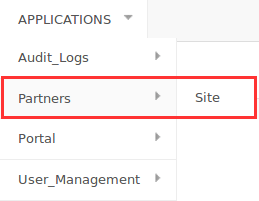
How can I enable my site’s Web, Brightsign, Android, Tizen, WebOS, and FireOS players?
You can access your site’s settings and enable the relevant options in the Functionality section, as shown below.
Enable this option on your site to allow accounts to create these players if the relative option is enabled.

How do I create an Onboarding and a Layout Template account for my site?
You can set up dedicated Onboarding and Layout Template accounts, which will hold custom media assets, apps, and layout templates to streamline your customer onboarding and layout creation processes.
- Onboarding Account: All media assets and apps added to this account will serve as onboarding content for new customer accounts.
- Layout Templates Account: Layouts created in this account will serve as reusable templates for your customers’ gallery.
When you create these special user accounts (for example, containing custom items like “App A” or “Layout A”) and link them properly, new customer accounts under your site will automatically inherit these custom elements along with the default Yodeck apps and layout templates.
Setup Instructions
- Create new user accounts under your site, each using a distinct email address.
- Go to your site’s settings and navigate to the Functionality section.
- Add the email addresses of your Onboarding and Layout Template accounts in the appropriate fields.
- Save your settings.