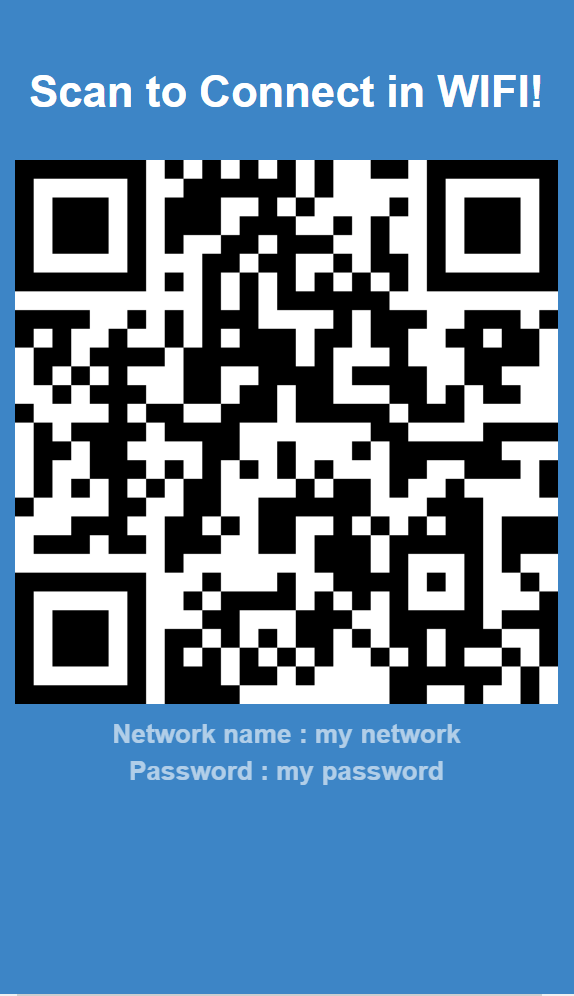
Share your WiFi with your customers. Create a QR code to share your WiFi network with others! You can also include your WiFi name and password.
Creating a WiFi Share App
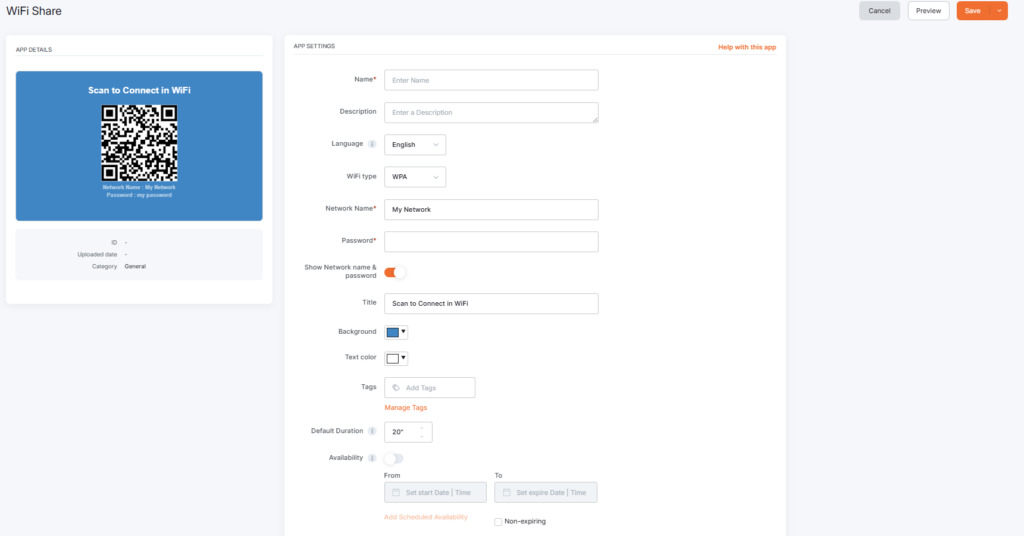
Click on the WiFi Share app within your app gallery to add it, and fill in the app details as follows:
- A Name is required for the app and an optional Description for it.
- From the Language drop-down menu, select your preferred language.
- Select the WiFi type from the dropdown list.
- Type your WiFi Network Name (it is case sensitive).
- Type your WiFi Password (it is case sensitive).
- Toggle on the Show Network name & password if you want to display the name and password under the QR code.
- Type a Title.
- Select the Background and Text color of the app.
- Set the Default Duration for which the app will appear in a playlist.
- You can set the Availability. More details can be found in the Media Availability guide.
- Click Save and your app is ready to use.
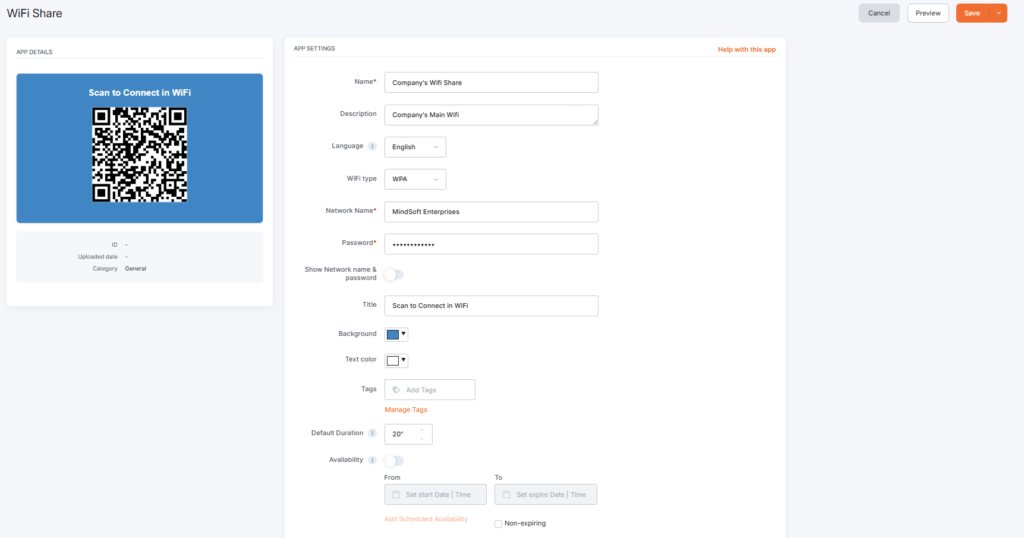
WiFi Share example
F.A.Q.s
Got questions? We’ve got answers! This section addresses common questions about the WiFi Share app.
– Only Yodeck’s built-in text is translated. This includes: labels, headings, and any text generated directly by the Yodeck app.
– Content coming from external platforms or APIs is not translated by Yodeck. This includes:
Data retrieved from external services (e.g., quotes, calendar events), posts or media from social platforms, text or metadata supplied by the API source, and system messages generated by external platforms.
Need Help?
The Yodeck Support Team can help you out! Log in to your Yodeck account and send us a message from the bottom right corner!

