Schedules' FAQs
How do I set when things get displayed? How can I schedule what gets shown?
How to Assign a Schedule to a Player
Learn how to quickly assign content to a screen in Yodeck so your playlists, layouts, apps, or scheduled content start playing on your displays. This guide is ideal if you want to change what’s shown on a screen or publish new content without creating a full schedule.
In the full article, you’ll see where to manage screens in the Yodeck Portal, how to select the type of content you want to display, and how to save and push changes so your screen updates immediately. The guide also explains the difference between saving changes and pushing content to screens.
Click HereBeyond the Default Layout
By default, each Player is assigned a layout, media, or playlist. However, the schedule feature allows you to set up a different layout for different hours or days. This allows for more flexibility in your content display and can be especially useful for businesses with varying operating hours.
Power Management
In addition to customizing your content display, the schedule feature also allows you to set specific hours for your screens to be turned off. This can help you save on your electric bill and is quickly done using the special predefined “Turned Off” feature.
Click HereNeed Help?
The Yodeck Support Team can help you out! Log in to your Yodeck account and send us a message from the bottom right corner!
Schedule content, example of display media on a specific time frame and the rest hours to turn the screen on
In this section, you can create schedules to display the layouts, media, and playlists you created at specific dates and times. Schedules help manage the frequency with which content is displayed.
As an example, we will set a media to be displayed daily from 09:00 till 17:00:
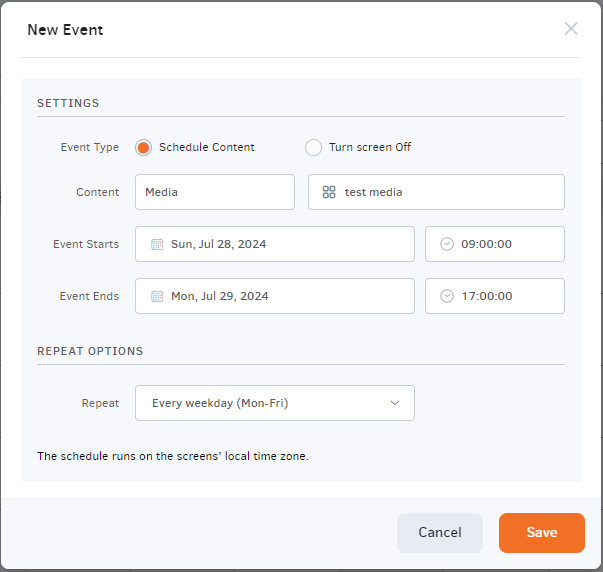
The above media will be displayed on weekdays (Mon-Fri) from 09:00 till 17:00
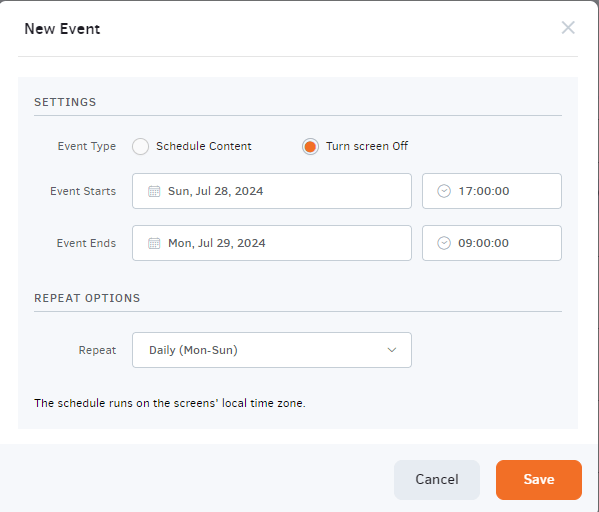
The rest hours of the days and weekends we will set the schedule to turn the screen off:
The final result would look like this:
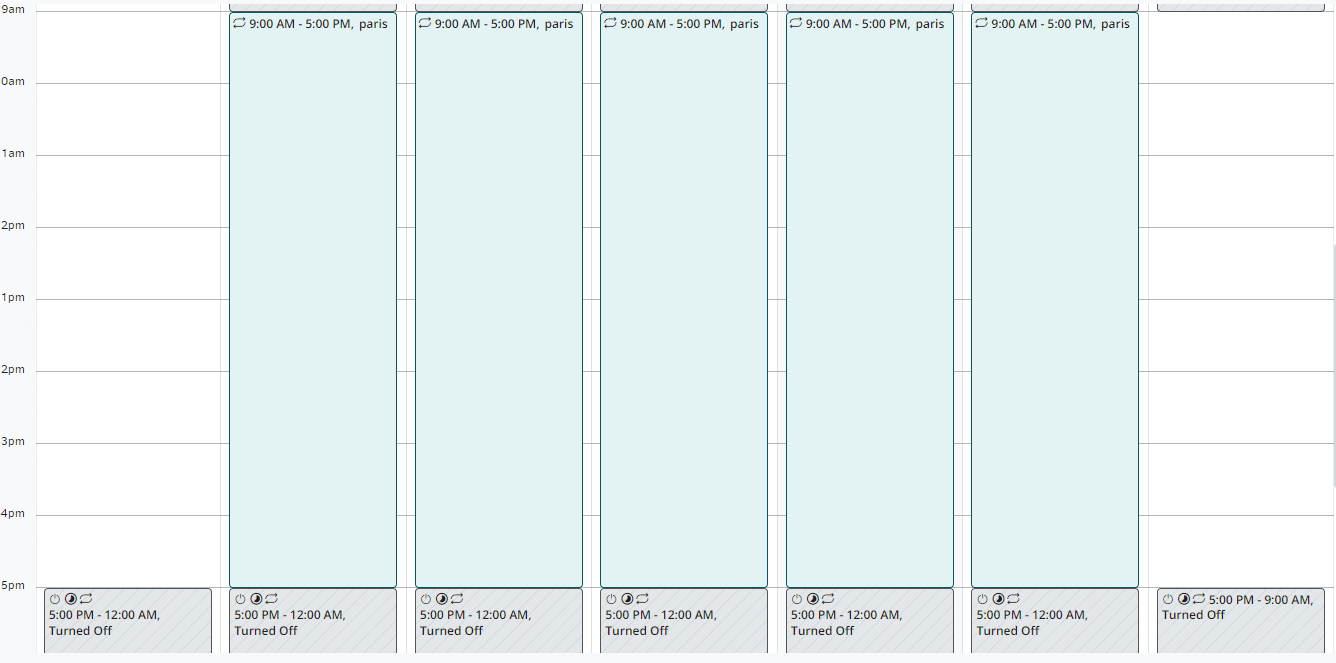
More entries can be added to the schedule at different time frames of the day.
As a last step when the schedule is saved, the schedule must be assigned and pushed to the player.
Schedule Content and Filler (Default) Content with example
You can create a schedule by configuring an event entry to display your content within a specific time frame, and you can also set filler (default) content to display outside that time frame, or turn off the screen for the rest of the hours outside the time frame of your schedule. Schedules have priority over filler (default) content, and when a schedule and a filler content are assigned to the player, the player will display the schedule content within the time frame you set for the schedule, and the rest of the time it will switch to the filler content.
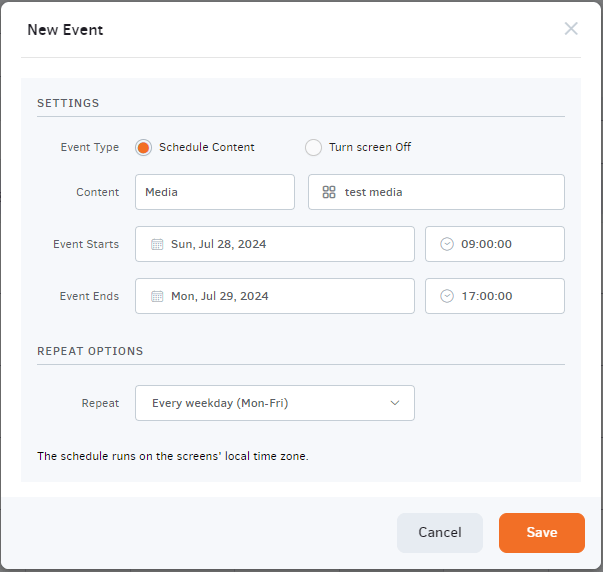
As an example, we will set a media to be displayed daily from 09:00 to 17:00:
How to Create a Schedule with Yodeck
A schedule decides what your screens show and when. You add content to a calendar, choose when each item plays, and Yodeck switches content automatically. No manual changes needed.
Use a schedule when content should change by time of day, day of the week or date. For example: a breakfast menu until 11:00 and a lunch menu after, or screens turned off overnight.
Create a schedule
- In the Yodeck Portal, go to Schedules and click + Add Schedule.
- Give the schedule a name you’ll recognize later, such as “Lobby weekdays”.
- Choose the filler content. This plays whenever nothing else is scheduled, so your screen is never blank.
Add content to the calendar
- Click a time slot on the calendar to add an entry.
- Choose what to play: a playlist, a layout, a single media item, or Turn Off to switch the screen off.
- Set the start and end time.
- To repeat it, select the days it should run.
- Click Save. Repeat for each item you want to schedule.
Assign the schedule to your screens
- Go to Screens and open the screen.
- Under content, choose Schedule and select the one you created.
- Click Save, then Push to Screens.
The same schedule can run on as many screens as you like. Changes you make to it apply to all of them after you push.
Learn more
- Yodeck Academy: Create a schedule, a full walkthrough with video
- Schedule content and filler content, with an example
- Examples of schedules
- Prioritization of content types
Need Help?
The Yodeck Support Team can help you out! Log in to your Yodeck account and send us a message from the bottom right corner!