Table of Contents
Overview
Bring your Microsoft Planner task boards to your Yodeck screens. The Microsoft Planner App connects to your Microsoft 365 account through secure OAuth 2.0 and displays your Planner plans as a live, auto-paginating board.
The board refreshes automatically from Microsoft Graph, so what’s on screen stays in sync with what your team sees in Planner.
Updated VS Legacy Microsoft Planner App
The updated Microsoft Planner App modernizes the legacy version, introducing OAuth 2.0 for sign-in across all Yodeck player types. The original login method is still available for Raspberry Pi players only. If you’re using the legacy app, we strongly recommend creating a new one and selecting “Log in with your Microsoft account.” OAuth eliminates the need for stored credentials and works during password changes. Use the credentials option only on Raspberry Pi if OAuth isn’t suitable.
The updated Microsoft Planner APP is Available only on the Premium/Enterprise plan!
The updated Microsoft Planner APP is only available on the “Premium/Enterprise” Plan. You might not see some menus below if you are not on the “Premium/Enterprise” Plan.
Remember that the “Premium/Enterprise” Plan is free if you only manage 1 screen to evaluate these features quickly.
The legacy Microsoft Planner APP is Available on all plans but only for the Raspberry Pi players!
The legacy Microsoft Planner APP can be accessed across all subscription plans; however, it is exclusively available for users operating on the Yodeck Raspberry Pi players.
Before You Begin
Before creating the Microsoft Planner App, make sure you have:
- An active Microsoft 365 account that includes Microsoft Planner (most Business and Enterprise plans qualify).
- A Planner plan with at least one bucket and one task.
- For the Microsoft account log-in option (recommended, supported on all players): permission to authorize Yodeck through Microsoft’s OAuth 2.0 flow, or access to a Microsoft 365 administrator who can approve the connection.
- For the credentials log-in option (Raspberry Pi only): your Microsoft account credentials, the URL of the Planner board from
https://planner.cloud.microsoft.com, and (if 2FA/MFA is enabled on the account) your 2FA Security Key.
ℹ️ About authentication: With the Microsoft account log-in option, no passwords are stored in Yodeck. Access is granted through Microsoft’s OAuth 2.0 flow and can be revoked from your Microsoft 365 admin center at any time. The credentials log-in option stores account credentials in Yodeck, which is why it is restricted to Raspberry Pi players and offered as a backward-compatibility path.
Creating a Microsoft Planner App
Step 1: Locating and Selecting the App
Click on the Microsoft Planner App within your App Gallery to add it.
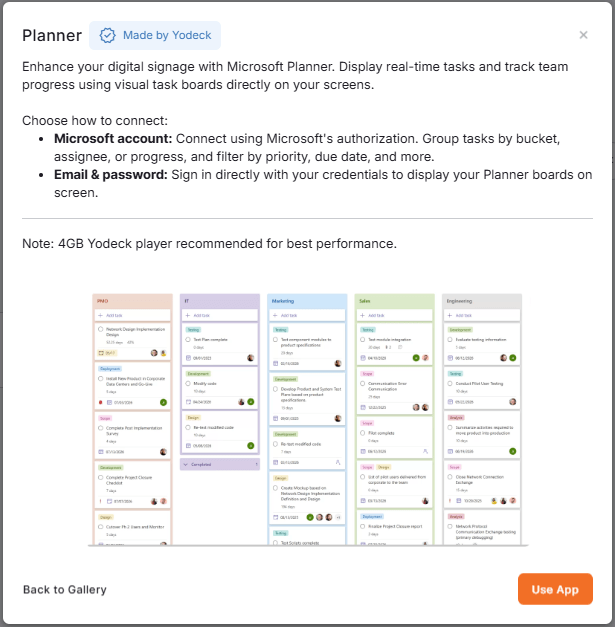
Step 2: Selecting One of the Two Main Options
After clicking the Use App button, a pop-up window presents two log-in options:
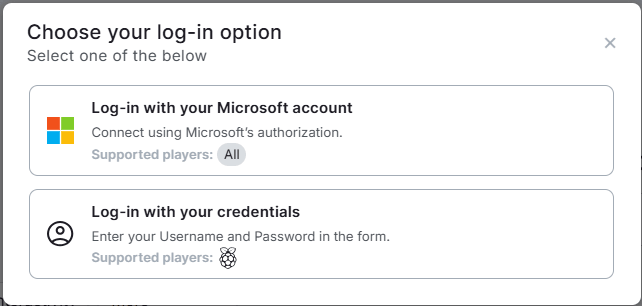
- Log-in with your Microsoft account: Connect using Microsoft’s OAuth 2.0 authorization. Supported players: All. Recommended for most setups.
- Log-in with your credentials: Enter your username and password directly in the form. Supported players: Raspberry Pi only. Preserved for backward compatibility with the legacy authentication method.
💡 Tip: Choose Log-in with your Microsoft account for secure OAuth authentication that works on all Yodeck player types.
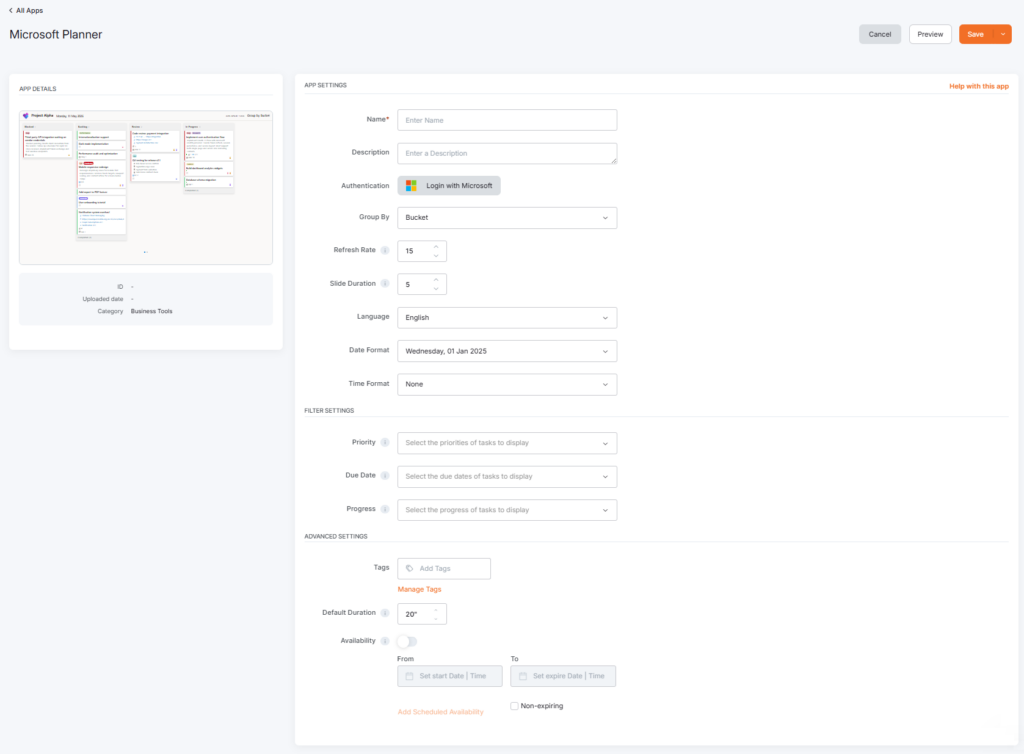
Step 3: Filling in the App Details
Depending on the log-in option you chose in Step 2, fill in the app details using the appropriate tab below.
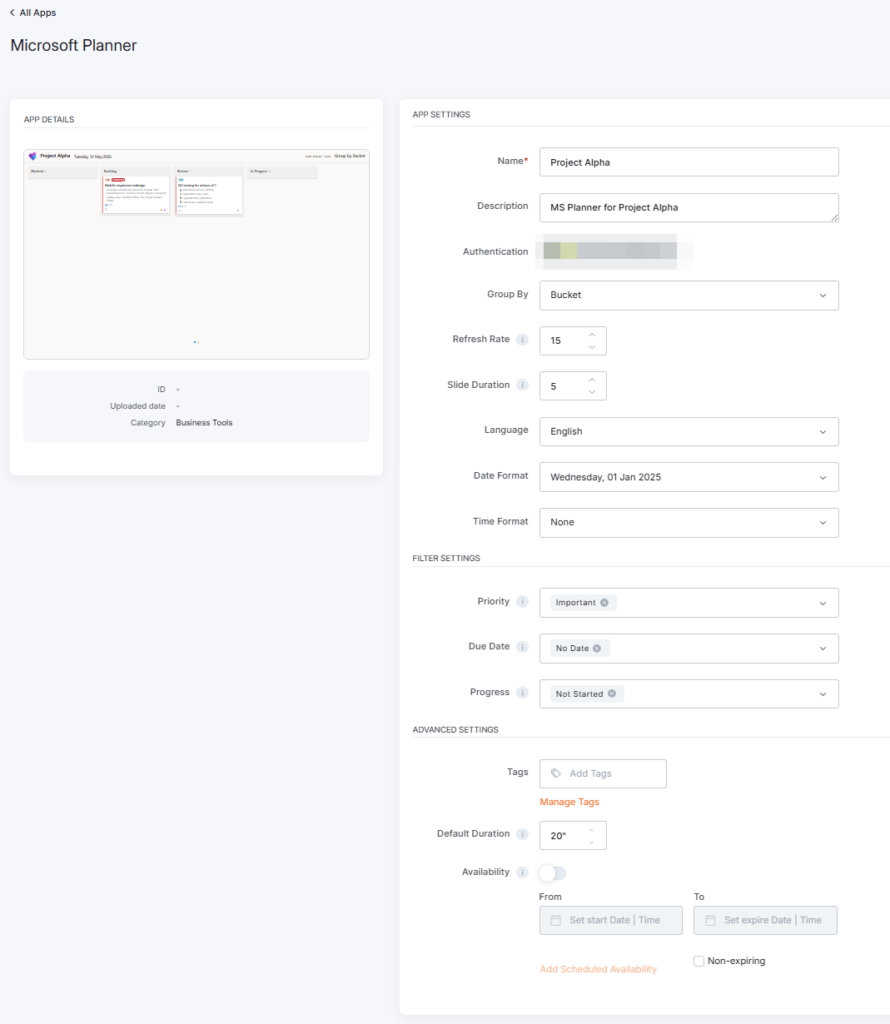
- First, provide a Name for the app (required) and, optionally, a Description.
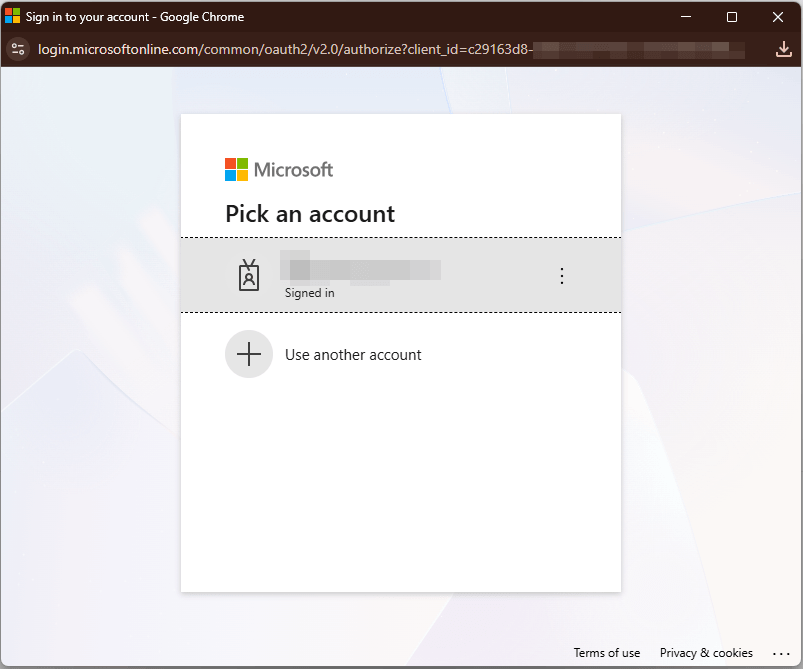
- Click Login with Microsoft. A Microsoft sign-in window opens. Sign in with the Microsoft 365 account that has access to the Planner plan you want to display, and authorize Yodeck to read your Planner data through Microsoft Graph.
Once authorization succeeds, Yodeck stores a refresh token and reconnects automatically. No password is stored in Yodeck. - From the Select Plan dropdown, choose the Planner plan you want to display. ℹ️ Each Microsoft Planner App instance displays a single plan. To rotate between multiple plans on the same screen, create one app per plan and add them to a playlist.
- Choose the Group By option:
- Bucket: Tasks are grouped by their Planner bucket (Kanban-style columns). This is the default and mirrors how your team works in Planner.
- Assigned To: Tasks are grouped by the person they are assigned to. Ideal for showing each team member’s workload at a glance.
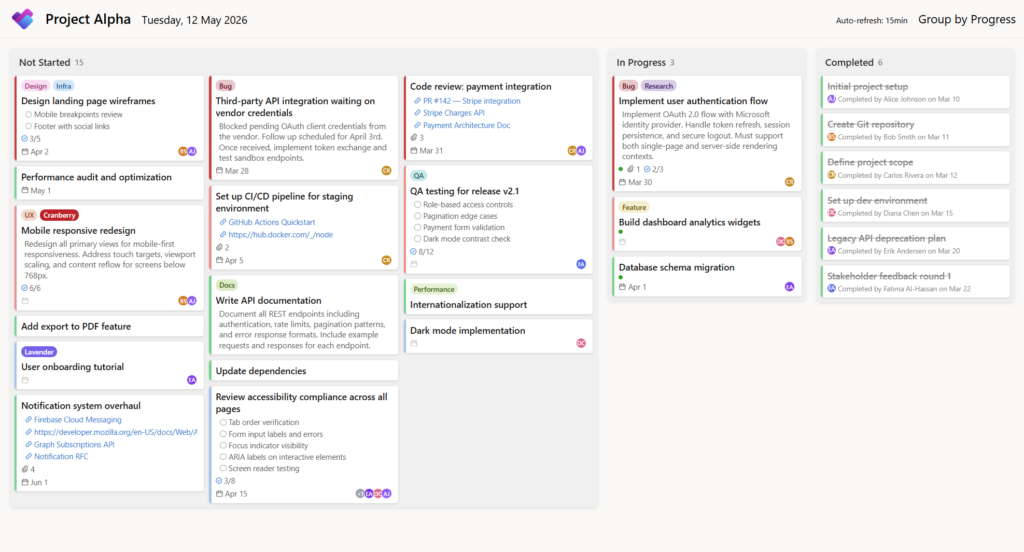
- Progress: Tasks are grouped by status (Not Started, In Progress, Completed). Ideal for project status displays.
- Set the Refresh Rate (minutes). Default: 15.
- Set the Slide Duration (seconds). Default: 5.
- Choose the Language for Yodeck’s UI strings (column titles, badges, status labels, error messages). Supports 22 languages, including Arabic with full right-to-left layout. Microsoft-supplied content like task titles, descriptions, and comments appears in the language used in Planner.
- Choose the Date Format and Time Format for the date and time area at the top of the board. Set Time Format to None to hide the time.
- (Optional) Configure the Filter Settings to restrict which tasks appear on the board:
- Priority: Urgent, Important, Medium, Low.
- Due Date: Late, Today, Tomorrow, This Week, Next Week, Future, No Date.
- Progress: Not Started, In Progress, Completed.
- (Optional) Add Tags to organize and find your Microsoft Planner apps faster.
- Set the Default Duration for use in playlists.
- (Optional) Set the Availability by configuring start and end dates, or leave it as non-expiring. See the Media Availability guide for details.
- Click Save.
- ✅ Your Microsoft Planner App is now ready to assign to a player or add to a playlist.
⚠️ Heads up: The credentials log-in option is supported only on Raspberry Pi players. If you are using any other Yodeck player type, return to Step 2 and choose the Microsoft account log-in option instead.
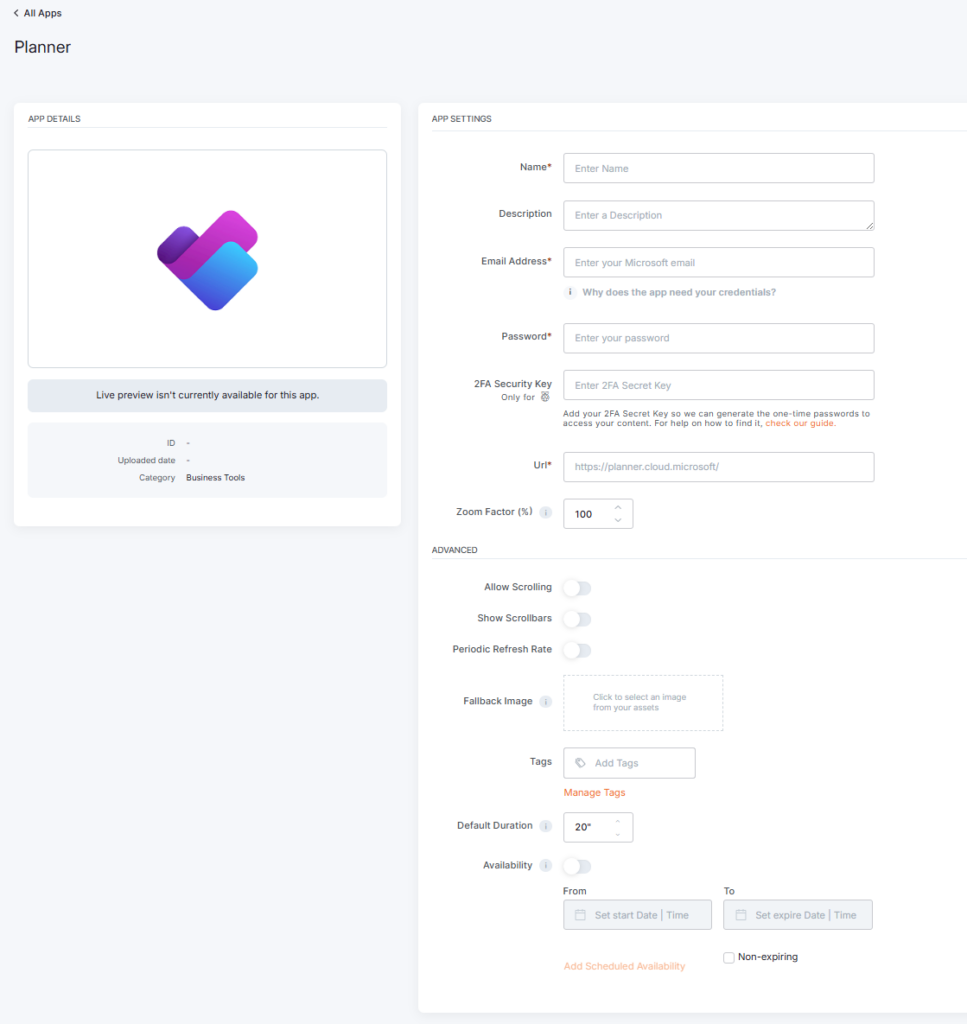
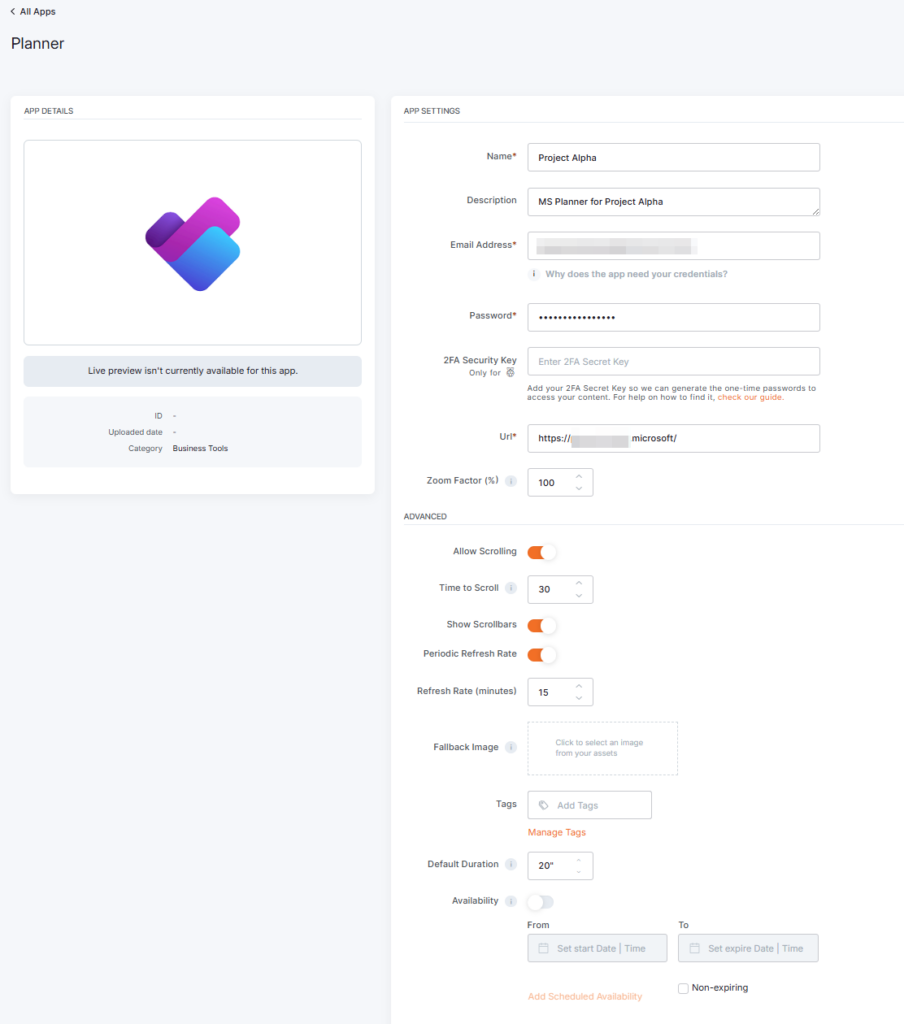
- First, provide a Name for the app (required), and optionally a Description.
- Enter the Email Address and Password for the Microsoft account that has access to the Planner board.
- (Optional) Enter your 2FA Security Key so Yodeck can generate the one-time passwords needed to access your content. See the Find Your 2FA Security Key guide for help locating it. ℹ️ If 2FA/MFA is disabled on your Microsoft account, you can leave this field empty.
- In the Enter URL field, paste the URL of the Planner board you want to display. ℹ️ Only links from the web version of Planner (
https://planner.cloud.microsoft.com) are supported. Links from Microsoft Teams or SharePoint do not work directly. Every Microsoft Planner board, including boards initiated through Teams or SharePoint, can be accessed through the web version, so locate the board there and copy its URL. - Adjust the Zoom Factor (%) to improve readability on screen.
- (Optional) Enable Allow-Scrolling for large task boards.
- Time to Scroll: Here, you can control the app’s scroll time. Default is 30″.
- (Optional) Enable Show Scrollbars to make the scrollbars visible on screen.
- (Optional) Enable Periodic Refresh Rate to control the app’s refresh rate in minutes.
- Refresh Rate: Here, you can select your preferred refresh rate of the app in minutes. Default is 15′.
- (Optional) Upload a Fallback Image to display if the board fails to load.
- (Optional) Add Tags to organize and find your Microsoft Planner apps faster.
- Set the Default Duration for use in playlists.
- (Optional) Set the Availability by configuring start and end dates, or leave it as non-expiring. See the Media Availability guide for details.
- Click Save.
- ✅ Your Microsoft Planner App is now ready to assign to a Raspberry Pi player or add to a playlist.
ℹ️ Additional notes on the credentials log-in path:
- The credentials path embeds the Microsoft Planner web view directly.
- The Yodeck portal does not provide a live preview of board content for the credentials path. Save the app and assign it to a Raspberry Pi player to see how the board renders.
💡 Tip: The board auto-detects your screen’s orientation and scales every element (cards, fonts, gaps, icons) to fit landscape and portrait setups cleanly.
How the Board Works on Screen
The behavior described in this section applies to the Microsoft account log-in option, which uses a Yodeck-built display widget. The credentials log-in option embeds the Microsoft Planner web view directly and behaves like Microsoft Planner in a browser. The Microsoft Planner App’s display widget runs in a read-only display mode for digital signage.
Display mode (default for signage)
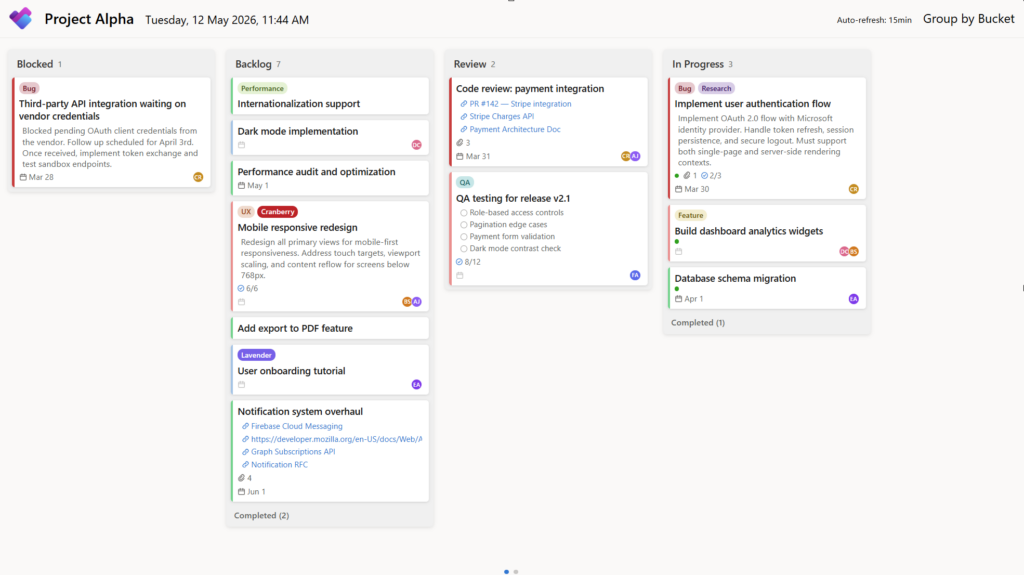
The board displays as a read-only, auto-paginating slideshow:
- Buckets are shown in pages. If all buckets don’t fit at once, the board advances to the next page after the configured Slide Duration.
- Tasks within each bucket are split into sub-columns so every task is visible without vertical scrolling. Nothing is cut off.
- Long bucket columns that span multiple pages show (cont.) in the header on continuation pages.
- Page indicators appear at the bottom (for example, dots showing 1 of 3).
- Completed tasks appear in a collapsed Completed section showing the total count.
- The board refreshes automatically in the background based on the configured Refresh Rate. If the player loses connectivity, the board keeps showing the last known state until the connection is restored.
Final Result
Once saved and assigned to a player, your screen displays a live Microsoft Planner board, organized exactly as you have it in Planner, cycling through all buckets automatically.
Best Practices
- Use Group By Bucket for a Kanban-style board that mirrors how your team works in Planner.
- Use Group By Assigned To in team areas to show each person’s workload at a glance.
- Use Group By Progress in project spaces to display a clear Not Started, In Progress, Completed view.
- Set a Refresh Rate of 5 to 15 minutes for active projects. Increase it for boards that change less frequently to reduce API load.
- For large boards with many buckets, set a Slide Duration of 10 to 15 seconds so viewers have time to read each page.
- Use Due Date and Priority filters to highlight only urgent or overdue tasks on operational screens.
- Place the board in office common areas, team rooms, or near stand-up spaces for maximum visibility.
Troubleshooting
You can click the expandable arrows below to reveal troubleshooting methods for common Microsoft Planner issues.
The board is blank or shows a loading error.
Check that the Microsoft account used for login still has access to the plan. If access was revoked in Microsoft 365, reconnect the app using an account with the correct permissions.
Tasks are missing from the board.
Review your Priority, Due Date, and Progress filter settings. Deselecting all options in a filter category shows every task in that category. If filters are not the cause, confirm that the tasks exist in the selected plan in Microsoft Planner.
The board is not refreshing.
Check the player’s network connection. The board fetches data from Microsoft Graph. If the player loses connectivity, it continues showing the last known state until the connection is restored.
Login with Microsoft fails.
Make sure pop-ups are not blocked in the browser and that the Microsoft account has permission to access Planner through Microsoft Graph. Contact your Microsoft 365 administrator if the issue persists.
Dates appear in the wrong format.
Adjust the Date Format and Time Format settings in the app configuration to match your preferred regional format.
F.A.Q.s
Got questions? We’ve got answers! This section addresses common questions about the Microsoft Planner App.
Does the Microsoft Planner App work on all player types?
Yes. The Microsoft Planner App runs on every Yodeck-supported player: Raspberry Pi, Android, Tizen, webOS, Windows, BrightSign, ChromeOS, and Web Player.
How is this different from the previous Planner app?
The Microsoft Planner App modernizes Yodeck’s Planner integration. The headline change is OAuth 2.0 sign-in through your Microsoft account, which is more secure and works on every Yodeck player type (the legacy app was Raspberry Pi only). The OAuth path also brings a redesigned, Yodeck-built board with grouping, filtering, multi-language support, and auto-pagination. The original credentials-based method is preserved inside the new app for Raspberry Pi as a backward-compatibility option.
Do I need a specific Microsoft 365 plan?
You need a Microsoft 365 account that includes Microsoft Planner access. Most Microsoft 365 Business and Enterprise plans include it.
Can I show multiple Planner plans on the same screen?
Each Microsoft Planner App instance shows one plan. To display multiple plans, create separate app instances and combine them in a playlist or layout.
Is the board interactive?
No. By default, the board runs in display (view-only) mode for digital signage.
Can I filter tasks by label or assignee?
The initial filter settings configured in the app (Priority, Due Date, Progress) apply in view-only mode.
Can I use the Microsoft Planner App inside a layout?
Yes. Add the app to a Yodeck layout zone alongside other content. For boards with many buckets or long task cards, a full-screen app or a layout with a generous zone size will read better.
What happens if the player loses internet temporarily?
The board keeps showing the last known data until the connection is restored. When the player reconnects, the next scheduled refresh pulls fresh data from Microsoft Planner automatically.
Which elements in the “Language” drop-down menu are translated by Yodeck, and which are translated by external platforms?
– Only Yodeck’s built-in text is translated. This includes: labels, headings, and any text generated directly by the Yodeck app.
– Content coming from external platforms or APIs is not translated by Yodeck. This includes:
Data retrieved from external services (e.g., quotes, calendar events), posts or media from social platforms, text or metadata supplied by the API source, and system messages generated by external platforms.
Need Help?
The Yodeck Support Team can help you out! Log in to your Yodeck account and send us a message from the bottom right corner!