Skip to content
yodeck digital signage
  • FAQ
  • Support Center
  • Contact
  • Home
  • Getting Started
    • Portal Overview
      • Overview of the Yodeck Portal
      • Pushing Changes to Screens
      • Help Icons
    • Creating a Yodeck Player
      • Creating a Yodeck Player - Introduction
      • Creating a Yodeck Player based on Raspberry Pi 4
        • Downloading and using Etcher
        • Yodeck Raspberry Pi Compatibility Chart
        • Creating a Yodeck Player based on Raspberry Pi 4 - Introduction
        • Raspberry Pi Comparison
        • What is the Yodeck Player?
        • Notes for the RPi 4
        • Connect the Yodeck Player to a WiFi using your mobile phone by scanning a QR code
      • Creating a Yodeck Player based on Raspberry Pi 5
        • Creating a Yodeck Player based on Raspberry Pi 5 - Introduction
        • Raspberry Pi 5 Limitations
      • Creating a Yodeck Player based on Chrome browser
        • Setting up a Yodeck Web Player
        • Comparison Table RPi vs Web player
        • Web Player Chrome Extension and PWA
      • Create a Yodeck Android Player
        • Create a Yodeck Android Player - Introduction
        • Setting up an Android player with the Yodeck Software (via APK)
          • Setting up an Android player with the Yodeck Software (via APK--Android 7 or earlier)
          • Install Yodeck in Android with Setup Helper
          • Setting Up Remote Device Management (RDM) on a Sony Bravia Professional Display with the Yodeck Android (APK)
          • Setting Up Remote Device Management (RDM) on a Sharp ME Display with the Yodeck Android (APK)
        • Creating a Yodeck player based on Android
          • Setting up an Android player with the Yodeck Software (from Play Store)
          • Tested and Approved Android Devices
          • Android Limitations
      • Create a Yodeck Amazon Player
        • Create a Yodeck Amazon Player - Introduction
        • Setting up a Yodeck Amazon FireOS Player
        • Creating a Yodeck Player based on Amazon FireOS TV/Stick
          • Setting up a Yodeck Amazon Signage Stick Player
          • Amazon FireOS Limitations
      • Creating a Yodeck Player based on Brightsign
        • Setting up a Brightsign player with the Yodeck Software
        • Comparison Table RPi vs Brightsign player
        • Supported Brightsign Players
      • Creating a Yodeck Player based on Tizen
        • Samsung SSSP / Tizen Supported Devices
        • Setting up a Tizen player with the Yodeck Software
        • Tizen Limitations
        • Update the firmware version on your Samsung Tizen TV
      • Creating a Yodeck Player based on webOS
        • Setting up an LG webOS player with the Yodeck Software
        • LG webOS Supported Devices
        • LG webOS Limitations
      • Creating a Yodeck Player based on Windows
        • Setting up a Windows player with the Yodeck Software
        • Windows Supported Devices
        • Installation Guide of WMIC Utility for Windows 11
        • How to uninstall the Windows application
      • Creating a Yodeck Player based on ChromeOS
        • Setting up a Yodeck ChromeOS Player
        • ChromeOS Limitations
    • Getting Started FAQs
    • Logging into the Yodeck Portal and creating an account
  • Navigating the Platform
    • Main Menu Overview
    • Dashboard Overview
    • The Dashboard
  • Media & Apps Management
    • Media Overview
      • Supported File Extensions
    • Media Library
      • Audio Assets
      • Documents
      • Scheduled Availability
      • Images
        • Gallery
        • Images Introduction
      • Videos
        • How to create a simple Video-wall with Yodeck
        • How to setup an HDMI video feed input or connect a USB camera (Video Input)
        • Recommended USB devices
        • Videos Introduction
      • Web Pages
        • Web Pages Introduction
        • Web Scripting Engine & Webpage Recording Tool
          • Hide Cookie Banner - Script Automation (BETA) 
          • Webpage Recording Tool
          • Web Scripting Engine
            • Scripting Engine Reference
            • Scripting FAQ
            • Scripting Templates
            • Tutorial - Google Analytics
            • Tutorial - How to remove the cookie pop-up from your web page media
            • Useful Scripts To Use
            • Mask your credentials at the Scripting Engine text field
    • Media Management FAQs
    • Apps
      • Apps Introduction
      • Available Apps!
      • App Compatibility Table
      • Weather Apps
        • Current Weather
        • Daily Weather
        • Hourly Weather
        • Weather Radar
        • Weather Wall
      • Time Apps
        • Analog Clock
        • Counter Down
        • Counter Up
        • Date & Time
        • Word Clock
        • World Clock
      • General Apps
        • Bamboo HR
        • Ticker
        • Google Slides
        • DSMenu
        • TV Source
        • Teams Celebrations
        • Google Sheets
        • WiFi Share
        • Embed
        • Player Basic Info
        • Google Traffic
        • Waze
        • Birthday Notification
        • PosterMyWall
        • WikiQuotes
        • QR Code
        • Online Slideshow
        • Rich Text
        • Interactive Kiosk
          • Custom Keyboard Guide for Interactivity
          • Interactive Kiosk - Introduction
      • News Apps
        • Al-Jazeera RSS
        • Bloomberg News
        • BBC RSS
        • CBC RSS
        • CNN RSS
        • CTV News
        • ESPN RSS
        • Fox News
        • Google Alerts
        • Google News RSS
        • NU.nl News RSS
        • SharePoint News
        • Sky News RSS
        • The Guardian RSS
        • The New York Times
        • The Wall Street Journal
        • Yahoo
        • Custom RSS
      • Social Apps
        • Facebook
        • Instagram
        • LinkedIn
        • Twitter
        • Taggbox Display
        • Microsoft Teams Town Hall
        • Walls.io
      • Calendar Apps
        • Calendar Apps Introduction
        • Google Calendar
        • Outlook Calendar
        • Daily/Weekly Calendar
        • Monthly Calendar
        • Calendar Events Feed
      • Dashboard Apps
        • Power BI
        • Google Looker Studio
        • SmartSheet
        • Airtable
        • Tableau JWT
        • Cyfe
        • My Dashboard
        • Asana
        • Tableau
        • Google Analytics
        • Xero
        • Fathom
        • Shedul
        • Trello
        • Zoho
        • Baremetrics
        • Putler
        • ChartMogul
        • Chargebee
        • Zenkit
        • Grafana
        • Display "ServiceNow" Data on Your Screens Using Yodeck’s Grafana App
        • Monday.com
        • Jira
        • Power BI with Service Principal
          • Power BI with Service Principal - Introduction
          • Power BI with Service Principal - Identity Requirements
      • Business Tool Apps
        • Canva
        • Notion
        • Qube
        • Planner App
        • SharePoint
        • Teams Channels
        • Microsoft Teams Rooms
        • Viva Engage
        • Zoom Rooms
      • Interactivity Apps
        • Interactive Kiosk
        • Interactive Library
      • Custom Apps
      • Custom App Developer Guide
        • Static Apps
        • Custom Apps Introduction
        • UI Form Definition for Custom Apps
        • Building a Web App
        • App Codes & Examples
          • Display Public IP (sample App)
          • The Simple Clock
          • Shedul (sample App)
          • Trello (sample app)
          • Current Weather
          • Digital Clock (sample App)
          • Monthly Calendar
          • Calendar Events Feed
          • Date&Time App Code
          • Daily Weather App Source Code
          • ChartMogul (sample app)
          • Sample Web Widgets
          • Sample HTML Widgets
          • Tutorial - Your 1st Widget
          • Baremetric (sample app)
          • Hourly Weather App Source Code
          • Google Calendar (Sample App)
          • Count Down/Up
          • Rich Text (Sample App)
          • RSS Custom
        • Building an HTML App
          • Analog Clock (sample App)
          • 4. Adding Transparency (Optional)
          • 3. Making the Clock Efficient
          • HTML App API
          • HTML App Packaging
          • Player HTTP API
          • 2. Add Options to the Clock App
          • 5. Zipping and Uploading the Custom Sample Clock
      • Add-ons
        • Yodeck Assurance
        • Embeddable Feeds - Add-on
          • Embeddable Feeds
          • Counting Embeddable Feeds' Views
    • Apps Management FAQs
    • Media Availability
  • Content Management & Scheduling
    • Playlists
      • Playlists Introduction
      • Managing Playlists with Folder View ON
      • Interactive Playlist
      • Playlist of Layouts
      • Tag-Based Playlist [Premium & Enterprise Plans only]
      • Sub-Playlists [Premium & Enterprise Plans only]
      • Import CSV [Premium & Enterprise Plans only]
      • OneDrive Playlist
      • Google Drive Playlist
      • Dropbox Playlist
        • Dropbox Playlist Introduction
        • Dropbox - OneDrive - SharePoint - Google Drive - Google Photos Supported Media Formats
      • Playlists' FAQs
    • Layouts
      • Getting Started with the Yodeck Layout Editor
      • Editing and Customizing Content in the Layout Editor
      • Working with Screen Sizes and Aspect Ratios in the Layout Editor
      • Locking Elements and Controlling Access in the Layout Editor
      • Advanced Settings and Scheduling Layouts in the Layout Editor
      • Branded Templates: Create and Manage Reusable Layout Designs
      • Layouts' FAQs
    • Schedules
      • Schedules Introduction
      • Examples of Schedules
      • Turned Off option - How to Turn your TV On and Off
      • Schedules' FAQs
    • Prioritization of Content Types
  • Screen & Device Management
    • Screens Overview
      • Screens Overview Introduction
      • Location
      • Basic Info
      • Status
      • Media Filtering
      • Screens Table Manual
      • Working Hours
      • Screen Takeover
    • Adding & Managing Screens
      • Screen Email Notifications
      • Sound/Display
        • Sound/Display Introduction
        • Support for LED board screens and billboards
      • Network
        • Network Introduction
        • Proxy
        • Static IPs
        • Keeping Your Players on Time by Configuring an NTP Server
        • Wireless
          • Configuring your player's WiFi network by editing the SETTINGS.TXT file
          • Configuring your WiFi network using an Ethernet cable
          • Quickly connect your Yodeck player to your WiFi network by using the WiFi wizard
          • Wireless Introduction
        • 3G/4G/LTE
          • Advanced Configuration for 3G / 4G / LTE modems
          • 3G/4G/LTE Introduction
    • Assigning Content to Screens
      • How to quickly assign content to your Screens
    • Monitoring Screen Status
    • Advanced Screen Options
      • Advanced Screen Options Introduction
      • On-screen Messages
      • Timed Events
      • Customization
        • Custom arguments/policies for Chromium
        • Customization Introduction
        • How to add custom proxy settings per Web Page using the Advanced Player Directives
      • Security
        • Security Introduction
        • Custom Certificates
        • Encrypt Player Storage [Enterprise Plan only]
        • Lock Down Player [Enterprise Plan only]
    • Interactivity
      • Interactivity Introduction
      • GPIO-Triggered Signage with Yodeck
        • GPIO Demo App: ON/OFF Trigger Example
        • GPIO HTTP API
        • GPIO Technical Documentation
        • Introduction to GPIO-Triggered Signage with Yodeck
    • Screen FAQs
  • User & Account Settings
    • Users & Groups
      • Users
      • Custom Roles
      • Groups
    • Account Settings
      • Account settings Introduction
      • Playback Reports
      • Volume Schedules
      • Security Policies
      • Audit Log
      • Custom Fonts
      • Players Boot Logo
      • Emergency Alerts
        • Default Emergency Alert Types
        • Common Alerting Protocol (CAP) Integration
        • National Weather Service Alerts
        • Emergency Alerts Introduction
      • Single Sign-on (SAML 2.0)
        • How to configure SSO with Salesforce
        • Introduction to Single Sign-on (SAML 2.0)
        • How to configure SSO with ADFS
        • How to configure SSO with Azure Active Directory (Microsoft Entra)
        • How to configure SSO with G Suite
        • How to configure SSO with OneLogin
          • How to configure SCIM with OneLogin
        • How to configure SSO with Okta
          • How to configure SCIM with OKTA
        • How to configure SSO with Azure Active Directory (Microsoft EntraID)
          • How to configure SCIM with Azure directory (EntraID)
    • Workspaces
      • Workspace Hierarchies
      • Workspaces Introduction
    • User & Account FAQs
    • My User Profile
    • Yodeck Unlimited Access Period
    • Subscriptions & Billing
    • Canceling Your Subscription and Deleting Your Account
  • Help & Troubleshooting
    • Help Menu Overview
    • Troubleshooting
      • Issues with Logging into Yodeck Portal
      • Step-by-Step Troubleshooting Guide
    • Help & Troubleshooting FAQs
      • Tech FAQs
      • General FAQs
  • Best Practices
    • Best Practices Overview
    • Coming Soon!
  • Partner Portal
    • Partner Administrative Console
      • Introduction to Partner Administrative Console
      • Invoices
      • Recent Actions - Support/Download Links - Contact Us
      • Staff Permission Roles
      • Magic Write – Site Admin Guide (White Label Partners & Resellers)
      • Quick Links
        • Order Form for Partners
        • Quick links - Introduction
      • Applications
        • 2.5 My Users
        • Applications Introduction
        • 2.2 Site Settings
        • 2.3 Accounts
        • 2.4 Devices
        • 2.1 Audit Logs
      • Creating Whitelabel Playlists
        • Create a Whitelabel OneDrive playlist
          • How to configure the OneDrive Playlist to your client's account
          • Introduction to Creating a Whitelabel OneDrive playlist
        • Create a Whitelabel Dropbox playlist
          • How to configure the Dropbox Playlist to your client's account
          • Introduction to Creating a Whitelabel Dropbox playlist
        • Create a Whitelabel Google Drive playlist
          • How to configure the Google Drive Playlist to your client's account
          • Introduction to Creating a Whitelabel Google Drive playlist
    • Partner Portal FAQs
    • Introduction to Yodeck Partner Manual

HOME Documentations Yodeck User Manual User & Account Settings Yodeck Unlimited Access Period

Yodeck Unlimited Access Period

Last updated on March 2nd, 2026

Table of Contents

  • Overview
      • Unlimited Access Period with No Payments or Obligations
      • Available only to New Signups starting from March 2, 2026!
      • Differences between the Former “Free Plan with basic features” vs the Latest “Unlimited Access Period“
  • What the Unlimited Access Period is
  • How the Unlimited Access Period works
      • The Yodeck Unlimited Access Period Starts Automatically
    • 1️⃣Day 1: You sign up, and the Unlimited Access Period starts automatically
      • ℹ️Post-signup Informative Pop-up Window
      • ℹ️Unlimited Access Period Status Banner on the Dashboard
    • 2️⃣Day 25: You get a notification reminder
      • Before your Unlimited Access Period ends
    • 3️⃣Day 30: The Unlimited Access Period ends
      • Full list of Features Per Plan
  • What happens after the Unlimited Access Period ends
    • If you Upgrade:
    • If you do Not Upgrade:
  • Real-World Examples
  • F.A.Q.s
  • Need Help?

Overview

Yodeck offers a 30‑day Unlimited Access Period for all new signups. Instead of starting on a limited free plan, every new account begins with full access to all Yodeck features for 30 days. This approach makes it easier to evaluate Yodeck in real‑world conditions, reduces friction during setup, and helps you understand the full value of the platform before deciding to upgrade. Therefore, this article explains how the Yodeck (30-Day) Unlimited Access Period works, what you can do during it, and what happens when it ends.

info

Unlimited Access Period with No Payments or Obligations

You can start the Unlimited Access Period during sign-up, without payment or obligations. It really is 100% free!

info

Available only to New Signups starting from March 2, 2026!


This 30-day Unlimited Access Period to the Yodeck platform is available only to new signups starting from March 2, 2026!
Clients who signed up before March 2, 2026, continue with the former model of our Free Plan with basic features or the paid plan they chose.

info

Differences between the Former “Free Plan with basic features” vs the Latest “Unlimited Access Period“

The Free Plan allows for one (1) free screen and certain basic plan apps and features, whereas the Unlimited Access Period allows for five (5) free screens and all the apps and features of the Yodeck platform.


What the Unlimited Access Period is

When you create a new Yodeck account, you automatically start with 30 calendar days of unlimited access to the platform’s features and apps, as well as five (5) screens.

This 30-day Unlimited Access Period is designed for everyone, from small businesses setting up their first screen to larger teams evaluating Yodeck across multiple locations. It lets you explore Yodeck the way it’s meant to be used in the real world, without having to choose a plan first.

During the Unlimited Access Period, you can:

  • Use all Yodeck features and apps.
  • Connect up to five (5) screens.
  • Test Yodeck on any supported hardware (Yodeck Players or your own compatible devices)

At the end of the 30 calendar days, you decide what’s next:

  • Upgrade to one of our paid plans and keep all features, apps, and the five (5) screens (or less or more),
    or
  • Downgrade by continuing on the Free Plan with one (1) free screen, basic features, and apps.

⚠️Visuals and wording in the app may evolve over time, but the Unlimited Access Period rules and limits remain the same.


How the Unlimited Access Period works

This section explains what happens during the Unlimited Access Period, when it starts, what you can do, and what choices you have when the 30 days end.

info

The Yodeck Unlimited Access Period Starts Automatically

When you sign up, the Unlimited Access Period starts automatically. There’s nothing to activate.

1️⃣Day 1: You sign up, and the Unlimited Access Period starts automatically

Your account is ready for real testing right away. What you can do immediately:

  • Register up to five (5) screens.
  • Create content.
  • Create Playlists and Sub-playlists.
  • Create Layouts and branded templates.
  • Set up Scheduling (dayparts, weekly schedules, special events).
  • Set up Workspaces (for different locations, departments, or customers).
  • Try Premium Apps and content integrations.
  • Try Premium Features.
  • Publish and check playback results.
  • Invite teammates to collaborate.

📩While you’re on the Unlimited Access Period, Yodeck keeps you informed with simple, in-platform messaging.

ℹ️Post-signup Informative Pop-up Window

Right after signing up, you’ll see all the major Unlimited Access Period information:

  • That you have 30 days of full access.
  • That you can connect up to five (5) screens.
  • What will happen after the Unlimited Access Period ends?
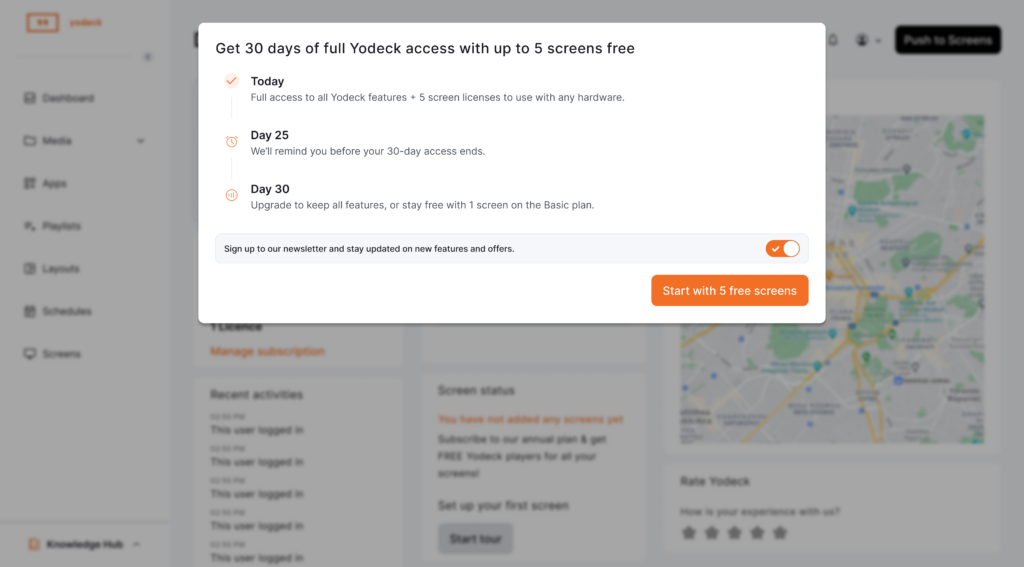
Post-signup Informative Pop-Up Window displaying the 30-day full Yodeck platform's access period with availability of up to five screens.
1) Post-signup Informative Pop-Up Window

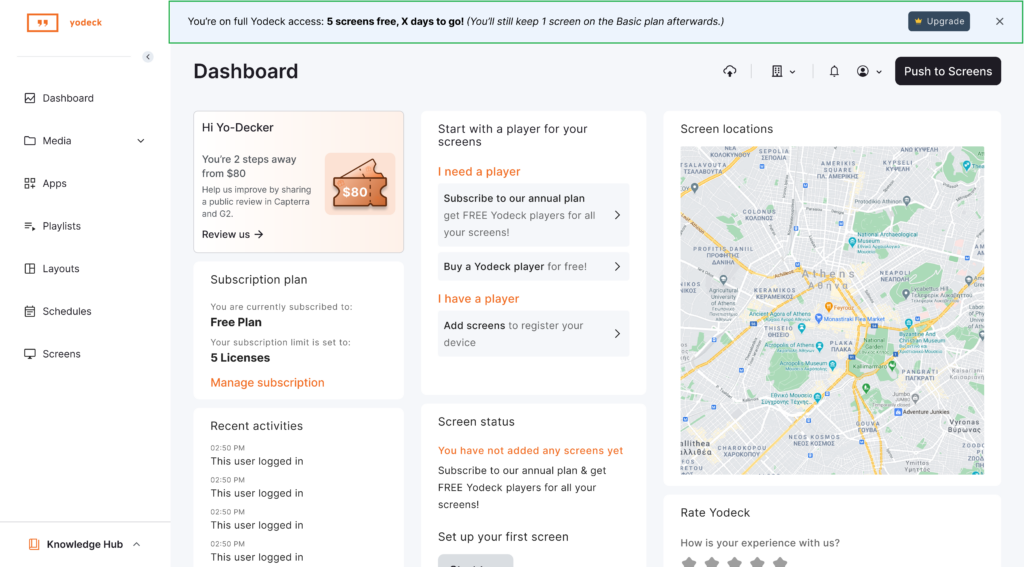
ℹ️Unlimited Access Period Status Banner on the Dashboard

A banner at the top of the platform’s dashboard shows:

  • You’re on full access.
  • Your Unlimited Access Period screen allowance.
  • How many days do you have left?
Post-signup Informative banner displaying inside the Yodeck platform the remaining number of screens and days available of the Unlimited Access Period.
2) Unlimited Access Period Status Banner on the Dashboard

💡All Unlimited Access Period limits are enforced automatically, so you don’t need to worry about misconfiguring anything.

2️⃣Day 25: You get a notification reminder

You will receive an email notification on the 25th day of the Unlimited Access Period, and you will also see an in-app reminder so you’re not surprised by the end date.

Before your Unlimited Access Period ends

If you plan to keep using Yodeck after the Unlimited Access Period, we recommend taking the following actions before the Unlimited Access Period’s end date:

  • Connect the screens you plan to use long-term.
  • Test real schedules, layouts, and content.
  • Confirm the player hardware you’re happy with.
  • Upgrade before the Unlimited Access Period ends to keep your content and full setup.

💡Completing these steps ensures your setup continues exactly as tested, without interruptions or data loss.

3️⃣Day 30: The Unlimited Access Period ends

If you have not upgraded before the Unlimited Access Period’s end, you will see on the platform a clear choice in the form of a pop-up window on the day the 30-day Unlimited Access Period ends:

Specifically, you’ll see the following two options:

  • Upgrade to one of our paid plans to keep the features, apps, and number of screens, or
  • Downgrade by continuing with the Free Plan (with 1 free screen), and have access to the basic features and apps.

If you choose not to upgrade at the Unlimited Access Period’s end:

  • Your account is automatically moved to the Free Plan, with one (1) free screen and the Basic plan’s features and apps available.
  • Content created during the Unlimited Access Period is retained as long as it is not based on or is part of the features and apps.
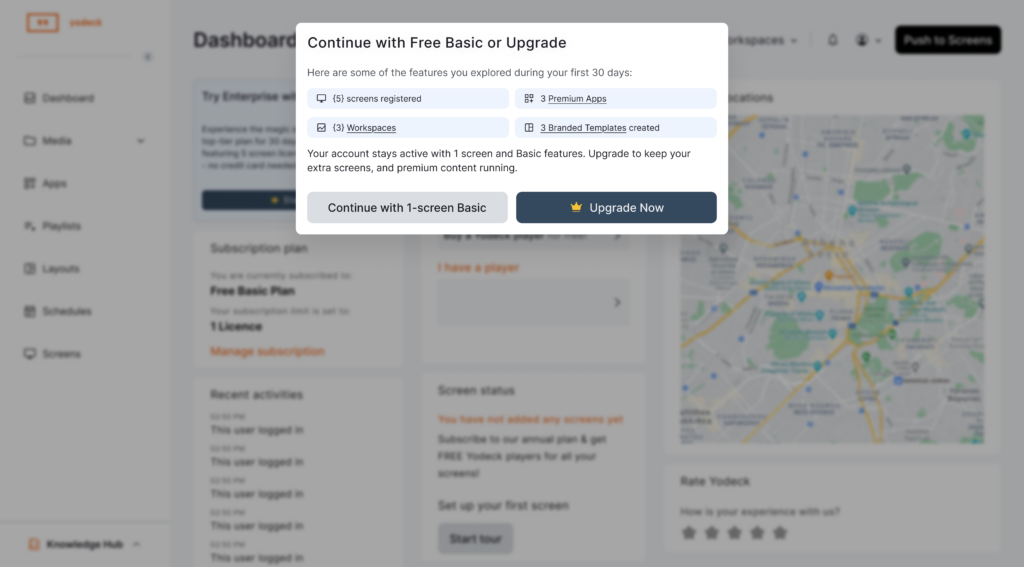
Unlimited Access Period Informative pop-up window displaying the available options to users after the end of the Free Period. The options are to either downgrade or upgrade.
3) End of Unlimited Access Period Decision Pop-up Window

💡Upgrading before the Unlimited Access Period ends ensures there’s no interruption and nothing is lost.

Full list of Features Per Plan

For a full list of all the paid plans (Basic Paid, Premium, and Enterprise) and their respective features, please click the button below:

List of Features per Plan

What happens after the Unlimited Access Period ends

After the Unlimited Access Period ends, what happens next depends on whether you choose to upgrade to a paid plan or continue on the Free Plan with basic features.

If you Upgrade:

  • Your account continues uninterrupted as it is upgraded to the selected paid plan.
  • The screens you tested during the Unlimited Access Period may remain active based on the number of screens you choose when upgrading to your selected plan.
    • For example, if you choose six screens for the selected paid plan, all Unlimited Access Period screens will remain available to you. However, if you select four screens, one Free Period screen (having the highest screen ID number) will be disabled.
  • All apps from the Unlimited Access Period that are also included in your plan stay enabled. Otherwise, some might get disabled, depending on the selected plan.
  • All features from the Unlimited Access Period that are also included in your plan stay enabled. Otherwise, some might get disabled, depending on the selected plan.
  • All content you created during the Unlimited Access Period is preserved.

💡Upgrading can turn your Unlimited Access Period setup into your production setup, with no resets or reconfiguration required, depending on your plan and screen selection.

If you do Not Upgrade:

  • Your account is downgraded and continues on the Free Plan with basic features while remaining active.
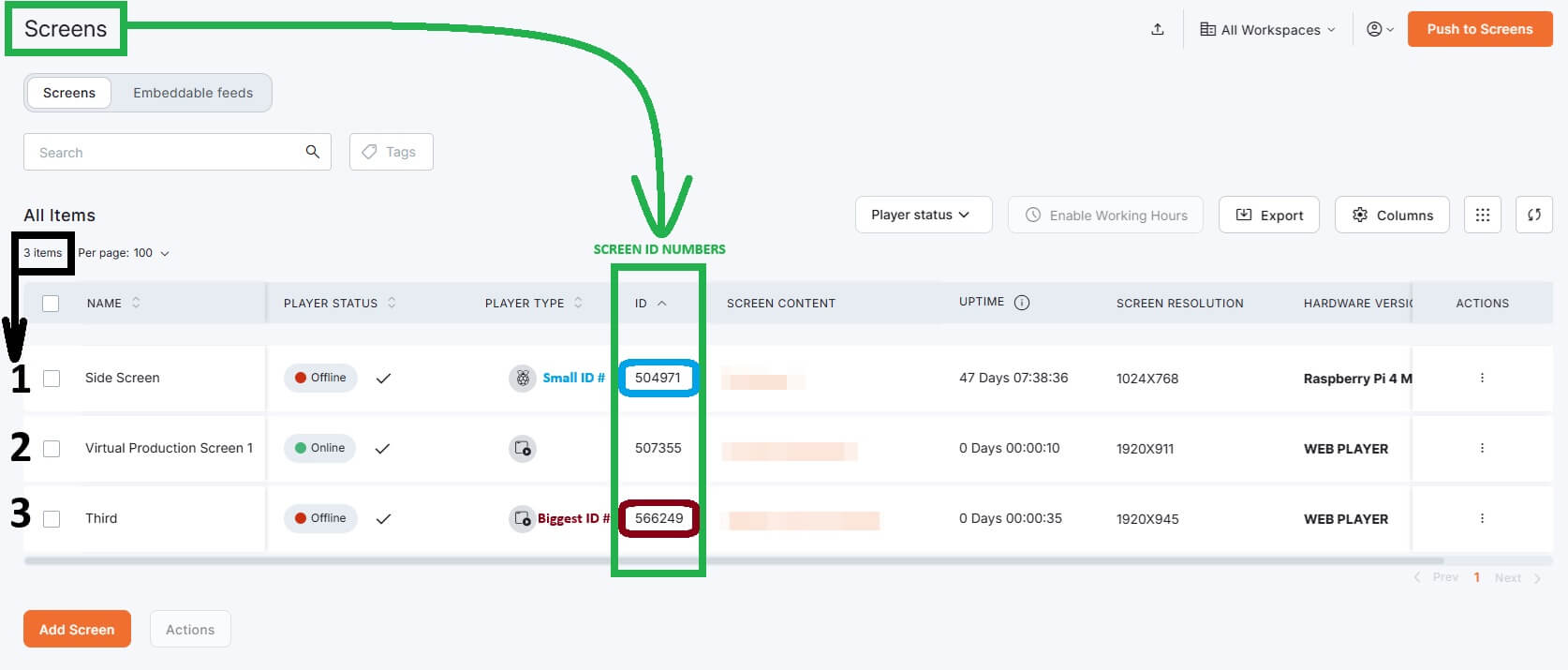
  • Only one (1) free screen remains active, while the four (4) remaining screens are disabled (they stop playing content). The first initialized screen (meaning the one with the smaller ID number) is the one screen that remains active, by default. However, you can disable the first (default) screen and enable one of the other screens. Only one screen may remain active at any given time.
    Screens page in Yodeck displaying the Screen ID numbers as an example of how each screen ID number is handled after the Free Period ends in relation to which screen remains active and which ones do not.
  • Only Free Plan apps are available. Premium/Enterprise apps are disabled.
  • Only Free Plan features are available. Premium/Enterprise features are disabled.
  • Content created during the 30-day Unlimited Access Period is retained as long as it is not part of or belongs to any Premium/Enterprise features and apps.
💡If you want to keep your content and your full setup intact, you’ll need to upgrade before or during the Unlimited Access Period’s end.


Real-World Examples

The examples below (click to reveal!) showcase how different customers typically use the Unlimited Access Period in real situations. You may recognize your own use case and better understand what happens during and after the Free Period, depending on how you use or wish to use Yodeck.


Example 1: A small business testing two screens

Maria runs a café and wants digital menus.

  • She signs up, and the Unlimited Access Period starts automatically.
  • She connects 2 screens using Android players she already owns.
  • She tests schedules (breakfast vs lunch menus) and updates content daily.

After 30 days:

  • She upgrades to keep both screens running.
  • Nothing changes. Her setup and content continue without interruption.

Example 2: An IT manager comparing hardware (Raspberry Pi vs Android)

Alex manages screens for a retail chain.

  • He signs up and connects 5 screens.
  • He tests 3 Raspberry Pi setups and 2 Android devices.
  • He compares stability, setup time, and daily operations.

After 30 days:

  • He upgrades and keeps the best-performing setup as his production standard.

Example 3: First-time user not ready to upgrade

Nick signs up to explore, but decides not to upgrade.

  • During the Unlimited Access Period, he uses 3 screens.
  • He creates playlists, schedules, and layouts.

After 30 days:

  • His account continues on the Free Plan with basic features (1 screen).
  • 1 of the 3 screens stays active. This one active remaining screen is the first initially initialized screen having the smaller screen ID number.
  • The other 2 screens are disabled. These two disabled screens follow the first initialized screen and have larger screen ID numbers.
  • His content is retained as long as it is not part of or included in any Premium/Enterprise features or apps.


F.A.Q.s

Got questions? We’ve got answers! This section addresses common questions about the Yodeck Unlimited Access Period.

What’s the best way to use the Unlimited Access Period if I’m evaluating Yodeck seriously?

Set up the screens you actually plan to use, publish real content, and test real schedules. Treat the Unlimited Access Period like a live environment.

Is the Unlimited Access Period intended only for demos?

No. The Unlimited Access Period is designed for real-world testing, not just demos.

Can I add or remove screens during the Unlimited Access Period?

Yes. You can register and manage screens freely, as long as the total stays within the 5-screen Unlimited Access Period limit.

Can multiple people work on the same account?

Yes. You can invite users and manage access so your team can test together.

Can I use the Unlimited Access Period for a proof of concept?

Yes. Many teams use the Unlimited Access Period to build a working proof of concept before making a purchase decision.

Can I pause or extend the Unlimited Access Period?

The Unlimited Access Period runs continuously for 30 calendar days. If you need more time, contact the Yodeck team.

Does Unlimited Access Period usage affect pricing later?

No. Unlimited Access Period usage does not impact pricing.

Is support available during the Unlimited Access Period?

Yes. Unlimited Access Period users have access to Yodeck’s support resources and documentation.

Can I migrate content from another platform during the Unlimited Access Period?

Yes. Many users do this as part of their evaluation.

Where can I find your plans and pricing details?

You can view our plans and pricing from your dashboard and on the Yodeck website.


Need Help?

The Yodeck Support Team can help you out! Log in to your Yodeck account and send us a message from the bottom right corner!


  • Homepage
  • General
    • What is Digital Signage
    • Free Signage Software
    • Raspberry Pi Signage
  • Product
    • Features
    • Apps
    • Free Signage Templates
    • Solutions
  • Support
    • Contact
    • Support Center
    • Give Feedback
    • FAQ

Copyright © 2015-2026 Flipnode LLC | All rights reserved.