Table of Contents
Overview

The BambooHR app lets you display employee birthdays, work anniversaries, and new hire welcome messages on your Yodeck screens using data from your BambooHR account. It is a simple way to celebrate team milestones, recognize employees, and make workplace communication more engaging.Once connected, the app automatically pulls the relevant celebration data from BambooHR based on your settings.
Important Note
The BambooHR app appears in a playlist or layout only when there are celebrations to display. If there are no matching events, the app is skipped. If the app is skipped on Raspberry Pi players, you may briefly see a white screen before the next item starts playing. This happens because the player moves past the app when there is no content to show.
To avoid this behavior, you can enable the Show No Celebrations Message option so the app displays a message instead of being skipped.
Before You Start
Before creating the BambooHR app, make sure you have the following:
- An active BambooHR account.
- Your company’s BambooHR domain name.
- The required permissions in BambooHR to authorize integrations, or access to a BambooHR administrator who can approve the connection.
- Employee records in BambooHR with the relevant celebration data already filled in, such as birthdays, work anniversaries, or new hire dates.
Creating a BambooHR App
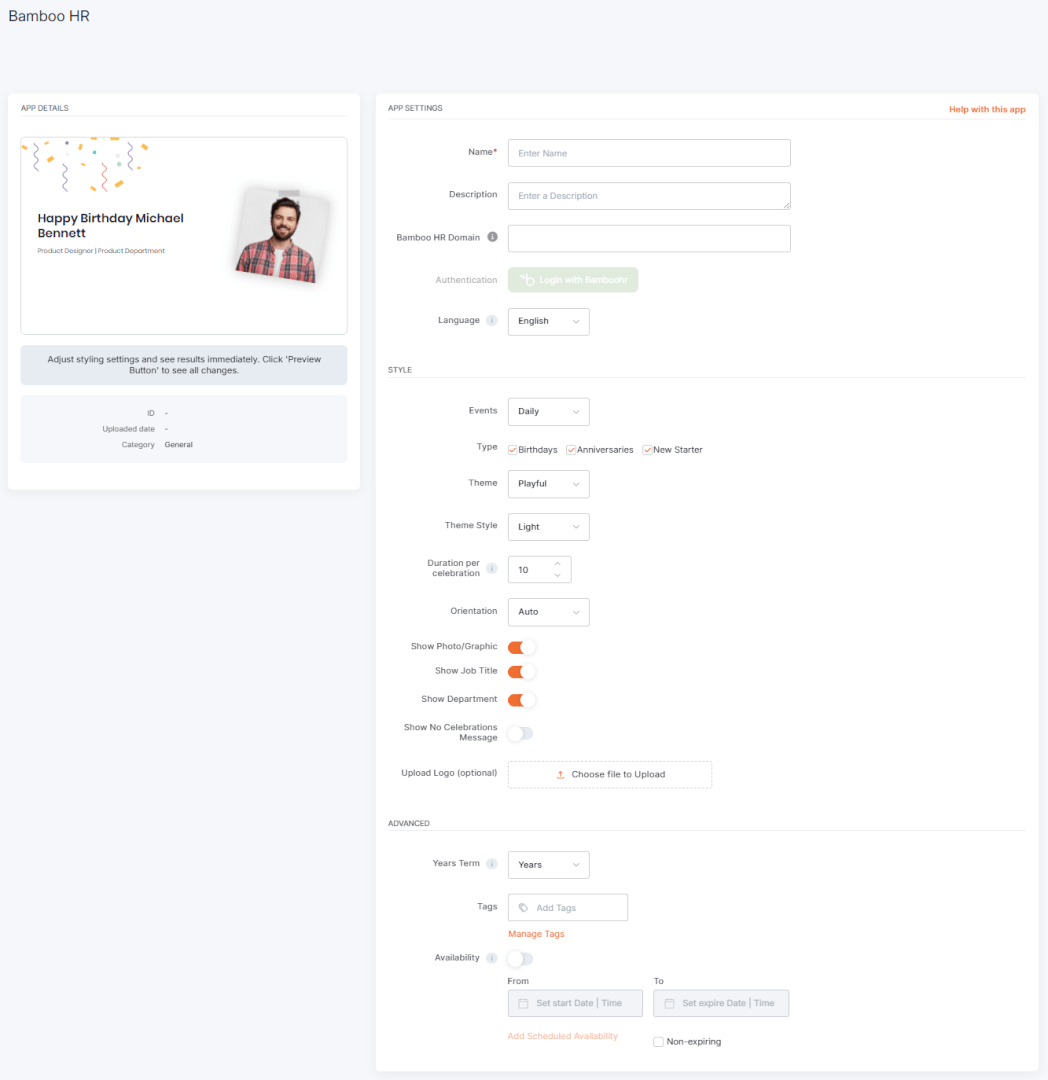
To display birthdays, work anniversaries, and welcome messages from BambooHR on your Yodeck screens, open the BambooHR app from the Apps gallery and complete the setup fields described below.
1. Locate and create the app
- Open the Apps gallery.
- Locate and select the BambooHR app.
- Click Use App.
Once the app window opens, you can begin configuring it.
2. Add the basic app details
Fill in the following fields:
- Name: Enter a name for the app.
- Description: Optionally enter a short description.
- BambooHR Domain: Enter only the BambooHR domain name your company uses to sign in.
For example, if your BambooHR URL is: https://companyname.bamboohr.com
ℹ️Enter only: companyname
3. Connect your BambooHR account
After entering your BambooHR domain, the Login with BambooHR button becomes available. Click it to start the authentication process. A pop-up window will appear so you can sign in to your BambooHR account and authorize the connection.
⚠️Important: In many cases, a BambooHR domain administrator must approve the integration before celebration data becomes available in Yodeck. If the account connects successfully but no birthdays, anniversaries, or new hire celebrations appear, check that the integration has been approved in BambooHR.
4. Configure celebration content
Use these options to control what the app displays:
- Language: Select your preferred language for the app interface.
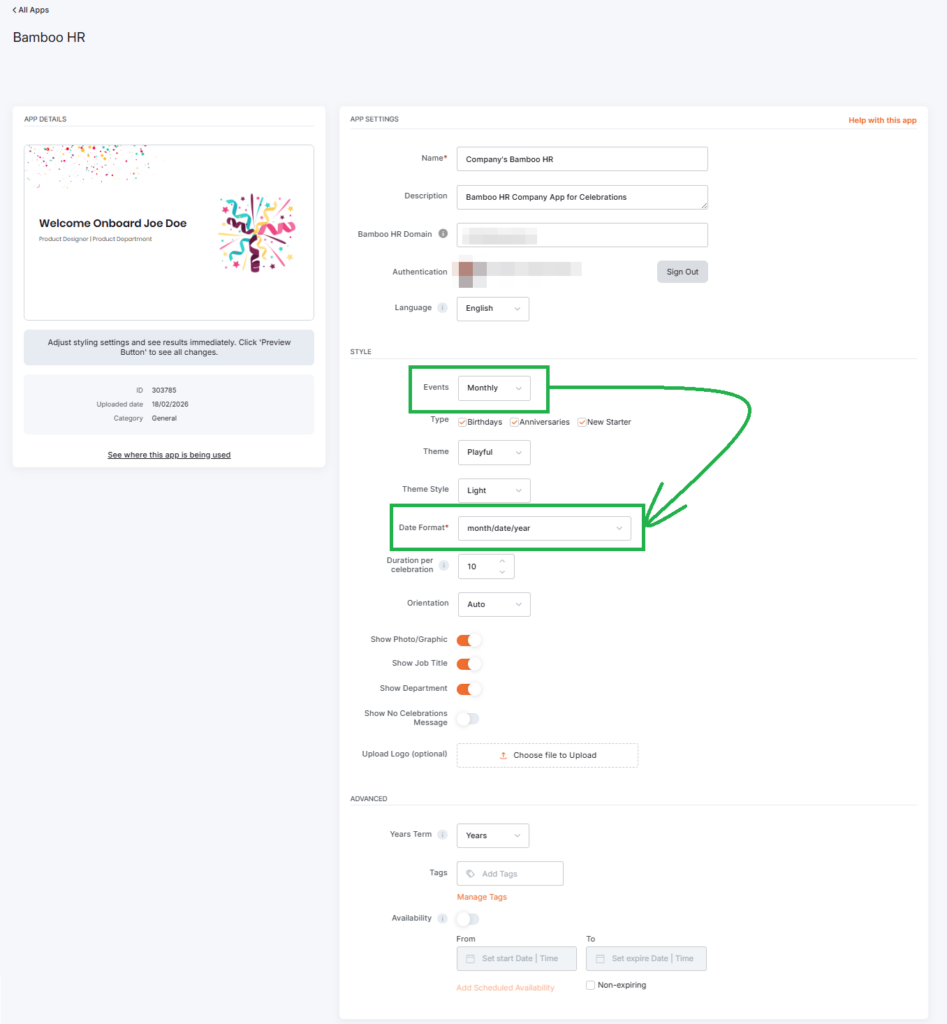
- Events: Choose how celebrations are grouped: Daily, Weekly, or Monthly.
- Date Format: This field appears only when you select Weekly or Monthly under Events. Available formats are MDY, DMY, and YMD.
- Type: Select which celebration types to display, such as Birthdays, Anniversaries, New Starters, or any combination of these.
- Duration per celebration: Set how many seconds each celebration card remains on screen.
ℹ️The total duration of the app in a playlist depends on how many celebration cards are shown for that period. If there are no celebrations and the app is set to be skipped, the player moves to the next item.
5. Customize the appearance
Use these settings to control how the app looks on screen:
- Theme: Choose the overall visual style of the app: Playful or Elegant.
- Theme Style: Choose the background style: Light, Black, or Custom.
- Orientation: Select Auto, Horizontal, or Vertical.
- Show Photo/Graphic: Show or hide employee photos.
- Show Job Title: Show or hide employee job titles.
- Show Department: Show or hide employee departments.
6. Add optional branding and labels
You can also customize the app further with the following options:
- Upload a logo (optional): Upload a logo to appear on the celebration cards.
- Logo requirements:
- JPG or PNG format
- Maximum file size: 1 MB
- Recommended dimensions: 800 × 300 px
- Logo requirements:
ℹ️Please note that vertical logos may appear smaller on screen.
- Years Term: By default, the app uses the word Years for work anniversaries. If needed, select Custom and enter your own term to better match your language or company style.
- Tags: Add tags to help organize and manage the app more easily.
- Availability: Set the app’s availability. For more information, see the Media Availability guide.
7. Set behavior when there are no celebrations
Use the Show No Celebrations Message toggle to control what happens when there are no celebrations to display.
- When ON: The app displays a No Celebrations message.
- When OFF: The app is skipped in playlists and layouts when there are no celebrations.
⚠️Important Note (reminder): On Raspberry Pi players, skipping the app may briefly show a white screen before the next content item loads.
8. Save the app
Once you finish configuring the app, click Save.
⚙️Your BambooHR app is now ready to use.
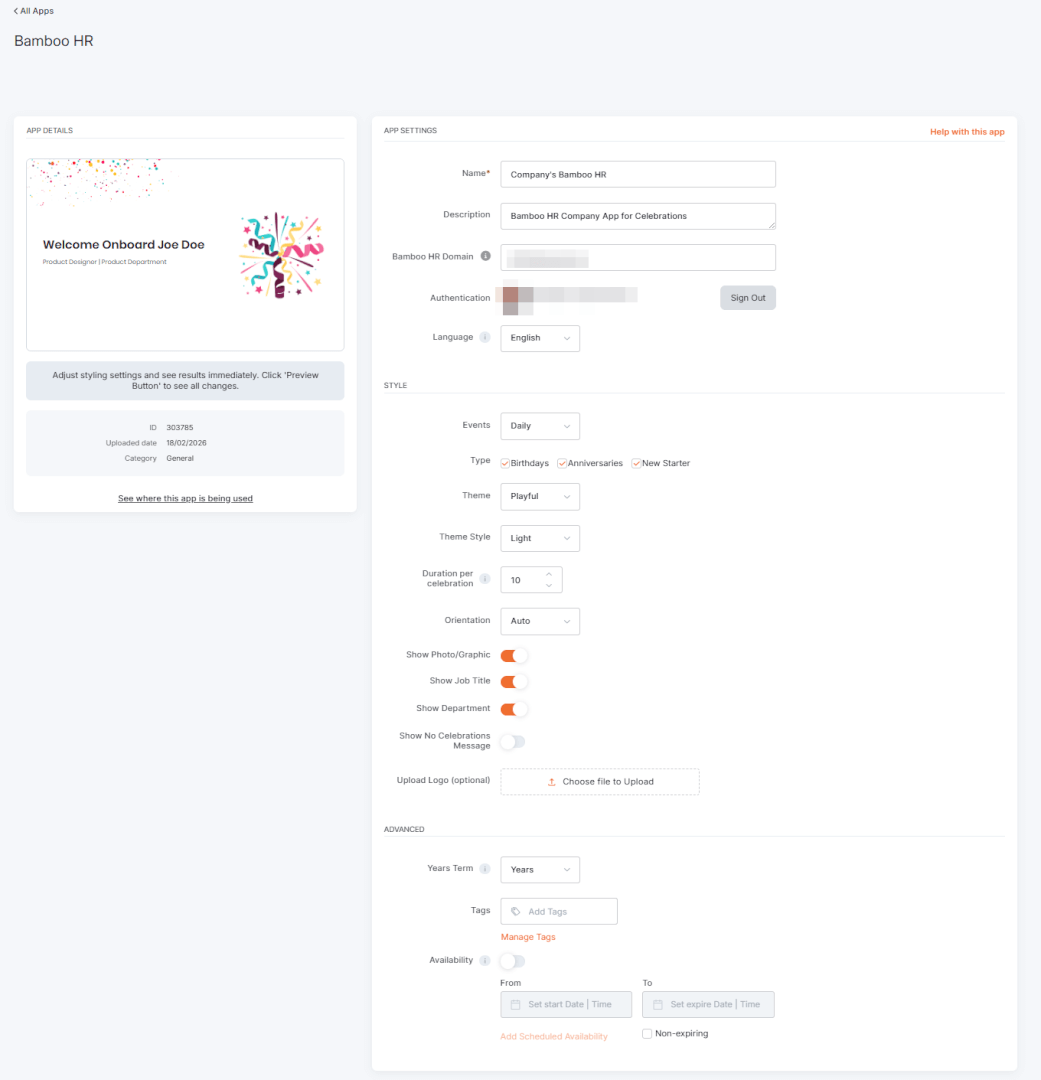
BambooHR App Final Result
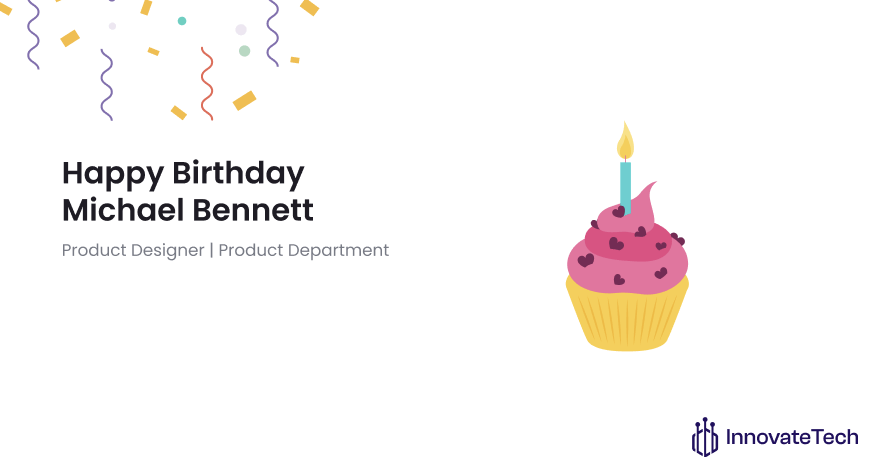
The examples below show how BambooHR celebrations appear in the Yodeck preview and on screen.
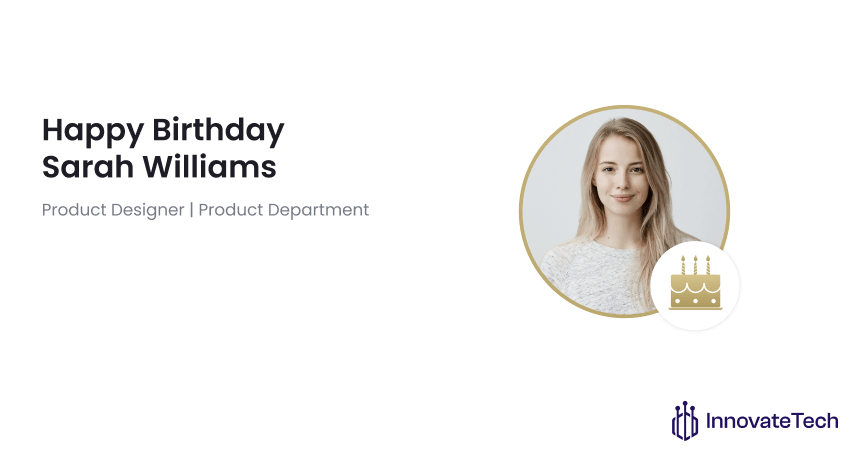
BambooHR app performance tip
The BambooHR app can require more processing power than static content. For smoother playback, especially in playlists, place a static image before the app and set it to display for at least 10 seconds. This gives the player more time to preload the content.
You can also enable Show No Celebrations Message to avoid the app being skipped when there are no matching events.
F.A.Q.s
Got questions? We’ve got answers! This section addresses common questions about the BambooHR app.
Yes. Both apps are designed to display employee celebrations, but they differ in where the data comes from.
– Use the BambooHR app if your employee data is already managed in BambooHR and you want Yodeck to pull that information automatically.
– Use the Team Celebrations app if you want to manage celebration data directly in Yodeck without relying on an external HR platform.
If the relevant employee data is available in BambooHR and your settings include New Starters, new employees automatically appear in the welcome announcements.
Yes. The BambooHR app (as well as the Team Celebrations app) works as a standalone app and inside layouts.
You can use profile photos from BambooHR for celebrations, if available.
The Yodeck app draws birthdays, work anniversaries, and related data automatically from your The BambooHR app pulls birthdays, work anniversaries, and related employee data directly from your BambooHR account. However, this works only after the required permissions have been granted to the Yodeck integration in BambooHR.
If the integration has not been approved, the app will have no data to display, even if matching dates already exist in BambooHR.
To resolve this:
– Ask your BambooHR administrator to approve the integration in BambooHR.
– Confirm that the employee records in BambooHR include the relevant celebration dates.
– Refresh or reconnect the integration in Yodeck after the permissions are granted.
– Only Yodeck’s built-in text is translated. This includes: labels, headings, and any text generated directly by the Yodeck app.
– Content coming from external platforms or APIs is not translated by Yodeck. This includes:
Data retrieved from external services (e.g., quotes, calendar events), posts or media from social platforms, text or metadata supplied by the API source, and system messages generated by external platforms.
Need Help?
The Yodeck Support Team can help you out! Log in to your Yodeck account and send us a message from the bottom right corner!