Table of Contents
Overview
Digital signage only works well when it is predictable. If multiple rules apply to a screen at the same time, the platform must follow a clear decision process to determine what appears. Otherwise, playback becomes confusing and difficult to control.
This article explains our Content Prioritization, the logic that determines what your screen displays when different Content Types overlap.
You will learn:
- How Yodeck resolves content conflicts.
- Which Content Types override others.
- What happens in real-world overlapping scenarios.
- How to troubleshoot unexpected playback behavior.
Content Priority
Yodeck organizes screen playback logic into six Content Types, each with a defined priority level. When more than one rule applies, the higher-priority Content Type overrides the lower one.
The hierarchy is:
- Emergency Alerts ← Highest Priority
- Takeover Content
- Working Hours
- Scheduled Content
- Default (Filler) Content
- Content Availability ← Lowest Priority but Always enforced
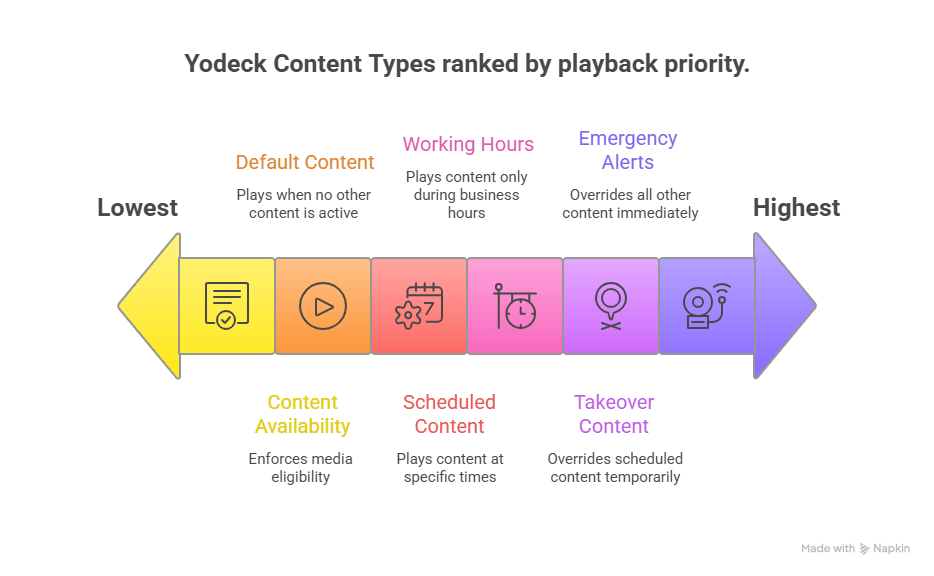
You can think of this as a stack of decision layers:
- If an Emergency Alert is active, it overrides everything.
- If not, then the platform checks for an active Takeover.
- If there is no Takeover, it verifies whether the screen is within Working Hours.
- If the screen is allowed to be on, it checks for active Scheduled Content.
- If no schedule is active, it plays Default (Filler) Content.
- At every step, Content Availability determines whether specific media or layouts are allowed to play.
ℹ️This hierarchy ensures that safety, temporary overrides, power management, automation, and content eligibility all work together in a predictable way.
Understanding the Different Content Types
Before analyzing how they interact, here is a quick definition of each Content Type.
ℹ️Emergency Alerts allow you to instantly broadcast urgent information, such as fire alerts, evacuation instructions, or severe weather warnings, to selected screens.
💡They are designed for critical communication and always have the highest priority.
⚙️When to use it: For urgent safety communication.
ℹ️Takeover temporarily overrides screen playback with specific content for a defined duration or indefinitely.
💡It is commonly used for:
- Live announcements
- Flash promotions
- Event reminders
- Immediate internal communications
⚙️When to use it: For short-term announcements.
ℹ️Working Hours define when a screen is allowed to be on. Outside these hours, the screen turns off or displays black depending on hardware capability.
💡Working Hours operate based on the screen’s local timezone.
⚙️When to use it: To control when screens are powered on.
ℹ️Scheduled Content allows you to automate what plays during specific dates and time windows, with repeat options and overlap handling.
💡Schedules are the backbone of structured digital signage programming.
⚙️When to use it: For predictable daily or weekly programming.
ℹ️Default Content, also called Filler Content, plays when no scheduled event is active.
💡It ensures screens remain active and branded even during schedule gaps.
⚙️When to use it: To keep screens active between scheduled events.
ℹ️Content Availability sets start and expiration dates on individual media or layouts. It does not control when something should play. It controls whether it is allowed to play.
💡Scheduling chooses when content should play. Availability decides whether it can play.
⚙️When to use it: To automate campaign start and end dates without manually editing playlists.
How Yodeck Resolves Content Conflicts
This section explains how each priority level interacts with the others, what overrides what, and what your screen will display when rules overlap. By understanding this resolution logic, you can confidently predict playback behavior and quickly identify why certain content is or is not showing.
Priority 1: Emergency Alerts > Override Takeover Content, Working Hours playback logic, Scheduled Content, and Default Content.
If an Emergency Alert is active, it displays immediately. After the alert is canceled, the screen returns to the highest-priority eligible content at that moment.
Priority 2: Takeover Content > Overrides Scheduled Content and Default Content.
It does not override Emergency Alerts. After a Takeover ends, the screen returns to whatever would normally be active according to the remaining priority rules.
Priority 3: Working Hours > Controls whether the screen is allowed to display anything at all.
If the screen is outside Working Hours:
- It turns off or displays black depending on hardware capability.
- Scheduled and Default Content do not play.
Outside Working Hours, your screen is off (or shows black depending on hardware), so playback overrides won’t be visible until the screen is allowed to be on.
Priority 4: Scheduled Content > Defines structured programming throughout the day and overrides Default Content, but not Takeover or Emergency Alerts.
If multiple scheduled events overlap, the event placed higher in the Events List takes precedence.
Priority 5: Default (Filler) Content > It automatically fills schedule gaps.
Default Content plays only when:
- No Emergency Alert is active
- No Takeover is active
- The screen is within Working Hours
- No Scheduled Content is active
Priority 6: Content Availability > Availability acts as a final eligibility filter. Content Availability applies at the individual media or layout level.
Even if content is inside a scheduled playlist, Default Content, or a layout, it will not display if it is outside its availability window.
Full Real-World Scenarios
The following scenarios illustrate how Yodeck Content Prioritization behaves when multiple Content Types overlap in real-world environments. These examples intentionally combine multiple rules, because real deployments rarely operate with only one condition active.
➡️Click on each expandable ‘Scenario’ to learn more.
Scenario 1: Scheduled Content with Availability Expiration
Working Hours: 09:00–17:00
Scheduled: Lunch Menu 11:00–15:00
Default: Company News
One Lunch item expires at 13:00
09:00–11:00 → Default Content
11:00–13:00 → Lunch Menu (all items visible)
13:00–15:00 → Lunch Menu (expired item skipped)
15:00–17:00 → Default Content
17:00 → Screen turns off
Availability filters individual items without affecting the schedule itself.
Scenario 2: Takeover Interrupts Scheduled Content
Scheduled Promo: 10:00–12:00
Takeover: Starts at 10:30 for 20 minutes
10:00–10:30 → Scheduled Promo
10:30–10:50 → Takeover
10:50–12:00 → Scheduled Promo resumes
Takeover temporarily overrides Scheduled Content, then normal logic resumes.
Scenario 3: Takeover During Default Time
Scheduled:
- 09:00–11:00
- 14:00–18:00
Default Content: Brand Loop
Takeover: 12:00–13:00
11:00–12:00 → Default Content
12:00–13:00 → Takeover
13:00–14:00 → Default Content
14:00–17:00 → Scheduled Content
17:00–18:00 → Screen off (Working Hours)
Default Content fills schedule gaps unless overridden.
Scenario 4: Emergency Alert During Scheduled Content
Scheduled Lunch: 11:00–15:00
Emergency Alert: 12:05–12:12
11:00–12:05 → Lunch Menu
12:05–12:12 → Emergency Alert
12:12–15:00 → Lunch Menu resumes
After the alert is canceled, the screen returns to the highest-priority eligible content at that moment.
Scenario 5: Emergency Alert During Takeover
Takeover active: 14:00–14:30
Emergency Alert triggered at 14:12
14:00–14:12 → Takeover
14:12 onward → Emergency Alert
After alert cancellation → Takeover resumes (if still within duration)
Emergency Alerts override everything, even mid-Takeover.
Scenario 6: ‘Working Hours’ Ends Scheduled Playback
Working Hours: 09:00–17:00
Scheduled Playlist: 16:00–18:00
16:00–17:00 → Playlist plays
17:00–18:00 → Screen off
Working Hours governs screen active time.
Scenario 7: Takeover Outside Working Hours
Working Hours: 09:00–17:00
Takeover triggered at 18:30
Result: Screen remains off until Working Hours begin again.
Takeover controls playback, not power state.
Scenario 8: Overlapping Scheduled Events
Event A: 09:00–12:00
Event B: 11:30–12:30 (placed higher)
09:00–11:30 → Event A
11:30–12:30 → Event B
Event List order determines priority within Scheduled Content.
Scenario 9: Future Availability Start Date
Campaign Playlist runs 09:00–17:00
One media item starts availability next Monday
Until Monday → Item is skipped
After Monday → Item appears automatically
Scheduling determines timing. Availability determines eligibility.
Scenario 10: Expired Default Content Items
Default Playlist contains 6 items
3 items expire
Result: Only eligible items play.
If all items expire and no schedule is active, the screen may appear empty.
This is why the fallback content is recommended.
Scenario 11: Scheduled Screen-Off Event vs Working Hours
Working Hours: 09:00–18:00
Scheduled Screen-Off Event: 13:00–14:00
13:00–14:00 → Screen off (scheduled event)
14:00–18:00 → Normal playback resumes
18:00 onward → Screen off (Working Hours)
Scheduled screen-off acts within Working Hours. Working Hours still defines outer boundaries.
Scenario 12: Full Complex Day Interaction
Working Hours: 08:00–20:00
Scheduled:
- Breakfast 08:00–11:00
- Lunch 11:00–15:00
- Promo 15:00–19:00
Default: Brand Loop
Availability:
- Lunch item expires at 14:00
- Promo item starts at 16:00
Takeover: 17:25–17:40
Emergency Alert: 17:32–17:36
08:00–11:00 → Breakfast
11:00–14:00 → Lunch (all items)
14:00–15:00 → Lunch (expired item skipped)
15:00–16:00 → Promo (future item skipped)
16:00–17:25 → Promo (new item eligible)
17:25–17:32 → Takeover
17:32–17:36 → Emergency Alert
17:36–17:40 → Takeover resumes
17:40–19:00 → Promo
19:00–20:00 → Default
20:00 → Screen off
ℹ️This example demonstrates every Content Type interacting correctly under Yodeck Content Prioritization.
Troubleshooting Checklist
If content does not appear as expected, check:
- Is an Emergency Alert active?
- Is a Takeover active?
- Is the screen within Working Hours?
- Is another scheduled event overlapping?
- Is the content expired or outside its Availability window?
ℹ️Most playback issues can be resolved by following this order.
F.A.Q.s
Got questions? We’ve got answers! This section addresses common questions about the Content Type Prioritization.
Possible reasons include:
– A Takeover was active.
– An Emergency Alert was active.
– The screen was outside Working Hours.
– The content had expired.
– Another scheduled event had a higher placement.
Scheduled Content controls when content should play, whereas Content Availability controls whether specific media or layouts are allowed to play at all.
No. The Working Hours feature governs whether the screen can be active. Takeover changes what plays during active screen time.
Need Help?
The Yodeck Support Team can help you out! Log in to your Yodeck account and send us a message from the bottom right corner!