Table of Contents
Overview
Magic Write is an AI-powered text assistance feature available in the Layout Editor. As a Site Admin, under the yconsole, you control whether this feature is available to customer accounts under your site.
This guide explains:
- How to enable Magic Write at the site level.
- What happens once the feature is enabled.
- How customer accounts can manage their own access.
This article is explicitly intended for yconsole Site Admins (White Label Partners and Resellers).
What Is Magic Write?
Magic Write is an optional feature that helps end users improve text content inside layouts. It works directly within the Layout Editor and applies only to selected text elements.
This guide does not explain how end users write or edit content using Magic Write. Its purpose is to document how Site Admins enable and manage access to the feature.
Learn More About Magic Write
This guide focuses on administrative control and feature enablement rather than feature usage.
For a detailed explanation of how Magic Write works in the Layout Editor, including available actions, supported languages, and end-user workflows, refer to the following documentation:
Enabling Magic Write for a Site
The Magic Write feature is controlled through a site-level setting. When enabled, it applies automatically to all customer accounts under that site.
Accessing the Setting
To enable the “Magic Write” feature, perform the following steps:
- Log in to yconsole.
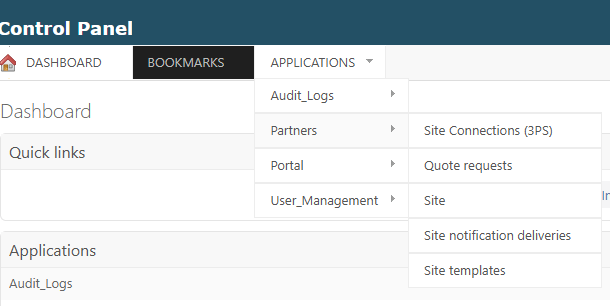
- Navigate to Applications → Partners → Site.
- Open the site you want to manage.
- In the Functionality section, locate AI Site Flag.
- Enable the checkbox.
What Happens After Enabling It
Once the AI Site Flag is enabled:
- Magic Write becomes available to all customer accounts under the site.
- No additional configuration is required.
- Users with permission to edit content will see the Magic Write button in the Layout Editor.
💡Disabling the flag removes access across all associated customer accounts.
ℹ️ Automatic availability
Once the AI Site Flag is enabled, Magic Write becomes available automatically to all customer accounts under the site. No additional setup or configuration is required.
Customer Account Controls
Default Customer Behavior
When Magic Write is enabled at the site level:
- The feature is on by default for all customer accounts.
- Any user with permission to create or edit content can access it in the Layout Editor.
Customers Can Disable Magic Write
Customer account administrators can disable Magic Write for their own account:
- Go to Account Settings.
- Select Magic Write.
- Turn the feature off.
If Magic Write is disabled at the account level:
- The Magic Write button remains visible in the Layout Editor but appears greyed out.
- Hovering over the button displays the following tooltip:
“This feature is currently disabled. If you require access, please contact your system administrator.”
🧭 Site vs. Account Control
Disabling Magic Write at the account level affects only that specific customer account. It does not override or change the site-level setting configured by the Site Admin.
Data Processing and AI Transparency
Magic Write processes data only when a user explicitly triggers an action.
What Data Is Sent
Only the following information is sent for processing:
- The selected text
- The selected action (for example, translation or grammar check)
➡️No layout metadata, account information, or personal data is shared.
ℹ️ Text-only processing
Magic Write processes only the text explicitly selected by the user and only when an action is triggered. No background processing occurs.
AI Subprocessor
- Magic Write is powered by Google Gemini.
- Google LLC acts as a subprocessor.
- The processed text:
- Is not stored.
- Is not used for AI model training.
- Is processed temporarily to generate a result.
Availability
- Magic Write is free.
- Available on all plans.
- Enabling or disabling the feature does not affect billing.
✅ No impact on billing
Enabling or disabling Magic Write does not change pricing, subscriptions, or plan limits.
F.A.Q.s (Site Admins)
Got questions? We’ve got answers! This section addresses common questions about enabling the Magic Write feature for your client accounts.
Is Magic Write mandatory?
No. It is optional and can be enabled or disabled at any time.
Can customers manage the feature themselves?
Yes. Customers can disable Magic Write at the account level even if it is enabled at the site level.
Does Magic Write affect layout design or formatting?
No. It modifies text content only.
Can it be used on multiple text elements at once?
No. It applies to one selected text element at a time.