Table of Contents
Overview
Templates help you create professional-looking digital signage quickly, even if you don’t have design experience. With the redesigned Yodeck Layout Editor, you can now browse, preview, and apply templates directly inside the editor, without returning to the Layouts page.
This allows you to:
- Explore ready-made designs from Discover Templates.
- Apply templates with one click or drag-and-drop.
- Replace an existing design template safely with a confirmation step.
- Undo template replacements instantly if needed.
Whether you’re starting from scratch or updating an existing layout, templates provide a fast way to design engaging content for your screens.
Where to Find Templates in the Layout Editor
There are two main paths in finding and browsing ready-made templates in the Yodeck platform.
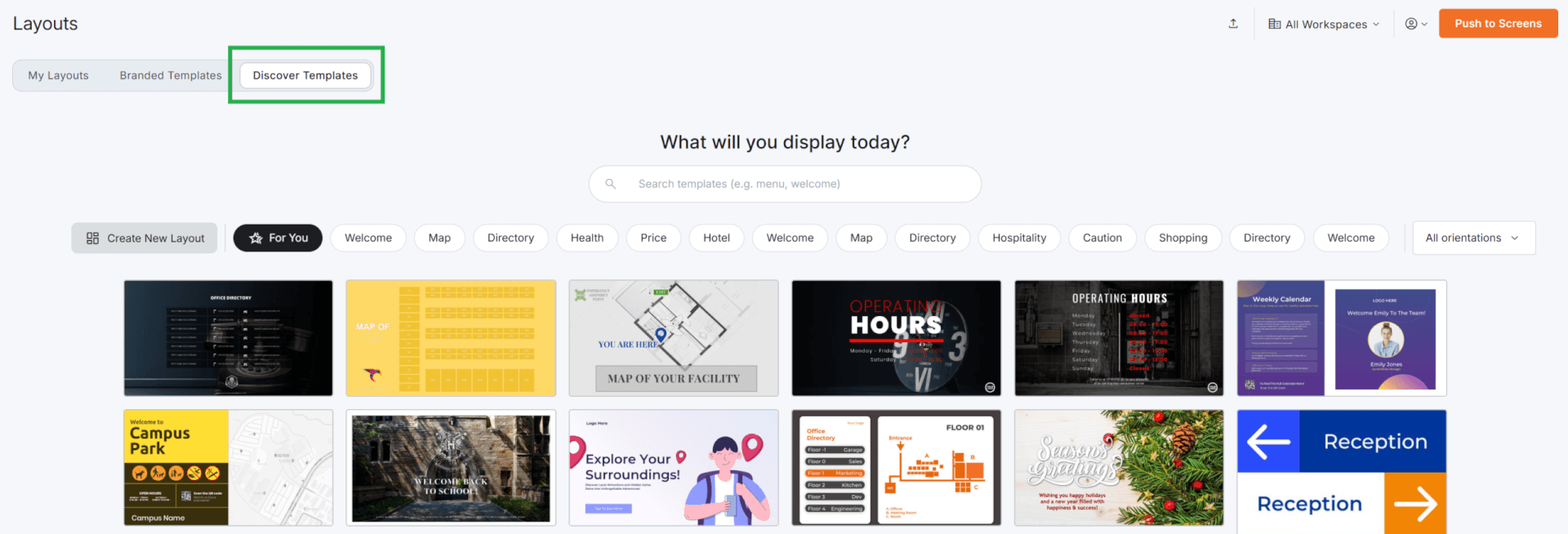
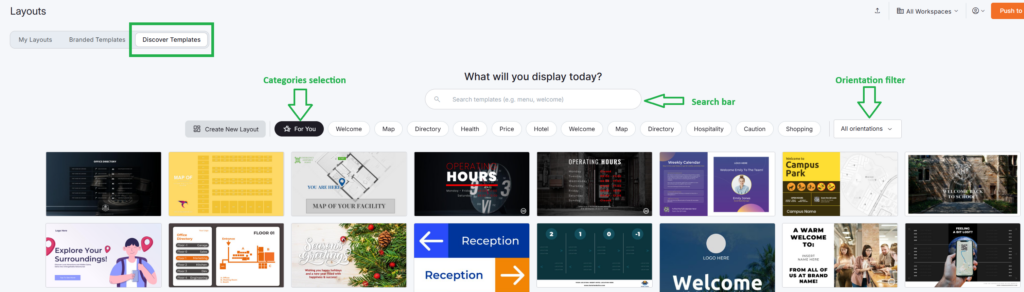
- Via the “Discover Templates” Gallery residing as a tab inside the Layouts view page.
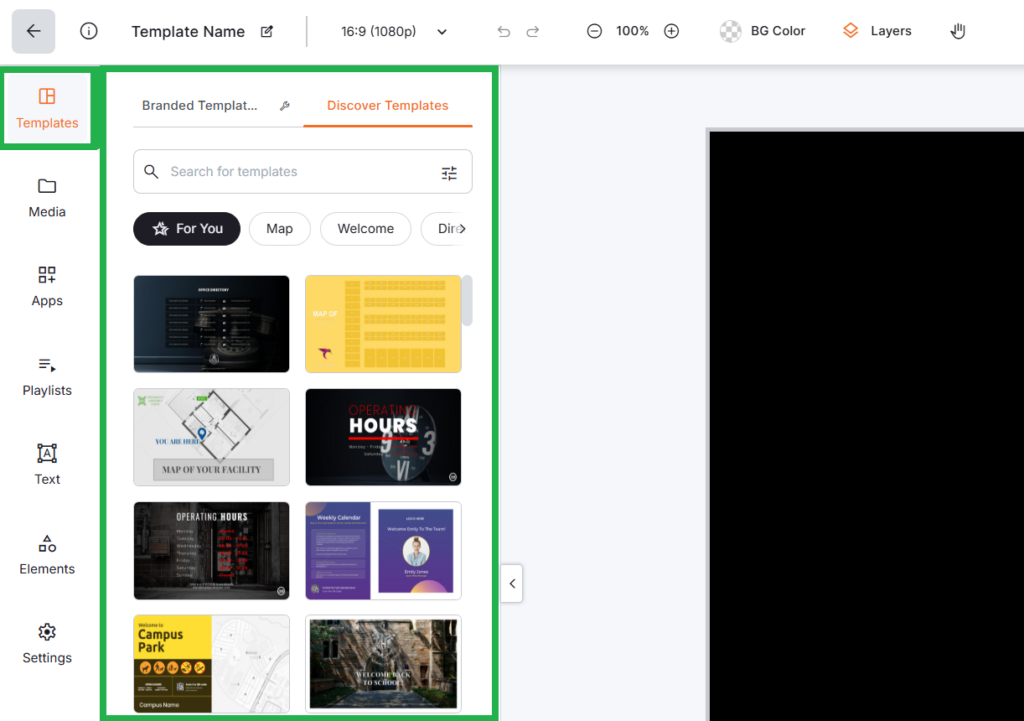
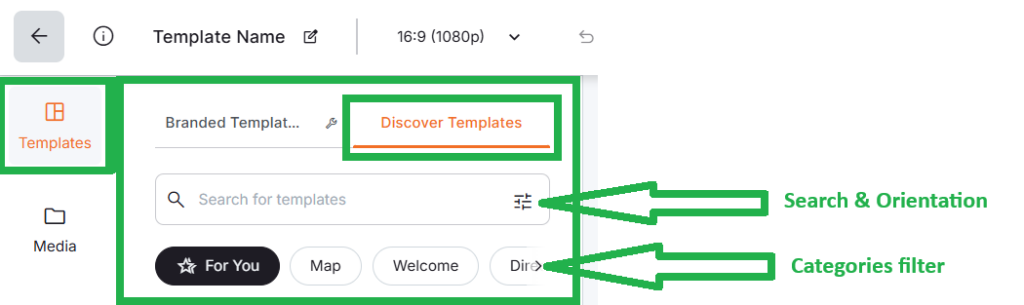
- Via the Layout Editor’s “Discover Templates” residing as a tab inside the actual Layout Editor.
| “Discover Templates” Gallery Tab | Layout Editor’s “Discover Templates” Tab |
| Inside the Layouts view page, you will find the tab “Discover Templates”. By selecting it, the “Discover Templates” Gallery appears directly inside the same page. | Inside the Layout Editor, you will find a Templates option at the top of the left sidebar. Click Templates to open the Templates Gallery, which appears directly inside the sidebar. |
 |  |
Important Note
If you enter the Layout Editor from a template (either new or existing), the Templates tab opens automatically, allowing you to immediately browse alternative templates.
Templates You Can Access (by Plan)
The templates available in the gallery depend on your Yodeck plan.
| Plan | Available Templates |
|---|---|
| Basic | Discover Templates (Simple Layouts) |
| Premium | Discover Templates (Simple Layouts) |
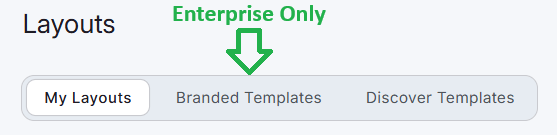
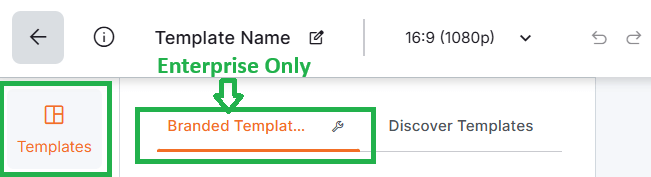
| Enterprise | Discover Templates & Branded Templates |
ℹ️Both Basic and Premium accounts feature a “Discover Templates” tab, which can be found on the Layouts page as well as in the Layout Editor’s Templates tab. In contrast, only Enterprise accounts have access to an additional “Branded Templates” tab, available on both the Layouts page and the Layout Editor’s Templates tab.
- Branded Templates: Customizable and brand-consistent templates.
- Discover Templates: Simple templates.
Browsing Templates: Search, Filters, and Categories
The “Discover Templates” Gallery and the Layout Editor’s “Discover Templates” tab include several tools to help you quickly find the right template for your layout.
| Search templates | Filter templates by orientation | Browse templates by category |
| Use the Search Templates field to look for templates based on theme, purpose, or design. | Templates can be filtered by Orientation (Horizontal or Vertical). | Templates are grouped into categories similar to those in the main Templates Gallery. |
| Default state: blank | Default filter: Horizontal | Default category: For You |
| Search results will appear in the templates list below the search bar, based on your keywords. | If filters are applied, a Reset button appears so you can quickly return to the default view. | Selecting a category refreshes the results to show templates from that group. |
How templates are displayed
Templates appear differently based on the page you are currently in. Specifically, under the:
- “Discover Templates” Gallery, templates appear in a multi-column grid depending on the resolution of your computer screen.
- Layout Editor’s “Discover Templates” tab, templates appear in a two-column grid.
💡Additional templates load automatically as you scroll (infinite scroll), allowing you to browse a large collection of layouts smoothly.
Previewing a Template
Before applying a template, you can preview it in a larger view. To do so, follow the steps below based on whether you are in the “Discover Templates” Gallery or the “Discover Templates” tab within the Layout Editor:
| “Discover Templates” Gallery | Layout Editor’s “Discover Templates” tab |
| 1. Click on the template of your interest. 2. A preview pop-up window opens, showing the template in a larger format. | 1. Hover over the template of your interest. 2. Click the eye icon (Preview). 3. A preview pop-up window opens, showing the template in a larger format. |
| ⚙️From the preview window, you can click the Import Template button to apply it to your layout. | ⚙️From the preview window, you can click the Use Template button to apply it to your layout. |
| ✅After clicking the Import Template button, you will be redirected to the Layout Editor with the selected template ready for configuration. | ✅After clicking the Use Template button, the Layout Editor gets refreshed with the selected template, which is now ready for configuration. |
Applying a Template to Your Canvas
The easiest way to apply templates to your layout is directly from the Layout Editor’s left sidebar, in two ways.
Option 1 – Use the plus (+) icon
- Hover over the template you want,
- Click the plus (+) icon.
Option 2 – Drag and drop
- Click and hold a template,
- Drag it onto the canvas,
- Drop it where you want to apply it.
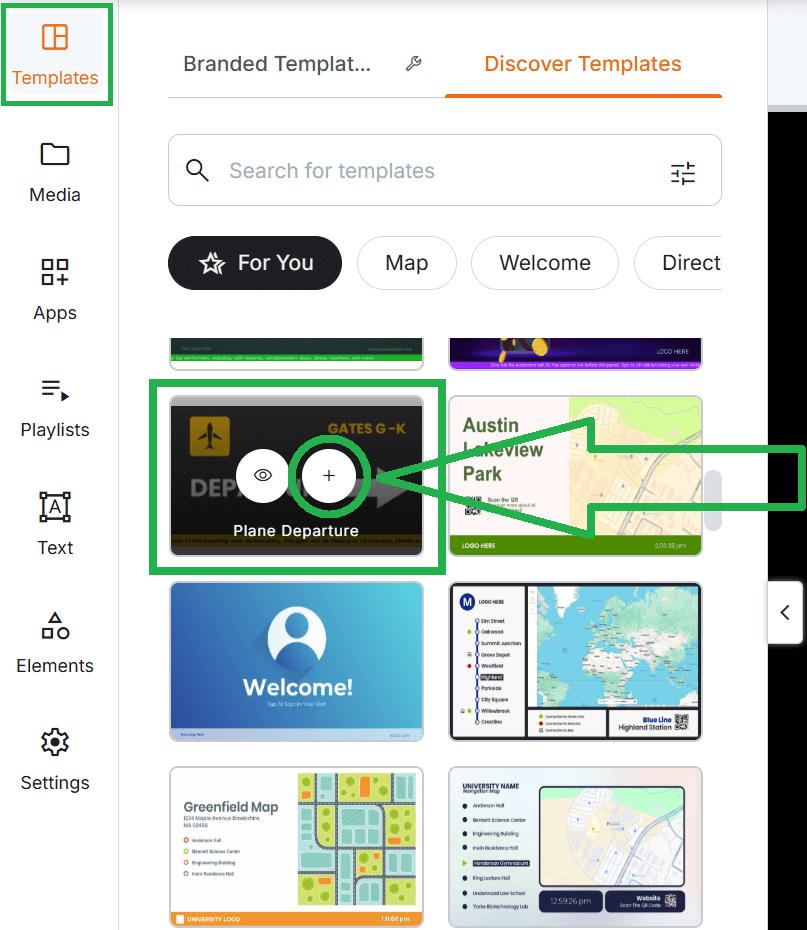
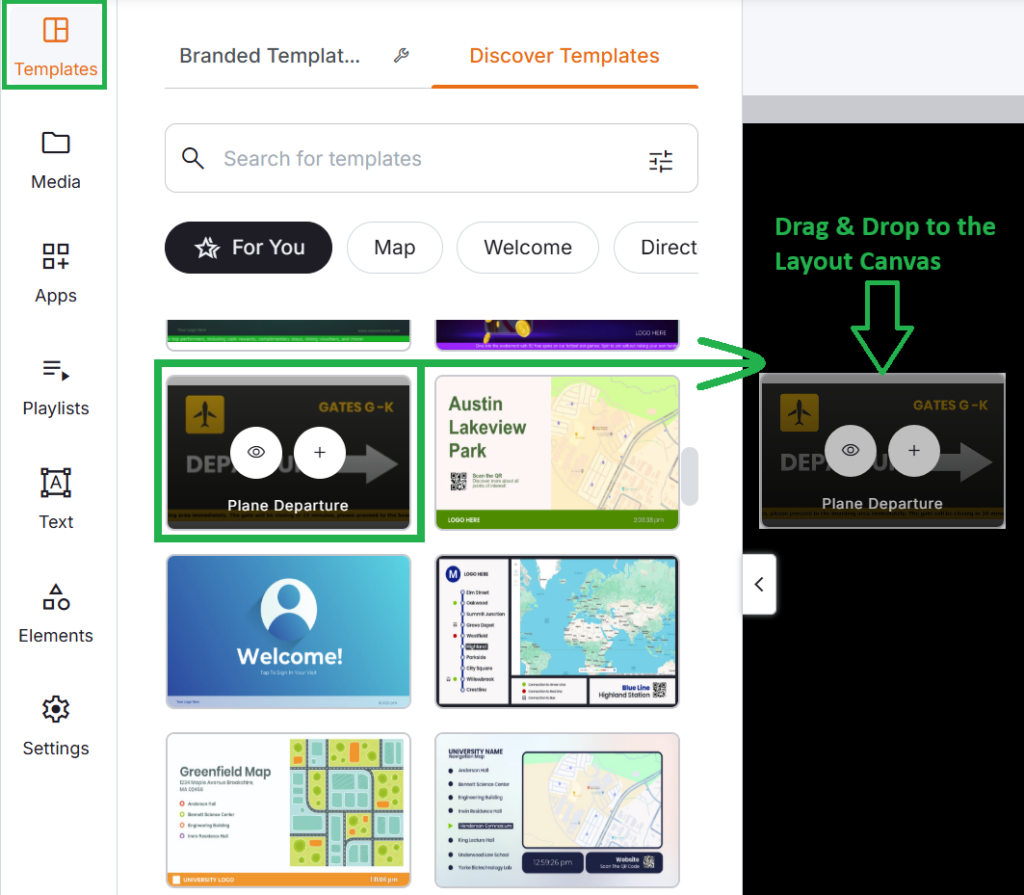
ℹ️Both methods behave the same, depending on whether your canvas already contains content.
Replacing an Existing Design Safely
To prevent accidental overwrites, Yodeck displays a confirmation message when necessary.
- If the canvas is empty: The template is applied immediately. No confirmation message appears.
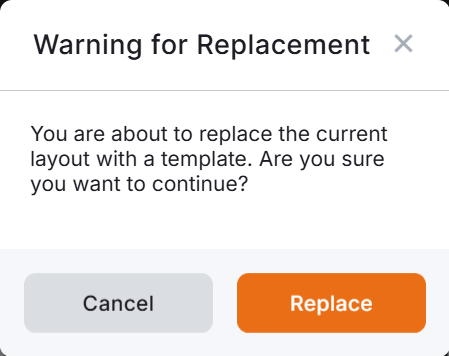
- If the canvas already contains content: If a template already exists on the canvas or you have made changes, Yodeck displays a confirmation pop-up window titled: “Warning for Replacement”.
- This confirmation pop-up window provides two options:
- Cancel → Keeps your existing layout unchanged.
- Replace → Applies the selected template and replaces the current design.
- This confirmation pop-up window provides two options:
ℹ️This confirmation pop-up window appears when applying templates through:
- The plus (+) icon.
- Drag & drop onto the canvas.
- The Use Template button from the preview window.
Undo and Redo for Template Changes
If you replace a template and change your mind, you can easily restore your previous layout. Use:
- Undo from the top navigation bar
- Ctrl / Cmd + Z
ℹ️Your previous layout will be restored immediately.
💡You can also use Redo to reapply the change.
Branded Templates inside the Layout Editor (Enterprise Plan)
Enterprise accounts can access Branded Templates from the “Branded Templates” tab under the Layout view page, as well as directly from within the Layout Editor‘s respective tab.
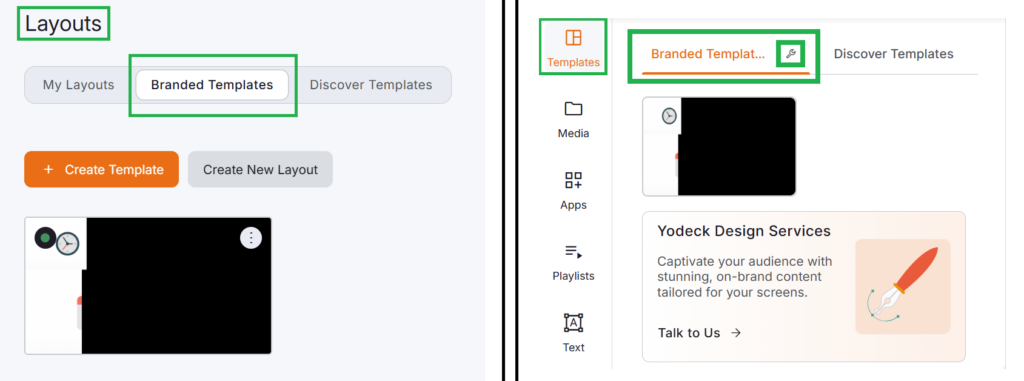
Branded Templates tab
Switch to the Branded Templates tab inside the Layout view page to view your organization’s shared templates. These templates help teams maintain consistent branding and layout structure across multiple screens and locations.
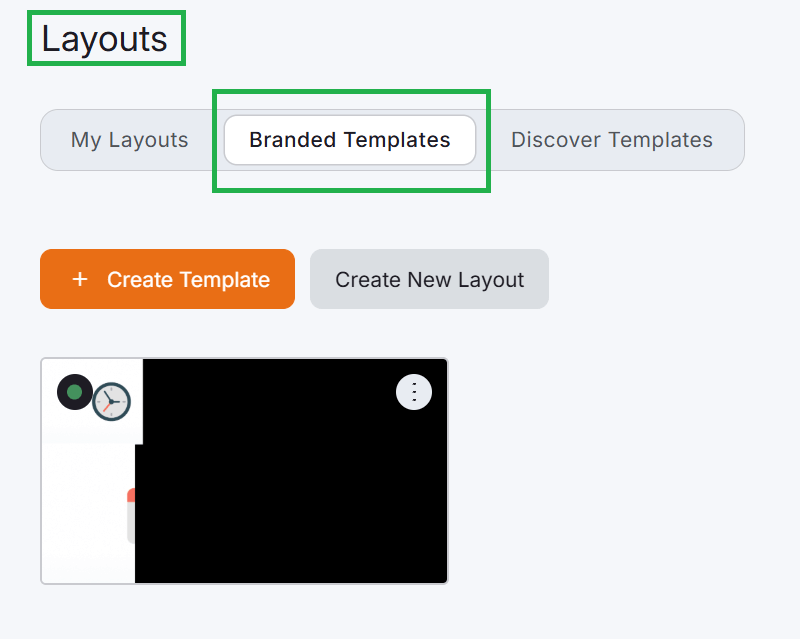
Branded Template indicators
Branded templates may display a status indicator, such as:
- Draft
- Published
These indicators help identify the template’s current state.
ℹ️ Note:
Branded templates cannot be edited from inside the Layout Editor. They must be managed from the Branded Templates section on the Layouts page.
Branded Templates settings shortcut
There is a settings shortcut available in both the “Branded Templates” tab under the Layout view page, as well as directly from within the Layout Editor‘s respective tab. Specifically:
- Inside the “Branded Templates” tab under the Layout view page, you can see the following settings option.

- Inside the Layout Editor’s Templates option, where the Branded Templates tab label appears, you will see a settings icon.

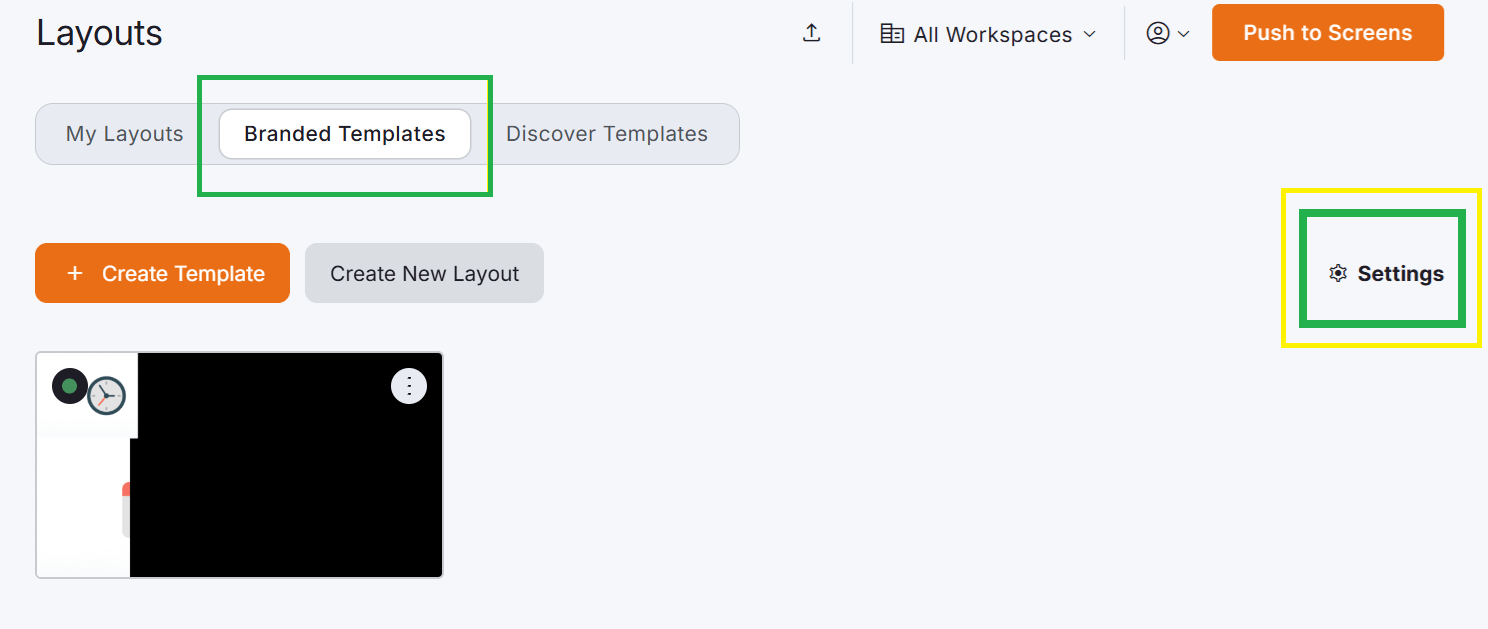

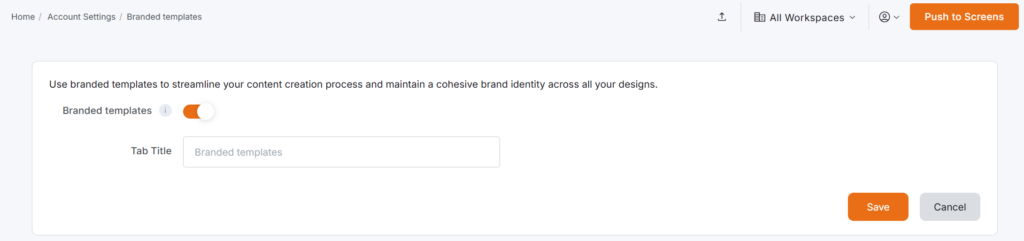
ℹ️Clicking this icon opens the Branded Template Settings, where account Admins can configure options such as disabling this tab in the Layout Editor as well as changing the tab’s name.
“Yodeck Design Services” Option
While browsing templates, you may see an option for “Yodeck Design Services”. This option allows you to request custom-designed templates created by the Yodeck design team, tailored specifically to your brand or business needs.
Best Practices
- Preview templates before applying them to confirm they match your needs.
- Filter by orientation early to find layouts compatible with your screen.
- Use Replace carefully if you have already customized your layout.
- Use Undo to quickly revert a template change.
F.A.Q.s
Got questions? We’ve got answers! This section addresses common questions about the Layout Editor’s Templates.
Yes. The Templates tab in the sidebar allows you to browse, preview, and apply templates directly inside the editor.
You will see the “Warning for Replacement” modal. The template will only replace your layout if you click Replace.
Branded Templates are available only on the Enterprise plan.
No. Branded templates must be edited from the Branded Templates tab of the Layouts view page.
“Layout Editor” Series – Article Navigation
Click any of the buttons below to proceed to whichever article (1-7) you wish in the Layout Editor series.
Need Help?
The Yodeck Support Team can help you out! Log in to your Yodeck account and send us a message from the bottom right corner!