


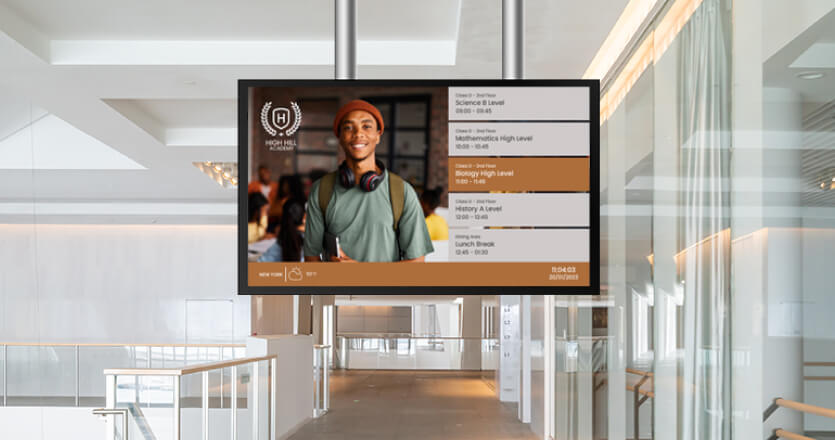
A location-by-location content playbook for university screens, plus the specs and governance rules that keep multi-department campuses running.
Key Takeaways
Students walk past the same campus screen several times a day and stop reading it by week two. The slides are three weeks old, the event already happened, and the department that owns the screen has nobody assigned to update it. University digital signage fixes this when it runs on two things: content planned per location, and rules that let every department publish without a central team approving each slide. This guide covers both. It lists 23 content ideas by campus location, sets out the specs and the policy a multi-department campus needs, explains what emergency alerts on screens must do under the Clery Act, and ends with what the whole setup costs. If you are evaluating platforms rather than planning content, the digital signage for universities page covers that side.
Why university digital signage works where email does not
Campus screens work because they reach students at the moment and place where a message applies, which is the one thing a mass email cannot do. The University of Waterloo’s 2025 student communications survey of 549 students found that 72% feel they receive the right amount of communication and only 19% feel they receive too much. The report’s conclusion is that the problem is relevance, not volume. A screen outside the dining hall showing tonight’s menu is relevant by definition. The same menu in an all-campus email is noise.
The same survey shows what students rank as most important: documents, courses and finances (94%), emergency notifications (90%), career development (82%) and program information and events (79%). Three of those four topics have a physical location on campus where the message matters most. Financial aid deadlines belong on the screen outside the bursar’s office. Career fair dates belong in the career center lobby. Emergency notifications belong on every screen.
For comms teams, this changes the planning question. The question is no longer “what do we want to announce this week” but “what does someone standing in this spot need to know right now.” That reframing is what separates campus screens people read from the ones they walk past. If you still need the case for screens over printed posters, the campus signage post makes it. This guide assumes you have screens, or are about to, and need to fill them well.
What should universities show on digital signage?
Universities should show five content types on digital signage: announcements, events, emergency alerts, live data and short navigation cues. Everything else, from department news to student spotlights, is a variation of one of those five. The mistake most campuses make is treating the five as interchangeable slides in one rotation, when each has a different owner, a different refresh cadence and a different natural home.
| Content type | Where it belongs | Refresh cadence | Typical owner |
|---|---|---|---|
| Announcements (deadlines, policy changes, closures) | Lobbies, student centers, department buildings | Weekly, with a hard expiry date | Central comms or the unit |
| Events (lectures, fairs, games, performances) | Student centers, residence halls, athletics | Added as scheduled, removed the day after | Event organizer via submission form |
| Emergency alerts | Every screen, overriding everything | Instant, triggered by the campus alert system | Campus safety or emergency management |
| Live data (dashboards, occupancy, transit, weather) | Libraries, labs, transit stops, lobbies | Automatic, pulled from a source | IT or the unit that owns the data source |
| Navigation cues (building directories, “the registrar moved to room 204”) | Entrances and lobbies | When something moves | Facilities or the building manager |
Two rules follow from the table. First, nothing goes on a screen without an expiry date, because a slide with no end date is the one still running in March advertising an October event. Second, the five types should not share one playlist at equal weight. A dining hall screen is 70% menu and hours, 20% events, 10% announcements. A lobby screen inverts that. The next section works through those weightings location by location.
What to show on campus digital signage by location
Campus digital signage content should be planned per location, because the person standing in a residence hall lobby at 11PM needs different information from the person waiting outside a lecture theater at 9AM. The 23 ideas below are grouped by the seven places where most universities put screens. Each idea names the content and the reason it works in that spot.
Campus entrances and building lobbies
Entrance screens serve visitors and first-years, so they answer “where am I and what is happening here today” before anything else.
- A building directory with today’s room changes. A static directory goes out of date the first time a department moves. A screen version updates in one edit, and a short “the registrar is now in room 204” line saves the front desk from answering the same question all week. For full campus maps and interactive kiosks, wayfinding digital signage is a separate setup from the content playlist described here.
- Today’s events in this building only. Filter the campus events feed to the building the screen sits in. A visitor walking into the engineering building does not need to know about the theater department’s matinee.
- Shuttle and transit departures. A live transit feed on an entrance screen tells students whether to run or wait, and it is the one slide nobody asks to have removed.
- Visitor and prospective student welcome content. Admissions tours pass through the same lobbies daily. A scheduled slot that runs during tour hours, showing program highlights and where the tour goes next, costs nothing to maintain once set.
Student centers and common areas
Student center screens have the longest viewing time on campus, because people sit near them. That makes them the right place for content that needs more than four seconds to read.
- Student organization recruitment slides. The University of Illinois student engagement office runs exactly this system, and its submission rules are a useful benchmark: recruitment ads run up to two posts per semester, each lasting 14 days or less, with a maximum of 30 words per slide. Those limits keep the rotation from filling with stale club flyers.
- A social media wall of campus hashtags. Moderated feeds from official accounts and tagged student posts give a student center screen content that changes every hour without anyone editing it.
- Dining hours and what is open now. Students in a common area at 3PM want to know which café is still serving. One slide that pulls from the dining schedule answers it.
- Wellbeing and support services, scheduled by time of year. Counseling hours, exam-period study spaces and the health center’s flu clinic dates belong here, scheduled to appear in the weeks they matter and disappear after.
Dining halls
Dining hall screens have one job, and the content should be built around it. Menu boards are the content, and everything else is a supporting slot.
- The menu for the current service, by station. Digital menu boards that switch from breakfast to lunch to dinner on a schedule remove the daily reprint and the wrong-menu-at-the-wrong-time problem that printed boards create.
- Allergen and dietary labels next to each dish. Printed allergen cards go missing. A screen that shows the labels beside each item keeps the information in front of every diner at every service.
- Line and seating information at peak hours. If the dining team tracks it, showing “shorter line at the north entrance” at 12.30PM moves people without a member of staff directing traffic.
Libraries
Library screens work when they stay quiet. The content is practical, the rotation is slow, and nothing on it has sound.
- Study room and floor occupancy. Where a library has occupancy counters, a screen at the entrance showing which floors have space saves students a walk up four flights. Occupancy counters usually publish to a web page, and a screen can show that page directly with no slide to maintain.
- Hours, including exam-period extensions. Library hours change more often than any other building’s. A screen at the door is the one place the current hours are always correct.
- Workshop and research support sessions. Citation workshops, data clinics and writing center drop-ins reach the students who need them when the announcement sits where those students already are.
Residence halls
Residence hall screens reach students at the start and end of the day. Anything a student needs to remember overnight belongs here.
- Maintenance and facilities notices. Hot water outages, elevator inspections and laundry room closures are the notices students most want and most often miss by email. The hall screen shows them at the door.
- Residence life events and deadlines. Room selection windows, move-out dates and floor meetings run on a hall-specific playlist, so the first-year hall and the graduate apartments see different content.
- Safety contacts and after-hours information. Campus safety numbers, the on-call RA line and the nearest 24-hour help point belong on a fixed slot that never rotates out.
Labs, faculty buildings and departments
Department screens are where campus signage stops being a comms tool and starts being a data tool. The strongest content here is live and owned by the department itself.
- Live dashboards and sensor data. New York University’s Shanghai campus put two 1080p screens in its main entrance lobby showing live air quality readings from sensors around the campus, with the content managed remotely from New York by a student project leader. The NYU case study quotes Caspar Lant, the student project leader: “I think it’s a cost-effective and scalable solution to digital signage.” The same pattern fits any department with data worth showing, from a physics lab’s experiment status to a business school’s market ticker. TV dashboard displays pull that data from a web source without anyone exporting slides.
- Seminar and defense schedules. A department’s weekly seminar series, thesis defenses and visiting speaker talks are the events faculty most want on the screen outside their office, and the ones the central campus feed never carries.
- Research news and publications. A slide per new paper or grant, submitted by the research office and expiring after 30 days, keeps department screens current without a designer.
Athletics and recreation
Recreation and athletics screens serve a mixed audience of students, staff and visiting spectators, and the content has to change by time of day.
- Class and court schedules with real-time changes. A cancelled spin class posted on the screen at the entrance stops a full class walking to an empty studio.
- Game day information. Ticket pickup, gate opening times and parking changes run only on game days, scheduled in advance and gone the next morning.
- Facility rules and capacity. Pool rules, equipment orientation times and current capacity limits belong on a fixed slot in the way safety contacts do in residence halls.
The free plan lets a single department run one of these screens as a pilot before anyone commits a budget. Put one screen in the dining hall or the department lobby, test it for a semester, and expand from what works.
How do universities manage digital signage across departments?
Universities manage digital signage across departments by choosing one of three governance models: fully central, fully decentralized or hub-and-spoke. The hub-and-spoke model, where a central team owns the platform, templates and emergency override while each unit publishes its own content, is the one most large campuses end up with, because the other two break at scale.
| Model | Who publishes | Who approves | Where it breaks |
|---|---|---|---|
| Central | One comms team publishes everything | The same team | Bottleneck. Departments wait days for a slide, then buy their own unmanaged screens |
| Decentralized | Each unit runs its own screens and software | Nobody central | No brand consistency, no emergency override, IT cannot see what is installed |
| Hub-and-spoke | Each unit publishes to its own screens | Unit content manager, inside central rules | Only when roles are undefined. With roles set, it scales |
Penn State runs the hub-and-spoke model across 24 campuses and nearly 1,000 sign locations, with individual units and colleges managing their own signs while the university’s emergency services deploy alerts across all of them. That split is the whole model in one sentence: units own content, the center owns the alert channel and the platform.
Who owns what: the three roles that make the model work
The hub-and-spoke model needs three defined roles, and most campus signage policies name them. Texas A&M’s digital signage policy is a clear example. An enterprise communications team manages the platform and answers content questions. Each administrative or academic unit designates one content manager, who reviews submissions, checks compliance and decides how long content runs and where. Technology services handles hardware and approves equipment purchases. Nobody in that structure has to ask central comms for permission to post a seminar notice, and nobody can install a screen that sits outside the alert system.
For IT teams, this is the part of the setup that decides whether the platform works for 50 units or becomes a ticket queue. Yodeck handles the mapping through Workspaces, which mirror the campus structure so each college or department sees and edits only its own screens and media, and through user roles that set who can publish, who can only upload and who can only view. Workspaces and custom roles are Enterprise plan features. Standard user roles are available on every plan, and tag-based screen grouping lets any account group screens by building or campus for bulk changes.
💡 Interesting insight. The departments that buy their own unmanaged screens are rarely rebelling. They asked central comms for a slide, waited a week, and gave up. A governance model that lets them publish within rules removes the reason to go around the system.
What is a campus digital signage policy?
A campus digital signage policy is the document that sets who can publish to university screens, what content is allowed, how long it runs, what format it must arrive in and what happens during an emergency. The published .edu policies converge on the same eight rules. The gap between a campus with a policy and one without is visible on the screens within a semester.
The eight rules every policy needs
The eight rules are drawn from published .edu policies, with Texas A&M’s as the most complete public example.
- Lead time. Texas A&M requires submissions at least three business days before the first display date, with review taking up to one business day. Illinois asks for five days. Pick one number and publish it.
- Maximum run. Texas A&M caps content at 14 calendar days, and event promotion must end on or before the event date. A maximum run is the single rule that stops screens filling with expired slides.
- Approved templates. Texas A&M units that do not use approved templates cannot display content until they do. The rule sounds strict and is the reason the screens look like one university rather than 40 departments.
- Prohibited content. Texas A&M’s list excludes political content, commercial advertising, personal messages, fundraising, recurring meeting promotion and copyrighted material without proof of permission. Write the list before the first argument about it, not after.
- Hardware ownership. Units fund their own hardware and installation at Texas A&M, while the university covers platform licensing. Whoever owns the hardware pays to replace it.
- Emergency override. Every screen connects to the campus alert system and shows alerts automatically. The next section covers why this is a legal requirement and not a policy preference.
- Hours of operation. Screens run during building hours or 24 hours, and the policy says which. A dark screen in a lit lobby reads as a broken one.
- Accessibility. Minimum font sizes, contrast and no reliance on color alone belong in the policy, because the content managers who enforce it need a rule to point at.
The content spec sheet
A one-page spec sheet, published alongside the policy, prevents most rejected submissions. The figures below are the published requirements at Illinois and Texas A&M and are a sound starting point for any campus.
| Specification | Common requirement | Why it matters |
|---|---|---|
| Format | JPEG or PNG, RGB, 72dpi | Vector files and CMYK print files render wrong on screens |
| Dimensions | 1920 x 1080 pixels for landscape screens | Anything else gets stretched or letterboxed |
| Text limit | 30 words maximum per slide | A slide shows for seconds. Nobody reads a paragraph on a wall |
| Slot length | Up to nine seconds per rotation | Long enough to read 30 words, short enough to keep the rotation moving |
| Lead time | Three to five business days | Gives the unit content manager time to review |
| Maximum run | 14 days, ending on or before the event date | Clears expired content automatically |
| Assets per event | One slide per event per semester | Stops one event dominating a rotation |
💡 Pro tip by Yodeck Team: Lock the design and free the words. Branded templates let a central designer fix the logo, fonts and layout once, so a department content manager changes only the text and image. Combined with media expiration, where every file carries its own end date, the 14-day maximum run enforces itself and nobody has to chase stale slides.
Emergency alerts on university screens: what the Clery Act requires
The Clery Act regulations require US institutions to have procedures to “immediately notify the campus community upon the confirmation of a significant emergency or dangerous situation involving an immediate threat to the health or safety of students or employees occurring on the campus.” That wording is from 34 CFR 668.46(g), which also requires each institution to describe how it will “determine the appropriate segment or segments of the campus community to receive a notification” and to act “without delay.” The regulation does not name a channel. Most campuses use several: text, email, sirens and screens. Screens matter in that mix because they reach the people who have silenced their phones and the visitors who never registered for alerts.
What “immediately notify” means for screens
For a screen, immediate notification means the alert overrides whatever is playing on every screen in the affected area without anyone logging into the signage platform. The regulation’s “appropriate segment” language is also an argument for targeting. A chemical spill in one building needs the screens in that building to change and the screens across campus to carry a shorter notice. That filtering is decided during setup, not during the incident. If the campus safety team has to open a second system, find the right screens and publish a slide, the screens are not an alert channel. They are a slow bulletin board. The test is simple: trigger the campus alert system and count how many screens change within a minute.
Connecting campus alert systems through CAP
The Common Alerting Protocol (CAP) is the standard that lets a campus emergency notification system push one alert to every connected channel at once, screens included. Yodeck supports CAP v1.2 on every plan, so alerts from CAP-enabled systems such as Alertus, InformaCast and PunchAlert display on Yodeck screens without a separate publishing step. The setup is a CAP handler in the Yodeck portal that generates a URL for the campus alert system to target. Each screen also needs the relevant alert types enabled. Skip that step and the screen stays silent in a test, which is the warning the setup guide itself carries.
Alerts can be filtered so a building-level incident reaches only the screens in that building, using broadcast groups whose names match the alert system’s, or player locations on a map. Filtering alerts by Workspace, so each campus or college receives only its own, is an Enterprise plan feature. On other plans every screen receives every alert, which for a single-campus institution is usually the right behavior anyway. For a situation that falls short of a CAP-level emergency, such as a water outage or a building closure, screen takeover lets an administrator override scheduled content on chosen screens in a few clicks. The digital signage in emergencies post covers the content side of alerts, from message templates to what to show during the all-clear.
💡 Interesting insight. The screens that fail a campus alert test usually fail for one of two reasons, and neither is the software. One is a screen that was added after the integration was set up and never had alert types enabled, the other is a player that has been offline for a month and nobody noticed. Offline email notifications, which tell administrators when a player drops, catch the second problem before the test does.
University digital signage templates: start from a kit, not a blank screen
University digital signage templates solve the problem that most department content managers are not designers and should not have to be. A library of 800+ digital signage templates covers the standard campus slides, from event announcements to menu boards and welcome screens, and the Canva app lets teams who already design in Canva edit those designs inside the signage platform without exporting files. The free digital signage templates library is the place to start.
For the governance model above, the template library is where branded templates come in. A central team builds the university-branded versions once, departments pick from those, and the result is 40 units producing content that looks like one institution. Playlists can also fill themselves from a shared Google Drive, SharePoint or OneDrive folder, so a department that already keeps its slides in a shared drive adds a file there and the screen updates.
How much does university digital signage cost?
University digital signage costs between $350 and $3,000 per screen in hardware, depending on display class, plus $8 to $30 per screen per month in software, according to the breakdown for 2026. At those per-screen rates, a 40-screen campus rollout costs between $320 and $1,200 a month in software, and the hardware figure depends almost entirely on how many existing screens can be reused.
Three things move the number for a campus specifically. Hardware is usually funded by units, as the Texas A&M policy shows, so the central budget line is software and the shared alert integration. Screens already installed in buildings can often be reused, with a small media player added, which drops the hardware figure to the player’s cost. A pilot on the free plan, one screen and no credit card, lets a department prove the use case before anyone writes a purchase order. For the full comparison of plans and what each campus feature needs, the digital signage software pricing page is the reference, and the digital signage for universities page linked at the top of this guide is the route for a formal evaluation.
Measuring whether campus screens work
Campus screens are measured by three things: whether the content is current, whether the screens are on and whether the alert channel works. Engagement metrics come after those three, because a dark screen or an expired slide makes every other number meaningless.
Content currency is the share of slides on a screen that are within their run dates, and the policy’s 14-day maximum run makes this trackable. Uptime is the share of players online, which offline notifications report automatically. Alert reach is the share of screens that changed during the last test. Proof-of-play reports, which log every item played on every screen, give the unit content managers evidence that their submission ran where and when it was scheduled, and give the central team a view of which locations carry the most content. Those reports are available on Premium plans and above. For engagement, the practical measure on most campuses is whether front-desk questions about hours, locations and deadlines go down after the screens go in. Ask the front desk. They will know.
Campus screens pay for themselves when they answer the question the person in front of them has, and when every department can keep them current without waiting on a central queue. Plan the content per location, write the policy before the first dispute, and test the alert override every semester. Start with one screen on the free plan and expand from the location that works.