


A practical guide to what works on a digital bulletin board, plus how to plan, design, and run it across schools, offices, and high-traffic spaces.
Key Takeaways
The corkboard by the front office hasn’t changed since 1992. Same staples, same flyers half-falling off, same notice from a meeting that already happened. Meanwhile the screen above the reception desk plays a slideshow of stock photos no one is looking at.
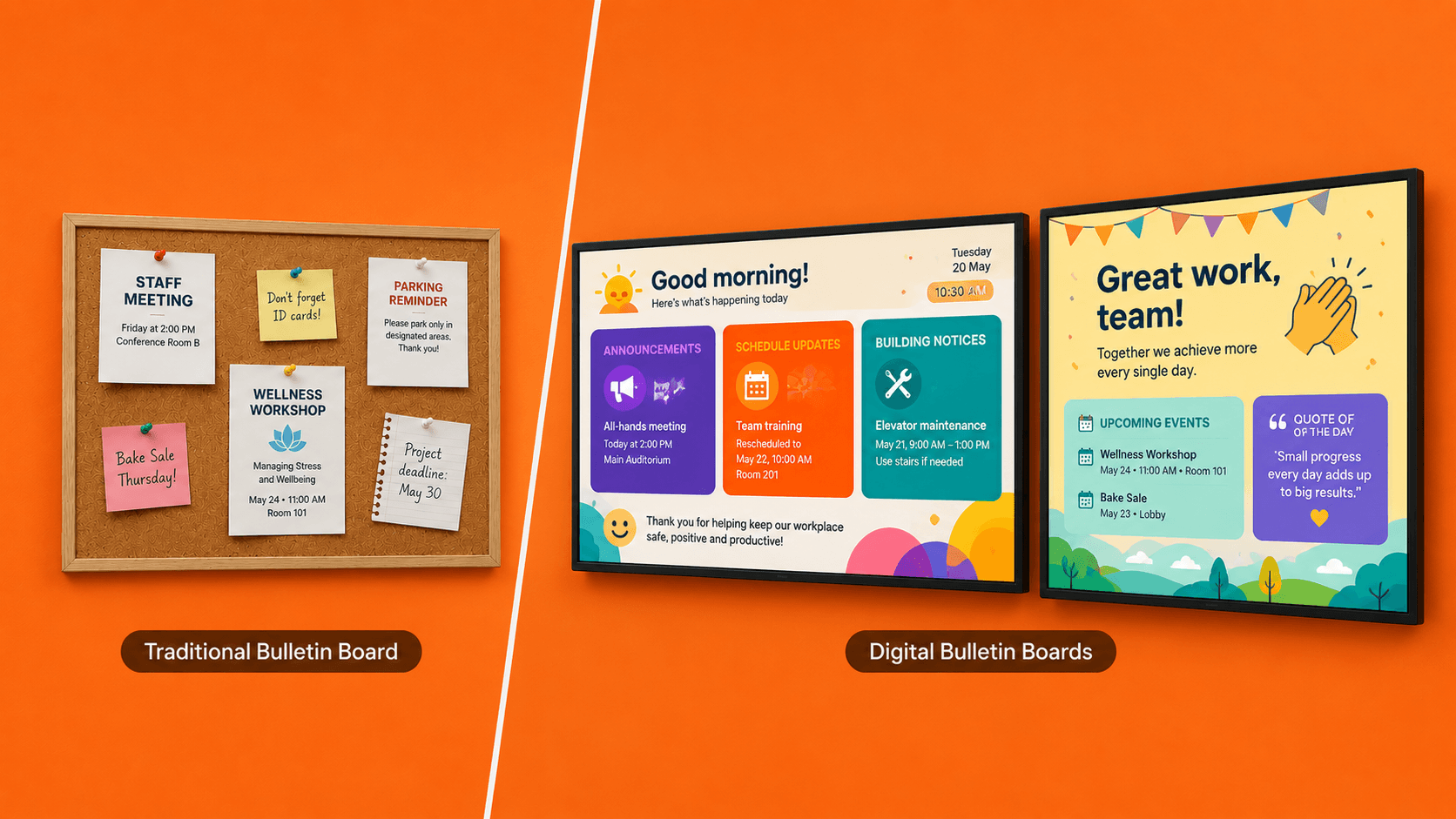
That gap, between the information people actually need and what gets shown to them, is what a digital bulletin board is supposed to close. It works the same way the corkboard always did: a shared surface that tells a community what’s happening. The screen and the software just make it possible to keep that information current, relevant, and visible at the moment it matters.
This guide collects 30specific digital bulletin board ideas for what to put on that screen, why each one earns its slot, and how to roll a board out in a way that actually gets read.
What is a digital bulletin board?
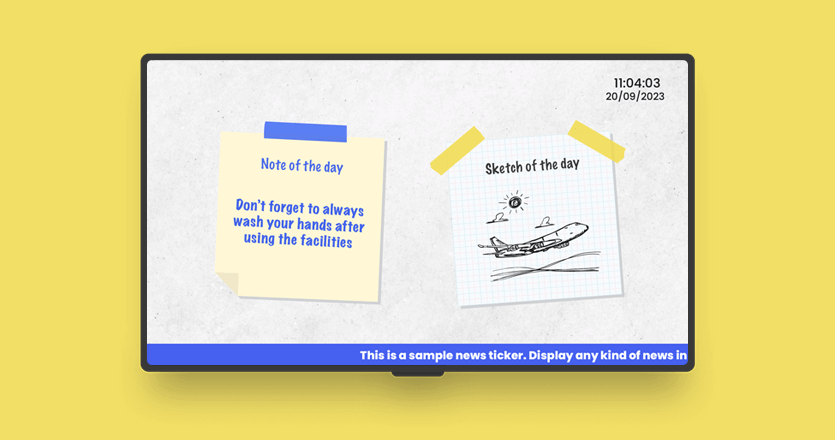
The difference between this and a static corkboard is control. You can update what’s on the screen from a laptop in another building, schedule a notice to appear at 8AM and disappear at noon, mix text with video, and pull data in from systems your team already uses.
| Paper bulletin board | Digital bulletin board | |
|---|---|---|
| Time to update | Print, walk over, pin, remove the old notice | Click, save, live in seconds |
| Content freshness | Decays the moment it goes up | Tailored, context-aware |
| Reach | One physical board, one location | One CMS controls every screen |
| Multimedia | Text and printed images | Video, live data, interactive content |
| Access control | Whoever has a thumbtack | Role-based permissions |
| Cost over time | Recurring print, paper, and staff time | Hardware once, then maintenance |
Best digital bulletin board ideas, grouped by what the content does
The structure below groups ideas by the job the content is doing, so you can pick the right mix for your space.
Announcements and real-time updates
1. Daily news digest. A short rotation of news items relevant to the audience. School: today’s schedule, lunch menu, exam updates. Office: today’s all-hands, building closures, IT notices. The point is freshness. Anything older than a week loses its slot.
2. Schedule and timetable changes. Class moves, room reassignments, meeting reschedules, gate changes in transportation hubs. This is the use case that justifies most boards on its own.
3. Project deadline reminders. A countdown slide showing days to go, the milestone name, and the owner. The team sees it every time they walk past. No one can claim they didn’t know the deadline was coming.
4. Building and operational notices. Maintenance windows, parking lot closures, elevator outages. The information staff would otherwise ask reception all day.
5. Internal job postings. Open roles and lateral move opportunities, posted on the board before or alongside external listings. Most people don’t check the intranet. They do walk past the board in the hallway.
6. Campus resource reminders. A rotating slide pointing students or staff to services they forget exist: career support, tutoring, mental health resources, the library booking system. The corkboard outside the counselor’s office used to do this job. The board does it better because the slide can change weekly and reach every common area at once.
💡 Expert Tip: Schedules let you set content to go live and expire automatically, so a maintenance notice or job posting runs only when it’s relevant, then disappears. Pair it with the Weather & Clock app to surface real-time conditions or time-sensitive alerts without any manual trigger.
Recognition and culture content
7. Employee or student of the month. One person, a short citation, and a clear photo. Rotate weekly or monthly. Keep the citation specific so the board doesn’t feel generic.
8. Birthdays and work anniversaries. Automated celebration content pulls names and dates from your HR system and displays them on the day.
9. Peer shout-outs. A rotating wall where teammates can call out a colleague for a specific action. The format makes recognition visible without requiring a manager to coordinate it.
10. Athletic and academic wins. “Best of luck” before an exam or a game. A photo of the winning team after the result. School communities respond to this content more than almost anything else.
11. Student work showcase. Projects, artwork, and accomplishments displayed on the board for the whole community to see. Different from announcing a win, this is about making the work itself visible. A student who sees their illustration or research project on the screen in the hallway remembers it.
💡 Expert Tip: The Team Celebrations app syncs with BambooHR to display birthday and work anniversary content automatically on the right day. For peer shout-outs, the Canva integration lets your team design recognition slides and push them directly to the board.
Live data and dashboards
12. KPI tiles. One slide in the rotation showing the two or three numbers that matter most today: sales target, tickets open, revenue to date. Large enough to read from across the room, simple enough to scan in three seconds. Not a full dashboard, just the signal the team needs to stay oriented.
13. Production and operations counts. Manufacturing throughput, line uptime, defect rate, including a running “days without incident” counter where safety culture matters. One summary slide in the board’s rotation keeps the shop floor informed without requiring anyone to stop and check a separate system.
14. Attendance and visitor counts. A live count of students checked in for the day, or visitors logged at a clinic. Staff know what they’re walking into before the first question gets asked.
15. Project and task boards. A single status slide showing current sprint, open blockers, days to launch, embedded in the board’s rotation. The team stays aware of where things stand every time they walk past, without opening a tool.
💡 Expert Tip: Connect your Power BI dashboards to display a live data slide with the same row-level security used inside the BI tool. No screenshot workarounds, no manual refresh. For custom metrics, the API lets you push any real-time figure from your own systems onto the board as a data tile.
Safety and emergency content
16. Scheduled drill notices. Post it one or two days before the drill with the time, the type, and what people should do. When the alarm goes off, nobody panics. They’ve already seen the slide.
17. Live weather alerts. When severe weather affects the building or the schedule, the board is the fastest way to reach everyone in the space at once. A connected weather feed updates the slide the moment conditions change, so closures and warnings go up without anyone having to remember to post them.
18. Evacuation and assembly point maps. A standing slide showing the route from this part of the building to the assembly point. Worth posting permanently and rotating into emergency views as needed.
19. Health, wellness, and safety guidelines. Hygiene reminders, mental health check-ins, EAP service signposting, digital citizenship guidelines for schools. Content that doesn’t need to change daily but earns its slot by being consistently useful. A slide that reminds staff about available support or prompts students to practice safe online behavior gets seen hundreds of times a week without anyone having to distribute it.
💡 Expert Tip: Yodeck’s Emergency Alerts feature overrides every screen in a location instantly, useful the moment conditions change. For standing safety content, a dedicated playlist zone keeps evacuation maps visible alongside other content without getting buried in the rotation. You can learn more here about digital signage emergency alerts.
Wayfinding and maps
16. Scheduled drill notices. Post it one or two days before the drill with the time, the type, and what people should do. When the alarm goes off, nobody panics. They’ve already seen the slide.
17. Live weather alerts. When severe weather affects the building or the schedule, the board is the fastest way to reach everyone in the space at once. A connected weather feed updates the slide the moment conditions change, so closures and warnings go up without anyone having to remember to post them.
18. Evacuation and assembly point maps. A standing slide showing the route from this part of the building to the assembly point. Worth posting permanently and rotating into emergency views as needed.
19. Health, wellness, and safety guidelines. Hygiene reminders, mental health check-ins, EAP service signposting, digital citizenship guidelines for schools. Content that doesn’t need to change daily but earns its slot by being consistently useful. A slide that reminds staff about available support or prompts students to practice safe online behavior gets seen hundreds of times a week without anyone having to distribute it.
💡 Expert Tip: For lobby screens, use a multi-zone layout to show a static floor plan in one zone and live information (visitor queue, today’s events) in another, both managed from the same playlist.
Interactive and audience-driven content
23. Polls and quick surveys. A weekly question posted on the board with a QR code linking to a form. The results post the following week. No separate platform needed, just a linked form the viewer scans and submits on their phone.
24. Song or theme of the day. A vote for tomorrow’s playlist or the next book club pick. It gives people a reason to look at the board even when nothing urgent is happening, and that habit pays off when something important goes up.
25. QR code overlays. Any time a board points at something the viewer should take with them: a registration form, a menu PDF, a meeting agenda, a feedback form. The QR turns a passive screen into a doorway.
💡 Expert Tip: The built-in QR Code app generates and displays codes directly on the board. Link to a form, a menu, a Google Doc, or any URL. For touchscreen boards, read more about interactive digital signage in schools to see how interactive responses work in practice.
Social proof and community content
26. Social media wall. A slide in the rotation that shows recent posts from Instagram, X, or LinkedIn that mention the brand or tag the location. It turns the board into a mirror for the community, people stop to look when they see their own content on screen.
27. Internal channel posts. Important discussions happen in Teams or Viva Engage and then get buried. Surfacing a recent post or announcement on the board gives it a second life, reaching the people who weren’t in the conversation.
💡 Expert Tip: For social content, use a dedicated zone in your board layout so the feed updates automatically without displacing other slides. The Social Media Wall keeps moderation in your hands, so only approved posts reach the screen. For internal posts, the Microsoft Teams Channels app pulls updates directly into the playlist.
Seasonal and timely content
28. Holiday and season greetings. A simple “Happy holidays” or “Welcome back” slide that runs for a week or two. The best ones feel personal: a photo from last year’s party, a message from the team, something that couldn’t have come from a template.
29. Event countdowns and recaps. A countdown to graduation, a product launch, or an offsite. Once the event passes, a recap slideshow with photos from the day keeps the moment visible a little longer.
30. Policy and benefits reminders. Open enrollment deadlines, vacation rollover rules, updated office protocols. Time-sensitive information that affects everyone but rarely gets read in an email. A slide that runs for two weeks before the deadline and disappears after it closes does the job without adding to anyone’s inbox.
💡 Expert Tip: Set seasonal slides and time-sensitive policy reminders to activate and expire on specific dates so they go up and come down without anyone touching the CMS. For event recaps, a connected Google Drive folder means new photos appear on the board the moment the files land.
Industry-specific digital bulletin board ideas
The ideas of digital bulletin boards above work across industries. What changes is the mix and the tone. A school cafeteria board does not look like an office lobby board, even if the underlying content categories overlap.
Schools and classrooms
The job of a school board is to keep students and staff informed without adding work for the front office. The pattern that works is one core information board near the entrance, plus smaller boards in cafeterias and common areas with content tailored to those spots.
✔ Best mix for schools: daily announcements, schedule changes, exam reminders, lunch menus, athletic results, safety notices, digital citizenship guidelines, student quizzes and challenges, and current news or world clocks for common areas. Avoid clutter. Younger students respond to bigger type, fewer items per slide, and slower transitions.
Research from American University found that 92% of teachers see a positive impact from digital tools in the classroom. A well-run information board sits inside that same trend, reinforcing daily routines on a screen students already pass several times a day.
———— Related Reading ———–
For more on this, check out our free school signage templates and our guide on ways to use digital signage in education.
—————————————————-
Universities and higher-ed campuses
The job here is different. Universities have many buildings, many departments, and many people who need to update their own screens without going through central IT. The board has to be locally controlled but centrally managed.
✔ Best mix for universities: event walls, decentralized department-specific announcements, library aisle indexes, real-time campus data, and emergency content. The team running the network needs role-based access, so the chemistry department updates the chemistry building screens, not the rest of campus.
A useful example of the live-data side of this comes from New York University’s Shanghai campus, where an environmental sensing group used Yodeck to display live air quality data from sensors deployed on-site. The team manages the screens remotely from New York, powering each display from a small Raspberry Pi tucked behind the TV. The screen count is small. The principle scales: a board that pulls live data from a local source and updates itself, run from anywhere in the world, needs no on-site intervention.
Real-world digital bulletin board examples for schools and campuses
Offices and corporate spaces
The job of an office board is to surface what email and chat already buried. Lobby content welcomes visitors. Break-room content shows recognition and culture. Meeting-room screens show calendar status, KPI tiles, or internal communications updates.
✔ Best mix for offices: KPI dashboards, employee recognition, internal channel posts, all-hands countdowns, and lobby orientation. Integration matters more than design here. The board should pull from the tools the company already uses, not require someone to maintain a separate content library.
Healthcare clinics and waiting areas
The job is to reduce anxiety, not raise it. Patients in waiting rooms have a higher attention floor than almost any other audience, but the wrong tone makes the room feel busier than it should.
✔ Best mix for healthcare: estimated wait times, hygiene and preparation reminders, calm imagery, and clear next-step instructions. Less is more. Heavy animation, urgent colors, and dense text work against the room.
Retail, gyms, and hospitality
The job changes again. Retail boards drive product attention at the moment of decision. Gym boards keep members motivated and informed. Hotel boards orient guests and surface amenities.
✔ Best mix for these spaces: in-store promotions, today’s class schedule, social proof from real customers, and wayfinding. Pacing matters. The retail screen flips faster than the office one. The gym screen rotates with the class schedule. The hotel screen blends information with brand atmosphere.
6 tips to design a digital bulletin board that gets read
- One message per slide. If a slide answers more than one question, split it. Two simple slides beat one busy one every time.
- Contrast over color. Dark text on a light background, or the reverse. Pastels and brand colors fail in real-world lighting. Test the slide on the screen itself, not on a designer’s laptop.
- Font size scales with distance. A useful starting point: minimum font size in points equals one for every foot of expected viewing distance. A board read from 20 feet needs 20-point type at the absolute minimum, usually larger.
- Set slide timing to content density. A simple “Welcome” slide can flip in 4 seconds. A KPI dashboard with three tiles needs 12. A long announcement needs 20. Set the rotation speed to the slowest reader of the slide, not the average.
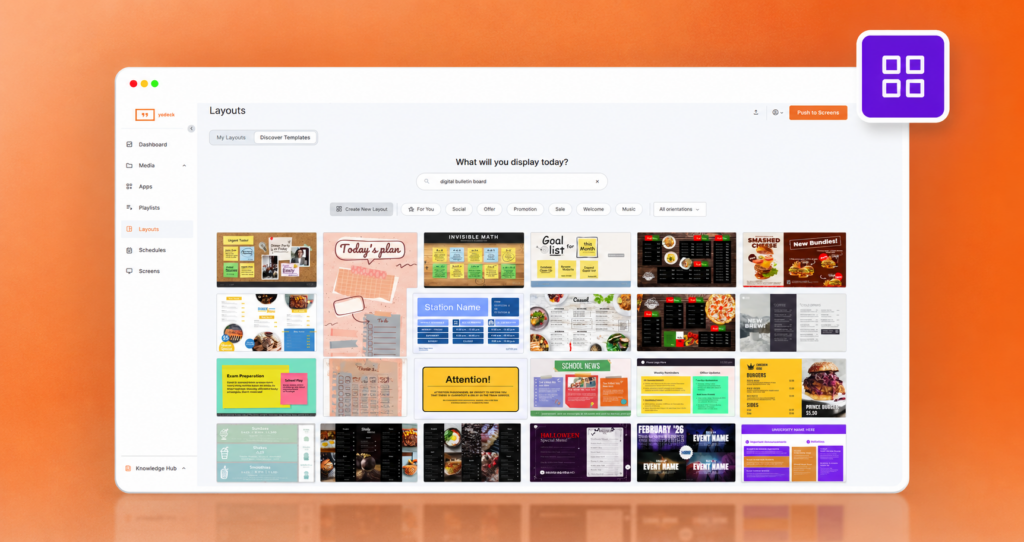
- Templates do most of the design work. Yodeck’s library of free digital signage templates covers the common board patterns. Customizing a template is faster and safer than designing from scratch, and the design choices already follow the rules above.
💡 Pro tip: the 3-second test. Read the slide for three seconds, then look away. Can you say what it was about? If not, the slide is too busy. Either cut something or split it across two slides.
A board worth checking every day
The corkboard worked for forty years for the same reason a good digital bulletin board works now. It gave a community one shared place to look for what was happening. The screen and the software just remove the friction that always limited the paper version.
The best boards are not the ones with the most features. They are the ones the audience has learned to check, because it pays them back every time. That habit gets built by being useful, current, and easy to scan, in that order.
Yodeck is the digital signage software behind 250,000+ screens for 50,000+ customers in 135+ countries, and was named a Leader in the G2 Spring 2026 Digital Signage report based on 2,852+ verified customer reviews. Start with one screen, one room, and one good idea: sign up for the Yodeck free plan and run your first board today.
Get Started with Yodeck
Unlock the power of digital signage with our easy, professional and affordable solution.