


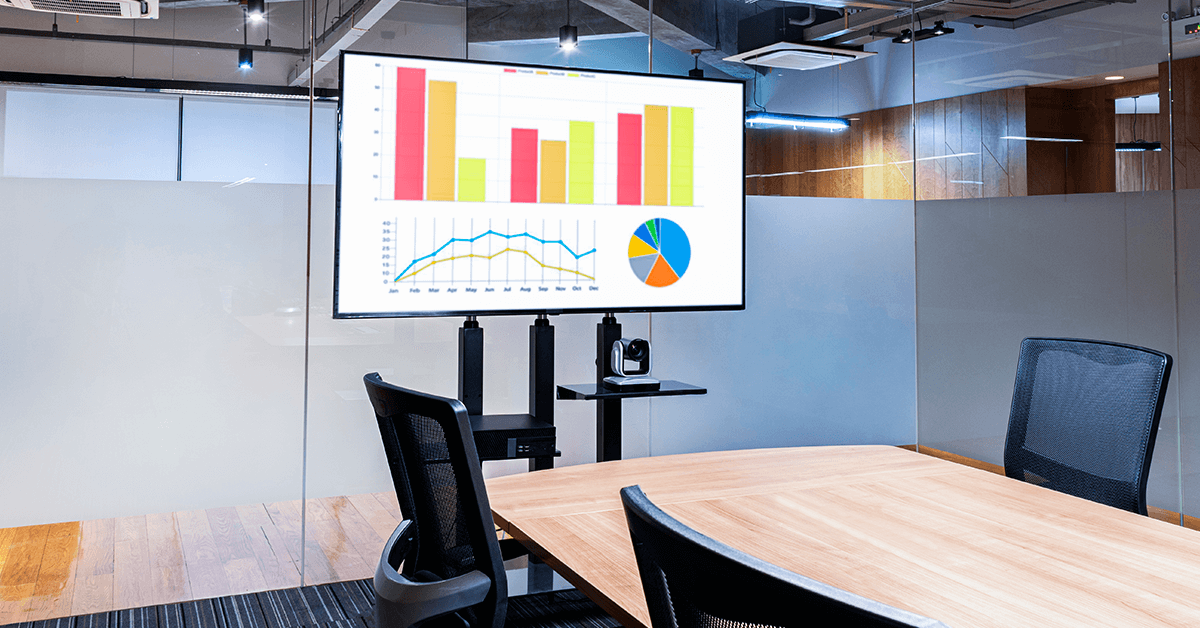
From a USB stick to an always-on business loop, here is every way to get a slideshow on a TV, and which one to pick so it keeps running without you.
Key Takeaways
Most people learn how to play a slideshow on a TV the hard way: a USB stick that works on Friday and shows a blank screen on Monday. The photos were fine. The TV just forgot what it was doing when someone turned it off. If the screen is in your living room, that is a small annoyance. If the screen is in your reception, your shop window or your waiting room, it is a customer looking at nothing.
This guide covers the five ways to play a slideshow on any TV, what each one is good for and where each one breaks. The first four take a few minutes and no special hardware. The fifth is the one small businesses end up on once they are tired of walking over to the TV.
What is a TV slideshow?
A TV slideshow is a sequence of images, and sometimes short videos or slides, that plays on a television screen one after the other, usually on a loop. At home, that means holiday photos on the big screen. In a business, it means the same screen cycling through opening hours, this week’s offers, a welcome message and a few product shots, all day, without anyone pressing a button.
The method you use decides two things: how much effort it takes to change what is on the screen, and whether the slideshow is still playing tomorrow morning. The rest of this article walks through the five methods in that order, from the quickest to set up to the one that needs the least attention afterwards.
5 ways to play a slideshow on a TV
You can play a slideshow on a TV in five ways: plug a USB drive into the TV, cast from your phone, use the TV’s built-in photo app, run an online slideshow through a streaming stick or use digital signage software. The first method is the fastest to try. The last one is the only one built to run unattended.
- Play the slideshow from a USB drive
- Cast the slideshow from your phone
- Use your smart TV’s built-in apps
- Run a photo slideshow online for a TV screen
- Use digital signage software
1. Play a slideshow on a TV with a USB drive
A USB drive is the simplest way to play a slideshow on a TV, and it works on almost any TV made in the last ten years. The TV’s own media player reads the photos from the drive and cycles through them. Here is how:
- On a computer, put the photos you want to show in one folder on the USB drive. Name the files in the order you want them to play (01-welcome.jpg, 02-offers.jpg and so on), because most TVs play them alphabetically.
- Eject the drive safely before pulling it out. Pulling it while the computer is still writing is the most common reason a drive shows up empty on the TV.
- Plug the drive into a USB port on the TV. Most TVs have one on the back or side.
- Open the TV’s media player (often called Media, Photos, Gallery or Source, depending on the brand) and open the folder.
- Select Slideshow or Play all. Set the time per photo and turn on Repeat if the TV offers it.
If your slideshow lives in PowerPoint or Google Slides, export it as images first. Both tools export every slide as a JPEG, and the TV treats each slide as a photo. The guide on how to cast PowerPoint to your TV covers the export settings and the aspect ratio to use so nothing gets cropped.
The limits show up the first time you want to change something. Every update means pulling the drive, walking it to a computer, editing the folder and walking it back. Then there is what happens at power-off. Sony’s TV help guide is typical: the USB player only supports JPEG, it warns that removing the drive while the TV is reading it can corrupt the files, and the slideshow is something you start from a menu, not something the TV resumes on its own. When the TV switches off at night, you or a colleague start the slideshow again in the morning. For a shop owner, that is a daily chore that gets skipped the first busy morning.
2. Cast a slideshow from your phone
Casting sends photos from your phone to the TV over Wi-Fi, with no cable and no drive. On Android and iPhone, the Google Photos app casts to a Chromecast or a Google TV in two taps.
However, your phone and the Chromecast must be on the same Wi-Fi network, and once you tap Cast, you swipe between photos on your phone to change what the TV shows. Casting is a live mirror of your phone, not a loop the TV runs by itself. The phone has to stay on, stay in the room and stay on that screen.
Casting is the right pick for showing a family album at a gathering, or walking a customer through a few product photos at the counter. Casting is the wrong pick for anything that needs to run while you are busy with something else, which in a small business is most of the day.
3. Use your smart TV’s built-in apps
Every current smart TV platform has a photo app that can play a slideshow from a cloud album, with nothing plugged in. Apple TV plays slideshows from your iCloud albums and Google TV and Android TV pull from Google Photos. Samsung and LG TVs have their own gallery apps plus app stores with photo frame apps. What a TV photo app can do depends on the TV’s age and platform, so two screens from different brands rarely behave the same way.
The weakness is the same as USB, in a different place. A TV app starts when you open it and stops when the TV sleeps. The next morning the screen shows the TV’s home menu, not your slideshow, until someone picks up the remote. For a home screen that is fine. For a screen in reception, it means the first thing a visitor sees is a row of streaming app icons.
4. Run a photo slideshow online for a TV screen
An online slideshow pulls its photos from the web, from a cloud folder or a hosted slideshow, so you update the folder and the TV follows. This is the method people are looking for when they search for a photo slideshow online for a TV screen: no computer tethered to the TV, no drive to carry around, and the photos live somewhere you can reach from your desk or your phone.
The practical way to do this on a business screen is a small streaming stick running a signage app, rather than the TV’s own apps. A Fire TV Stick costs well under $100, plugs into the TV’s HDMI port and runs Fire TV Stick digital signage software that treats a cloud folder as the slideshow source. The online slideshow app does the same with images hosted at a web address. Either way, you change the folder and the screen follows, which is the part the first three methods cannot do.
One caveat on consumer sticks: a Fire TV Stick is built for watching, not for running unattended, and newer models do not reliably reopen the signage app after a power cut. For a screen you want to forget about, a stick made for signage (the Amazon Signage Stick) or a dedicated player is the safer choice. Method 5 covers that.
Already have the slides in Google Slides? Google Slides for digital signage covers the quickest route: publish the deck once, point the screen at it and edit the slides whenever you like.
5. Use digital signage software
Digital signage software is the always-on way to play a slideshow on a TV. A small player (a streaming stick, an Android box or a purpose-built player) plugs into the TV, and you manage what it shows from a web dashboard. Upload the photos, set the order and the time per slide, press publish and the screen updates. Close the laptop. The screen keeps going.
This is where Yodeck comes in, and the reason a slideshow is the first thing most small businesses set up with it. A photo playlist in Yodeck is the same thing as a USB folder, except you edit it from anywhere, the player downloads the photos and plays them locally, and the TV switches on and off on a schedule you set once. Everything in the next three sections is about whether you need that, and how long it takes to get there.
💡 Pro tip by Yodeck Team: If you want to keep a USB-style workflow, connect a Google Drive folder as a playlist instead. Drop a new photo in the folder from your phone and the screen picks it up within a few minutes, no portal visit needed.
Which method should you choose?
Pick USB or casting if the slideshow is a one-off, pick a TV app if the screen is at home and pick digital signage software if the screen is in a business and needs to work every day without you. The table below scores each method on the five things that decide whether a slideshow is still running next week.
| Method | Restarts by itself after power-off | Update without touching the TV | Plays on a schedule | Runs on more than one screen | Extra cost |
|---|---|---|---|---|---|
| USB drive | No, you restart it from the TV menu | No, you carry the drive to a computer | No | Only with one drive per TV, updated by hand | None |
| Cast from your phone | No, the phone has to stay connected | Yes, but the phone drives it live | No | No, one phone per TV | None, if you own a Chromecast or Apple TV |
| Smart TV built-in apps | No, the TV returns to its home menu | Yes, update the cloud album | No | Each TV set up separately | None |
| Online slideshow via streaming stick | Depends on the stick; consumer sticks often return to the home screen | Yes, update the folder or link | Yes, with signage software | Yes | The stick, well under $100 |
| Digital signage software with a signage player | Yes, and it switches the TV on and off | Yes, from any browser or phone | Yes | Yes, all from one dashboard | Free for one screen, plus the player |
The first column is the one most people skip, and it is the one that matters most. A slideshow that needs someone to restart it is a slideshow that spends part of every day off. The further down the table you go, the less the screen depends on whoever happens to be standing near it.
How to play a slideshow on a TV without a computer
You can play a slideshow on a TV without a computer in three ways: load photos onto a USB drive from your phone with a USB adapter, cast straight from your phone, or plug a streaming stick into the TV and manage the slideshow from the stick’s signage app on your phone. The third option is the only one that keeps playing after you put the phone down.
The USB route works without a laptop if your phone can write to a USB drive, which most Android phones and recent iPhones can with a small adapter. You still get the same limits as before: the TV restarts from the menu, and every change means plugging the drive back into the phone.
For a business screen, a stick or player with a signage app is the answer. A signage player turns any TV into a managed screen, and the whole setup, from box to live slideshow, is done with a phone and the TV remote. No computer, no IT ticket and nothing left plugged into the TV except the stick. If the screen has to come back on by itself every morning, pick a signage-grade stick or a dedicated player over a consumer streaming stick.
💡 Interesting insight: The question we hear most from first-time users is not “how do I upload photos” but “how do I make it start by itself in the morning.” That one question is the difference between a consumer method and a business one.
Why business screens need more than a USB loop
A business slideshow has to do four things a home slideshow never does: start by itself, change without a site visit, show different content at different times and run on more than one screen. Digital signage software is built around those four jobs, and a small business gets all of them from one web dashboard.
In practice, that looks like this. The screen in your reception switches on at 8AM and off at 6PM because you set working hours once. The offers slide changes on Monday because you swapped the image from your phone on Sunday evening. The lunch menu appears at 11.30AM because it is scheduled, not because someone remembered. And if your second location opens next year, the same playlist goes to that screen too.
Reliability is the part nobody thinks about until a cable gets kicked. Yodeck players download the photos and play them locally, so a dropped Wi-Fi connection does not blank the screen: a player keeps playing its content for at least 30 days without internet, and the Yodeck Player picks up where it left off after a power cut. For an owner without an IT person, that is the difference between a screen you check and a screen you forget about.
Where small businesses use a TV slideshow
The same five-slide loop does a different job in every small business. The table below shows what the slideshow carries in each setting, which slide changes most often (the one that makes USB painful) and the app that updates it for you.
| Business | What the slideshow shows | The slide that changes most | App that keeps it current |
|---|---|---|---|
| Retail shop | New arrivals, this week’s offer, loyalty program, opening hours | The weekly offer | Instagram feed, Canva |
| Café or restaurant | Menu, specials, daily soup, reviews | Today’s special | DSMenu menu boards, Facebook feed |
| Clinic, dentist or vet | What to expect, team, services, how to book | Today’s wait or notice | Google Calendar, Weather |
| Salon or spa | Treatments, before-and-after, booking QR code, products | Availability | Shedul (bookings), QR Code |
| Gym | Class timetable, trainer intros, member of the month | The class schedule | Google Calendar, Team Celebrations |
| Auto repair or tire shop | Services, seasonal checks, waiting area notices | Seasonal promotion | Google Traffic, Weather |
| Real estate office | Listings, sold board, agent profiles | Listings | Google Slides, Canva |
| Hotel or guesthouse | Welcome, breakfast hours, local events, weather | Events and weather | Daily Weather, Google Calendar |
| Office reception | Welcome board, company news, visitor instructions | Today’s visitors | Outlook calendar, Microsoft Teams Channels |
| Church or community group | Welcome, service times, events, volunteer thanks | Events | Google Calendar, Birthday messages |
The pattern across the table is hard to miss. The slide that changes most is almost always something that already lives in another tool: a calendar, a social feed, a booking system. That is exactly the slide a USB drive can never keep current, because the drive only knows what was on it when you last plugged it into a computer.
Apps that do the updating for you
Digital signage apps pull live content from tools you already use and drop it into the slideshow, so the screen updates itself. Yodeck has more than 160 digital signage apps, and the ones small businesses reach for first are the simplest. A weather app and a Google Calendar app cover today’s forecast and today’s classes or appointments. Instagram and Facebook feeds put your latest post on the wall, a QR Code app sends people to your booking page or review page, and Canva and Google Slides let you design where you already design. Cafés add DSMenu for menu boards. Each app is one slide in the playlist, sitting between your own photos, and none needs more than signing in to the tool once.
For a shop owner, that means the Instagram post you published at lunch is on the window screen by the time you have put the phone down. For a clinic manager, it means the calendar slide is right without anyone retyping it.
Waiting room TV slideshow
A waiting room TV slideshow has one job: make the wait feel shorter and answer questions before someone asks them at the desk. For a clinic, a salon, a garage or a vet, that means a loop of what to expect, what is new, who the team is and how to book next time, mixed with a few calm visuals.
A USB loop can show all of that, right up to the first morning nobody restarts it. A managed waiting room TV runs the same loop on a schedule, lets the front desk swap a slide between patients and keeps the news feed or weather widget next to your own content so the screen never feels static. Churches run into the same thing from the other direction, a shared photo album that stops when the volunteer who set it up is away, which is why church digital signage swaps the album for a playlist several people can edit.
How to set up a business slideshow in minutes
Setting up a business slideshow with digital signage software takes five steps and no technical skills: create a free account, plug a player into the TV, upload your photos, pick a template and publish. Once the player is plugged in, the rest is a few minutes of clicking.
- Create an account. Free digital signage covers one screen with no credit card, and the first 30 days include every feature on up to five screens, so you can test a second location before paying for anything.
- Plug in a player. A Yodeck Player arrives preconfigured: connect it to the TV’s HDMI port and your Wi-Fi and it registers itself to your account. A Fire TV Stick or an Android box you already own works too, with the app installed from the TV’s app store.
- Add your photos. Upload them from your computer, import them from Google Photos or Google Drive, or connect a Drive folder so new photos appear on screen on their own.
- Pick a template. Digital signage templates give you a ready layout for opening hours, offers, menus and welcome screens, so your photos sit in a design instead of filling the screen edge to edge. There are more than 800 to choose from.
- Publish and set working hours. Assign the playlist to the screen, set the hours the TV should be on and leave it. The screen switches itself on tomorrow with your slideshow already playing.