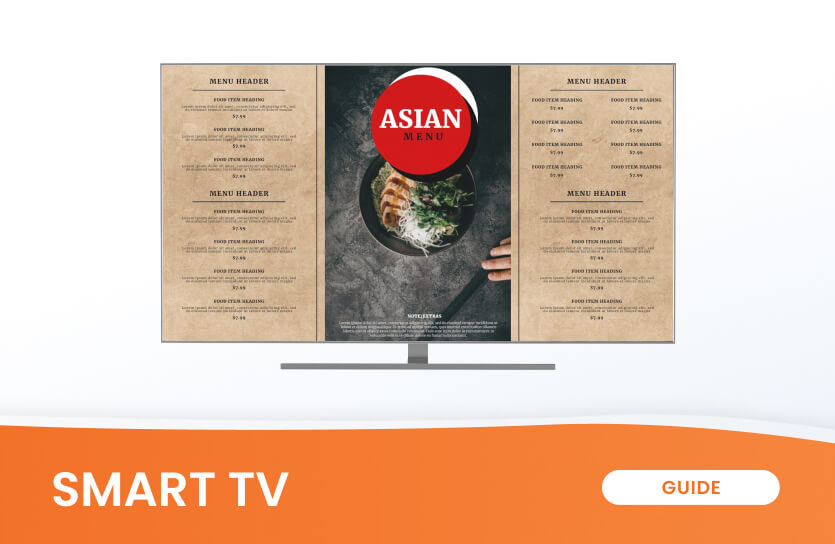
Turn your existing smart TV into a professional digital sign with the right software, settings, and setup strategy.
Key Takeaways
You already have smart TVs in your lobby, break room, or storefront. They’re connected to the internet, they have built-in apps, and they’re sitting there waiting for something better than a screensaver. So why not use them as digital signs?
You can. But the gap between “technically possible” and “actually reliable” is where most businesses get stuck. The wrong software choice, an overlooked platform limitation, or a single missed setting can leave you with screens that freeze overnight, go dark after a power cycle, or cannot be managed without walking up to each TV with a remote.
This guide covers how to choose digital signage software for smart TVs, which TV platforms actually support it, how to set everything up, and when it makes sense to add a dedicated media player instead of relying on the TV alone.
Can you use a smart TV for digital signage?
Yes. Any smart TV with a built-in operating system and an internet connection can run digital signage software, either through a native app installed from the TV’s app store or through the TV’s web browser.
The basic setup requires three things:
- a smart TV,
- an internet connection (Wi-Fi or Ethernet),
- and a cloud-based digital signage CMS to manage and schedule your content.
The CMS handles what plays on screen, when it plays, and across how many displays. The smart TV handles the playback. If you’re unfamiliar with the concept, you can learn more about what a digital signage content management system is and how it works.
However, your results will depend heavily on which operating system your TV runs, which CMS you choose, and how demanding your signage needs are. A lobby welcome screen that updates once a day is a very different ask from a multi-zone restaurant menu board running 16 hours a day.
Smart TV vs. Commercial Display vs. Regular TV: What’s the difference?
Before choosing software, it helps to understand what you’re working with. Smart TVs, commercial digital signage displays, and regular (non-smart) TVs are built for different jobs. Here’s how they compare:
| Smart TV | Commercial Display | Requires recipient action | |
|---|---|---|---|
| Built-in OS | Everyone in line of sight | Yes (commercial Tizen, webOS, Android) | No |
| Typical brightness | 250–500 nits (standard models) | 500–4,000+ nits | 250–400 nits |
| Designed for continuous use | No (built for intermittent home use) | Yes (rated for 16/7 or 24/7 operation) | No |
| Portrait mode support | Not officially supported | Yes | Not officially supported |
| Remote device management | Limited or none | Yes (built-in) | None |
| Signage app ecosystem | Varies by OS | Full signage app support | None |
| Typical price (55″) | $300–$800 | $800–$3,000+ | $200–$500 |
| Best for | Low- to mid-volume signage, testing, budget deployments | High-traffic, high-brightness, always-on environments | Signage only with an external media player |
The key trade-off is cost vs. durability. A consumer smart TV is significantly cheaper up front, but it’s not engineered for heat buildup, extended runtimes, or bright ambient lighting in a commercial environment.
For a break room display or a restaurant menu board that runs during business hours, a smart TV works well. For a storefront window or a 24/7 airport screen, a commercial display is the safer bet.
If you already own a regular TV that isn’t “smart,” you’re not locked out. Plugging in a small media player via HDMI, like a Raspberry Pi-based Yodeck Player or an Amazon Signage Stick, turns any screen with an HDMI port into a fully managed digital sign.
Smart TV οperating systems: What each platform can (and can’t) do for digital signage
The operating system on your smart TV determines which signage apps you can install, how reliable playback will be, and whether your screen will recover on its own after a power outage. Here’s what to expect from the three major platforms.
Samsung Tizen
Samsung’s Tizen OS powers most Samsung smart TVs from 2015 onward. Several digital signage CMS platforms, including Yodeck, offer native Tizen apps that run directly on compatible Samsung displays.
The important distinction is between consumer and commercial Samsung TVs. Both run Tizen, but they’re not the same. Consumer Tizen TVs don’t support auto-starting third-party apps on boot. If the power goes out or someone unplugs the TV, the signage app won’t relaunch on its own. Staff will need to manually restart it with the remote. Consumer models also lack the ability to take remote screenshots, control display on/off schedules, or reboot remotely.
Samsung’s commercial Smart Signage Platform (SSSP) solves all of these issues. They support auto-start, remote device management, and deeper CMS integration through APIs that consumer TVs don’t expose. If you’re buying Samsung specifically for signage, the SSSP series is the more reliable path.
💡 If you want a step-by-step guide, learn how to use Samsung Tizen smart TVs for digital signage.
LG webOS
LG’s webOS is the operating system behind most LG smart TVs. For signage, the picture is split in a similar way to Samsung.
LG’s commercial webOS displays (often marketed as LG commercial-grade signage) support native digital signage apps, including Yodeck, and offer features like auto-start, remote management, and scheduled power on/off. Consumer LG webOS TVs, however, have very limited signage app support. Most CMS platforms, note reduced app functionality on consumer LG models.
You can use a consumer LG TV’s built-in web browser to load a browser-based signage player, but this requires manual startup each day and doesn’t support offline playback. For consumer LG TVs, pairing the screen with an HDMI-connected media player is usually the more practical route.
💡For a detailed setup guide, see how to use LG webOS smart TVs for digital signage.
Android TV / Google TV
Android TV and Google TV (Google’s newer interface layer on top of Android TV) offer the broadest compatibility for digital signage. The Google Play Store gives you access to a wide range of signage CMS apps, and most support auto-start after a reboot, though some Google TV models may require granting additional permissions in Settings to enable it.
Android TV also supports kiosk mode through MDM (Mobile Device Management) tools, which locks the TV to a single signage app and prevents users from exiting to the home screen. This makes it a strong option for public-facing displays.
The main trade-off is fragmentation. Android TV devices vary widely in processing power, storage, and OS version. Some budget models run older Android versions that no longer receive security updates from Google. Before deploying, check that your TV runs a currently supported Android version (Android 13 or newer as of this writing) and has enough local storage for content caching.
💡 Learn more about the Yodeck Android digital signage player and how it works with Android TV devices.
What about Roku, Vizio, and other platforms?
Some platforms like Roku have a handful of signage apps available, but with limited features and minimal local storage. Others, like Vizio SmartCast, don’t support signage apps or a usable browser at all. If you already own a TV on one of these platforms, you can still use it for signage by plugging in an external media player via HDMI. The TV becomes the screen; the player handles everything else.
💡 Before buying signage software, check your TV’s exact model number against the CMS platform’s compatibility list. Even within the same brand, signage app support can vary between model years and product lines.
Yodeck supports Tizen, webOS, Android, Fire OS, Windows, and browser-based playback, giving you flexibility across most major platforms. Try it out for free!
What to look for in digital signage software for Smart TVs
The software you choose matters more than the TV itself. A $300 smart TV paired with strong CMS software will outperform a $1,000 display running a clunky, limited platform. Here’s what to prioritize.
1. Platform compatibility
Start with the basics: does the software run natively on your TV’s operating system? A native app on Samsung Tizen, LG webOS, or Android TV will always be more stable than a browser-based workaround. If your CMS doesn’t support your TV’s OS natively, check whether it offers a web player as a fallback, or whether you’ll need an external media player.
2. Remote content management
Any CMS worth considering should let you upload, schedule, and push content through a cloud-based digital signage platform. You shouldn’t need to be in the same room as the TV to update what’s on it. Look for drag-and-drop content builders, playlist scheduling (including dayparting), and the ability to manage multiple screens from a single account. If you plan to give different team members access, check for multi-user roles and permissions.
3. Offline playback and Local caching
Internet connections drop. When they do, what happens to your screen? Software that supports local caching stores a copy of your content on the device so playback continues even if Wi-Fi goes down. This is one of the biggest functional gaps between running signage through a smart TV’s browser (which typically can’t cache) and running it through a native app or dedicated player (which usually can).
4. Scalability and Remote device management
One screen in a café is simple. Fifty screens across ten locations is a different problem. If there’s any chance you’ll grow beyond a single display, look for features like screen grouping, bulk content updates, remote monitoring (device online/offline status, screenshots), and the ability to push firmware or app updates remotely. These features often separate free-tier plans from paid ones.
💡Cloud-based CMS platforms now account for roughly 78% of digital signage deployments, with on-premise solutions making up the remaining 22%, according to MediaSignage’s State of Digital Signage 2026 report. The shift reflects how important remote management has become, especially for businesses running screens across multiple sites.
How to set up digital signage on a Smart TV (Step by Step)
There are three main ways to get digital signage running on a smart TV. The right one depends on your TV’s operating system, your reliability needs, and whether you’re willing to add external hardware.
Option 1: Install a native signage app on your smart TV
If your TV runs Samsung Tizen, LG webOS, or Android TV/Google TV, you can install a signage CMS app directly on the TV. The typical flow is:
- Install the app
- Launch it to get a registration code
- Enter that code in your CMS dashboard
- Assign content
The TV becomes a managed display you can update remotely.
Option 2: Use a web player through the TV’s browser
If your TV doesn’t support a native signage app, or you want to test a platform quickly, you can load a browser-based signage player through the TV’s built-in web browser. Yodeck’s Web Player, for example, works on any device with a Chrome-based browser. No app install needed.
The trade-offs: browser-based players typically don’t support offline playback, and smart TV browsers may go to sleep or trigger a screensaver after idle periods. It’s the perfect way to demo or pilot a CMS, but not the most reliable long-term setup.
Option 3: Plug in a dedicated media player via HDMI
This works with any TV, smart or not. A small media player connects to the HDMI port and handles all signage functions: content caching, scheduling, and playback. The TV is just the screen. Options include Raspberry Pi-based players like the Yodeck Player, the Amazon Signage Stick, or a Fire TV Stick. This approach gives you the most control, the best offline reliability, and lets you standardize hardware across locations regardless of TV brand.
When to upgrade from smart TV-only to a dedicated player
A smart TV on its own works well for simple, low-volume signage: a single lobby screen, a break room announcement board, or a menu display that runs during business hours. But there’s a point where the limitations start costing you more in maintenance and workarounds than a dedicated player would cost upfront.
Consider adding a player when:
The good news: upgrading doesn’t mean replacing your TVs. A small HDMI-connected player pairs with any screen you already own. Yodeck Player is free with annual plans and ships preconfigured. The Amazon Signage Stick is another plug-and-play option purpose-built for signage. Either way, your existing smart TVs stay in the setup. They just get a more reliable brain behind them.
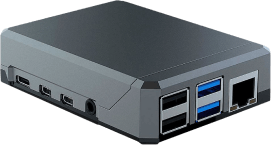
Yodeck Player for FREE
That’s right! Select any annual plan and we’ll give you all the players you need for your screens, preconfigured and ready to go.
Turn your smart TV into a digital sign
Smart TVs have lowered the barrier to entry for digital signage. The hardware is affordable, the screens are already on your walls, and the right software can turn them into fully managed displays in minutes. The key is matching your setup to your actual needs: start with a native app or web player for simple deployments, and add a dedicated player when reliability and scale demand it.
Yodeck works across Samsung Tizen, LG webOS, Android TV, Fire OS, Windows, and any device with a Chrome-based browser, so you’re covered regardless of what’s already in your building. One screen is free forever. No credit card, no trial period, no catch.