


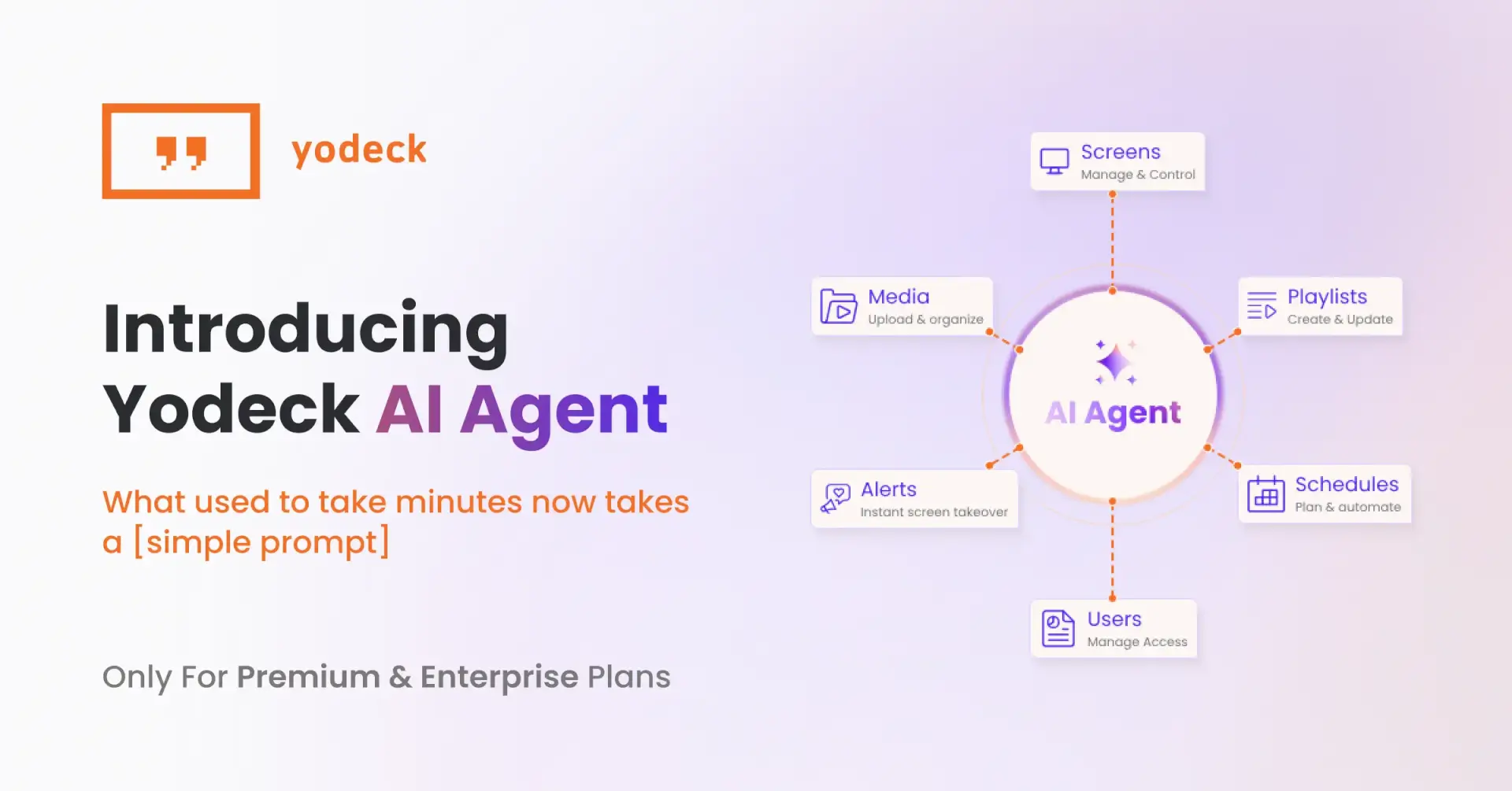
What AI can do for the people who run the screens, shown through the instructions they actually type.
Key Takeaways
When people talk about AI in digital signage, they usually mean content: generated images, personalized offers, smart scheduling. Far less attention goes to the person who has to push that content to 200 screens across 40 sites, check which players dropped offline overnight and set up user access for a new location before it opens.
That work is where AI is starting to save real time, and it looks nothing like a chatbot. This post shows what AI digital signage means at the operations layer, using the Yodeck AI Agent as the worked example, with the exact instructions you can type today.
What does AI actually do in digital signage today?
AI digital signage is the use of AI models to either create the content that plays on screens or to carry out the account work behind them: deploying playlists, provisioning users, checking screen status and scheduling content. The first layer changes what people see. The second changes how much time it takes to run the network.
The content layer gets most of the attention: tools that build a layout from a description, translate a message or pick what to show at 8am versus 5pm. The operations layer is quieter and, for anyone running more than a handful of screens, where the hours go. That’s the layer this post is about, and the Yodeck AI Agent is the example throughout.
Why running screens at scale is a clicking problem
Digital signage at scale is not hard because any single task is hard. It is hard because every task has to be repeated per screen, per location or per user. A campaign rollout to 40 stores means opening the portal, finding the playlist, selecting each screen group and saving. A new site means building workspaces, inviting users and assigning roles one at a time. A status check for the board means exporting screen data and formatting it by hand.
Organizations on an Enterprise digital signage plan feel this most, because they have the most locations and the strictest access rules. Most teams either do the work the slow way or raise a support ticket and wait. Neither option scales, and both pull skilled people away from the parts of the job that need judgment. If you have ever chosen digital signage management software for its bulk action capabilities, you already know where the time goes.
Any digital signage software is one more admin console in a stack of admin consoles. Microsoft’s 2026 Work Trend Index, a survey of 20,000 knowledge workers across 10 countries, found that 66% of people using AI at work say it lets them spend more time on high-value work. For a screen administrator, high-value work means deciding what the network should do, not clicking through the portal to make it happen.
Here is what that difference looks like on five common tasks.
| Task | In the portal | With an AI agent |
|---|---|---|
| Deploy a campaign to every retail screen | Open playlists, find the campaign, open screens, filter by tag, select all, assign, set start time, save | “Assign the Black Friday playlist to all screens tagged retail-floor, starting midnight on November 28th.” |
| Find unused assets | Open media, sort by date, open each playlist to check references, note orphans by hand | “Show me all media not referenced by any playlist.” |
| Emergency takeover | Open screens, select the group, open takeover, pick content, set duration, confirm | “Take over all lobby screens with the fire evacuation notice for 60 seconds.” |
| Set up a new location | Create workspace, add users one by one, assign roles, tag screens | “Create workspaces for each of the 12 store locations in this CSV.” |
| Check account health | Export screen list, filter offline, cross-check last-seen, build a summary | “List all screens currently offline and show their last-seen timestamp.” |
In practice, a task that used to take roughly 10 minutes of navigation now takes about 10 seconds of typing. We use that as an illustration, not a benchmark. The point is the shape of the work: you state the outcome, the system handles the sequence.
Every task in that table runs per screen, per site or per user in the portal. With the agent, each one runs once, from a sentence, inside the tool your team already has open. The more locations and screens you manage, the more time that gives back.
If you’re on Premium or Enterprise, you can connect the Yodeck AI Agent now and try the prompts in the next section on your own screens as you read.
Meet the Yodeck AI Agent
The Yodeck AI Agent connects a Yodeck account to the AI assistant a team already uses, so that account work happens by typing an instruction instead of clicking through the portal. The user writes what they want in Claude, ChatGPT, Cursor, VS Code or any other tool that supports the same open standard, and the agent reads, creates, updates and manages content on that user’s Yodeck account within the permissions that user already has.
Three things define it:
- It runs inside the customer’s own AI assistant, so there is no Yodeck chat window to open and no app to install.
- It signs in with the user’s normal Yodeck credentials, so it can only do what that person could already do in the portal.
- It covers the full Yodeck platform: media, playlists, layouts, schedules, screens, workspaces, users, roles, and groups.
The Yodeck AI Agent is available on Premium and Enterprise plans at no extra charge, because those plans already include the API and OAuth access it depends on.
What can you ask the Yodeck AI Agent to do?
The fastest way to understand an AI agent is to read what people type into it. The prompts below all work today. They’re grouped by job rather than by role, and the examples move between a retail chain, a hospital and a campus so you can see how the same instruction carries across.
Deploy a campaign across every screen
Campaign rollouts are where the portal costs marketing and comms teams the most time, because every step repeats per screen. The agent runs the whole sequence from one instruction: build the playlist, set durations, pick the screens, schedule the start and confirm it’s live. Bulk media uploads are already one of the heaviest uses of the agent, and they follow the same one-line pattern.
- “Create a playlist called Black Friday, add the three banner images I uploaded today, and set each to run for 15 seconds.”
- “Create a new schedule that shows the sales playlist on weekdays from 9 to 5.”
- “Show the all-hands invite on all lobby screens for the next 48 hours, then go back to the default playlist.”
- “Which screens are playing the Summer Sale playlist right now, and are they all online?”
That last prompt is the one to end every session with. Whatever you ask the agent to do, finish by checking the result on your account: which screens got the playlist, whether they’re online, what the schedule looks like now. The agent runs the instruction, and a quick check afterwards tells you it landed the way you meant.
💡 Pro tip by Yodeck Team: Tip by Yodeck: ask for a list before a change and a status check after it. “Which screens are tagged retail-floor?” then “Assign the playlist to those screens” then “Which screens are playing it now?” You see what will be affected before you act and what happened after, which matters most when you’re touching dozens of screens at once.
Set up a new location
Provisioning is the task most administrators dread, because it is entirely manual and entirely repetitive. Workspaces let Enterprise accounts mirror their organizational structure, one workspace per site or region, with users and roles scoped to each. The agent can build that structure from a file.
- “Create workspaces for each of the 12 store locations in this CSV.”
- “Add m.reyes@northwindretail.com as a Content Manager in the Leeds and Manchester workspaces.”
- “Tag all screens in Building A as hq-london and list any screens with no label assigned.”
Workspaces are an Enterprise feature, so the first two prompts apply there. On Premium you can still add users and give them a standard role. It applies across the account rather than to one location, and tags do the grouping job. The third prompt organizes screens in bulk and flags any that were missed.
Check the health of your fleet
Checking screen status is the single most common thing people ask the agent to do, ahead of any content or setup task. It’s also where the support-ticket habit is strongest: an IT manager who wants an offline report often has to export data or ask someone else to pull it. The agent turns the report into a question.
- “Show me all my screens and their current status.”
- “List all screens currently offline and show their last-seen timestamp.”
- “Show me the last recorded display images of all screens tagged waiting-room so I can spot any obvious problems.”
A note on that third prompt: the images are the last ones Yodeck stored for each screen, not a live capture, so a dark frame might just be a video changing over. You still make the call on what’s a problem.
The agent answers when you ask. If you want to be told when a screen drops, set up Screen Email Notifications in the portal, which pair well with remote digital signage management through the agent.
Audit and clean up
Any screen network that has run for more than a year has content nobody remembers approving. Finding it in the portal means opening things one at a time. The agent lets you ask the question of the whole account at once.
- “Audit my account and find empty Workspaces and playlists not assigned to any screen.”
- “Find all screens showing content that was last updated before January 2026.”
- “What screens and playlists are currently using this media file?”
The impact-check prompt is one of the most-used instructions so far, which says something about how people treat the agent: as a way to look before they change anything. Before you replace or retire a file in the portal, ask what depends on it. You avoid the broken playlist that only shows up when a screen in another city goes blank.
One thing to know before you start a cleanup: the agent finds what’s unused, and you remove it in the portal. Deletion is deliberately kept out of the assistant.
Run a full account health check
The audit prompts above answer one question at a time. If you’d rather review the whole account in one pass, we’ve packaged that review as a downloadable skill: a set of instructions your assistant follows to audit your Yodeck account and hand back a report.
The Yodeck Account Health Check runs six separate audits, and you can ask for one or all of them:
- Media (unused, expired or duplicate files, orphaned tags)
- Playlists (expired items, tag-based playlists with nothing left to show, unused playlists)
- Layouts (blank regions, orientation mismatches with the screen, unused layouts)
- Schedules (missing filler content, content scheduled outside working hours)
- Screens (offline players, unpushed changes, timezone mismatches)
- Permission model (users without a group, how many global admins you have, empty workspaces).
You can point it at the whole account, at one or more workspaces, or at a single playlist, layout, schedule or screen. If you don’t say which, it will ask you.
What comes back is a PDF report: a summary table with a status flag per check, a short section on each finding and a prioritized list of what to fix first, plus the headline findings in the chat. The skill reads your account and reports. It doesn’t change anything, and like the rest of the agent, it can’t delete. A few metrics, such as how long a takeover has been running or which assets play most, are estimates based on configuration rather than playback data, and the report labels them as such.
What you need
The skill is built for Claude, and Claude only. You need a Claude plan that supports custom connectors and skills (Pro, Team or Enterprise), code execution switched on in Claude’s settings, and the Yodeck AI Agent already connected.
How to install it
- Download the skill using the button above. It comes as a .zip file. Don’t unzip it.
- In Claude, click your profile name in the bottom-left corner, then Settings.
- Go to Skills, under the Customize section.
- Click Add, then Upload skill, choose the .zip you downloaded and click Upload.
- Back in a chat, type “/yodeck-account-health-check” followed by what you want. For example “run a media audit for the San Francisco workspace” or “Are there offline screens in the London workspace?”
The first run on a large account takes a few minutes, because the skill fetches each screen individually. It tells you before it starts and asks you to confirm.
💡 Pro tip by Yodeck Team: the report puts live problems first: screens showing nothing, offline players, missing filler content. Hygiene items like unused media and near-duplicate playlists come after. Read the first section and you’ll know within a minute whether anything needs attention today.
Take over screens on demand
Sometimes a message can’t wait for the schedule. The screen takeover feature overrides what’s playing on selected screens with an announcement, a playlist or an app, and the agent lets you trigger it from one line, with a time limit that reverts automatically.
- “Take over all lobby screens with the building closure notice for 60 seconds.”
- “Take over every screen tagged production-floor with the safety briefing until 3pm, then return to the default schedule.”
What the AI Agent does not do, and why
The limits on the Yodeck AI Agent are deliberate, and knowing them up front is what makes it safe to hand to a team.
| What it is | What it isn’t |
|---|---|
| A way to read, create, update and manage content and settings on your account | A way to delete anything. Delete operations are disabled as a safety measure, and removal happens in the portal. |
| Able to add widgets and apps that already exist in your account to a layout | Able to build a new widget or app from scratch |
| Able to show the last stored display image for any screen | A live screen capture, or an automatic fault detector. A person reviews the images. |
| An executor of your instructions, within your permissions | An autonomous system that decides what to publish or when |
The delete restriction is the one that settles rollout conversations. The agent can build, assign and reorganize freely, and the single irreversible action still needs a person in the portal. For an IT manager deciding whether to give this to a comms team, that one guarantee is usually enough.
How do you connect Yodeck to Claude or ChatGPT?
Three steps, no code.
- Open your AI tool.
- Add Yodeck from the connectors panel by pasting one URL.
- Sign in with your Yodeck account and approve access.
Your account is now live inside the assistant. The installation guide has the exact steps for Claude.ai, Claude Desktop, ChatGPT, Cursor, VS Code, Windsurf and Claude Code CLI.
Two things to check first. The AI tool needs its own paid plan: Claude Pro, Team or Enterprise for custom connectors, or a paid ChatGPT plan with Developer mode switched on. And if you’re connecting a developer tool like Cursor or VS Code, the connectors panel becomes a short config file, so budget ten minutes instead of one.
If your team already runs Claude or ChatGPT on a paid plan and your Yodeck account is on Premium or Enterprise, you can be connected before this article ends.
What technical teams should know
The Yodeck AI Agent signs in with OAuth 2.1, runs inside the permissions your Yodeck role already has and is built on MCP, the open standard for connecting AI models to external tools. Those three facts cover most of what a security or platform team will ask.
How sign-in and permissions work
OAuth 2.1 is the same flow behind “Sign in with Google” buttons. The AI tool never sees your Yodeck password. It receives a temporary token, which expires on its own and is never logged. All traffic runs over TLS, and Yodeck complies with GDPR and CCPA.
Permissions follow the role. A view-only account stays view-only inside the assistant, a Content Manager scoped to two workspaces reaches only those two, and write access is never granted separately. Each user gets an isolated session, so two admins working at once don’t affect each other. On data: the agent fetches only what a request needs. Ask for offline screens and it pulls screen status, not your media library. Your full account is never handed to the AI provider.
Built on MCP
The agent is built on MCP (Model Context Protocol), the open standard for connecting AI models to external tools, governed by the Linux Foundation since December 2025. Any MCP-compliant client works with Yodeck, including ones not on our published list.
Under the hood, it sits on the Yodeck API, which expanded in 2026 to cover users, groups, roles and bulk screen operations, so every action maps to a documented endpoint. Legacy API tokens still work for tools without OAuth, with the token’s role setting its permissions. Developers can also use the agent to prototype API calls in plain language: “Fetch all screens in workspace ID 4892 and return their online status and current playlist assignment” is a working prompt.
The installation guide has the connection details for every supported tool, including the config file format for IDE setups.
Run your screens from one sentence
Every task that runs per screen, per site or per user is a task you can now run once, from a sentence, inside the tool your team already has open.
A single screen doesn’t need that. Forty locations do, and the saving grows with every site you add. The permissions you already maintain are what keep it safe.
That’s the same admin experience Yodeck customers rate 9.4 out of 10 for ease of admin on G2, moved into your AI assistant. If you’re on Premium or Enterprise, connecting takes a few minutes and the first prompt in this article is a good place to start.
No. For cloud assistants like Claude and ChatGPT, you paste one URL into the tool’s connectors panel, sign in with your existing Yodeck account and you are connected. There is no code and no API key. Only the developer-focused IDE setups involve a small configuration file.
The Yodeck AI Agent is available on Premium and Enterprise plans at no extra charge, because those plans include the API and OAuth access it requires. If API access is not yet active on your account, check Settings in the Yodeck portal or contact your account manager. The AI tool itself also needs a qualifying paid plan. The agent is not yet available to partners managing multiple client accounts.
No. Delete operations are disabled as a safety measure. You can read, create and update content freely through your assistant. To remove assets, do so directly in the Yodeck portal.
Only what you explicitly ask about. The agent retrieves the specific data needed to answer a request, and your full account is not shared with the AI provider by default. Sign-in uses OAuth 2.1, all traffic runs over TLS and Yodeck complies with GDPR and CCPA.
No. The agent makes common tasks faster: bulk actions, status reports and campaign deployments that take several minutes of navigation take one sentence. The portal remains the right place for detailed configuration and content creation.