


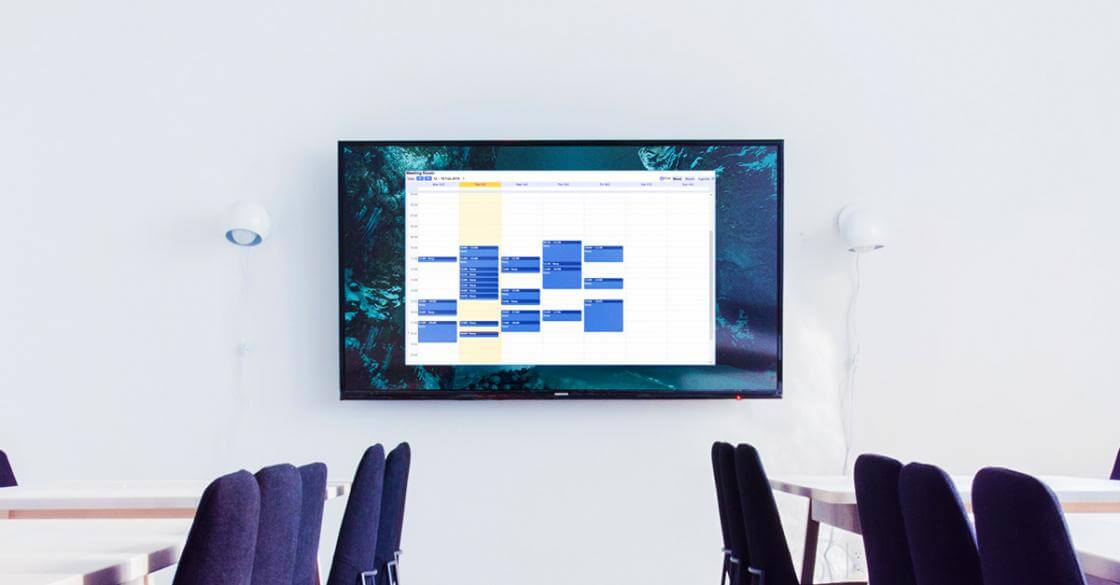
A practical guide for offices and meeting rooms, from setup methods to what actually works at scale.
Key Takeaways
What is a digital Google Calendar display?
A Google Calendar display is a screen, usually mounted on a wall or outside a meeting room, that pulls live events from a Google Calendar account and shows them to anyone walking past. The screen refreshes automatically as the calendar updates, so what you see is always current.
This is different from casting from a phone, or pinning a printed schedule to a door. A proper calendar display runs continuously, stays synced, and doesn’t depend on someone remembering to refresh it. For more on how this fits into shared-space communication, see Yodeck’s digital calendar display solution page.
Setups range from a tablet running the Google Calendar app in kiosk mode to a full digital signage software platform managing hundreds of screens across offices. The right one depends on how many screens you’re running, whether your calendar is private, and what else you want on screen.
Why offices are putting Google Calendars on screens in 2026
Shared calendars are the nervous system of a hybrid office. They decide who’s in, which room is free, and when the all-hands starts. The problem is that most of that information lives on personal devices, which means it’s only visible to whoever remembers to check.
That gap shows up in the numbers. According to Ronspot’s 2026 Workplace Report, ghost bookings, meetings reserved but never actually held, account for roughly 30 to 40 percent of booked room capacity in a typical hybrid office. The same report puts the healthy utilization range at 60 to 75 percent of booked hours versus available hours, a benchmark many organizations fall well short of. The real cost isn’t the empty room. It’s the trust collapse: teams stop believing the booking system, start working around it, and the problem compounds.
A calendar on a shared screen is the cheapest correction to that cycle. When availability is visible in the hallway rather than buried in Calendar, three things change:
- Ghost bookings become socially visible, which tends to make them rarer.
- Ad-hoc meetings find empty rooms faster.
- Disputes about “who booked what” are resolved on the spot.
There’s a productivity case behind this, too. McKinsey Global Institute has estimated that knowledge-worker productivity can rise by 20 to 25 percent in organizations where employees are well connected. Visible, current information is a component of that, not the whole story, but it’s the part of the story where a screen in the hallway does real work.
Ghost bookings compound
Every no-show that doesn’t get released is a room that looks busy but isn’t. A visible calendar on the door doesn’t solve booking behavior by itself, but it makes the problem impossible to ignore.
Where a Google Calendar display earns its keep
Four placements do most of the work. Each solves a different problem, and most offices end up using two or three of them.
Outside meeting rooms
When someone walks down the hall looking for a spare room, the fastest path to “yes, this one’s free” is a visible schedule on the door. A google calendar display outside each conference room signage setup shows the current booking, who owns it, and the next slot, with the calendar itself doing the work. No one has to manage anything. This is the classic use case, and it’s usually where a rollout starts.
Office dashboards and team hubs
In break rooms, reception areas, and team hubs, the calendar is less about “is this room free” and more about “what’s happening today.” People glance at it on the way to the coffee machine. A weekly view of the team calendar keeps everyone oriented without requiring a stand-up.
Lobbies and visitor areas
For visitor-facing screens, a calendar pulls double duty. It tells guests which meeting is happening where, and it tells them when their host is likely to appear. For offices with regular external visitors, this replaces the awkward reception-desk conversation where someone flips through a printout.
Multi-location and distributed offices
If you run more than one office, the question shifts from “can we put a calendar on a screen” to “can we manage thirty of them without a support ticket per screen.” This is where a managed platform earns its keep. TUI Group runs over 200 screens across four continents with centralized content and local overrides. A calendar is one feed among many, but the platform is what makes a rollout like this tractable.
Three ways to display a Google Calendar, compared
Three options cover almost every real-world case. A managed digital signage app is the right default for business use. A public ICS link is the right call when the calendar is already public or meant to be, like a shared events calendar. A DIY Raspberry Pi kiosk is rarely the right call for a business, but it covers a keyword cluster and a few niche use cases.
Here’s how they compare on the criteria that matter:
| Yodeck Google Calendar app | Public ICS link + calendar app | DIY Raspberry Pi kiosk | |
|---|---|---|---|
| Works with private calendars | Yes | No, calendar must be public | Yes, if signed into Google on device |
| Setup time | Under 10 minutes | 10 to 20 minutes | Hours, plus ongoing tinkering |
| Supports 2FA | Yes, via security key | N/A, public data only | Manual re-auth required |
| Multi-screen management | Centralized | Centralized, one feed per app | Each screen managed individually |
| Works with other content | Yes, in playlists and layouts | Yes, in playlists and layouts | No, single-purpose display |
| Remote updates | Yes | Yes | SSH or physical access |
| Best for | Offices, meeting rooms, multi-location | Public events calendars, community schedules | Home projects, single-screen experiments |
The pattern most businesses end up with: native app for internal calendars, ICS for any schedule that’s already meant to be public (conference agendas, training schedules, community events), and no Raspberry Pi DIY at all. For teams already running a signage platform, the DIY route costs more in time than it saves in software fees, and it doesn’t scale.
If the question is “which method survives the first fifty screens,” the answer is always the managed platform. That’s where enterprise digital signage deployments live, with central control, role-based access, and the ability to push a change to every office at once.
How to set up a Google Calendar display with Yodeck
The Yodeck Google Calendar app is the most direct way to put a private calendar on a screen. Full setup takes about five minutes.
Quick tutorial:
- Sign in to Yodeck and open the app gallery.
- Find the Google Calendar app in the Calendar Apps section and click to add it.
- Enter a name and (optional) description.
- Enter the email address and password for the Google account that owns the calendar.
- If the account uses 2FA, paste in the 2FA security key (the same TOTP secret used in your authenticator app). You can skip this if 2FA is disabled on that account.
- Set the refresh interval, typically 180 seconds is fine for most offices.
- Choose the view you want on screen: day, week, or month.
- Set the default duration for how long the calendar appears in a playlist.
Once saved, assign the app to a screen or drop it into a layout next to other content. That’s the whole flow. More detail, including how to find your 2FA key, lives in Yodeck’s documentation.
A note for IT: the 2FA security key option was added in 2025 and is what lets the app work with Google accounts that have multi-factor authentication enabled. If your organization requires 2FA on all Google accounts (most do), this is the path that keeps you compliant without making calendars public.
Good practice for shared setups
Create a dedicated Google account for display calendars rather than using a real employee’s account. When that person leaves or changes their password, you don’t want six meeting rooms going dark.
Setting up a Google Calendar display via an ICS link
The ICS method is for calendars that are already public, or meant to be, like a public events calendar, a conference agenda, or a training schedule. If the calendar contains any private information, skip this method and use the app from the previous section instead. The ICS link only works if the calendar is made public, which means anyone with the URL can see the events you’ve chosen to share.
Get the ICS link from Google Calendar
- Open Google Calendar and go to Settings via the gear icon.
- In the “Settings for my calendars” section, click the calendar you want to display.
- Scroll to “Access permissions for events” and check “Make available to public.” Choose either “See only free/busy” if you want to hide event details, or “See all event details” for full visibility.
- Scroll further to “Integrate calendar” and find “Public address in iCal format.”
- Copy that link.
Use the ICS link in Yodeck
- In the Yodeck portal, go to Apps and create a new calendar app. Pick one of the generic calendar apps (Daily/Weekly Calendar, Monthly Calendar, or Calendar Events Feed), not the Google Calendar app. The generic apps are the ones that accept ICS feeds.
- Paste the ICS link into the Calendar Feeds field.
- Save, preview, and assign to a screen.
This method is useful for one specific reason: it doesn’t require credentials. Nothing is stored in Yodeck that could be used to sign into a Google account. The trade-off is that your calendar is visible to anyone who finds the URL. For a schedule meant to be public anyway, that’s not a problem. For anything else, it is.
Google Calendar display on Raspberry Pi: DIY vs managed
The Raspberry Pi is a common answer to “how do I get a Google Calendar on a TV cheaply,” and there are plenty of DIY guides walking through a Chromium kiosk pointed at the Google Calendar web view. Those guides work, for one screen, if someone on the team is willing to own the setup.
The honest version: DIY Raspberry Pi calendar displays are a home-automation solution. They don’t handle updates across multiple screens, they don’t survive Google auth changes without manual intervention, and they break when the browser or OS updates. For a business, the total cost of ownership ends up higher than a managed platform, even before counting the time spent troubleshooting.
Yodeck is Raspberry Pi digital signage built on the same hardware, but with the software managed for you. The Yodeck Player is a preconfigured Raspberry Pi 4, plug-and-play, that connects to your account on first boot. You get the Pi price point without the Pi maintenance burden, which is usually what people actually want when they start down the DIY path.
What to show alongside your calendar
A calendar on its own is useful but sparse. On real deployments, the calendar shares the screen with whatever else the team needs to see. That’s what turns a single display from a schedule into an information hub. These are the most common pairings:
- Real-time data dashboards. Power BI, Looker Studio, Airtable, or a live Google Sheet in a tile beside the calendar gives every meeting a shared starting point. Visma runs exactly this pattern across their offices to keep team dashboards visible alongside schedules.
- Announcements: Company news, all-hands reminders, new hires, product launches. Quick-rotating tiles beside the calendar carry the weight that internal email usually misses.
- Team celebrations: add a human layer without ongoing upkeep. Yodeck’s Team Celebrations app pulls birthdays, work anniversaries, and new starters directly from BambooHR, so the content maintains itself.
- Other context layers. Weather, local traffic, time zones for distributed teams, or news headlines: none are essential, but they’re cheap to add and they make the screen feel like it’s earning its place.
For offices that want the calendar inside a broader dashboard setup rather than standalone, the same platform supports TV dashboard displays that combine data, calendars, and comms into one view.
Frequently Asked Questions
Can I display a Google Calendar for free?
Yes. Yodeck’s free plan covers one screen with no credit card required, and new signups get 30 days of unlimited access across up to five screens. For a single meeting room or lobby display, that’s enough to run a calendar indefinitely.
How do I display a private Google Calendar without sharing credentials publicly?
Use a digital signage app that supports direct authentication to Google Calendar. The Yodeck Google Calendar app works with private calendars using email, password, and an optional 2FA security key. Credentials are stored in your Yodeck account and aren’t exposed on the screen itself. For additional safety, create a dedicated Google account for display use rather than using a personal one.
What’s the difference between an ICS link and a public calendar URL?
Both come from the same Google Calendar settings page, but they do different things. The public URL shows a web version of the calendar in a browser, which is what you’d embed in a webpage. The ICS link is a standardized calendar feed that other apps, including digital signage software, can read and render natively. Both require the calendar to be made public first. If you need a private calendar on a screen, neither option works; use the authenticated app method instead.
How many screens can show the same calendar?
As many as you want. Once the calendar is connected to Yodeck (via the app or an ICS feed), you can assign it to one screen or to every screen in your account. The calendar itself is the source, and each screen is just a view on it. Updates push to all screens at once, which is what makes this scale for office digital signage rollouts with dozens or hundreds of displays.
Start with one screen
Most offices that end up with a fleet of calendar displays started with one, usually outside the busiest meeting room. The pattern is worth copying: pick the screen where visibility would help most today, get the calendar on it, see what it changes, then expand from there.
Yodeck’s free plan covers that first screen with no credit card required. If the calendar justifies its space, adding the next screen is a few clicks.